Watermark settings
Customize system page watermarks in Dataphin to match your display preferences.
Usage instructions
To configure page watermarks, the Intelligent R&D Edition must be activated.
The watermark feature does not apply to the resource administration module page.
Permission description
-
Super administrators and system administrators can set the page watermark style.
-
Regular members can view the page watermark style.
Page watermark settings
-
Navigate to the Dataphin home page and single click the Management Center in the top menu bar.
-
In the Management Center page, use the following illustration as a guide to access the Watermark Settings tab.
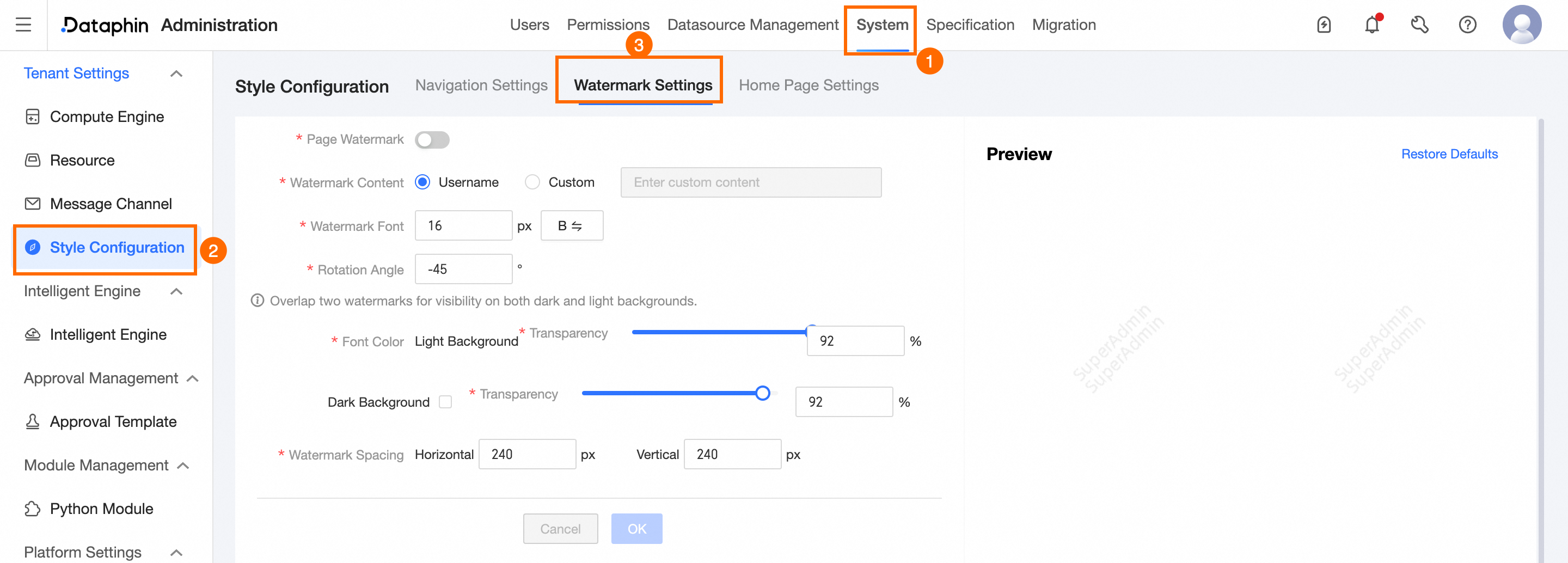
Parameter
Description
Page Watermark
Enabled by default. You can modify the watermark style, then confirm and refresh the browser to apply changes immediately for the tenant. If disabled, the watermark is not visible for the tenant.
Watermark Content
Sets the watermark content. Options: Username and Customize.
-
Username: Displays the tenant's username and account.
-
Customize: Enter custom watermark text, up to 100 characters.
Watermark Font
Adjusts the font size and boldness of the watermark text.
-
Font size: Default is 16px, with a range of 8~80px available for customization.
-
Bold: Toggle the boldness of the font by single clicking the
 button.
Rotation Angle
Sets the rotation angle for the watermark text. Default: -45°. Range: -360° to 360°.
Font Color, Transparency
Configures dual-layer watermarks for visibility against both light and dark backgrounds.
-
Font Color: Black (#000000) for light backgrounds and white (#ffffff) for dark backgrounds. Not modifiable.
-
Transparency: Default is 92%. Range: 0% to 100% for both dark and light backgrounds.
Watermark Pitch
Sets the horizontal and vertical spacing of the watermark. Default: 240px. Range: 0 to 500px.
Effect Preview
Preview the watermark effect in real-time after configuration.
NoteTo revert to the system's default settings, simply single click the Restore Default Configuration button in the upper right corner.
-
-
Confirm your settings by single clicking the Confirm button. Refresh the browser page to apply the changes immediately for the tenant.