X-Data Engineering automatically generates integration tasks, data models (conceptual, logical, and analytical), and code tasks based on the requirements you provide.
Prerequisites
-
Intelligent R&D Edition activated.
-
X-Data Engineering assistant configured and enabled. Set it up in Intelligent Application.
Limitations
After a subject domain model is generated, only users who have enabled Asset Operations - Standard Edition and have Directory Planning-Manage permissions can perform the Create as Asset Topic Directory operation.
Permissions
-
Super administrators, system administrators, operations administrators, and custom global roles with X-Data Engineering-View permissions can view and use the X-Data Engineering assistant.
-
Without Planning-Business-View permissions, users cannot perform conceptual modeling.
-
Without Planning-Business-Manage permissions, users cannot publish conceptual models.
Create a new conversation
X-Data Engineering supports conceptual modeling (generating a data conceptual model based on enterprise business descriptions) and logical modeling (generating logical tables based on business entities in a conceptual model).
Conceptual modeling
-
In the top navigation bar of the Dataphin homepage, choose Super X > X-Data Engineering.
-
Click the Conceptual Modeling card.
-
Enter your requirements in the chat box. Click the
 icon to upload supporting files.
Supported formats: txt, md, html, doc, docx, pdf, xls, xlsx, ppt, pptx, and csv. Maximum 10 files, each up to 2 MB.
-
Click Use Example to create a conceptual model based on the provided information.
-
Edit the generated conceptual model, then click Publish Model in the Conceptual Modeling panel to create the corresponding objects in the tenant.
-
Click the
 icon next to a file name to download it.
 -
Click the
 icon to regenerate the model.
 -
Click the like or dislike icon to provide feedback. For dislikes, you can submit up to 512 characters of feedback. Closing the dialog without submitting records only the dislike.
-
Click a data block, subject domain, or business entity node to reference it in the conversation.
-
Responses are numbered starting from 1. Click the
 icon to roll back the model to that version.
-
-
(Optional) After publishing the conceptual model, proceed to Create a conceptual model.
Logical modeling
-
In the top navigation bar of the Dataphin homepage, choose Super X > X-Data Engineering.
-
Click the Logical Modeling card.
-
Select a business entity and project to generate logical tables. You can also add a description or upload documents.
-
Business Entity: Select any online business entity (general business objects or business activities) in any data block of the current tenant that does not yet have a logical table.
-
Project: Select a business entity first. Available projects are those bound to the selected entity's data block.
-
-
After you send the request, the system retrieves associated entities (general business objects without a logical table) for the selected business entity. Hover over the
 icon next to each entity to view its name, code, subject domain, and type.
Confirm the Source Data for Logical Table. The system recommends source tables for each entity sequentially, prioritizing tables in the project bound to the entity's data block. You can delete recommended tables or add others. Click Add to open the Source table for logical table panel, where you can add multiple source tables. You can search by name and filter by data block, project, and table type.
-
After configuring source tables for all entities, click Generate Logical Table to generate the field list and computing logic.
-
Logical table field list: Includes the field name, description, data type, field type, and notes. You can edit field information as needed.
-
Logical table computing logic: After finalizing the field list, click Next. The system generates the computing logic. You can enter optimization instructions in the chat box to regenerate it. You can also edit and format the logic code. After editing, re-validate by clicking Start Validation. The logic must pass validation before submission.
-
-
(Optional) Click the like or dislike icon to provide feedback. For dislikes, you can submit up to 512 characters of feedback. Closing the dialog without submitting records only the dislike.
-
Click Submit to start submission. After success, the logical table status changes to Success.
Conversation management
-
Conversation History: Click Conversation History in the upper-right corner. The Conversation History dialog box shows the 20 most recent conversations with these actions:
-
Search: Search conversation records by title keyword.
-
Rename: Click the Rename icon next to a conversation to rename it. Maximum 256 characters.
-
Delete: Click the Clear icon next to the search box to delete all history, or click the Delete icon next to a conversation to delete it.
-
-
New Conversation: Click New Conversation in the upper-right corner to start a new conversation.
Modeling operations
Conceptual modeling operations
|
Area |
Description |
|
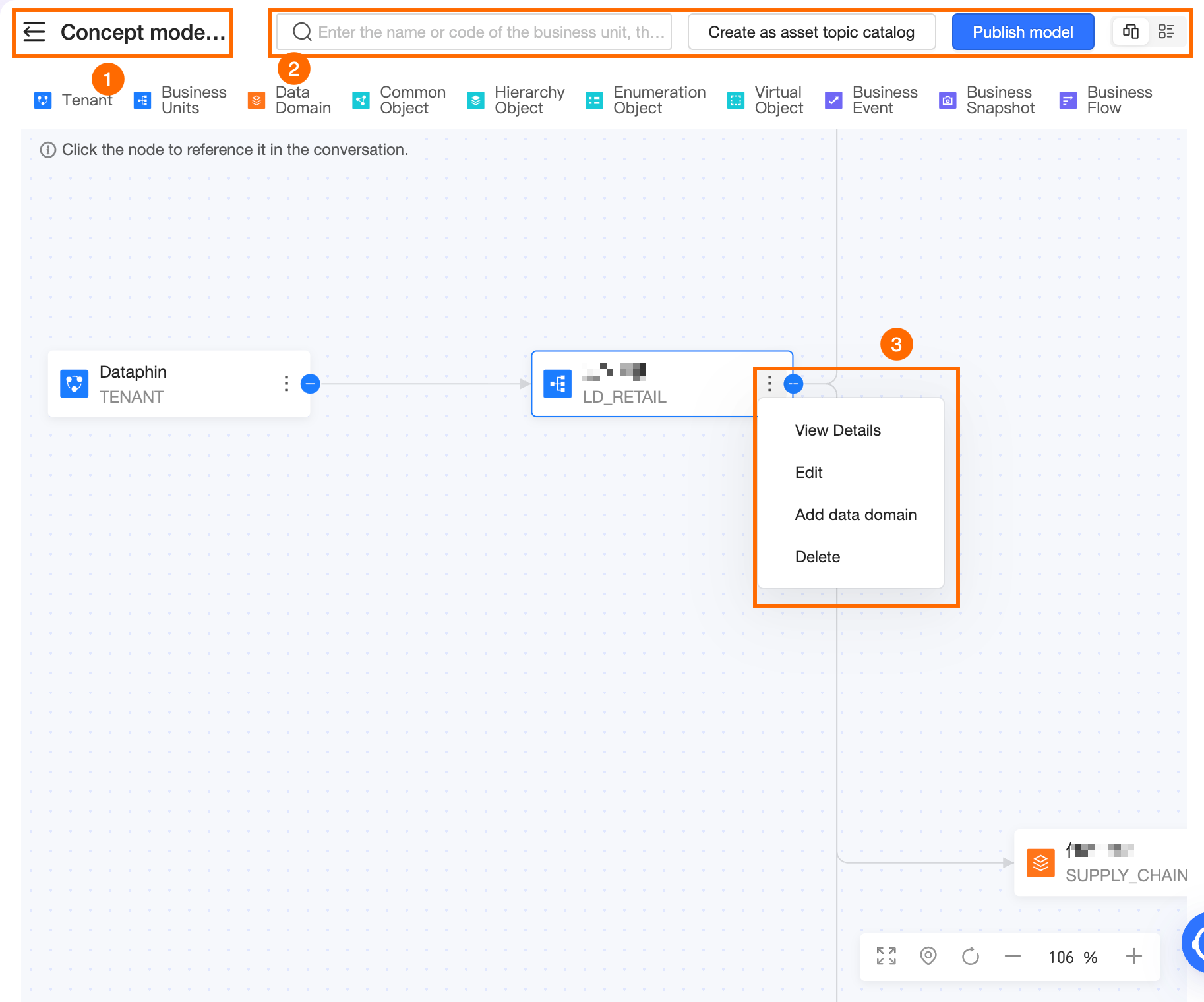
①Full-screen display |
Click the |
|
②Search and view switch |
|
|
③Supported operations for each node |
The tenant, data block, subject domain, and business entity nodes support these operations:
Note
You cannot edit or delete data blocks, subject domains, or business entities that already exist in the tenant. Node operations are detailed in Operations supported by tenant nodes, Operations supported by data block nodes, Operations supported by subject domain nodes, and Operations supported by business entity nodes. |
 icon for full-screen view. Click the
  icon to return to the panel view.
Tenant node operations
|
Operation |
Description |
|
View Details |
Click the |
|
Add Data Block |
Add a new data block to the existing model. Click the
|
 icon on the tenant node and select View Details to see the node's Type, Name, Code, and Description. The Node Type is Tenant.
Data block node operations
|
Operation |
Description |
|
View Details |
Click the |
|
Edit |
Click the
|
|
Add Subject Domain |
Add a subject domain under this or another data block. Click the
|
|
Delete |
Click the Note
Deleting a data block also deletes all nodes it contains. |
Subject domain node operations
|
Operation |
Description |
|
View Details |
Click the |
|
Edit |
Click the
|
|
Add Subdomain |
Add a subdomain under this or another subject domain. Click the |
|
Add Entity |
Click the
|
|
Delete |
Click the Note
Deleting a subject domain also deletes all nodes it contains. |
Business entity node operations
|
Operation |
Description |
|
View Details |
Click the |
|
Edit |
Click the |
|
View entity relationship |
Click the |
|
Delete |
Click the |
Logical modeling operations
-
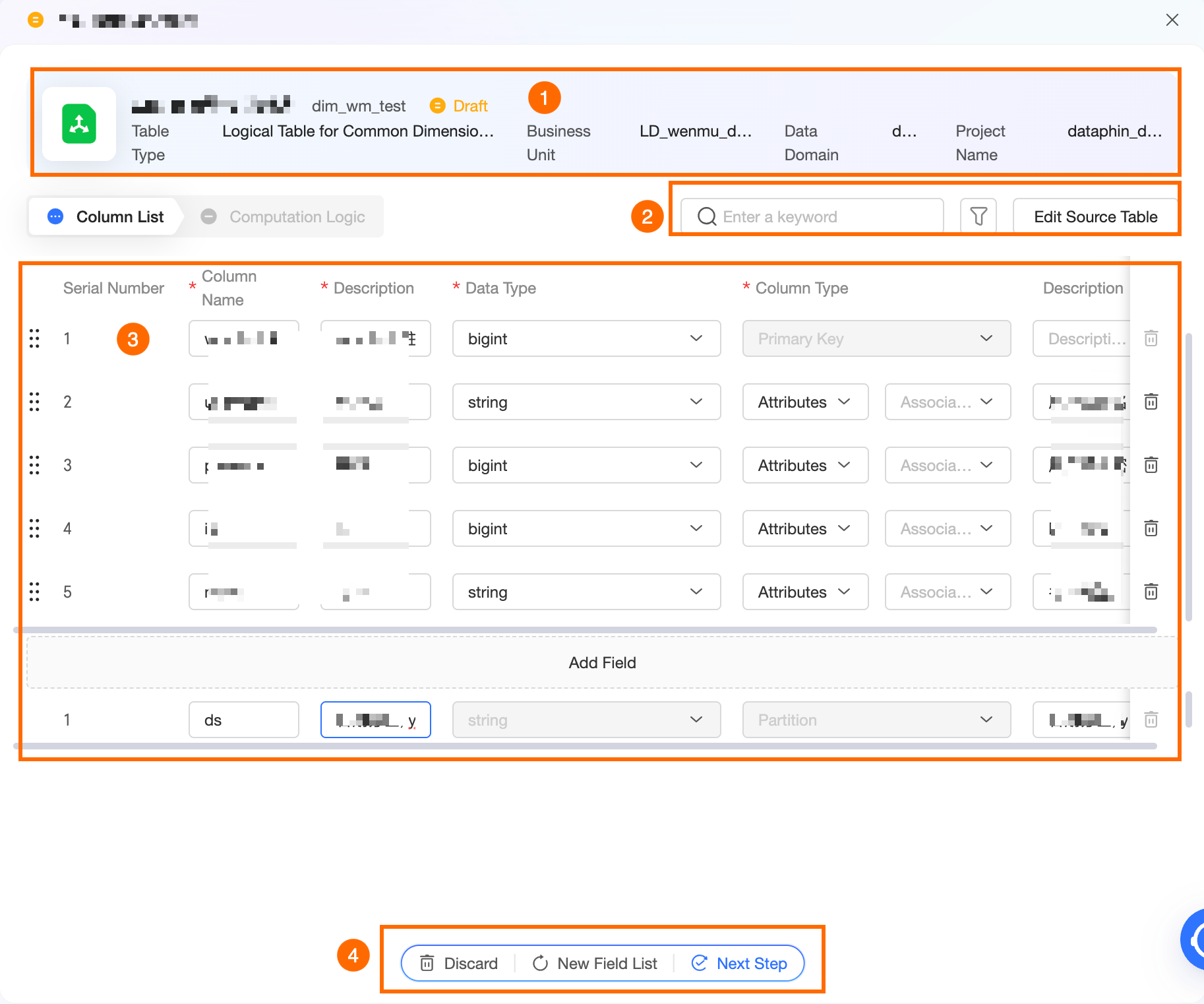
Supported operations on the field list page

Area
Description
①Basic information of logical table
The basic information includes the logical table's Chinese name, English name, status, table type, data block, subject domain, and project. The table type is determined by the business entity type. You can modify the Chinese and English names. The English name prefix and suffix follow the Development Specification > Table Naming Convention of the entity's data block.
②Search and filter, edit source tables
-
Search and Filter: Enter a field name for fuzzy search. Click the
icon to filter by Data Type and Field Type. -
Edit Source Tables: Click Edit Source Tables to select source tables in the Source table for logical table panel. Search by name and filter by data block, project, and table type. Click the
icon in the Actions column to view a table's field list. Modifying source tables regenerates the field list.
③Field list
The field list contains No., Field Name, Description, Data Type, Field Type, and Notes.
-
Field Name: Up to 128 characters long. Supports only letters, digits, and underscores (_).
-
Data Type: Supports string, bigint, double, timestamp, decimal, text, numeric, datetime, and other data types.
-
Field Type: primary key, business time (Process Start Time, Process End Time, Event Time, Snapshot Time), attribute, metric, partition.
In the field list, you can add, delete, and reorder fields.
-
Add Field: Click Add Field to add a blank row at the bottom of the list.
-
Delete Field: Click the
icon in the Actions column of a field to delete it.NoteThe primary key field cannot be deleted.
-
Adjust Field Order: Drag the
icon to reorder the fields.
④Overall operations for the field list
-
Deprecate: Skip creation of this logical table. Deprecated tables cannot be edited. This action is irreversible.
-
Regenerate field list: Click Regenerate field list to regenerate the field list for the selected business entity.
-
Next: After confirming the field list, click Next to generate the computing logic.
-
-
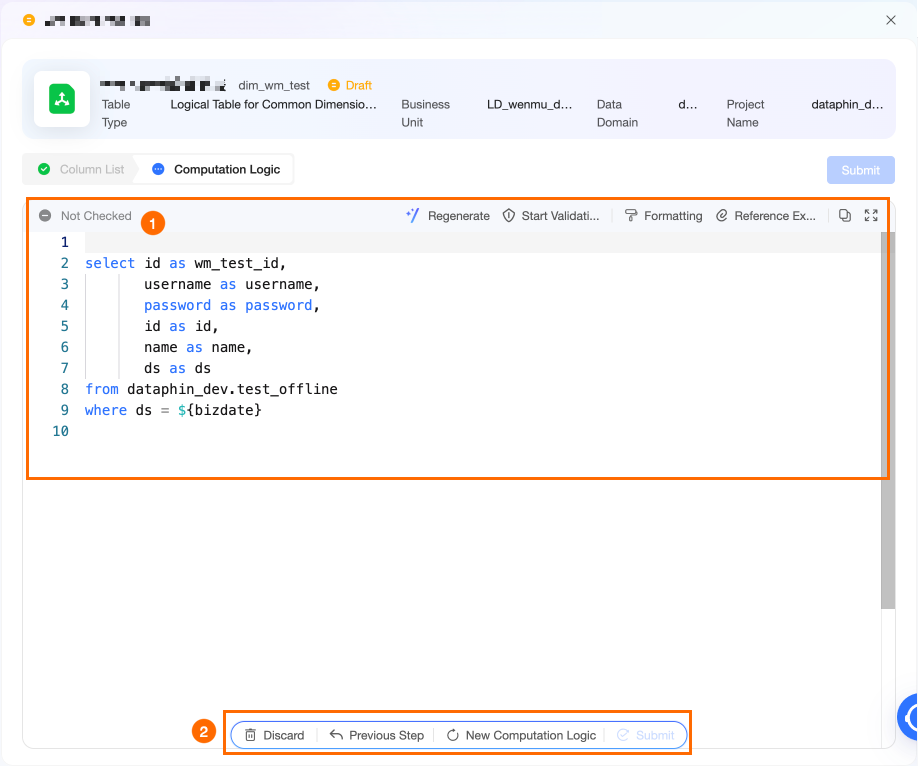
Supported operations on the computing logic page
Area
Description
①Computing logic SQL area
Generates the logical table SQL from the provided table information and source table structure.
-
Regenerate: Click Regenerate to regenerate the computing logic. The system also regenerates when you enter modification instructions in the chat box.
-
Start Validation: Required after modifying the field list or computing logic. If validation fails, view the error log and fix the SQL. You can also click Intelligent Modification to send the SQL and error to the conversation for automatic regeneration. Validation must pass before submission.
-
Format: Format the code for readability.
-
Parameter example: Reference sample parameters to edit the computing logic SQL.
②Overall operations for computing logic
-
Deprecate: Skip creation of this logical table. Deprecated tables cannot be edited. This action is irreversible.
-
Previous: Click Previous to return to the field list. Modifying the field list regenerates the computing logic.
-
Regenerate computing logic: Click Regenerate computing logic to regenerate the computing logic. The system also regenerates when you enter modification instructions in the chat box.
-
Submit: Validate the computing logic first, then click Submit. After success, view the logical table details in Governance > Governance Checklist.
-
 icon to filter by Data Type and Field Type.
 icon in the Actions column to view a table's field list. Modifying source tables regenerates the field list.
 icon in the Actions column of a field to delete it.
 icon to reorder the fields.