Add an API data source
This topic describes how to add an Application Programming Interface (API) data source in DataV and configure its parameters. An API is a general data interface. You can use any active API as a data source in DataV.
Prerequisites
An API data source is available.Procedure
Log on to the DataV console.
On the My Visualization page, hover the pointer over the visualization application that you want to edit, and then click Edit.
ImportantIf you do not have any visualization applications on the My Visualization page, create one. For more information, see Create a PC visualization application using a template.
On the canvas editor page, click a widget on the canvas.
If the canvas does not have any widgets, add one. For more information, see Add an asset.
In the configuration panel for the widget on the right, click the Data tab, and then click Configure Data Source.
- On the Set Data Source page, set Data Source Type to API.
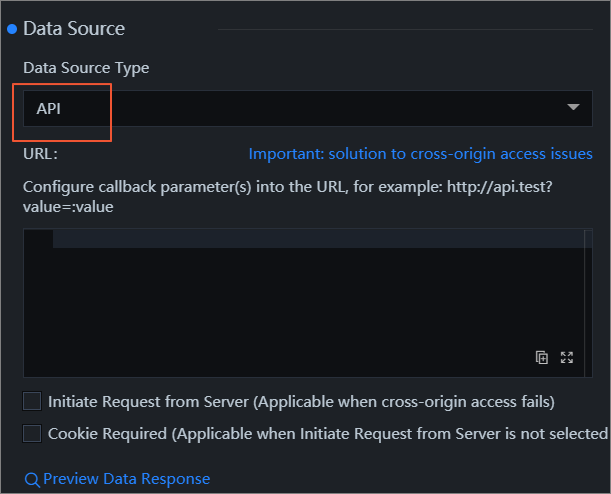
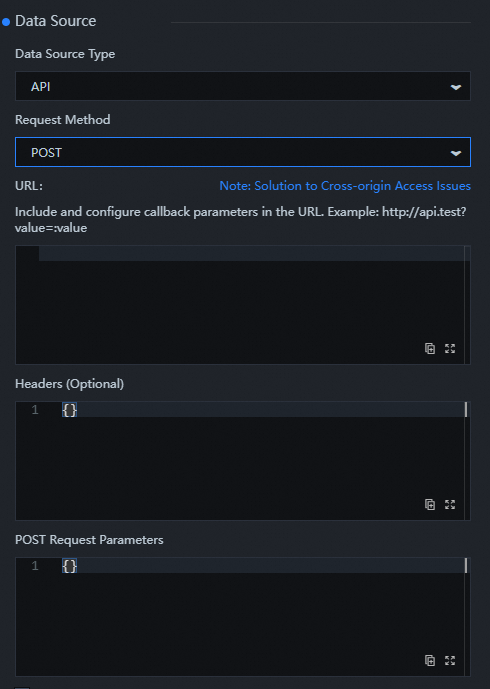
- From the Request Method list, select GET or POST. For an explanation of these two request methods, see Common request methods.
- In the URL field, enter the URL path of the API.
- Depending on the method selected for Request Method, enter the corresponding values in the Header (Optional) and POST Request Parameters sections.
- Click Preview Data Source Response to preview the response from the data source.