Configure asset data
Updated at:
This topic describes how to configure asset data and the content of the asset data panel, including the data interface, data source, data filter, and data polling frequency.
Procedure
Log on to the DataV console.
- On the My Visualizations page, click Edit above the project that you created.
- In Canvas Editor, click an asset in the Layer column or on the canvas. Important Before searching for asset configurations, make sure that the corresponding assets have been added to your visualization application project. Otherwise, you need to add the assets first. For more information, see Asset management (Enterprise Edition).
- On the right of the canvas editor, click the Data icon.
- In the Data panel, view and modify the configurations of the selected asset.
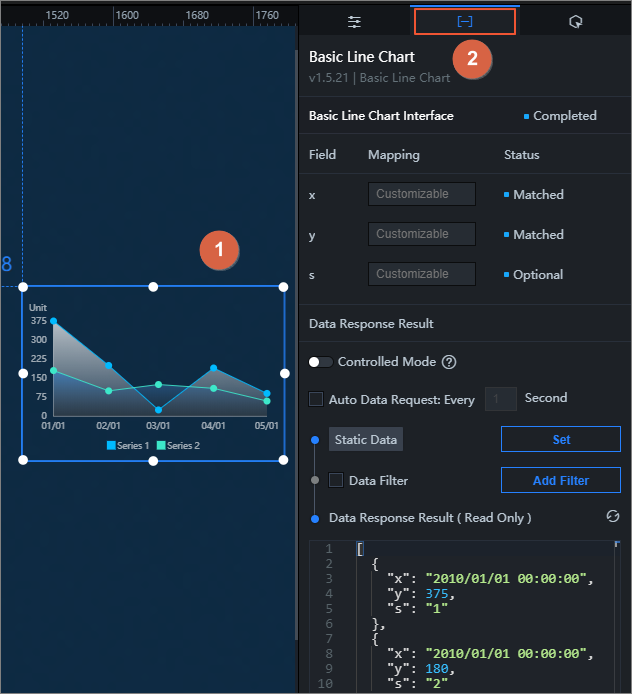
Data configuration item Description Data Interface The data interface of an asset displays the data fields contained in the asset, the corresponding mappings, and the data response status. - Fields: the default fields of the asset.
- Mapping: If the names of the fields in the data source that you configure are different from the default names of the fields in the asset, you can enter the fields in the data source in the Mapping field and field mapping them to the fields in the asset. This allows you to match data without modifying the fields in the data source.
- Status: displays the data response status of the asset in real time. If the response is successful, Matching is displayed.
Controlled Mode If you turn on the switch, data is not requested when the asset is in the Initialization state. Data is requested only by using the callback ID or the method configured in Blueprint Editor. If you turn off the switch, you can use Automatic Update to request data. By default, the switch is turned off. Auto Data Request You can select Automatic Data Request and configure the frequency to automatically request data. If you do not select this check box, data is not automatically requested. You must manually refresh the page to request data or use Blueprint Editor or callback ID events to trigger data requests. Connection DataV assets use static data sources by default. Click Set. In the Set Data Source pane, modify the data source type and script. For more information, see Configure the data source for a widget. Data Filter If you select the Data Filter check box, you can convert the data structure, filter data, and perform simple calculations. Click Add Filter. On the Set Data Source page, you can configure a data filter script. For more information, see Use data filters. Data Response Result The data used by the asset is displayed in real time. When the asset data source changes, the data response result displays the latest data. If the system response is delayed, you can click the  icon on the right to obtain the latest data of the asset.
Is this page helpful?