Favorite assets
Updated at:
You can favorite any asset in a visualization application to easily access it from your favorites later.
Prerequisites
Make sure that your DataV edition is Enterprise Edition or later.
Important DataV limits the number of assets that you can favorite.
Enterprise Edition supports up to 20 favorited assets.
Professional Edition supports up to 40 favorited assets
, and Premium Edition supports up to 1,000 favorited assets.
Favorite a single asset
Log on to the DataV console.
- On the My Visualizations page, click Edit above the project that you created.
- On the canvas editor page, you can favorite an asset as follows.
Important Before you can favorite an asset, it must be added to your visualization application project. If the asset has not been added, add it first. For more information, see Asset management (Enterprise Edition).
- In the Layers pane or on the canvas, click to select an asset.
- Right-click the asset and select Favorite.
Note Changes to the data source can affect the data of a favorited asset. We recommend that you use static data when you favorite an asset.
- In the Favorite dialog box, enter a name for the asset. The default name is the display name of the asset in the asset list.
- Click OK.
- After the asset is favorited, on the All Assets page, click the Favorites icon in the navigation pane on the left to view your favorited assets.
- Click a favorited asset to add it to the visualization application project.
Favorite multiple assets
You can group multiple assets and favorite them as a group. This makes them easier to find and use.
DataV limits the number of assets that you can favorite. By grouping assets, you can also save your quota for favorited assets.
Important The feature of favoriting grouped assets is available only in DataV
Professional Edition and later. To use this feature, you must upgrade DataV to the
Professional Edition or
Premium Edition.
- In the Layers pane or on the canvas, press and hold the Ctrl key and click to select multiple assets.
- Right-click the selected assets and select Group.
- Select the asset group.
- Right-click the group and select Favorite to add the grouped assets to your favorites.
Important If the data source of a favorited asset changes, the asset may become unavailable. We recommend that you use static data when you favorite an asset.
View favorited assets
After you favorite an asset, you can view it as follows.
- Return to the console homepage.
- Click My Assets, and then click Asset Favorites in the navigation pane on the left.
- On the Asset Management page, you can view your favorited assets and your remaining quota for favorited assets.
Delete a favorited asset
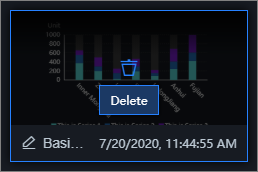
Hover over a favorited asset and click the
Delete icon to remove the asset from your favorites.
Rename a favorited asset
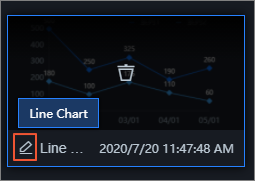
Hover over the asset name, click the Rename icon, and enter a new name.
Note You can also rename an asset when you favorite it.
Upgrade a favorited asset to a block
Hover over a favorited asset and click the Upgrade to Block icon. For more information, see Upgrade a favorited asset to a block.
Is this page helpful?