Logic node configuration
Logic nodes allow you to define the interaction logic between widgets, between widgets and variables, or between variables. This enables interaction among all elements on a dashboard. This topic describes how to configure and use logic nodes in the blueprint editor.
Use logic nodes
Log on to the DataV console.
On the My Visualizations page, select a visualization application and click Edit.
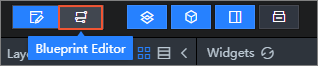
On the canvas editor page, click the Blueprint Editor icon in the top toolbar.
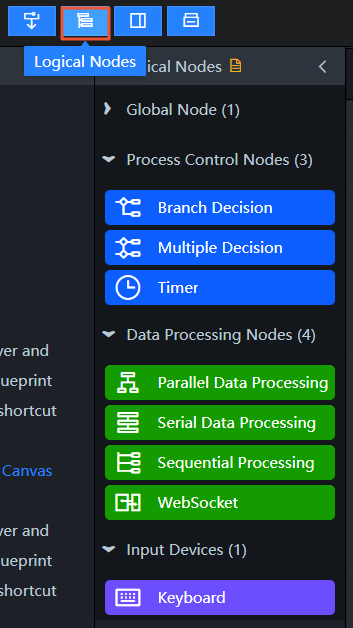
On the blueprint editor page, click the Logic Node icon on the toolbar.
 Note
NoteIf the Logic Node panel is already displayed, you can skip this step.
Before you configure logic nodes, ensure that you have added the required import nodes. If you have not, see What is the blueprint editor?.
From the Logic Node panel, drag a logic node to the canvas.
Logic nodes include Global Node, Flow Control, Data Processing, and Input Device. For details about how to use each node and its parameters, see Global node, Flow control, Data processing, and Input device.
Configure logic nodes
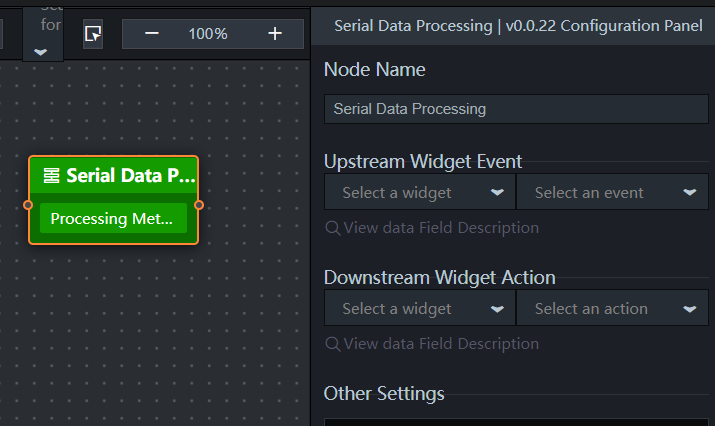
Click a logic node on the canvas or drag a new one onto it. You can then configure the node's interaction logic in the configuration panel on the right. Global nodes do not require configuration. The following table describes the common parameters.
Parameter | Description |
Node Name | The name of the logic node. You can customize the name. Different types of logic nodes have different icons. After you rename a node, you can identify its type and function by its icon. |
Upstream widget event description | Select an upstream widget and event, and view the parameter description. |
Downstream widget action description | Select a downstream widget and action, and view the parameter description. |
Processing method | Add and configure a processing method to implement the node's interaction logic. The following operations are supported:
Important Nodes for input devices and WebSocket nodes do not require a processing method. |
 ) icon to change the name of the processing method.
 ) icon. This saves the current processing method to the code snippet management page in the console. You can then reuse the code snippet.