Implement a fixed-point Easter egg
Use the Timer logic node to create a timed Easter egg effect for the Single Image widget.
Demonstration
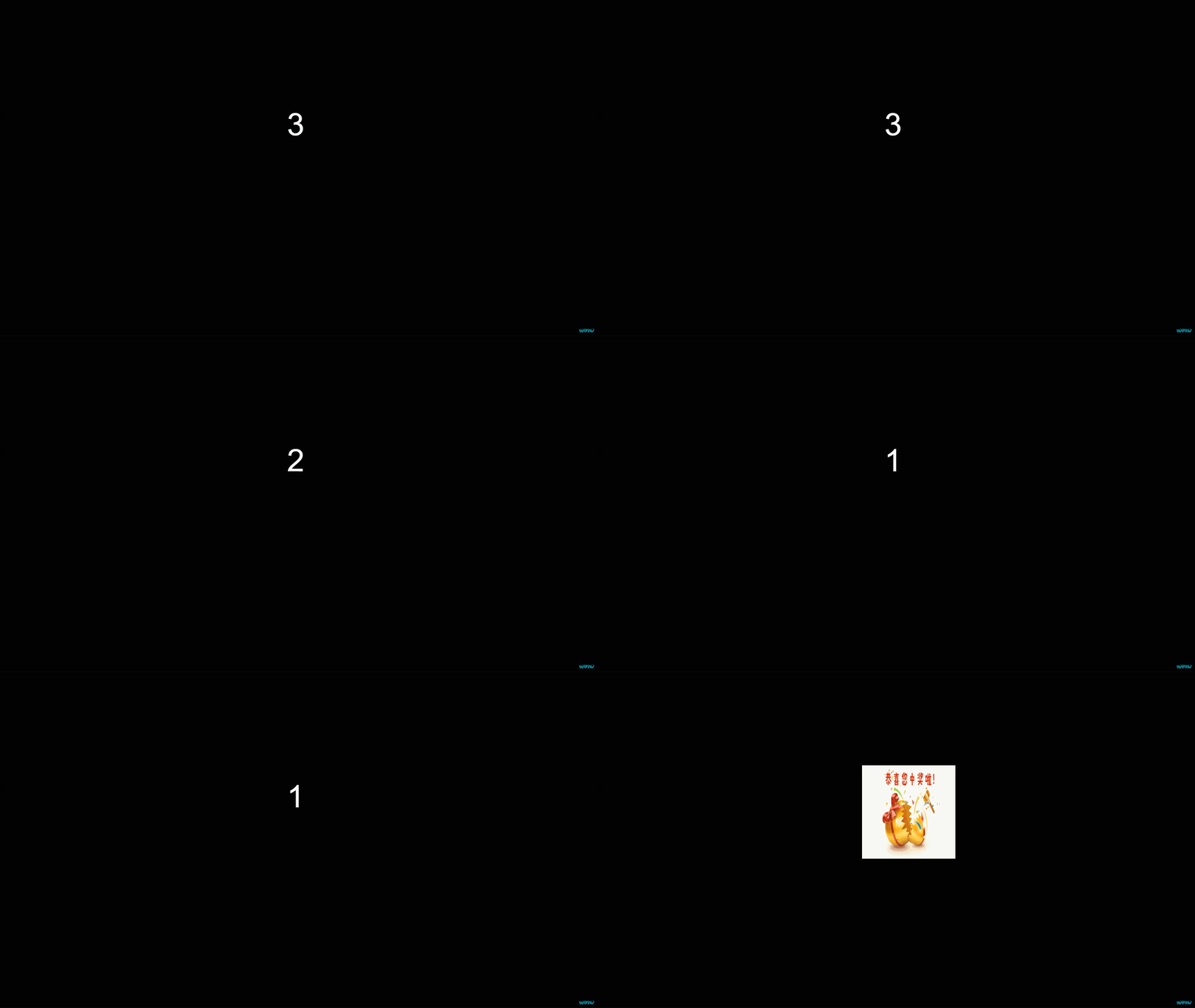
Procedure
Log on to the DataV console.
-
Select any visualization application, and click Edit to open the canvas editor.
-
Add three General Title widgets and one Single Image widget to the canvas.
-
Click the Single Image widget. In the configuration pane, set the background image to your animated Easter egg image.

-
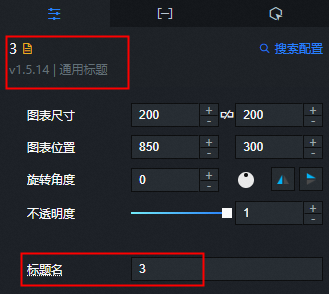
Click any General Title widget. In the configuration pane, set the Title to a number, such as 3. Then, change the widget name to 3. Repeat these steps for the other two General Title widgets.
-
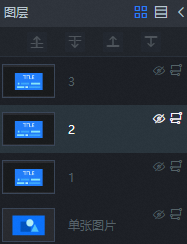
In the Layers pane, select all widgets, right-click the selection, and choose Export to Blueprint Editor and Hide Widgets.
-
Switch to the Blueprint Editor and add all widget nodes to the blueprint canvas.
-
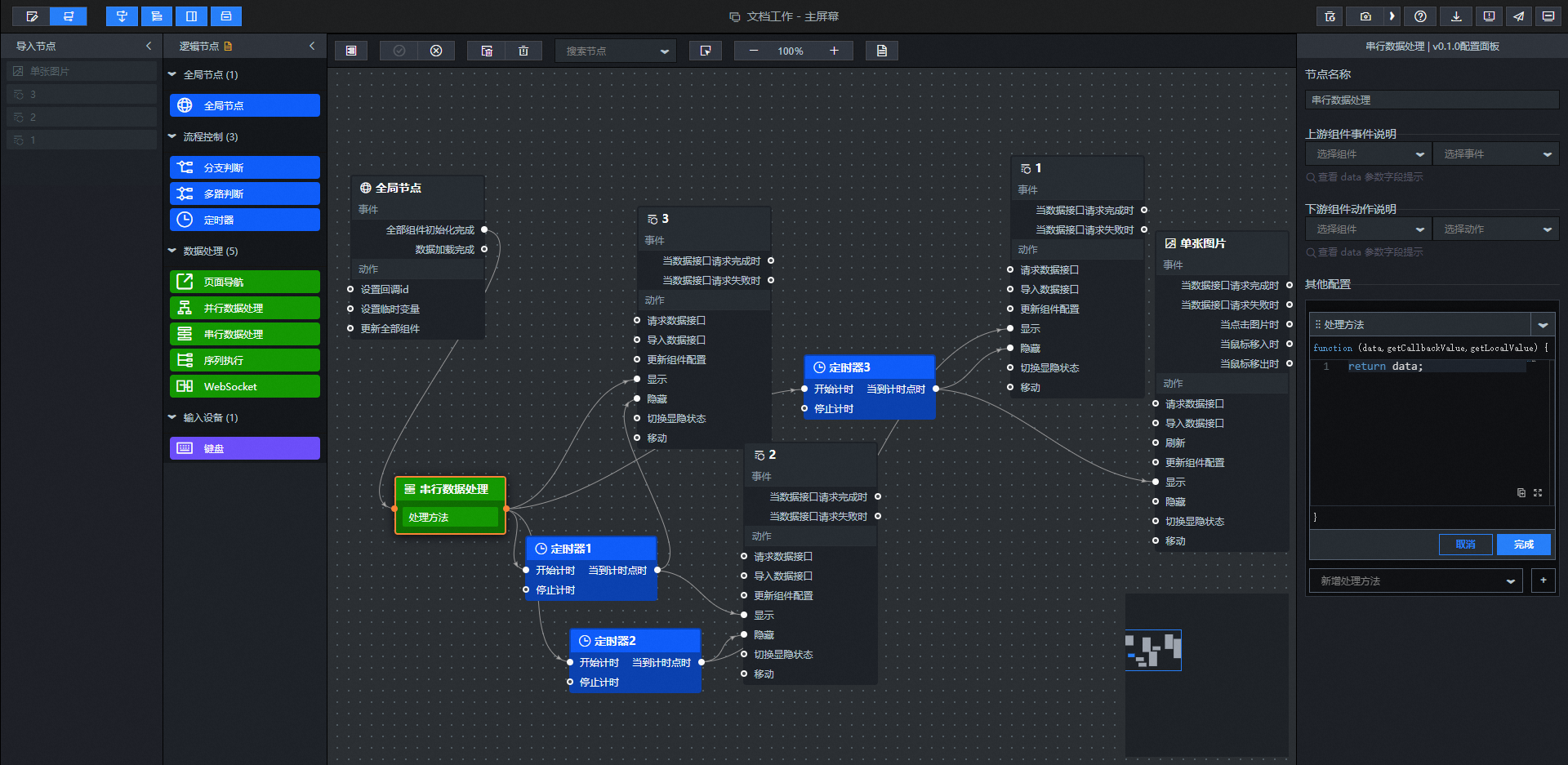
Connect the widget nodes as shown in the following figure.
-
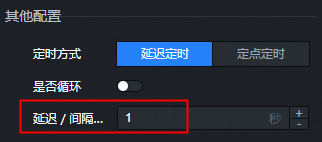
Configure the delay for each timer. Set the delay for Timer 1 to 1 second, Timer 2 to 2 seconds, and Timer 3 to 3 seconds.

-
(Optional) To make the Easter egg appear at a specific time, calculate the required delay from the current time. This process is not described in this topic.
-
In the upper-right corner of the page, click the
icon to preview the result.
 icon to preview the result.