Implement time scheduling
Use the Time widget to trigger periodic data updates for the General Title widget. This example walks through connecting both widgets in the Blueprint Editor and configuring a scheduled callback.
Demonstration
Procedure
Log on to the DataV console.
-
Select a visualization application and click Edit to open the canvas editor.
-
Add the Timer widget and the Common Title widget to the canvas.
-
Select the Timer widget. Turn on the Callback Settings > Scheduled Callback Settings switch and set the callback time. For example: 2023-04-21 13:45:00.
-
(Optional) Select the Common Title widget and clear the title.
NoteClearing the title prevents content from appearing in the visualization before the event starts. You can also add custom content instead.
-
In the Layers panel, select all widgets and right-click Export to Blueprint Editor.
-
Connect the widgets.
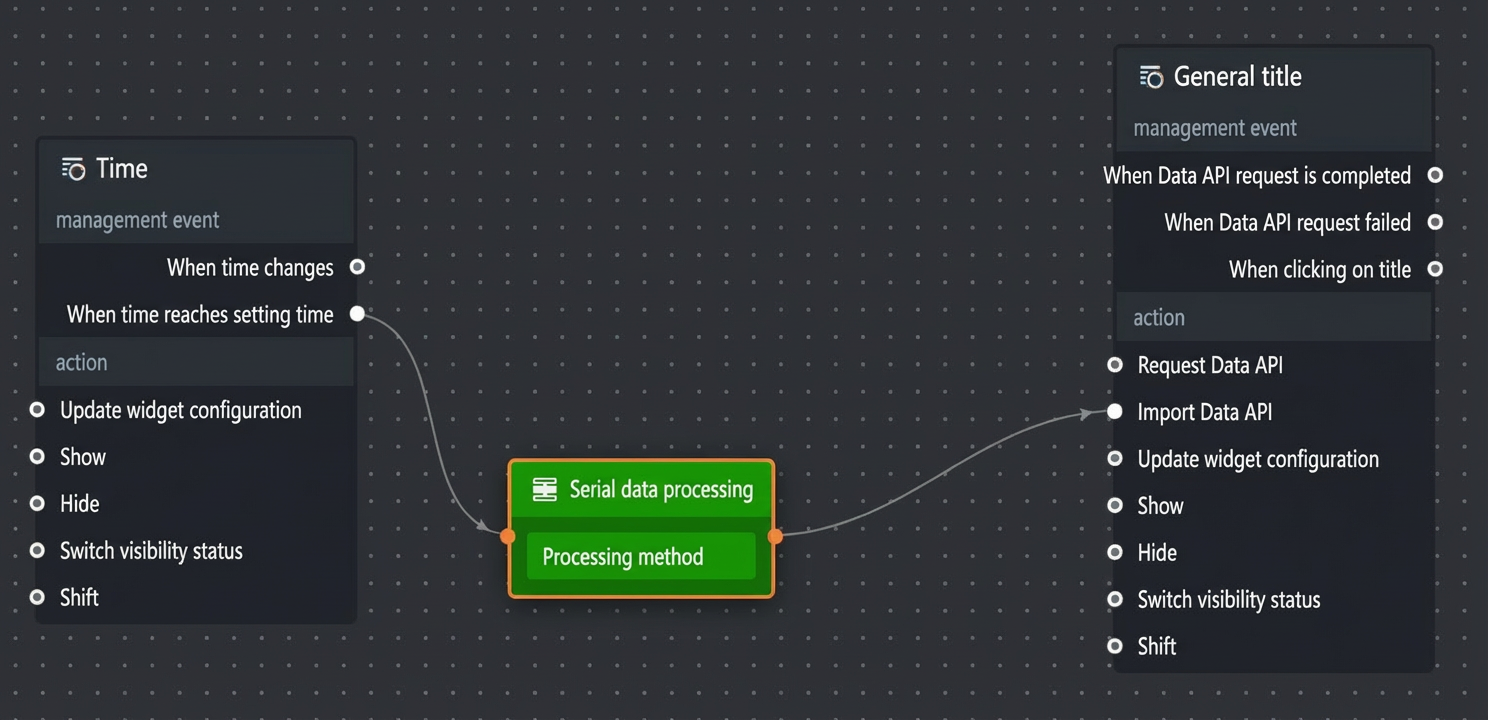
-
Configure the processing method for the Serial Data Processing node.
return [{value: "Event Started"}]; -
Click the
 icon in the upper-right corner of the page to preview the result.