Tutorial: Build a data dashboard with a 3D model
This topic demonstrates how to build a data visualization dashboard in DataV-Board by creating interactions between a 3D model and form widgets.
Case study
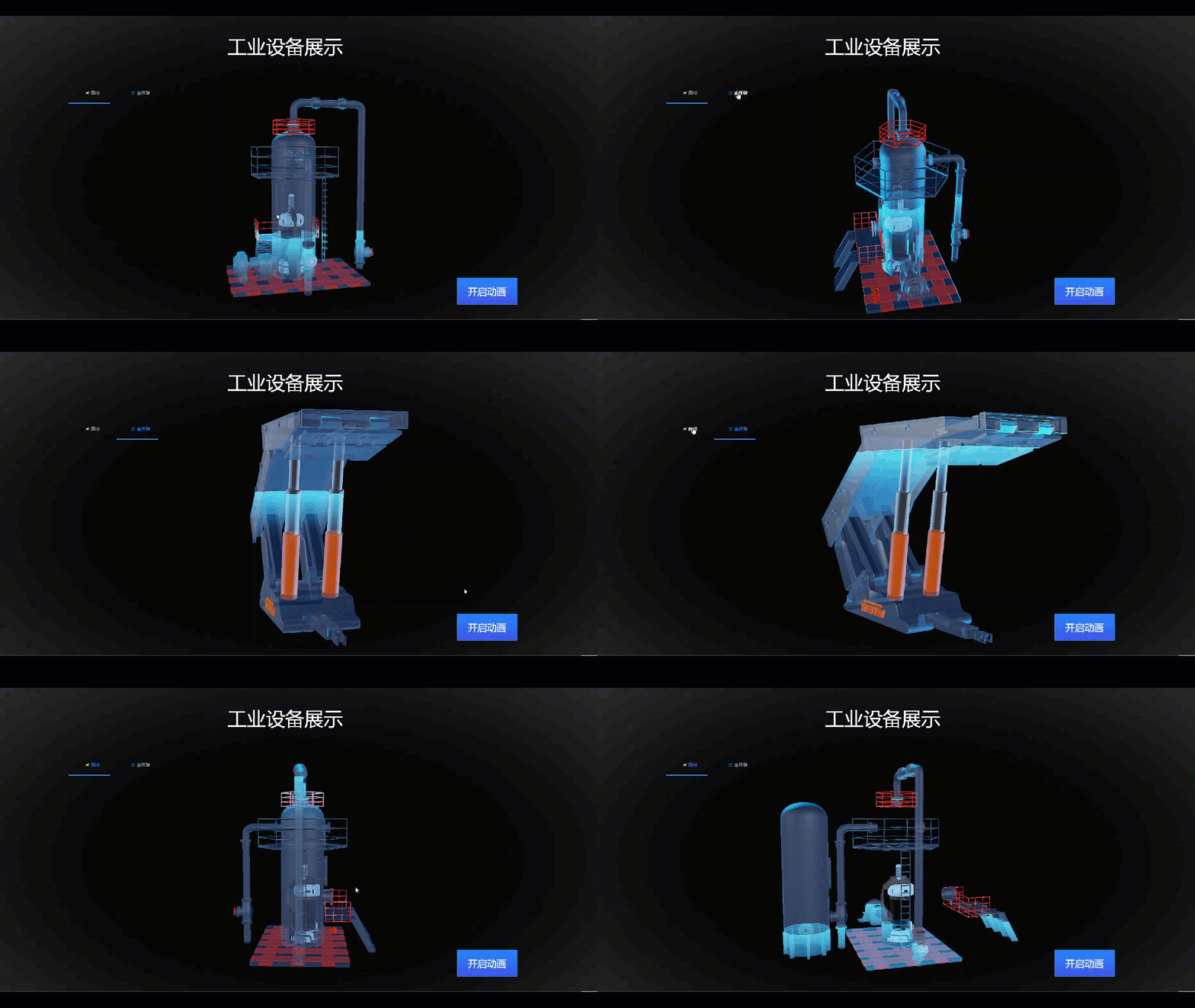
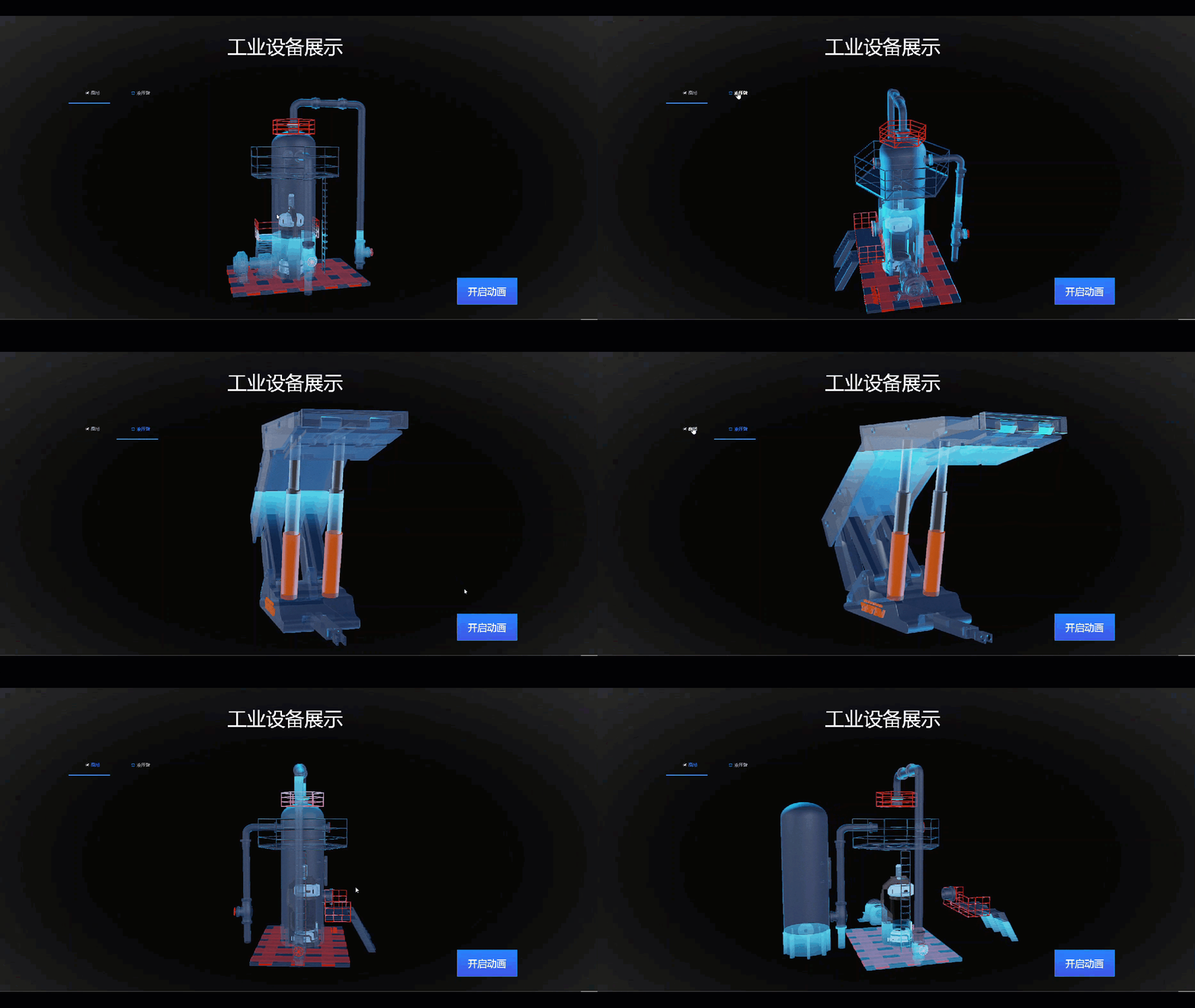
This tutorial shows you how to create a data dashboard for a PC with a 3D model. You will import a 3D tower model into DataV-Board and use widgets, such as the Model Viewer, General Title, Button, and Tab List, to visualize industrial equipment. Global variables and the blueprint editor enable dynamic interactions between the 3D model and the widgets. For example, clicking the tab list switches the model resource, and clicking a button plays the model's animation. After you complete this tutorial, your data dashboard will look similar to the following figure.
Preparations
Before you start, complete the following preparations:
Prepare model resources
This tutorial uses a tower model and a hydraulic arm model for demonstration. You can download these resources to your local machine and upload them to DataV-Board later.
NoteThe hydraulic arm model resource is obtained from a CDN.
The model resources provided in this tutorial are sample data for learning and communication purposes only.
(Optional) Create a project group
By default, the system does not provide groups. Created projects are in an ungrouped state. You can create project groups as needed.
Procedure
Follow these steps to create a 3D model data dashboard and explore the features of DataV-Board.
Step 1: Upload model resources
Upload the prepared model resources to Design Resources to use them when you create the data dashboard.
Log on to the DataV-Board console.
In the navigation pane on the left, under Resource Management, click Design Resources to go to the Design Resources page.
Under Create Design Resource, click Upload Model to go to the upload model page.
Follow the on-screen instructions to upload the prepared model resource. After the model finishes loading, click Finish.
Step 2: Create a data dashboard and import model resources
Create a blank canvas and import the prepared model resources.
Create a data dashboard.
In the DataV-Board console, click .
On the Blank Dashboard card, click Create Dashboard.
Enter a dashboard name, use the default project group, and click Create Dashboard.
For this tutorial, the dashboard name is
Industrial Equipment Display.
After the dashboard is created, you are automatically taken to the canvas editor page for the next steps.
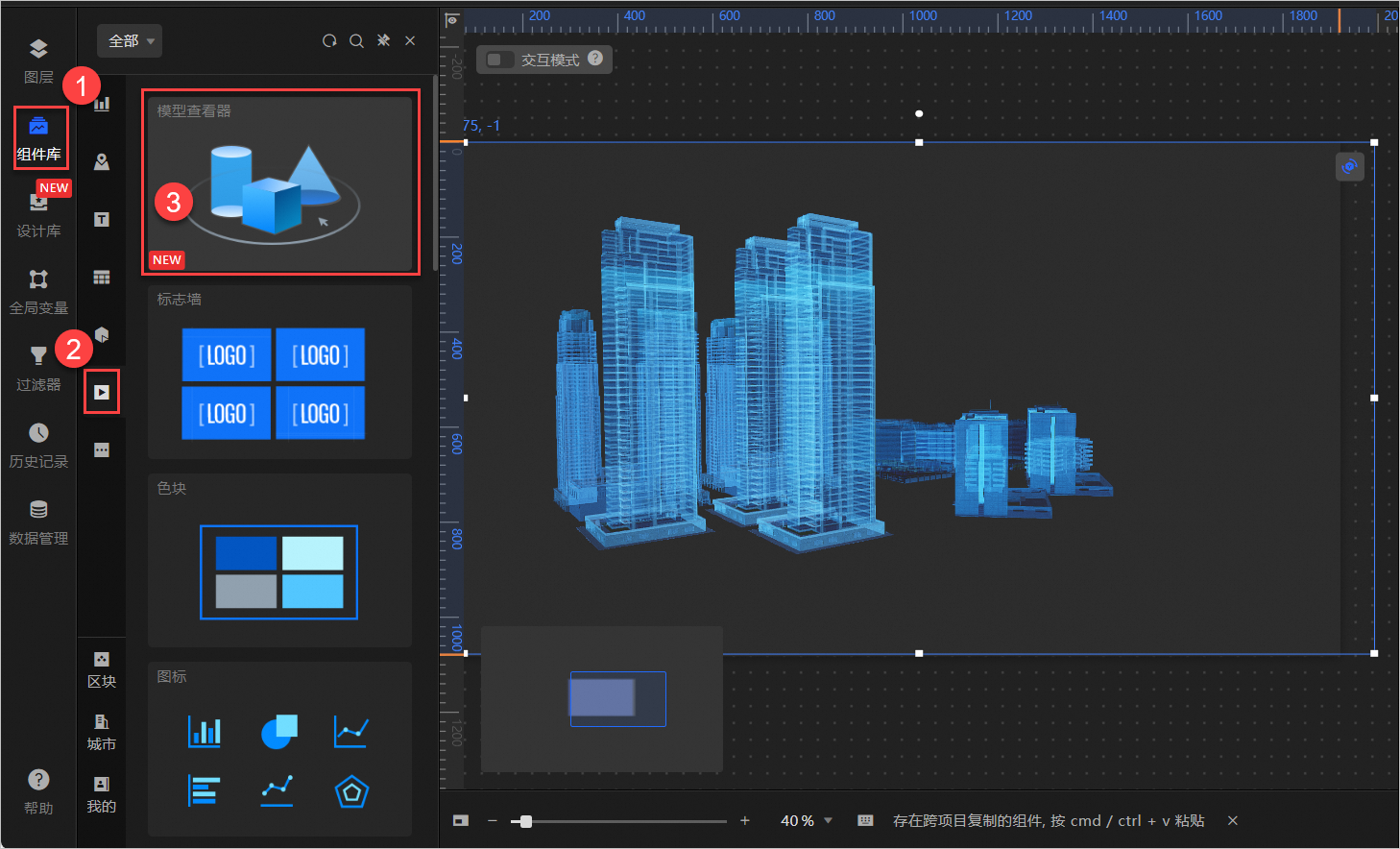
On the canvas editor page, add the Model Viewer widget.
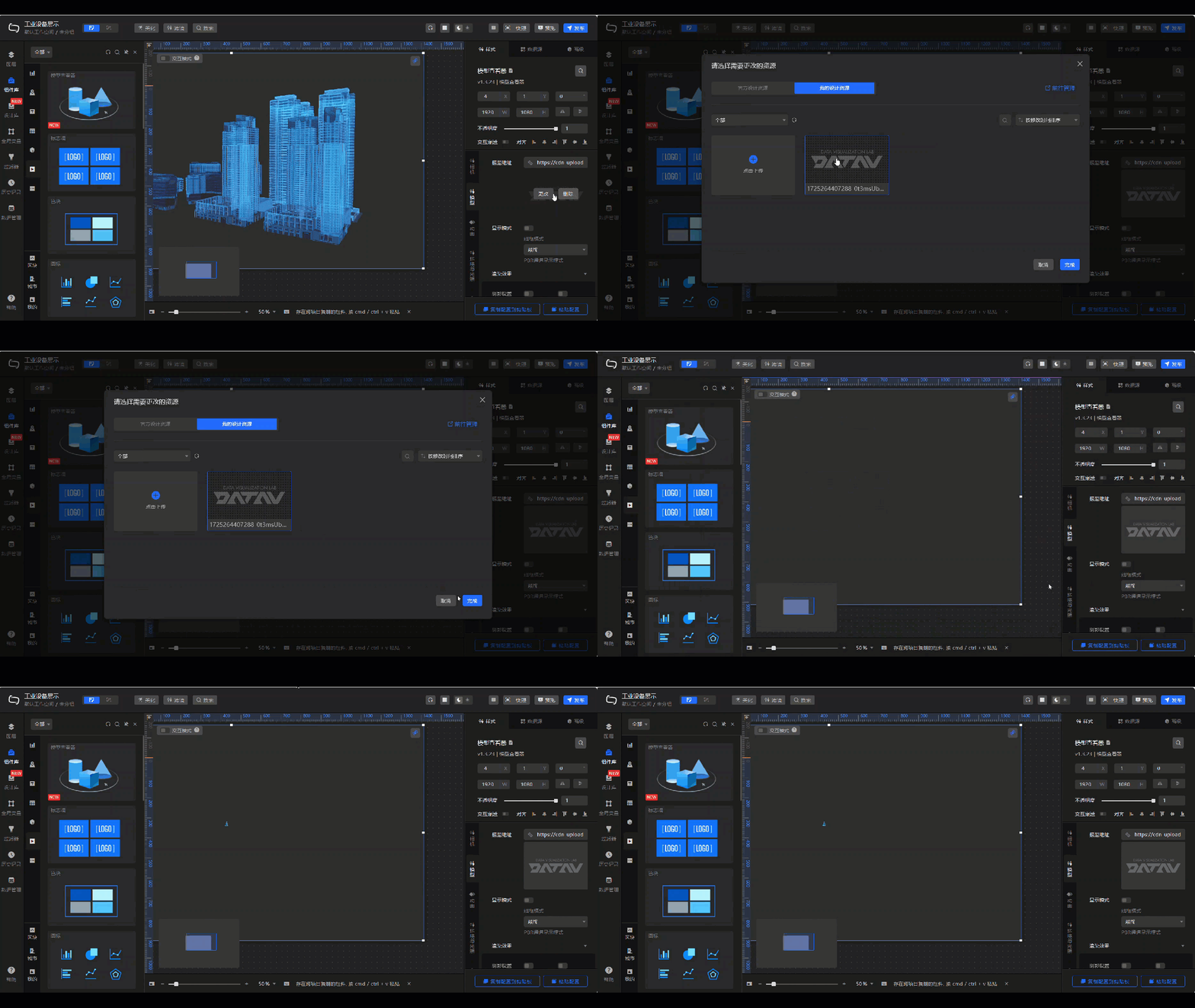
Click the widget on the canvas to change the default model to your uploaded model resource.
Step 3: Set the 3D model style
DataV-Board provides a rich set of model style settings. The following steps adjust the model style to make the model more specific and vivid.
Click the
 icon in the upper-right corner of the imported model to enter immersive editing. Click Auto Calibrate to adjust the 3D model's position and camera settings to achieve a satisfactory display angle.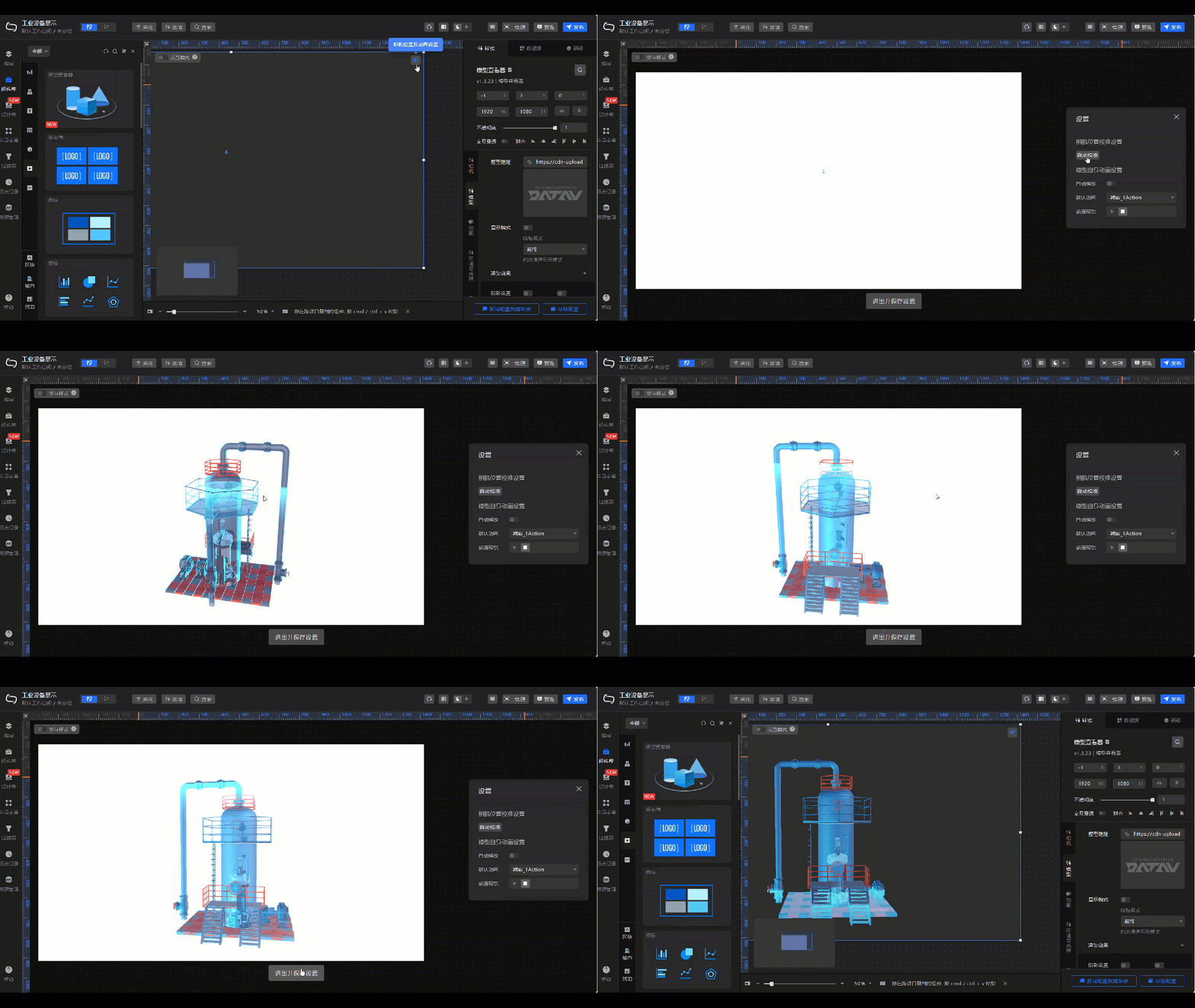
Select the Style tab on the right side of the 3D model. Follow the steps in the figure to set the background color of the 3D model.
 Note
NoteDataV-Board provides a rich set of model style settings. For more information about model style configurations, see Model Viewer.
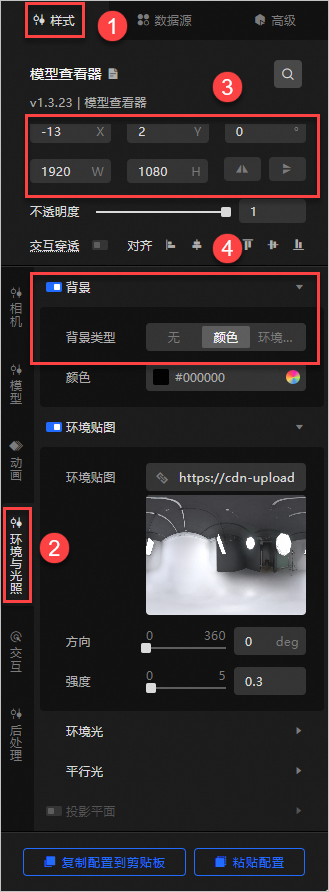
Step 4: Add widgets to the data dashboard
After you set the model style, add the General Title, Button, and Tab List widgets to the data dashboard to enrich its display. These widgets will be used later to implement interactive features.
In the navigation pane on the left, select Widget Library. Follow the steps in the figure to add the General Title widget to the 3D model. Click to select the widget on the canvas, change the widget name to
Industrial Equipment Display, and change the widget style configuration.In the navigation pane on the left, select Widget Library. Follow the steps in the figure to add the Button widget to the 3D model. Click to select the newly added widget on the canvas, change the widget name to
Start Animation, and change the widget style configuration.In the navigation pane on the left, select Widget Library. Follow the steps in the figure to add the Tab List widget to the 3D model. Click to select the newly added widget on the canvas and change the widget style configuration.
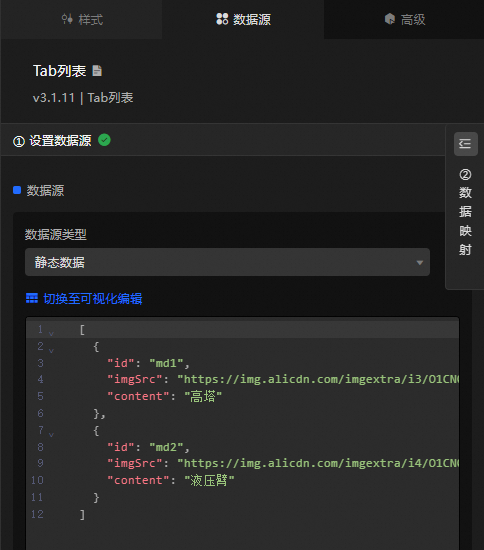
Click the Data Source tab of the Tab List widget to replace the data source with the prepared data source.
NoteDataV-Board has more than 100 built-in chart and form modules, such as text displays, conventional charts, multimedia displays, and interactive widgets, to cover common requirements. For more information about widget configurations, see Widget management.
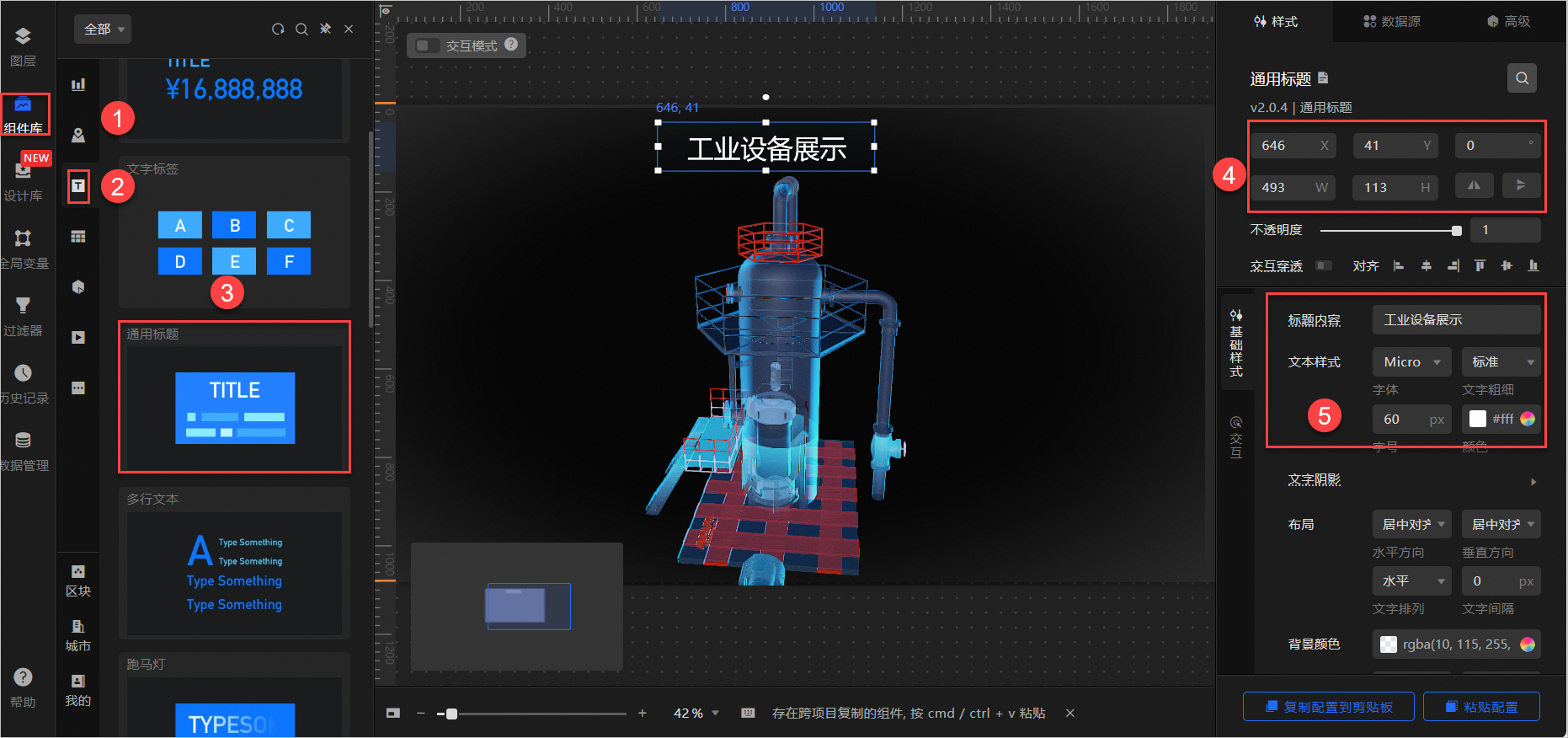
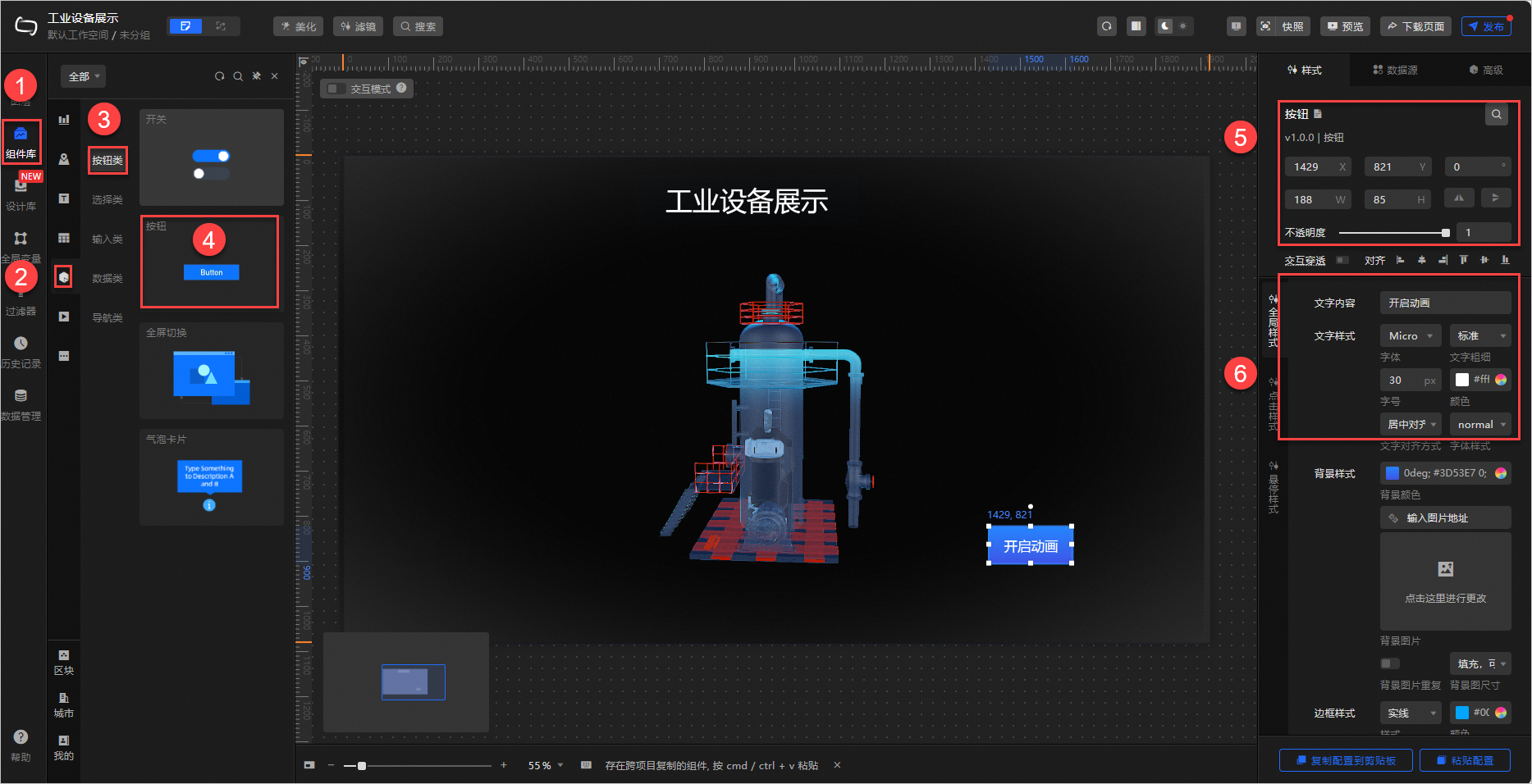
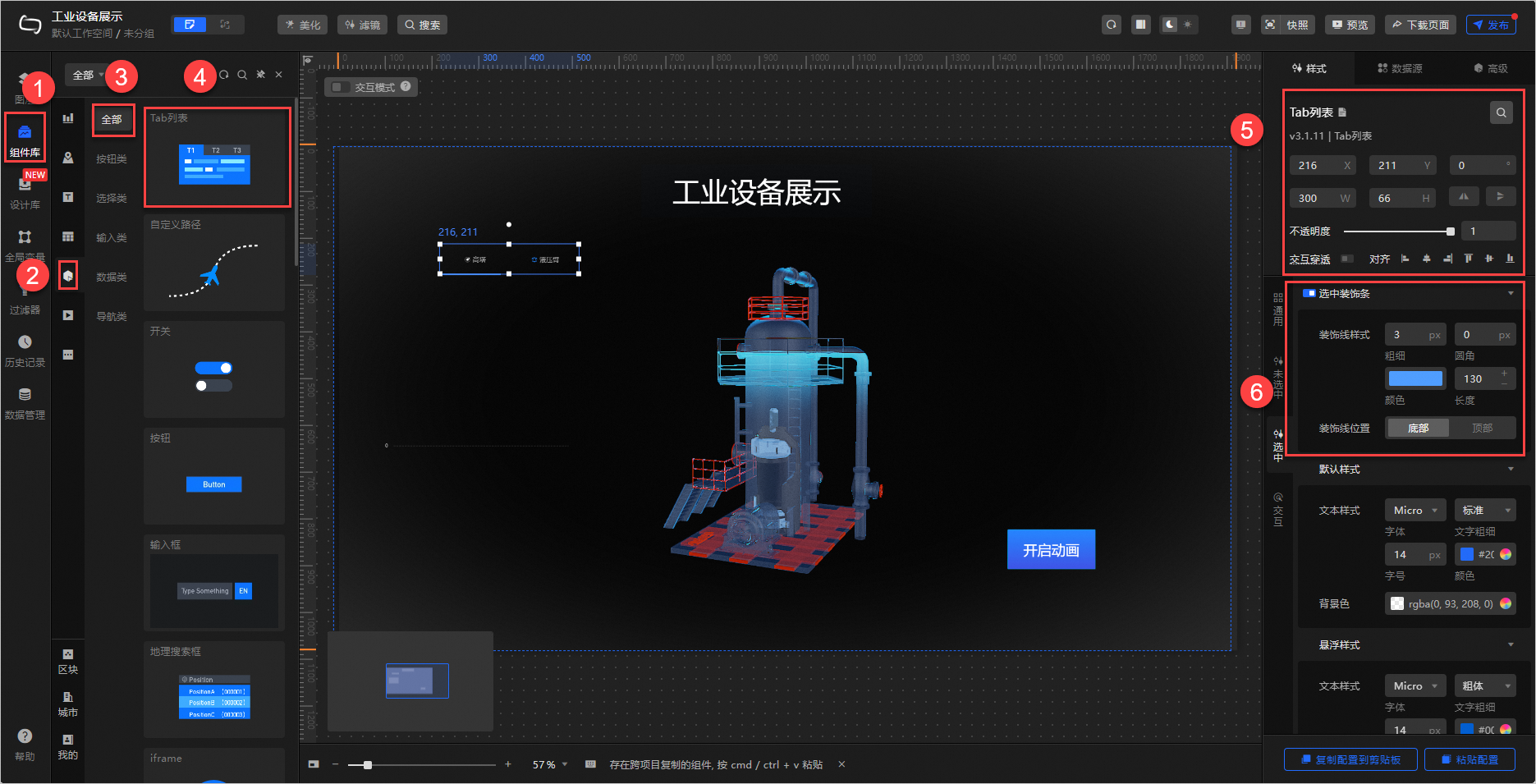
Step 5: Add global variables
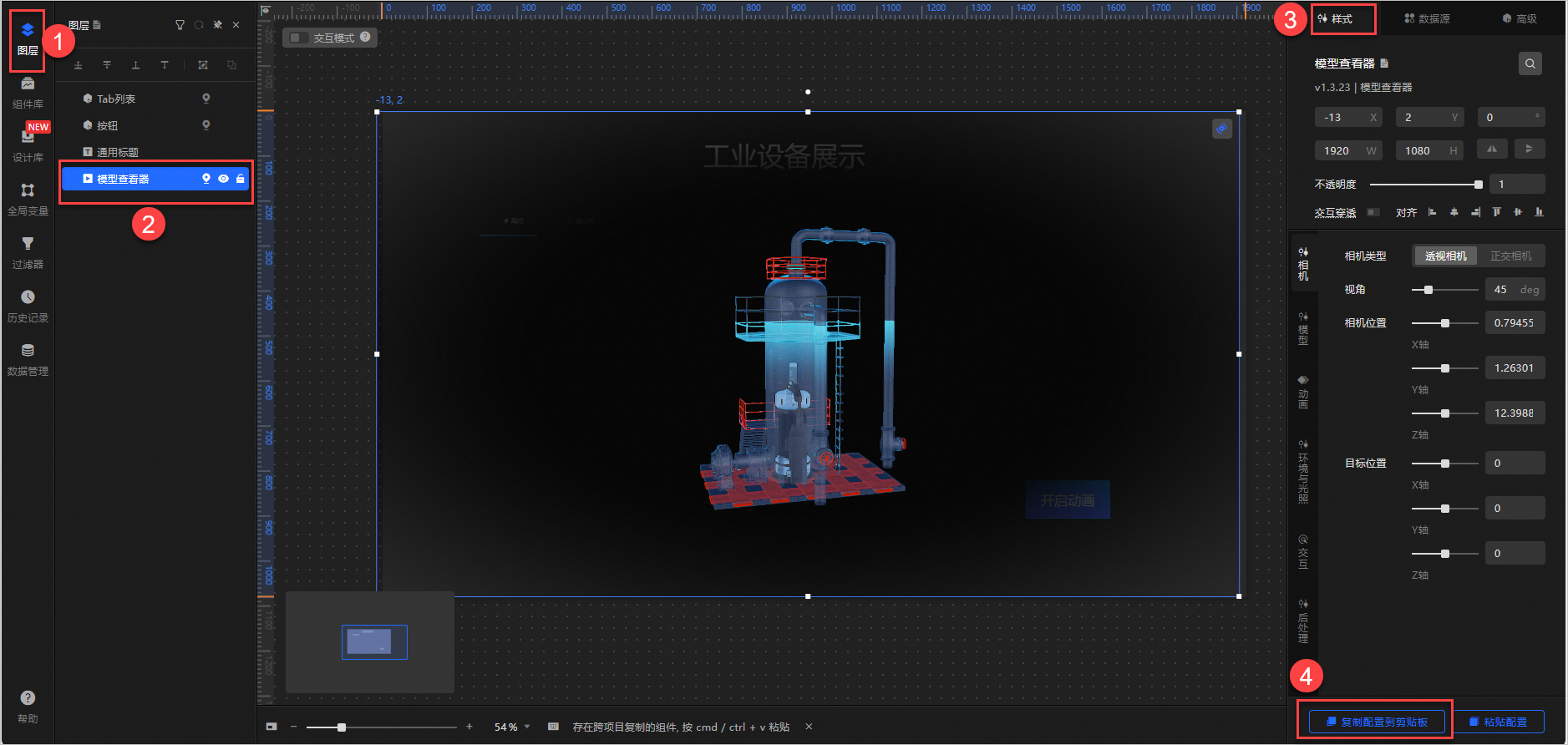
Global variables can be thought of as parameter variables. They control the transfer of parameters between widgets to create interactions. The following steps add global variables for the model configuration and model address. These variables are used later to obtain widget configuration information during interactions.
In the left-side navigation bar, select the Layer widget. Follow the steps in the figure to copy the widget configuration.
In the editor's left-side navigation bar, under Global Variables, click New Variable. Add the
var_cam_armandvar_md_libglobal variable data.NoteThe global variables provide the resource information needed for model interaction. The preceding steps configured the tower model resource. The configuration information for the hydraulic arm model resource is obtained through global variables.
`var_cam_config`: Configuration data for the tower and hydraulic arm models. `md1` contains the copied configuration information for the tower model from the tutorial. `md2` contains the configuration information for the hydraulic arm model, which is obtained from an address.
`var_md_lib`: The model resource addresses for the tower and hydraulic arm.
Step 6: Use the blueprint to create widget interactions
DataV-Board provides a blueprint editor. It supports interactions between 3D models and forms to enable data interaction and event triggers. The following steps use the blueprint editor to implement two features: switching model resources with the Tab List widget and playing model animations by clicking the Button widget.
In the upper-left corner of the editor page, click the
icon to go to the blueprint editor page.In the navigation pane on the left, click Layer Nodes. Hover over a layer node name and click the
icon to add the Tab List, Button, and Model Viewer layer nodes to the blueprint canvas.Add logic to the layer nodes for switching models and starting model animations.
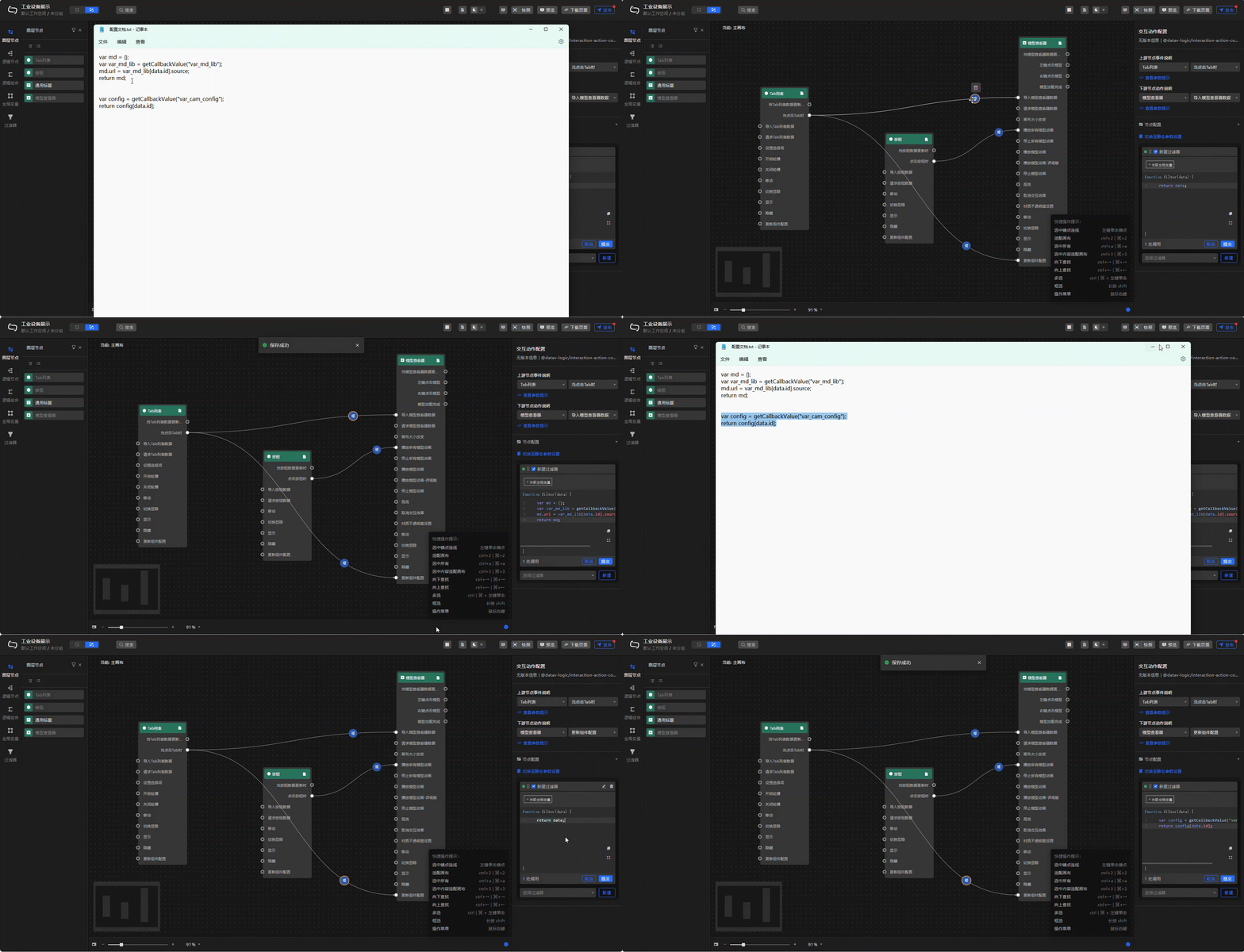
To enable interaction between the model and widgets, import the model resource and update the configuration information when the tab in the Tab List is switched.
NotegetCallbackValue is a method provided in DataV-Board for filters to obtain global variable data. For more information, see Use global variables.
 icon to go to the blueprint editor page.
 icon to add the Tab List, Button, and Model Viewer layer nodes to the blueprint canvas.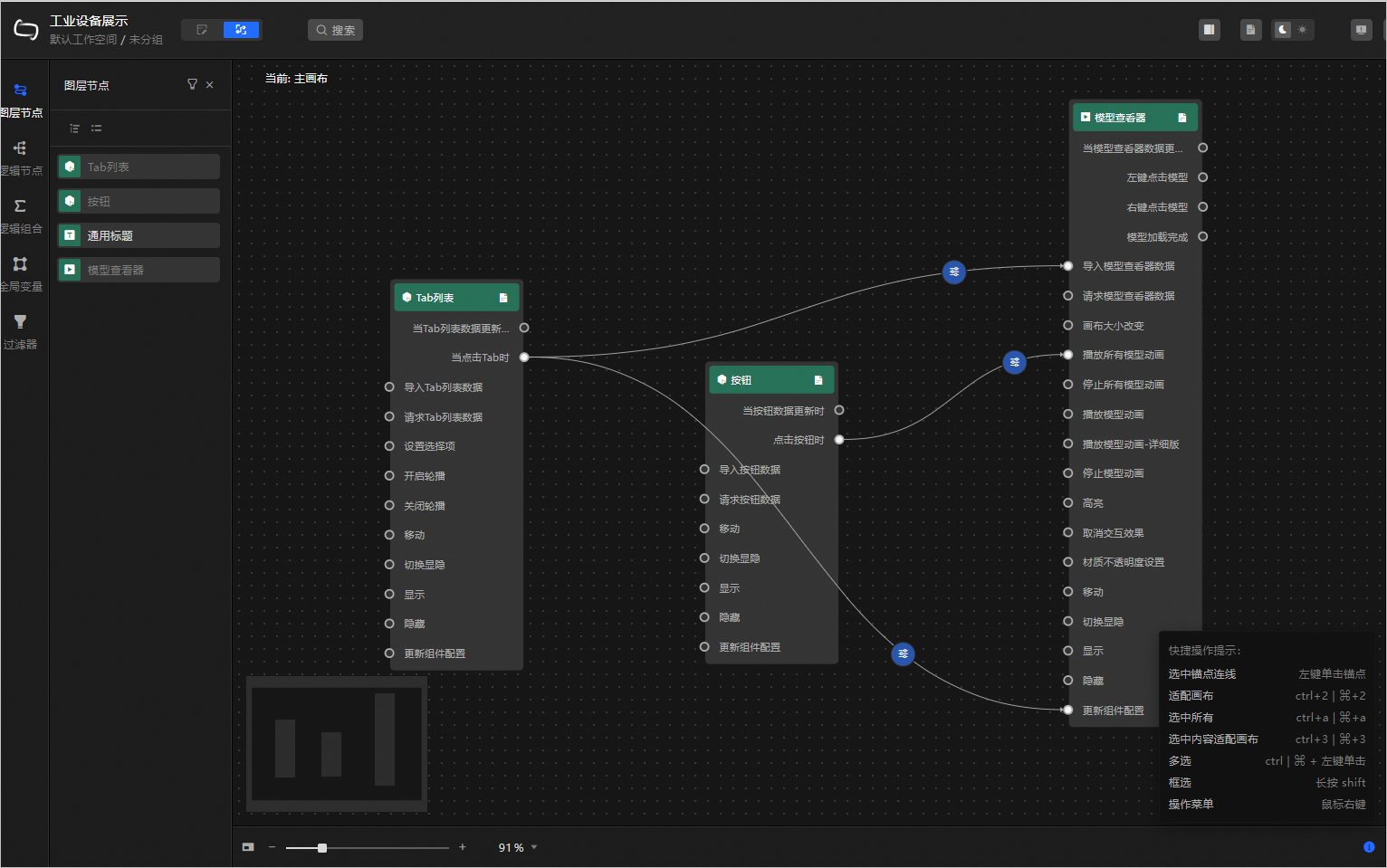
Step 7: Preview and publish the data dashboard
After you finish editing the blueprint, click Preview in the upper-right corner of the dashboard editor page to preview the data dashboard. On the dashboard, you can adjust the 3D model's perspective, switch 3D models, and start model animations.
The generated dashboard is shown below.
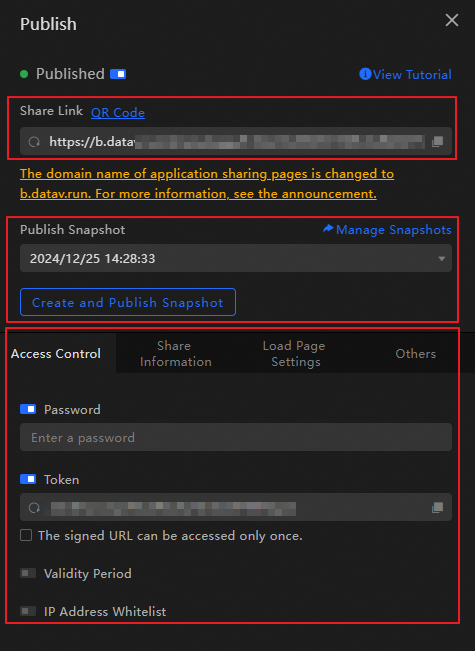
In the upper-right corner of the dashboard editor page, click Publish and select Publish Screen.
Obtain the dashboard access information and configure access restrictions.
After publishing, you can click Published in the upper-right corner of the dashboard editor page to obtain access information and configure access permissions.
After you obtain the dashboard endpoint, you can deploy it to devices such as rendering hosts, PCs, and mobile phones for access.
References
For more information about how to create dashboards, see Create a PC dashboard from a template, Create a mobile dashboard from a template, and Use AI to generate a PC dashboard.
For more information about dashboard configurations (such as widget configuration, blueprint applications, and global variables), see Visualization workbench and Advanced tutorials.