Add CSV file
Add a CSV file as a data source in DataV.
Prerequisites
A CSV file data source is prepared.
Procedure
Access the DataV console.
-
On the Workbench page, click in the navigation pane on the left. On the Data Source page, click New Data Source.
-
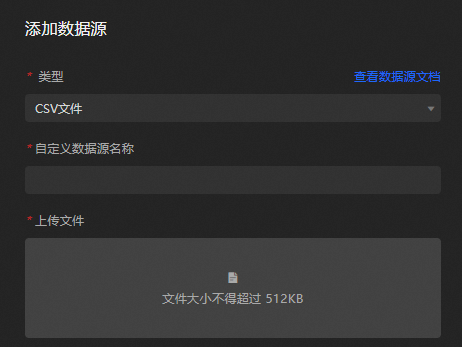
From the Type dropdown, select CSV File.
-
Upload the CSV file.
NoteThe file size must not exceed 512KB.
-
Click OK to add the data source.
FAQ
-
CSV File Format Concerns
Save your Excel or other data files as CSV before uploading. Merely changing the file extension does not convert the format and may cause errors.
-
DataV Console Compatibility
Due to Google Chrome's HTTP protocol restrictions, access the DataV console using an HTTPS URL to add a CSV file data source.
Static data example
[
  {
    "x": "January",
    "y": 2,
    "s": "Precipitation"
  },
  {
    "x": "January",
    "y": 2.6,
    "s": "Evaporation"
  },
  {
    "x": "February",
    "y": 4.9,
    "s": "Precipitation"
  },
  {
    "x": "February",
    "y": 5.9,
    "s": "Evaporation"
  },
  {
    "x": "March",
    "y": 7,
    "s": "Precipitation"
  },
  {
    "x": "March",
    "y": 9,
    "s": "Evaporation"
  },
  {
    "x": "April",
    "y": 23.2,
    "s": "Precipitation"
  },
  {
    "x": "April",
    "y": 26.4,
    "s": "Evaporation"
  },
  {
    "x": "May",
    "y": 25.6,
    "s": "Precipitation"
  },
  {
    "x": "May",
    "y": 28.7,
    "s": "Evaporation"
  },
  {
    "x": "June",
    "y": 76.7,
    "s": "Precipitation"
  },
  {
    "x": "June",
    "y": 70.7,
    "s": "Evaporation"
  },
  {
    "x": "July",
    "y": 135.6,
    "s": "Precipitation"
  },
  {
    "x": "July",
    "y": 175.6,
    "s": "Evaporation"
  }
]
Data format example
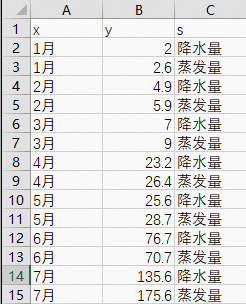
The first line of the CSV file should contain field names such as x, y, and s. Subsequent lines contain the corresponding values. See the static data example above for the expected format.
Case demo
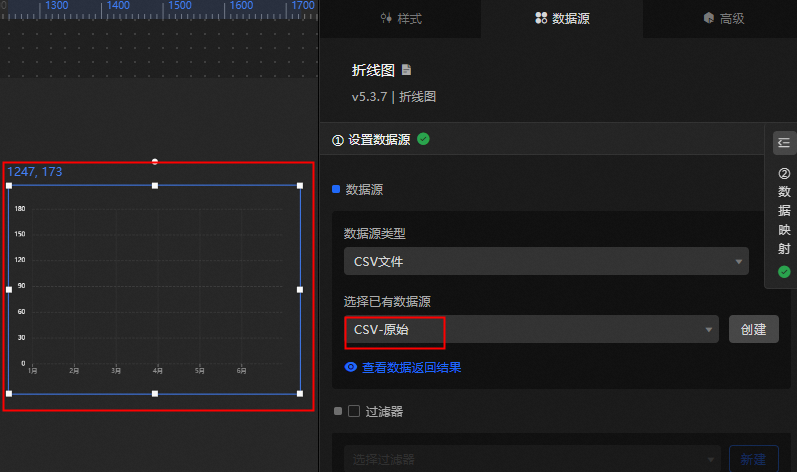
The following example uses the Line Chart widget to import a CSV dataset with monthly precipitation and evaporation data from January to July.
-
Logon - Figure
.
-
Navigate to the Workbench page, select a dashboard, and click Edit.
-
In the canvas editor, add the Line Chart widget.
-
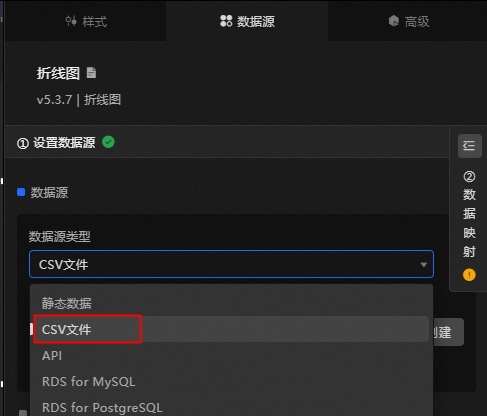
Open the data source panel and set the data source type to CSV File.
-
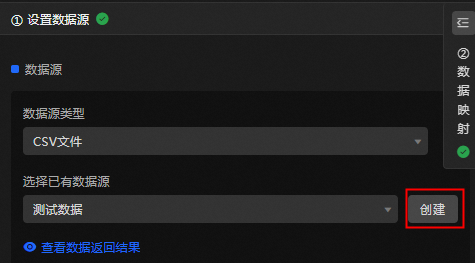
Click Create to add a new CSV data source.
-
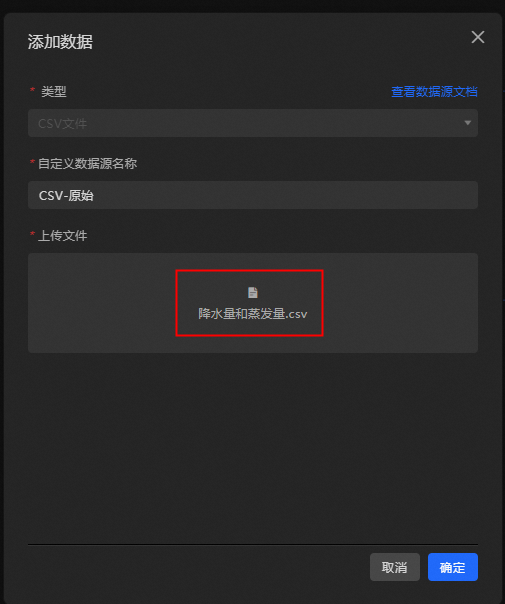
Import the Precipitation And Evaporation.csv file and click OK.
-
In the Select Existing Data Source panel, choose the newly imported CSV data source. The chart may initially display no content.

-
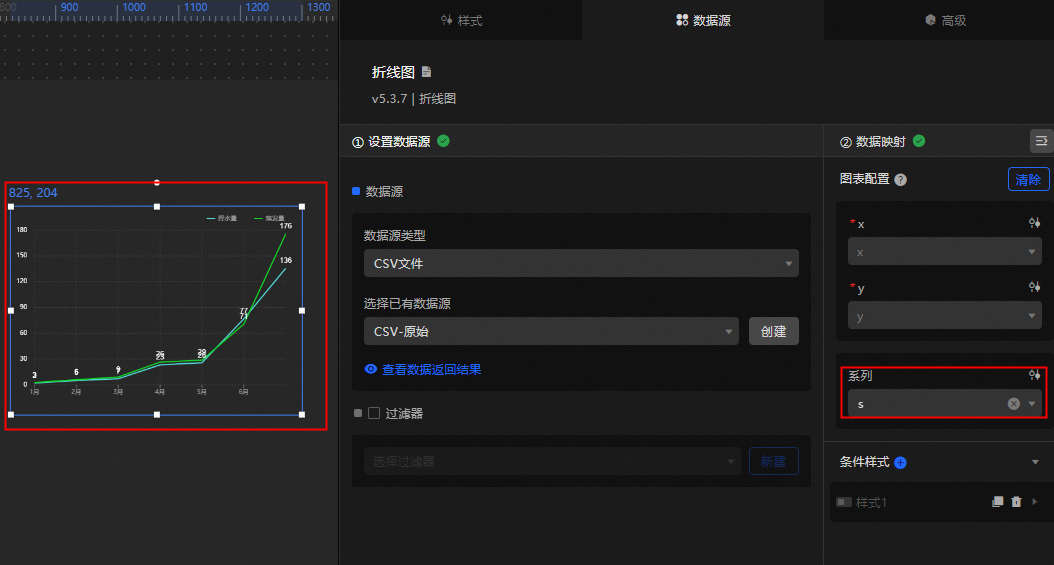
Click Data Mapping and assign the Edition field to
s. The chart should now display correctly as illustrated.