Intelligent interaction generation
DataV-Board 7.0 (Data Dashboard) supports intelligent interaction event generation. This feature lets you use simple conversational prompts to design and implement complex interaction scenarios. This simplifies the creation of interaction events. This topic describes how to use AI to generate these events.
Overview
Intelligent interaction generation is an innovative feature in widget interaction configuration. It allows users to describe interaction requirements in natural language, and the system automatically generates the corresponding interaction events. This feature greatly simplifies the interaction design process and significantly improves data visualization efficiency and user experience, helping users build dynamic and responsive data dashboards more efficiently.
Features
Intelligent interaction generation provides the following main features to simplify the interaction design process and improve data visualization efficiency and user experience.
Event generation
You can create interaction events that meet your needs through conversation. In scenarios with multiple conditions, the system generates complex actions based on your input, which enhances design flexibility. The system also automatically generates logic based on the conditions you provide, which simplifies the design of complex interactions. It can also automatically configure parameters for object actions based on your needs, which greatly reduces manual setup.
Event management
After the interaction logic is generated, you can view and adjust condition rules and parameter settings in real time on the visualization panel. This ensures that the interaction logic accurately matches your business requirements.
Quick application and validation
After an interaction event is generated and confirmed, click the Apply this solution button. The system automatically binds the optimized interaction logic to the specified widget. You can then use the preview feature to verify that the interaction works as expected.
Precautions
Different editions of DataV-Board 7.0 have different monthly limits for AI assistant usage (the total number of uses available to all users in the current edition).
Personal Edition: 5 times/month
Enterprise Edition: 600 times/month
Professional Edition: 1500 times/month
Premium Edition: 30000 times/month
If the AI assistant usage limit for your current edition does not meet your business needs, you can obtain more uses by upgrading your edition or purchasing a user resource plan. By default, purchasing one user resource plan (which includes 5 users) provides 1500 times/month of AI assistant usage.
Prerequisites
A data dashboard project has been created.
Use intelligent interaction generation
Enter the canvas editor
Before using this feature, follow these steps to enter the canvas editor:
Access the DataV console.
On the Workbench page, hover over the target project and click Edit to open the canvas editor.
Example
This example shows how to use AI to generate an interaction event involving a tab list, a button, and a column chart widget. When the Column Chart tab is clicked, the column chart widget is hidden after 2 seconds. When the Button tab is clicked, the name of the button widget is changed to Test Generation Feature after 3 seconds.
Add a Column Chart widget, a Button widget, and a Tab List widget to the canvas. The Tab List widget is located under .
Select the Tab List widget. In the Data Source configuration pane on the right, change the field values
TAB2andTAB3toColumn ChartandButtonrespectively.In the advanced configuration panel on the right, expand the Interaction Event section. Set the event type to When Tab is Clicked. Click Intelligent Generation to open the intelligent interaction dialog box.
In the dialog box, enter your requirements. The system automatically generates the corresponding interaction event.
ImportantThe intelligent interaction generation feature relies on the widgets and logic nodes already added to the canvas for inference. For example, to implement a timed operation, you must first add a Timer logic node.
Matching rules: Intelligent interaction event generation supports two matching rules, which can be used together.
Automatic match: Based on your input, the system automatically matches keywords with relevant objects (such as widgets, variables, and logic nodes) and related events or actions on the canvas to generate the interaction flow.
Specify object: Use Quick Add to specify objects (such as widgets, variables, and logic nodes) and their related events or actions. This makes the interaction flow generation more accurate.
Generation flow: The generation of an interaction event is divided into two stages: interaction conditions and interaction configuration. You can view and edit the generated content at any time. After generation, a preview of the interaction event appears on the left. You can view and adjust it as needed.
Keyboard shortcuts: The dialog box supports keyboard shortcuts to quickly add objects, events, and actions. This significantly improves the efficiency of interaction design. Click the
 icon in the upper-right corner to clear the current dialog box.
Intelligent interaction generation example:
When the clicked Tab ID is 2, hide the column chart after 2 seconds. When the clicked Tab ID is 3, change the button's name to Test Generation Feature after 3 seconds. The operations are as follows:After the interaction event is generated, click Apply this solution to complete the configuration. After you apply the solution, you can click View Details to navigate to the advanced configuration panel and the blueprint editor to view the event details. If you do not need the solution, click Discard to cancel it.
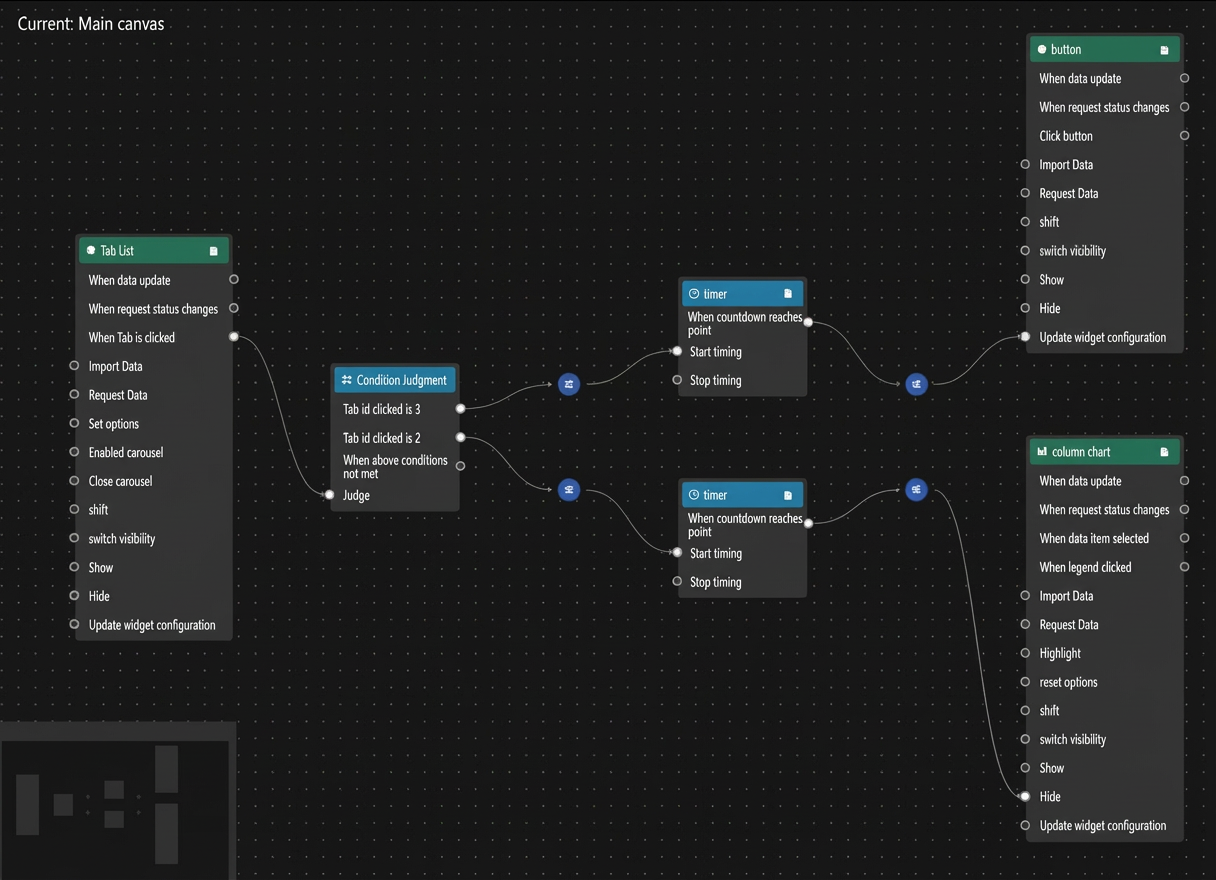
In the upper-right corner, click Preview to see the result. When you click different tabs, you will see the corresponding effects that you configured.
Contact us
If you have any questions when using this feature, contact us for guidance.