Echarts large-scale scatter chart
Configure the appearance, data sources, and interactions for the ECharts large-scale scatter chart widget.
Chart style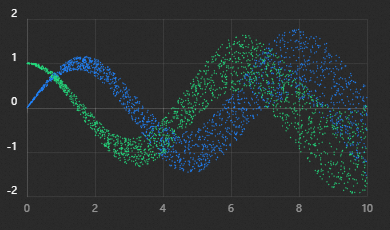
Style panel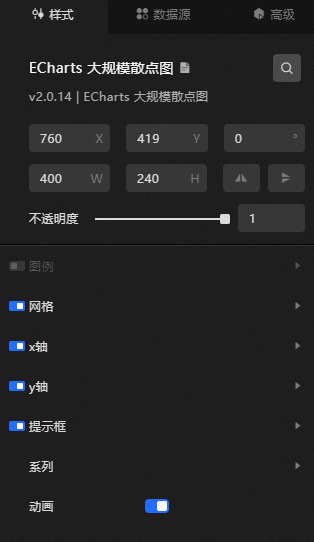
-
Search Configuration: Click the Style icon
 in the upper right corner of the panel to enter the name of the configuration item you wish to locate in the search field. The system supports fuzzy matching. For more information, see Search configuration item.
 -
Size: The width and height of the component in pixels (px).
Position: The component's x-coordinate and y-coordinate in pixels (px). The x-coordinate is the horizontal distance from the page's left edge to the component's top-left corner. The y-coordinate is the vertical distance from the page's top edge to the component's top-left corner.
Rotation: The rotation of the component around its center point, in degrees (°).
Enter an angle value to control the component's rotation.
Click the
 icon to flip the component horizontally.
Click the
 icon to flip the component vertically.
Opacity: The value ranges from 0 to 1. A value of 0 is completely transparent, while a value of 1 is fully opaque. The default is 1.
Interaction passthrough: When enabled, mouse interactions pass through this component, preventing it from blocking interactions with other components layered underneath it on a dashboard.
Alignment: The alignment of the component within the editor.
-
Legend: Click the eye icon on the right to show the legend style settings.
-
Top: The distance between the legend and the top border of the widget. The default value is auto. The following input formats are supported:
-
A specific pixel value, such as 20.
-
A percentage of the container's height or width, such as 20%.
-
left, center, or right. The widget aligns automatically based on the selected position.
-
-
Right: The distance between the legend and the right border of the widget. The default value is auto. The following input formats are supported:
-
A specific pixel value, such as 20.
-
A percentage of the container's height or width, such as 20%.
-
left, center, or right. The widget aligns automatically based on the selected position.
-
-
Bottom: The distance between the legend and the bottom border of the widget. The default value is auto. The following input formats are supported:
-
A specific pixel value, such as 20.
-
A percentage of the container's height or width, such as 20%.
-
left, center, or right. The widget aligns automatically based on the selected position.
-
-
Width: The width of the legend. The default value is auto.
-
Height: The height of the legend. The default value is auto.
-
Orientation: The layout orientation of the legend.
-
Horizontal: The legend items are arranged horizontally.
-
Vertical: The legend items are arranged vertically.
-
-
Alignment: The alignment of the legend marker and text.
-
Auto: The default value is auto. The alignment is determined based on the widget's position and orientation.
-
Align Left: The graphic is Left-aligned with the text.
-
Center Alignment: When the legend graphic and text overlap, the alignment is Center Alignment.
-
Right Alignment: When the graphic is to the right of the text, the alignment is Right Alignment.
-
-
Padding: You can click + or -, or enter a value to adjust the legend padding in pixels. The default padding is 5 for all sides.
-
Item Gap: You can click + or -, or enter a value to adjust the distance between legend items. This is the horizontal gap for a horizontal layout and the vertical gap for a vertical layout.
-
Icon Width: You can click + or -, or enter a value to adjust the width of the legend marker.
-
Icon Height: You can click + or -, or enter a value to adjust the height of the legend marker.
-
Selection Mode: Click the eye icon on the right to show the selection mode settings.
-
Inactive Color: Sets the color of a legend item when it is deselected. The effect is visible only on the preview or published page when you click a legend item. For more information, see Color picker.
-
Text Style
-
Color: Sets the color of the legend text. For more information, see Color picker.
-
Font Style: The font style of the legend text.
-
Font Weight: The font weight of the legend text.
-
Font: The font family of the legend text.
-
Font Size: You can click + or -, or enter a value to change the font size of the legend.
-
-
Background Color: Sets the background color of the legend. For more information, see Color picker.
-
Border Color: Sets the border color of the legend. For more information, see Color picker.
-
Border Width: You can click + or -, or enter a value to adjust the border width of the legend.
-
Alignment: The alignment of the legend. The default value is Align center. You can also select Align left or Align right.
-
-
Grid: Click the eye icon on the right to show the grid style settings.
-
Left: The distance between the grid and the left border of the widget. The default value is 3%. The following input formats are supported:
-
A specific pixel value, such as 20.
-
A percentage of the container's height or width, such as 20%.
-
left, center, or right. The widget aligns automatically based on the selected position.
-
-
Top: The distance between the grid and the top border of the widget. The default value is 60. The following input formats are supported:
-
A specific pixel value, such as 20.
-
A percentage of the container's height or width, such as 20%.
-
left, center, or right. The widget aligns automatically based on the selected position.
-
-
Right: The distance between the grid and the right border of the widget. The default value is 4%. The following input formats are supported:
-
A specific pixel value, such as 20.
-
A percentage of the container's height or width, such as 20%.
-
left, center, or right. The widget aligns automatically based on the selected position.
-
-
Bottom: The distance between the grid and the bottom border of the widget. The default value is 3%. The following input formats are supported:
-
A specific pixel value, such as 20.
-
A percentage of the container's height or width, such as 20%.
-
left, center, or right. The widget aligns automatically based on the selected position.
-
-
Width: The width of the grid. The default value is auto, which adapts the width automatically.
-
Height: The height of the grid. The default value is auto, which adapts the height automatically.
-
Responsive layout: Select this check box to use a responsive layout. Clear it to use a custom layout.
-
Background Color: Sets the background color of the grid. The default color is transparent. For more information, see Color picker.
-
Border Color: Sets the border color of the grid. The default color is transparent. For more information, see Color picker.
-
Border Width: You can click + or -, or enter a value to adjust the grid border width.
-
-
x-axis: Click the eye icon on the right to show the x-axis style settings.
-
Offset: The offset of the x-axis from its default position. The default value is 0.
-
Type: The type of the coordinate axis. The options are:
-
value: A value axis, suitable for continuous data.
-
category: A category axis, suitable for discrete category data. If you select this type, you must set the category data in the data panel.
-
time: A time axis, suitable for continuous time series data. Compared to a value axis, a time axis has time formatting and different tick calculations. For example, it can determine whether to use month, week, day, or hour ticks based on the data span.
-
log: A log axis, suitable for log data.
-
-
Name: A custom name for the x-axis.
-
Name Location: The position of the x-axis name. The options are Start, Center, or End. The default value is End.
-
Name Style
-
Color: Sets the color of the x-axis name text. For more information, see Color picker.
-
Font Style: The font style of the x-axis name.
-
Font Weight: The font weight of the x-axis name.
-
Font: The font family of the x-axis name.
-
Font Size: You can click + or -, or enter a value to change the font size of the x-axis name.
-
-
Name Gap: You can click + or -, or enter a value to change the distance between the axis name and the axis line.
-
Name Rotate: You can click + or -, or enter a value to change the rotation angle of the axis name.
-
Inverse: If you select this check box, the axis is displayed in reverse. If you clear this check box, the axis is displayed normally.
-
Boundary Gap: If you select this check box, a gap is left on both sides of the axis. If you clear this check box, no gap is left.
-
Minimum: The minimum value of the axis scale. The default value is Data Min, which uses the minimum value from the data on this axis as the minimum tick. If this is not set, the minimum value is calculated automatically to ensure a uniform distribution of axis ticks.
-
Maximum: The maximum value of the axis scale. The default value is Data Max, which uses the maximum value from the data on this axis as the maximum tick. If this is not set, the maximum value is calculated automatically to ensure a uniform distribution of axis ticks.
-
Scale: If you select this check box, the axis scale does not need to include the zero tick mark. This option is valid only for value axes and has no effect if you set a maximum and a minimum value.
-
Split Number: You can click + or -, or enter a value to set the number of segments for the axis. If this is not set, the value is calculated automatically to ensure a uniform distribution of axis ticks. This value is only an estimate. The final number of segments is adjusted based on this value to ensure the tick labels are readable. This option is not valid for category axes.
-
Min Interval: You can click + or -, or enter a value to set the minimum interval of the axis. For example, you can set it to 1 to ensure that the axis tick labels are integers. This option is valid only for value or time axes.
-
Log Base: The base of the log axis. This option is valid only for log axes.
-
Static: If you select this check box, the axis is static and cannot be interacted with.
-
Axis Line: Click the eye icon on the right to show the x-axis line settings.
-
On Zero: Specifies whether the axis line of the x-axis or y-axis is on the 0 tick of the other axis. This is valid only when the other axis is a value axis and includes the 0 tick.
-
Line Style
-
Color: Sets the color of the x-axis line. For more information, see Color picker.
-
Width: You can click + or -, or enter a value to change the width of the x-axis line.
-
Type: The type of the x-axis line. The options are Solid and Dashed.
-
Opacity: You can click + or -, or enter a value to change the opacity of the x-axis line. The value ranges from 0 to 1.
-
-
-
Tick: Click the eye icon on the right to show the x-axis tick settings.
-
Align with Label: If you select this check box, the ticks are aligned with the labels. This is valid for category axes after you select Boundary Gap.
-
Interval: You can click + or -, or enter a value to change the display interval of the axis ticks. This is valid for category axes.
-
Inside: If you select this check box, the axis ticks face inward. If you clear this check box, the axis ticks face outward.
-
Length: You can click + or -, or enter a value to change the length of the axis ticks.
-
Line Style
-
Color: Sets the color of the tick lines. For more information, see Color picker.
-
Width: You can click + or -, or enter a value to change the width of the tick lines.
-
Type: The type of the tick line. The options are Solid and Dashed.
-
Opacity: You can click + or -, or enter a value to change the opacity of the tick lines. The value ranges from 0 to 1.
-
-
-
Tick Label: Click the eye icon on the right to show the x-axis tick label settings.
-
Interval: The display interval of the axis tick labels. This is valid for category axes. By default, labels are displayed at intervals to prevent them from overlapping. You can set this to 0 to force all labels to be displayed. If you set it to 1, it means that every other label is displayed. If the value is 2, it means that every third label is displayed, and so on.
-
Inside: If you select this check box, the axis tick labels face inward. If you clear this check box, the axis tick labels face outward.
-
Rotate: The rotation angle of the tick labels. You can rotate labels on a category axis to prevent them from overlapping. The rotation angle ranges from -90 to 90 degrees.
-
Margin: The distance between the tick labels and the axis line.
-
Show Min Label: If you select this check box, the minimum tick label is displayed. By default, this is determined automatically. The minimum tick label is not displayed if it overlaps with other labels.
-
Show Max Label: If you select this check box, the maximum tick label is displayed. By default, this is determined automatically. The maximum tick label is not displayed if it overlaps with other labels.
-
Text Style
-
Color: Sets the color of the axis tick labels. For more information, see Color picker.
-
Font Style: The font style of the axis tick labels.
-
Font Weight: The font weight of the axis tick labels.
-
Font: The font family of the axis tick labels.
-
Font Size: The font size of the axis tick labels.
-
Alignment: The horizontal alignment of the axis tick labels. The default value is Auto. The options are:
-
Auto
-
Align left
-
Align center
-
Align right
-
-
Alignment: Optional. The available options are Align Top, Align Center, and Align Bottom.
-
-
-
Split Line: Click the eye icon on the right to show the split line settings.
-
Interval: You can click + or -, or enter a value to change the display interval of the axis split lines. This is valid for category axes. By default, split lines are displayed at intervals to prevent them from overlapping. You can set this to 0 to force all split lines to be displayed. If you set it to 1, it means that every other split line is displayed. If the value is 2, it means that every third split line is displayed, and so on.
-
Line Style
-
Width: You can click + or -, or enter a value to change the width of the x-axis split line.
-
Type: The type of the x-axis split line. The options are Solid and Dashed.
-
Opacity: You can click + or -, or enter a value to change the opacity of the x-axis split line. The value ranges from 0 to 1.
-
-
-
Split Area: Click the eye icon on the right to show the split area settings.
-
Interval: You can click + or -, or enter a value to change the display interval of the axis split areas. This is valid for category axes. By default, split areas are displayed at intervals to prevent them from overlapping. You can set this to 0 to force all split areas to be displayed. If you set it to 1, it means that every other split area is displayed. If the value is 2, it means that every third split area is displayed, and so on.
-
Area Style
-
Opacity: You can click + or -, or enter a value to change the opacity of the split area. The value ranges from 0 to 1.
-
-
-
-
y-axis: For more information, see the configurations for the x-axis style.
-
Tooltip: Click the eye icon on the right to show the tooltip settings.
-
Trigger: A custom trigger type. The options are Mouse move, Mouse click, and Both mouse move and click.
-
Background Color: Sets the background color of the tooltip. For more information, see Color picker.
-
Border Color: Sets the border color of the tooltip. For more information, see Color picker.
-
Border Width: You can click + or -, or enter a value to change the border width of the background box.
-
Padding: You can click + or -, or enter a value to change the padding of the background box in pixels. The default padding is 5 for all sides.
-
Text Style
-
Color: Sets the color of the tooltip text. For more information, see Color picker.
-
Font Style: The font style of the tooltip text.
-
Font Weight: The font weight of the tooltip text.
-
Font: The font family of the tooltip text.
-
Font Size: The font size of the tooltip text.
-
-
-
Series: Click the
 or icon to add or delete a conditional style. Click the or icon to configure the arrangement of multiple conditional styles. Click the icon to copy the current conditional style configuration and add a new one with the same configuration.
-
Name: A custom series name. This must be used with the
sfield in the data. -
Polar Index: The index of the polar coordinate system to use. The default value is 0. This is useful when there are multiple polar coordinate systems in a single chart instance.
-
Geo Index: The index of the geographic coordinate system to use. The default value is 0. This is useful when there are multiple geographic coordinate systems in a single chart instance.
-
calendarIndex: The index of the calendar coordinate system to use. The default value is 0. This is useful when there are multiple calendar coordinate systems in a single chart instance.
-
Hover Animation: If you select this check box, the animation effect on mouse hover is enabled.
-
Legend Hover Link: If you select this check box, the linked highlighting on legend hover is enabled.
-
Symbol: A custom symbol. The default value is Circle. Symbol types include None, Circle, Rectangle, Rounded rectangle, Triangle, Diamond, Pin, and Arrow. For more information, see the ECharts official website.
-
Symbol Size: You can click + or -, or enter a value to change the size of the symbol.
-
Symbol Rotate: You can click + or -, or enter a value to change the rotation angle of the symbol.
-
Large-scale optimization: Enable this option to optimize rendering performance for charts with large volumes of data points. When enabled, rendering is optimized if the data volume exceeds the specified Progressive threshold. After optimization, you cannot customize the style of individual data items.
-
Progressive threshold: The threshold for progressive rendering. The default value is 2000.
-
Label
-
Normal: Click the eye icon on the right to show the label text for normal items (items not responding to mouse events).
-
Text Style
-
Color: Sets the color of the normal item label text. For more information, see Color picker.
-
Font Style: The font style of the normal item label text.
-
Font Weight: The font weight of the normal item label text.
-
Font: The font family of the normal item label text.
-
Font Size: The font size of the normal item label text.
-
-
-
Emphasis: Click the eye icon on the right to show the label text for emphasis items (items responding to mouse events).
-
Text Style
-
Color: Sets the color of the emphasis item label text. For more information, see Color picker.
-
Font Style: The font style of the emphasis item label text.
-
Font Weight: The font weight of the emphasis item label text.
-
Font: The font family of the emphasis item label text.
-
Font Size: The font size of the emphasis item label text.
-
-
-
-
Element Style
-
Normal
-
Color: Sets the background color of normal items. For more information, see Color picker.
-
Border Color: Sets the border color of normal items. For more information, see Color picker.
-
Border Width: You can click + or -, or enter a value to change the border width of normal items.
-
Border Style: A custom border stroke type. The options are Solid and Dashed. The default value is Solid.
-
Opacity: You can click + or -, or enter a value to change the opacity of normal items. The value ranges from 0 to 1.
-
-
Emphasis
-
Color: Sets the background color of emphasis items. For more information, see Color picker.
-
Border Color: Sets the border color of emphasis items. For more information, see Color picker.
-
Border Width: You can click + or -, or enter a value to change the border width of emphasis items.
-
Border Style: A custom border stroke type. The options are Solid and Dashed. The default value is Solid.
-
Transparency: Click + or -, or enter a value to adjust the item's transparency. The value must be between 0 and 1.
-
-
-
Static: If you select this check box, this series does not respond to or trigger mouse events.
-
-
Animation: If you select this check box, the animation effect is enabled.
 or
or  icon to add or delete a conditional style. Click the
  or
or  icon to configure the arrangement of multiple conditional styles. Click the
  icon to copy the current conditional style configuration and add a new one with the same configuration.
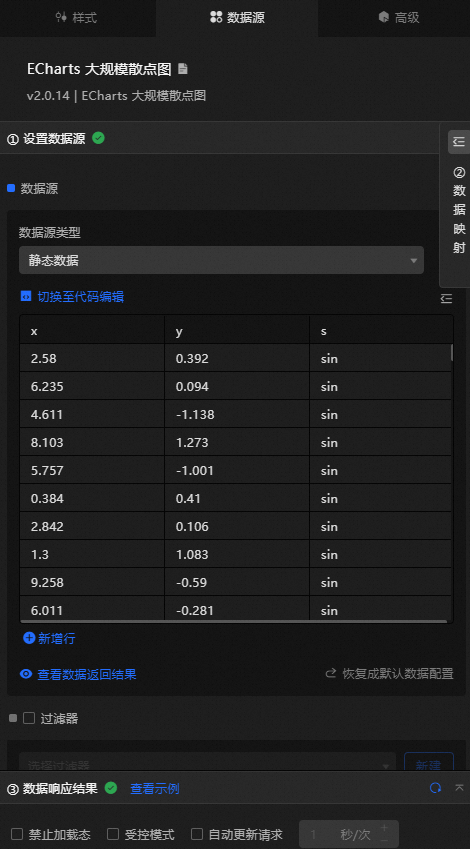
Data Source panel
|
Field |
Description |
|
|
The x-axis value for each data point in the scatter chart. |
|
|
The y-axis value for each data point in the scatter chart. |
|
|
(Optional) The series value. This is used with the Series configuration item in the Style panel. |
|
Data Item Configuration |
Description |
|
Data Source |
The component's data source displays the data fields contained within the component using code editing or visual editor. You can also modify the data type to flexibly configure the component's data. |
|
Data Mapping |
When you need to customize chart field configurations, you can set different field mappings in the Data Mapping module to map these fields to the corresponding fields of the component. This allows for real-time data matching without altering the data source fields. Additionally, click the |
|
Filter |
Open the Filter to select an existing data filter or create a new one, and configure the data filter script to achieve data filtering capabilities. For more information, see manage data filters. |
|
Data Response Result |
This feature displays the component's data in real-time. When the component's data source changes, the data response result will display the latest data accordingly. In case of a delayed system response, you can click the |
|
Disable Loading State |
Check the check box to hide the loading content during component updates and data dashboard previews. Unchecking will display the loading content. The default setting is unchecked. |
|
Controlled Mode |
Check the check box to prevent data requests upon the component's initialization. Data requests will only be initiated through global variables or methods configured in the blueprint editor. Unchecking allows for automatic update requests. The default setting is unchecked. |
|
Automatic Update Request |
Check the check box to manually set the polling frequency for dynamic polling. Clearing this option disables automatic updates, requiring manual page refreshes or data request triggers through the blueprint editor and global variable events for updates. |
 icon to configure field styles individually.
 icon on the right to check the current data response result, or click the
  icon on the right to obtain the most recent data for the component. You can also click to view examples to see sample response results for the current component.
Advanced panel
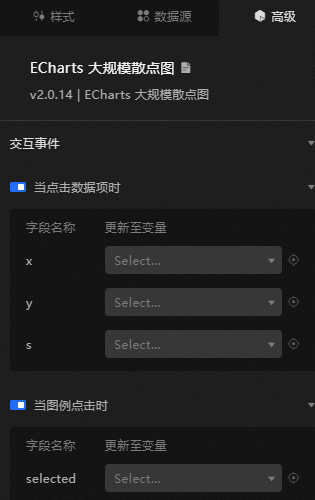
|
Interaction |
Description |
|
When a data item is clicked |
Turn on the switch to enable widget interaction. When a data item is clicked, a callback value is passed. By default, the |
|
When a legend item is clicked |
Turn on the switch to enable widget interaction. When a legend item is clicked, a callback value is passed. By default, the |
Blueprint interaction
-
Click the
icon in the upper-left corner of the page to go to the Blueprint page. -
On the Layer Nodes tab, add the current widget to the main canvas.
-
View the blueprint configuration parameters.
-
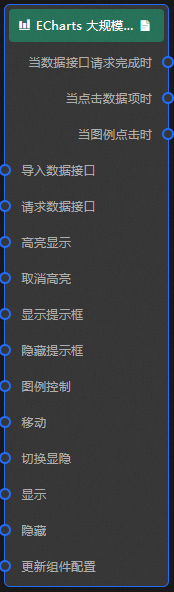
Events
Event
Description
When data API request is complete
Triggered after a data API request returns and is processed by a filter. The processed data is passed in JSON format. For a data example, see the Data Response area on the Data Source tab of the widget's configuration panel in the canvas editor.
When a data item is clicked
Triggered when you click a data point in the large-scale scatter chart. The corresponding data item is passed.
When a legend item is clicked
Triggered when you click a legend item in the large-scale scatter chart. The corresponding data item is passed.
-
Actions
Action
Description
Request data API
Re-requests data from the server. Data from upstream data processing nodes or layer nodes is used as parameters. For example, if a large-scale scatter chart is configured with the API data source
https://api.testand the data passed to the Request data API action is{ id: '1'}, the final request URL ishttps://api.test?id=1.Import data API
Imports pre-processed data in the component's drawing format to redraw the component without requesting data from the server again. For specific data examples, see the Data Response area on the Data Source tab in the configuration panel of the component in the canvas editor.
Highlight
The data for this action is an object with the following parameters:
seriesName(series name),seriesIndex(series index),dataIndex(data index), andname(data name). Use `seriesName` or `seriesIndex` to specify the series. To target a specific data point, also provide `dataIndex` or `name`. Data example:{ "seriesName": "", "seriesIndex": 1, "dataIndex": 1, "name": "" }Cancel highlight
The data for this action is an object with the following parameters:
seriesName(series name),seriesIndex(series index),dataIndex(data index), andname(data name). Use `seriesName` or `seriesIndex` to specify the series. To target a specific data point, also provide `dataIndex` or `name`. Data example:{ "seriesName": "", "seriesIndex": 1, "dataIndex": 1, "name": "" }Show tooltip
The data for this action is an object with the following parameters:
dataindex(data index),name(data name),x(x-coordinate), andy(y-coordinate). Data example:{ "dataIndex": 1, "name": "", "x": 1, "y": 1 }Hide tooltip
Hides the tooltip. No parameters are required.
Legend control
The data for this action is an object with the following parameters:
type(legend action type) andname(legend name). Data example:{ "type": "",// The legend action types include the following: legendSelect, legendUnSelect, and legendToggleSelect. "name": "" }Move
Moves the component to a specified position. Data example:
 {
      // The move method. Use 'to' for absolute positioning or 'by' for relative positioning. Default: to.
        "positionType": "to",
      // The target position, specified by x and y coordinates.
      "attr": {
        "x": 0,
        "y": 0
      },
      // The animation settings.
      "animation": {
        "enable": false,
        // The animation duration.
        "animationDuration": 1000,
        // The animation curve. Valid values: linear, easeInOutQuad, or easeInOutExpo.
        "animationEasing": "linear"
      }
    }
Toggle visibility
Toggles the visibility of the component. No parameters are required.
Show
Shows the component. Data example:
{
  "animationType": "",// The animation method. Optional value: fade. If left blank, no animation is applied.
  "animationDuration": 1000,// The animation delay in ms.
  "animationEasing": ""// The animation curve.
}
Hide
Hides the component. Data example:
{
  "animationType": "",// The animation method. Optional value: fade. If left blank, no animation is applied.
  "animationDuration": 1000,// The animation delay in ms.
  "animationEasing": ""// The animation curve.
}
Update component configuration
Dynamically updates the style configuration of the component. To obtain the component configuration data, click Copy Configuration to Clipboard in the component's Style pane. Then, modify the values of the corresponding style fields in the data processing node on the blueprint editor's configuration page.
-
 icon in the upper-left corner of the page to go to the Blueprint page.