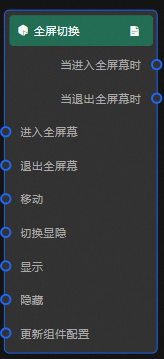
full-screen-switch
Configure the Full Screen Switch widget to toggle between full-screen and small-screen display modes.
Chart style
The Full Screen Switch widget supports custom icons and background styles for toggling between full-screen and small-screen display. 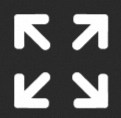
Style Panel 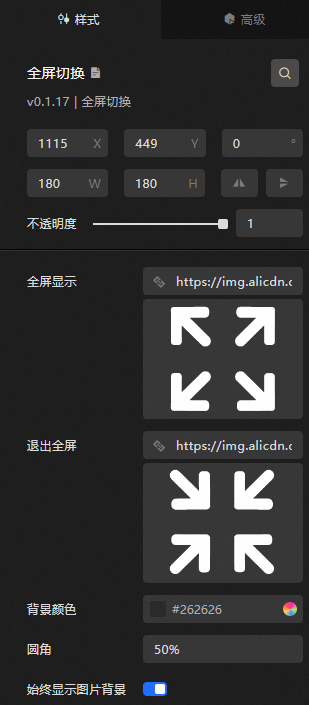
-
Search Configuration: Click the
 icon in the upper-right corner of the Style panel to search for a configuration item by name. Fuzzy match is supported. For more information, see Search configuration items.
 -
Size: the width and height of the widget. Unit: pixels.
-
Positioning: the x-axis and y-axis of the component. Unit: pixels. X-coordinate indicates the pixel distance between the upper-left corner of the widget and the left border of the canvas. Y-coordinate indicates the pixel distance between the upper-left corner of the widget and the upper border of the canvas.
-
Rotate: Rotates the widget around its center. Unit: degrees.
-
Enter the degrees in the Rotation Angle spin box, or click the plus sign (+) or minus sign (-) to adjust the value.
-
Click the
 icon to flip the widget style.
 -
Click the
 icon to flip the widget style.
-
-
Opacity: Valid values: 0 to 1. A value of 0 hides the widget, and a value of 1 fully displays it. Default value: 1.
-
-
Enter: the icon for entering full-screen mode. To use a remote image, enter the image URL in the input box. Click Preview to preview the image, or click Change below the image box to replace it. For more information, see Use the interface.
-
Exit: the icon for exiting full-screen mode. To use a remote image, enter the image URL. Click Preview to preview the image, or click Change below the image box to replace it. For more information, see Use the interface.
-
Background Color: the background color of the icons. For more information, see Color picker.
-
Border Radius: the shape of the background. Default value: 50%, which indicates that the background is a circle. If you set the value to 0%, the background is a square.
NoteIf the widget is not a square, the background is an ellipse when you set Border Radius to 50%.
-
Show Background Image: When enabled, the background is always visible. When disabled, the background appears only when you hover over the full-screen switch.
The configured styles are visible only on the Preview or Publish page.
Data Sources panel
This widget does not support data configuration.
Advanced Panel
This component does not require interaction event configuration.
Blueprint Interaction
-
Click the
 icon in the upper-left corner to go to the Blueprint page.
 -
On the Layer Nodes tab, add the widget to the main canvas.
-
View blueprint configuration parameters.
-
Event
Parameter
Description
When entering full screen
Triggered when you enter full-screen mode. No parameter input is required.
When exiting full screen
Triggered when you exit full-screen mode. No parameter input is required.
-
Action
Action
Notes
Go to Full Screen
Enters full-screen mode. No parameter input is required.
Exit Full Screen
Exits full-screen mode. No parameter input is required.
Move
Moves the widget to a specified location. See the following data example.
    {
      // The positioning type. to indicates absolute positioning, whereas by indicates relative positioning. The default value is to.
        "positionType": "to",
      // The location, which is indicated by the x and y coordinates.
      "attr": {
        "x": 0,
        "y": 0
      },
      // The animation type.
      "animation": {
        "enable": false,
        // The duration in which animation is displayed.
        "animationDuration": 1000,
        // The animation curve, which can be set to linear|easeInOutQuad|easeInOutExpo.
        "animationEasing": "linear"
      }
    }
Switch Display /Hash
Toggles the widget between visible and hidden. No parameters are required.
Display
Displays the widget. See the following data example.
{
  "animationType": "",// The animation method. Valid value: fade. If you do not set this parameter, no animation is available.
  "animationDuration": 1000,// The animation delay. Unit: ms.
  "animationEasing": ""// animation curve
}
Hide
Hides the widget. See the following data example.
{
  "animationType": "",// The animation method. Valid value: fade. If you do not set this parameter, no animation is available.
  "animationDuration": 1000,// The animation delay. Unit: ms.
  "animationEasing": ""// animation curve
}
Update component configurations
Dynamically updates the widget style. In the Style panel, click Copy Configuration to Clipboard to obtain the widget configuration data, then modify the style field for the data processing node in Blueprint Editor.
-
 icon in the upper-left corner to go to the Blueprint page.