Common Title
Configure and use the Common Title widget to display titles and key information in your data dashboard.
Overview
The Common Title widget displays the core content or key information of a module. You can use multiple Common Title widgets in a data dashboard to label different sub-modules.
Scenarios
Use the Common Title widget to add titles and descriptions to a visualization application, making the subject of each section immediately clear. The widget also supports interactions with other widgets to control which dimension views or data content are displayed.
Examples
-
Static title
-
Interactive scenario
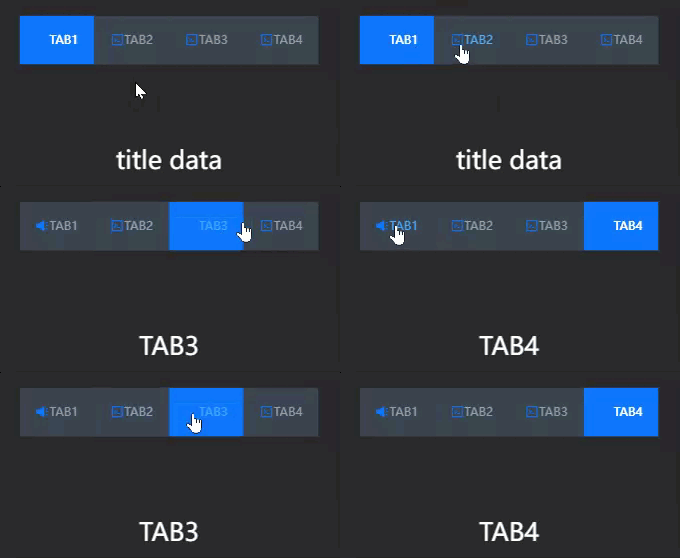
-
Hyperlink redirection
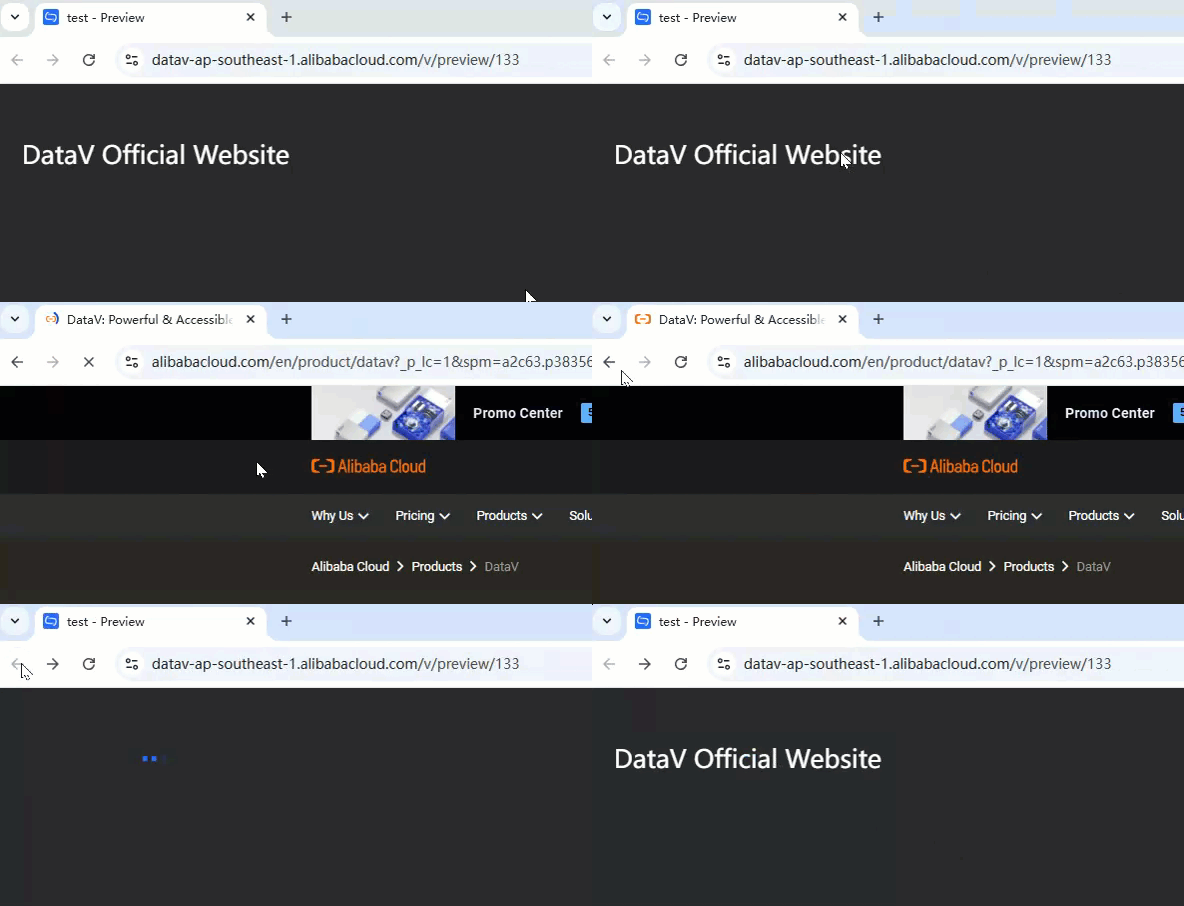
Prerequisites
-
Create a data dashboard. You can use a template, use a blank canvas, or use AI to generate one.
-
Your business data is prepared. For more information, see Data Source.
Add the Common Title widget
-
Access the DataV console.
-
On the Workbench page, in the Data Dashboards area, hover over the target dashboard and click Edit. The canvas editor opens.
-
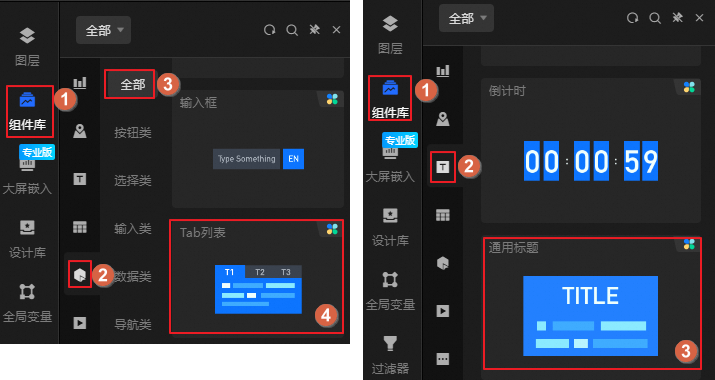
In the navigation pane on the left, follow the steps in the figure to add the Common Title widget to the canvas.
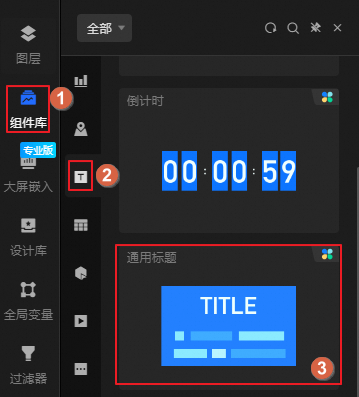
You can also use the global search feature to add the widget.
Connect to business data
After you add the widget, you must connect it to a data source. Click the Common Title widget. On the Data Source tab in the right-side configuration panel, select a data source for the widget.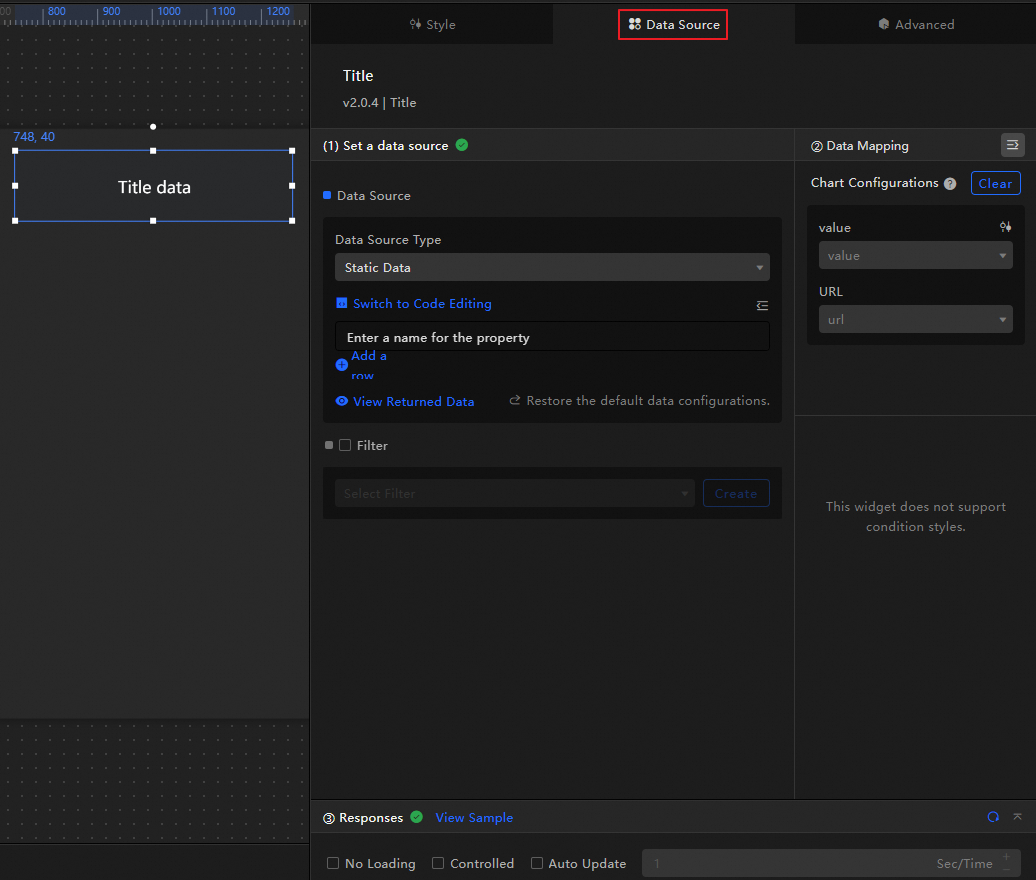
-
The following table describes the data fields that the Common Title widget accepts.
Field
Description
value(Optional) The content of the title. If this field is not empty, its value overwrites the configuration in the style settings. If this field is empty, the content from the setting is used.
url(Optional) The hyperlink address for the title. If this field is not empty, its value overwrites the configuration in the style settings. If this field is empty, the URL from the setting is used.
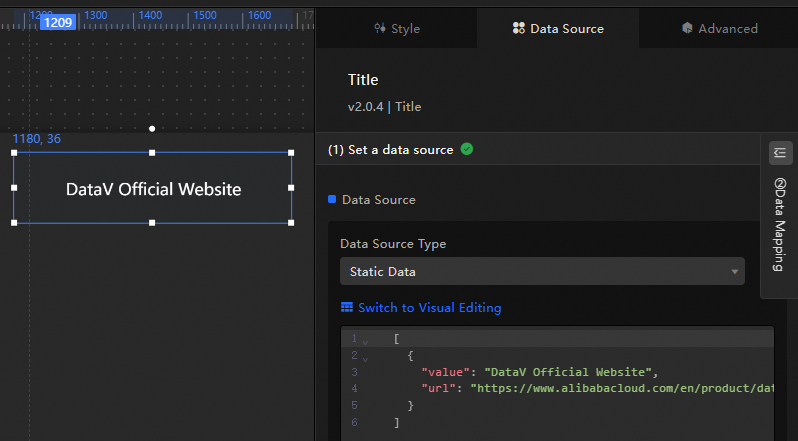
The data structure and an example of a generic title are shown below.
[
  {
    "value": "DataV Official Website",
    "url": "https://www.aliyun.com/product/bigdata/datav?spm=5176.28536895.nav-v2-dropdown-menu-0.d_main_8_2_0.2d5b586cgSLMNb"
  }
]
In the preview or published view, you can click the widget to go to the specified link.

-
This section describes the core configuration items for the data source.
Configuration
Description
Select Data Source
Supports various data types, such as CSV files, APIs, and different databases. For more information, see Supported data source types. Edit data fields in a visual table or in code.
Configure Filter (Optional)
Customize filter code to transform, filter, display, and perform simple calculations on data. For more information, see Manage data filters.
Configure Data Mapping
Map fields from the selected data source to the widget's fields. This enables real-time data matching. Click the
icon to configure field styles.View Response Result
Displays the data connected to the widget in real time. When the widget's data source changes, this section shows the latest data.
-
Click the data response result to view the data field code.
-
Click View Example to see the array type and sample code that the data source accepts. You can write your fields based on the example.
Other data request configurations:
-
Disable Loading State: If you check this box, the widget's initial loading content does not appear when the widget updates or when you preview the data dashboard.
-
Controlled Mode: If you check this box, the widget does not request data when it initializes. Data requests can only be started by the blueprint editor or by global variable events.
-
Auto Update Request: If you check this box, the platform polls for data updates at the interval you set. If you do not check this box, you must refresh the page manually or use the blueprint editor or global variable events to trigger data updates.
-
 icon to configure field styles.
Configure the Common Title widget
Click the Common Title widget to open the right-side configuration panel, where you can set basic styles, global variables, interaction events, and blueprint interactions.
Style configuration
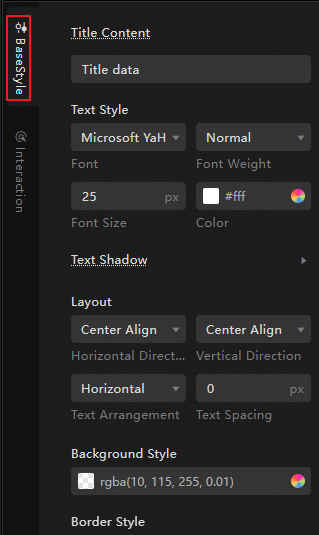
On the Style tab, configure the text size, layout, and background color for the Common Title widget.
You can also click the  icon and use keywords to search for a specific parameter. The search feature supports fuzzy matching. For more information, see Search for configuration items.
The following table describes the configuration items.
|
Parameter |
Description |
Example |
|
Global Configuration |
Defines the widget's position, transparency, and interaction penetration in the data dashboard.
|
|
|
Basic Style Configuration |
Defines the title content and styles such as text size, layout, color, and whether to use an ellipsis for overflow. If you enable overflow ellipsis, overflowing text is replaced with an ellipsis. |
|
|
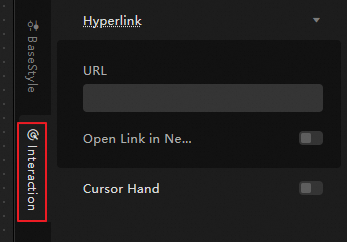
Interaction Configuration |
Sets the hyperlink and hand cursor for the Common Title widget.
|
|
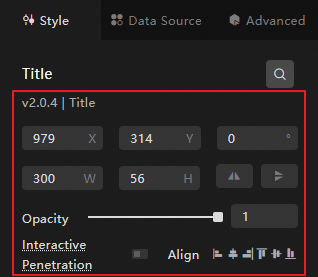
Advanced Configuration
Define interactions and data transfer relationships between the Common Title widget and other widgets.
|
Parameter |
Description |
Example |
|
Interaction Event |
Defines interaction behaviors with other widgets to enable filter interactions. The example shows how to use the Common Title widget to control the display of sales data from different dimensions. Click the |
|
|
Associate Global Variable |
You can associate global parameters in the widget to pass parameters between widgets for interaction. Click the When You Click The Title, a callback value is returned. By default, the callback contains the |
 icon to define relevant interaction events and actions.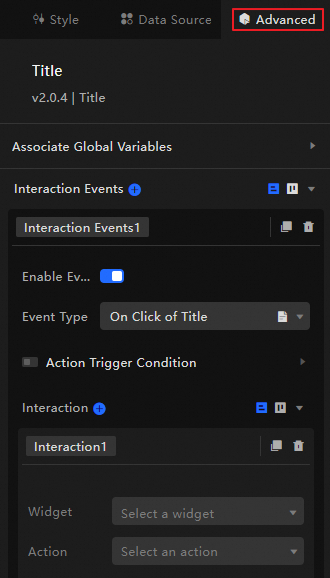
 icon to enable the corresponding instruction and associate the required
 Blueprint interaction
Use the Blueprint Editor to visually define interaction logic between widgets using a node-based approach.
Procedure
-
On the canvas editor page, click the
icon in the upper-left corner of the menu bar to open the Blueprint Editor. -
In the layer node list, hover over the Common Title widget and click the
icon to add the widget to the main canvas. -
Connect the nodes to configure the blueprint interactions for the widgets.
The following figure shows an example.
 icon in the upper-left corner of the menu bar to open the Blueprint Editor.
 icon to add the widget to the main canvas.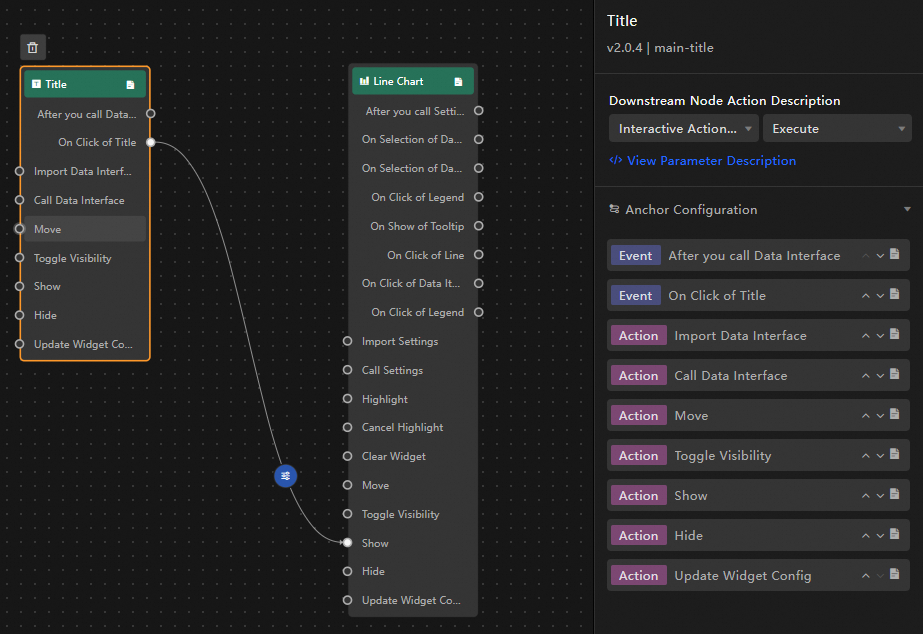
Parameter description
The following table describes the interaction events and actions.
In the blueprint configuration interface, you can also click the  icon next to an event or action to view detailed information about its parameters.
|
Category |
Subcategory |
Description |
|
Event |
When Data Is Updated |
This event is thrown when the widget data is updated. |
|
When Data Request Status Changes |
This event is thrown when the data request status changes. Status values include Void, Loading, Success, and Error. |
|
|
When Title Is Clicked |
This event is thrown when the title is clicked. The corresponding data item is also thrown. The following code shows a data example. |
|
|
Action |
Import Data |
Processes data according to the widget's format, then imports it to redraw the widget. This does not require re-requesting data from the server-side. The following code shows a data example. |
|
Request Data |
Re-requests data from the server-side. Data thrown from an input data processing node or a layer node is used as a parameter. For example, if the API data source configured for the Common Title widget is |
|
|
Move |
Moves the widget to a specified position. The following code shows a data example. |
|
|
Toggle Visibility |
Switches the widget between visible and hidden. The following code shows a data example.
|
|
|
Show |
||
|
Hide |
||
|
Update Widget Configuration |
Dynamically updates the style configuration of the widget.
|
Demo
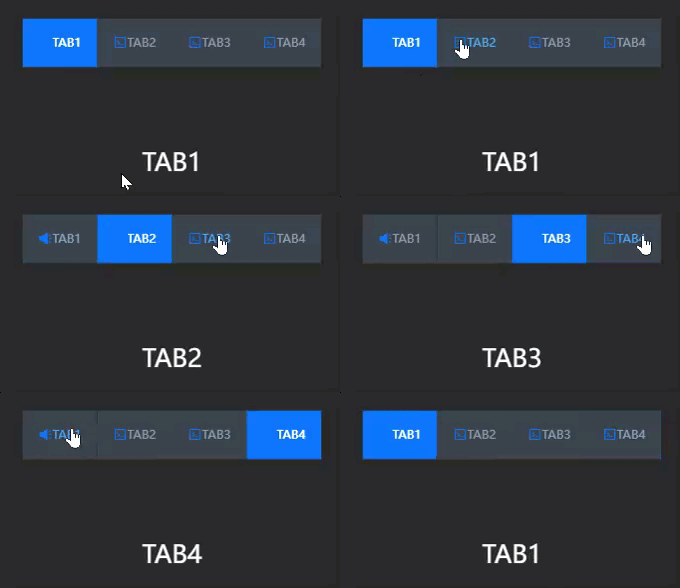
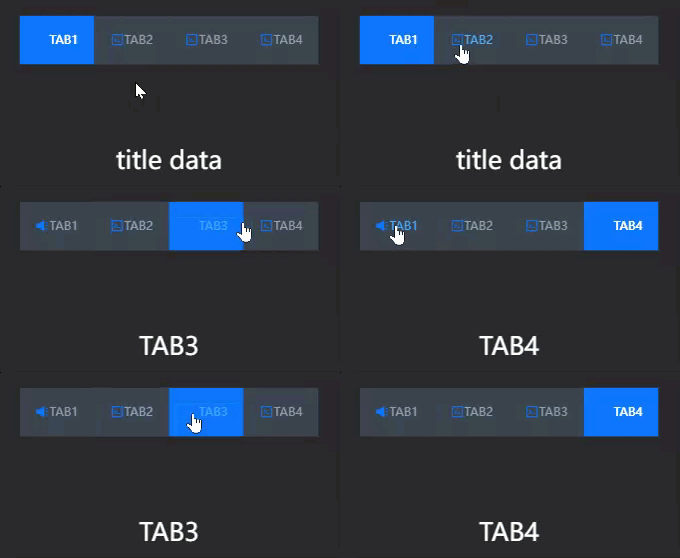
This demo uses the carousel feature of the Tab List widget to dynamically update the Common Title widget.
-
Add widgets to the canvas.
Access the DataV console.
-
Select a data dashboard and click Edit to go to the canvas editor.
-
From the widget library in the navigation pane on the left, add the Tab List and Common Title widgets to the canvas.
-
Configure the blueprint interaction.
-
Click the
icon in the upper-left corner of the page to open the Blueprint Editor. -
On the Layer Node tab on the left, hover over a widget and click the
icon to add the widget to the main canvas.Perform this operation for both the Common Title and Tab List widgets.
-
On the Logic Node tab on the left, hover over the serial data processing node and click the
icon to add the node to the main canvas. -
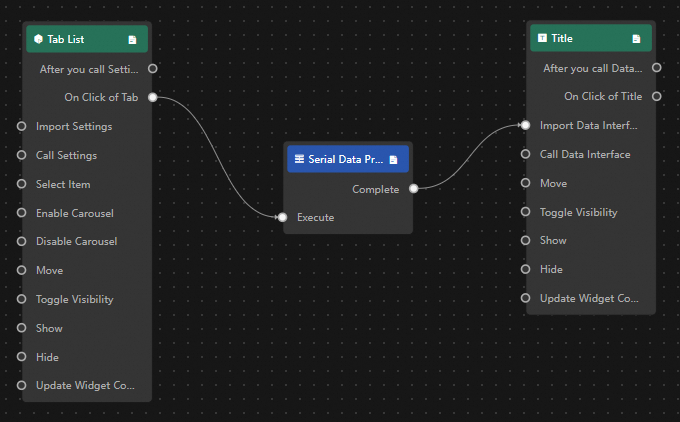
Connect the widgets as shown in the following figure. When a user clicks a tab in the Tab List, the corresponding data is imported into the Common Title widget.
-
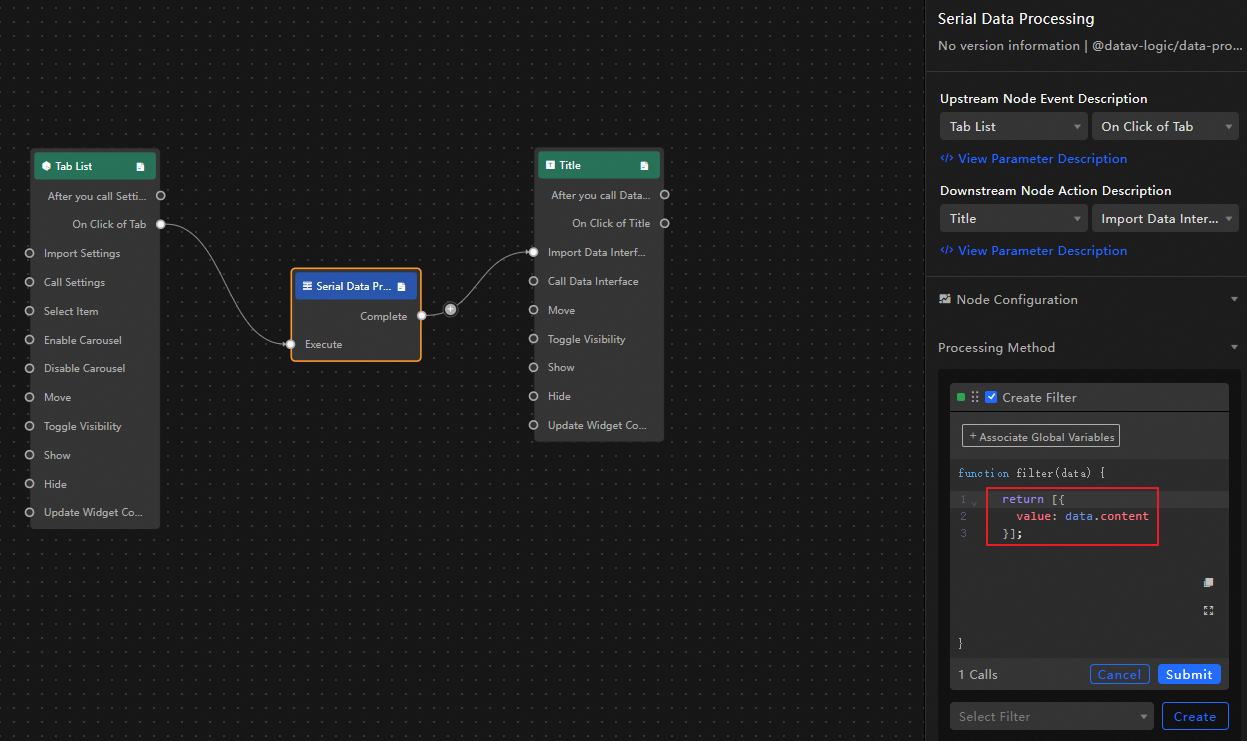
Click the serial data processing node and configure its processing method.
return [{value:data.content}];
-
-
Click Preview in the upper-right corner of the page to preview the result.
-
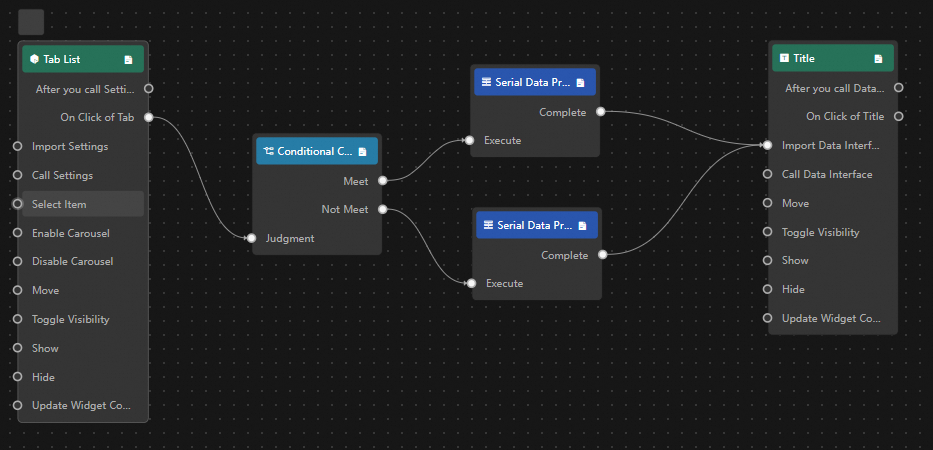
(Optional) To go to a specific tab, add a Condition node before the serial data processing node. The processing method is executed only when the condition is met. Otherwise, a default value is displayed. For example, you can prevent the content of the first tab from being displayed.
-
Condition node
return data.id > 1; -
Serial data processing: Condition met
return [{value:data.content}]; -
Serial data processing: Condition not met
return [{value: "This is the title data"}];
-
-
Click Preview in the upper-right corner of the page to preview the result.
 icon in the upper-left corner of the page to open the Blueprint Editor.
 icon to add the widget to the main canvas.