Data Source Management
After you add data sources, you can view, search for, filter, edit, and delete them on the Data Source Management page.
Prerequisites
You have added a data source.
Go to the Data Source Management page
Access the DataV console.
-
In the navigation pane on the left, click to open the Data Source Management page.
Manage the data source
The Data Source Management page lists all added data sources. You can search, filter, edit, or delete data sources from this page.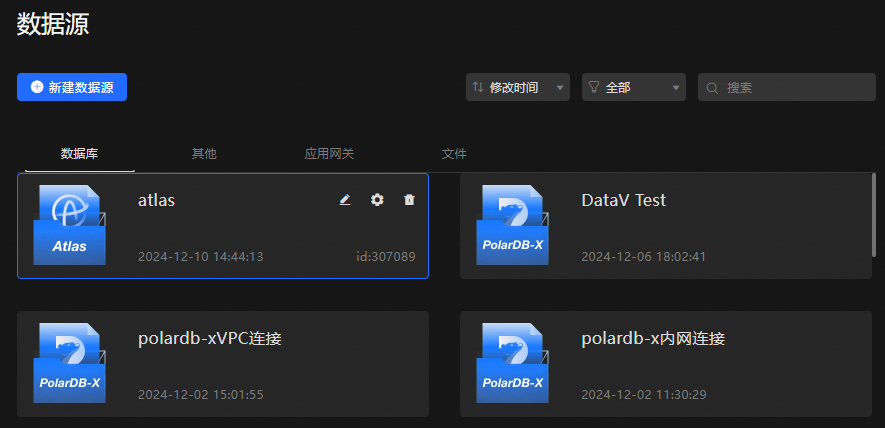
Global data source management
Data sources are organized by type into tabs, such as Database, Others, Application Gateway, and File. You can perform the following operations on all data sources within a tab:
-
View data sources: View basic information such as names, types, and creation times.
-
Sort data sources: Click the
 icon to sort data sources by name, modification time, or creation time. The default sort order is by modification time in descending order.
 -
Filter data sources: Click the
 icon to filter data sources by type. All types are displayed by default. The drop-down list shows only the types that you have added.
 -
Search data sources: Click the
 icon to search for data sources by name. Fuzzy matching is supported.
Individual data source management
Hover over a data source to perform the following operations:
-
Rename the data source: Click the
 icon to rename the data source.
 -
Edit the data source: Click the
 icon to modify the data source configuration.Note
Available configuration options vary by data source type.
-
Delete the data source: Click the
icon to delete the data source.ImportantIf a data source is referenced by a widget, deleting it causes the widget to error. Deleted data sources cannot be recovered.
 icon to modify the data source configuration.
 icon to delete the data source.