Manage global variables
Global variables pass parameters between widgets to enable interactions such as chart linkage and custom fields.
Prerequisites
Log on to the DataV console.
-
You have opened the canvas editor.
Create a variable
-
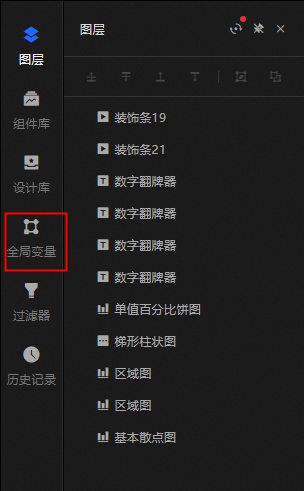
In the canvas editor, click Global Variable in the navigation pane on the left to open the Global Variable page.
-
Click Create Variable and configure the parameters as described in the following table.
Parameter
Description
Example
Variable Name
The variable name.
var_ht15m
Description
The variable description.
Test data
Source
The data source of the variable. Valid values are Static Value, Data Source Request, and Get from URL query.
NoteFor information about how to use different source types, see Use global variables.
Static Value
Initial Value
The default value of the variable.
"datav"
Filter
Optional. Adds a data filter to refine the data. For more information, see Use data filters.
/
Data Response
The response returned after you configure the variable. The response varies based on the variable type.
"datav"
Controlled Mode
If you enable this feature, the initial value is ignored.
/
Auto Update
If you enable this feature, you can configure dynamic polling and set the polling interval.
/
-
After you configure the parameters, press Enter.
Manage variables
-
Click the
 icon to the right of a variable to rename it.
 -
Click the
 icon to the right of a variable to copy it.
 -
Click the
 icon to the right of a variable to delete it.Important
-
You cannot recover deleted variables. Proceed with caution.
-
Before you delete a variable, you must remove all references to it. For more information, see Configure widget interactions.
-
Edit a variable
Editing a global variable follows the same steps as creating one. For more information, see Create a variable.