quick-features
Blueprint Editor provides shortcut features such as grouping, node description, and quick connection to help you organize and manage complex blueprints.
Marshalling and storage
When the logic between nodes in a blueprint becomes complex, you can group nodes with similar logic. The system automatically generates a group box to help you organize the canvas. 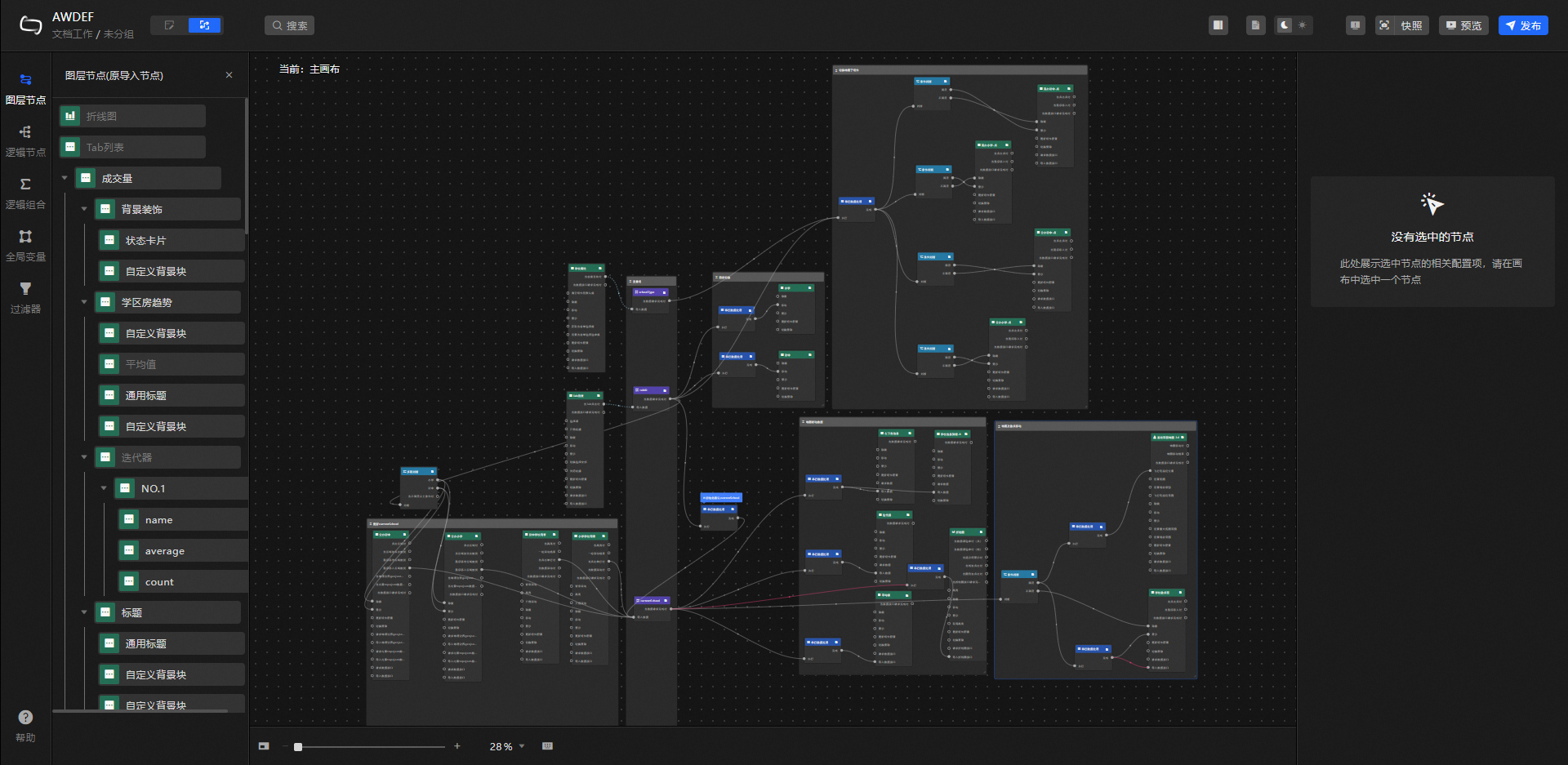 The following grouping features are available:
-
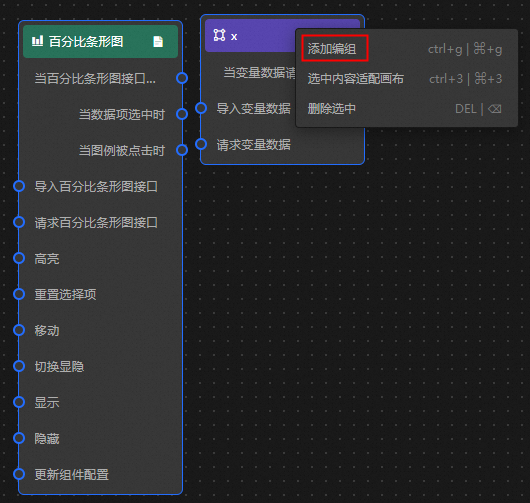
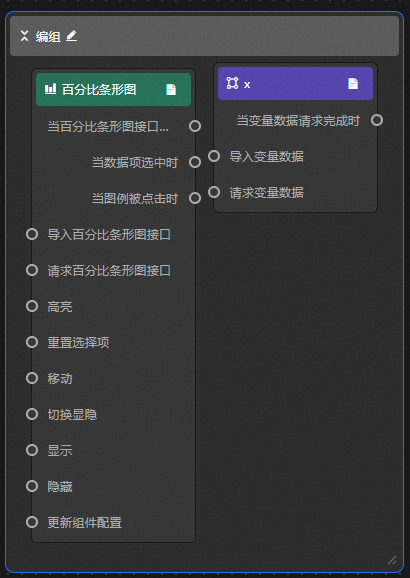
Add Group: Right-click one or more nodes on the canvas and select Add Group to generate a group box. You can resize the group box and drag it to move all enclosed nodes together.
-
Delete Selected: If you no longer need a group, right-click the group box and select Delete Selected.
ImportantAfter you delete a group box, it cannot be restored. Proceed with caution.
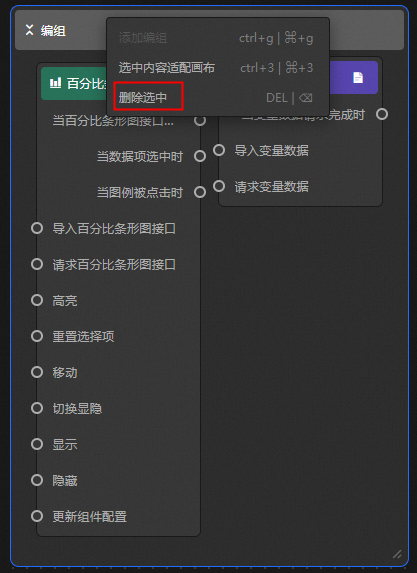
-
Collapse: Click the
 icon in the upper-left corner to collapse the group and reduce visual clutter.
-
Expand Group: Click the
icon in the upper-left corner to expand the group. -
Edit Group Name: Click the
icon in the upper-left corner of a group box to rename it.
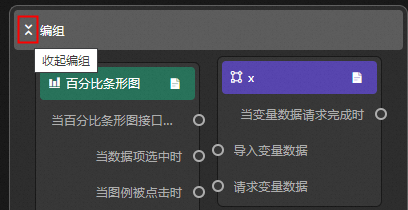
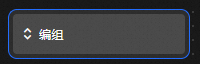
 icon in the upper-left corner to expand the group.
 icon in the upper-left corner of a group box to rename it.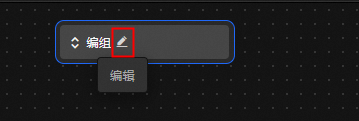
Node description
The annotation feature is available in DataV 7.0. You can use this feature in the new version of the console.
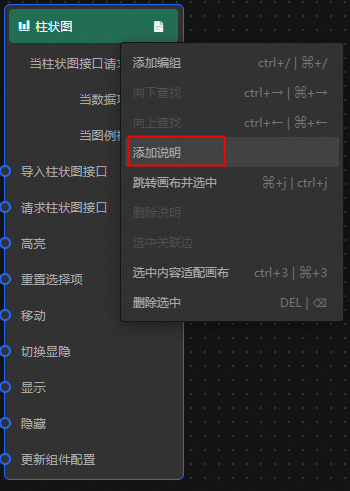
Right-click a node and click Add Description to add comments that clarify the logical relationships between nodes.
Quick Connect
The quick connection feature is available in DataV 7.0. You can use this feature in the new version of the console.
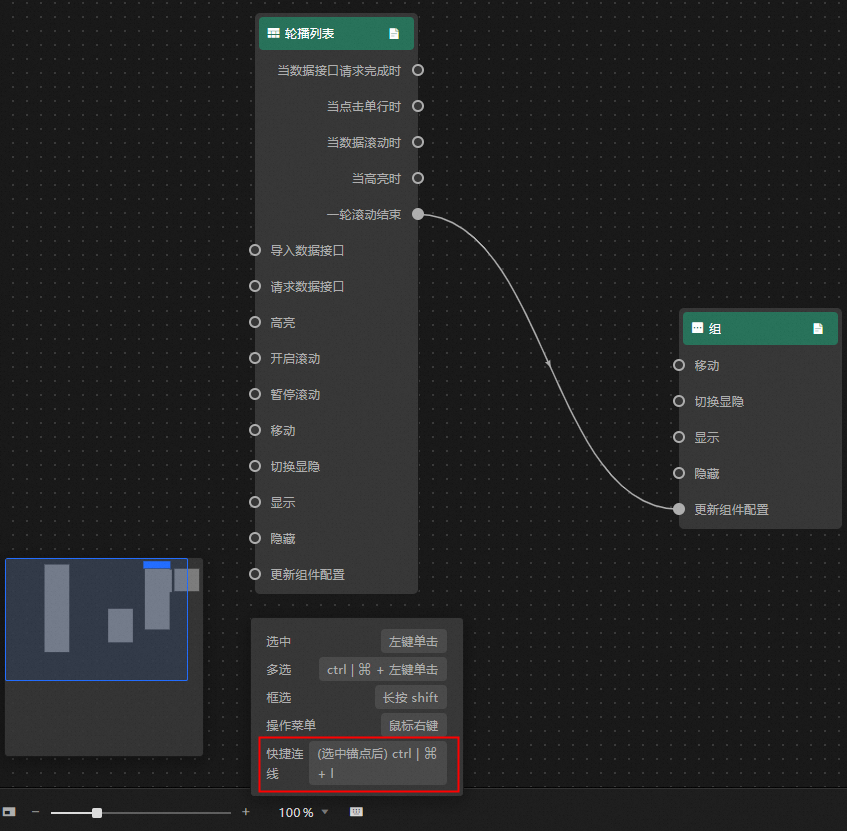
Select two anchor points by left-clicking them, and then press Ctrl+L (or Cmd+L on macOS) to automatically connect them with a line. For more information, see Connection.