User management
View user quota usage, manage account details, and remove accounts from workspaces in DataV-Board 7.0.
Basic user management operations
The following table describes the main user management operations.
|
Operation |
Description |
|
Usage Overview |
The user quota and usage for the current instance. |
|
Account information list |
Lists all accounts for the instance, including associated workspaces and account statuses. |
|
Remove account |
Removes the account from all associated workspaces. |
Limits
The following table lists the default number of users supported by each DataV-Board 7.0 edition.
|
DataV-Board 7.0 edition |
Number of users |
|
Professional Edition (Trial) |
1 |
|
Personal Edition |
|
|
Enterprise Edition (New) |
2 |
|
Professional Edition (New) |
5 |
|
Premium Edition (New) |
100 |
Enterprise Edition and later editions support user quota extensions. If you reach the user limit, go to the DataV console. In the upper-right corner, click your account name and select Upgrade. On the upgrade page, purchase a user resource plan.
Prerequisites
-
You have activated the DataV-Board service.
-
(Optional) Create a RAM user. To add members to a workspace for collaborative development, you must first create the required RAM users.
Access workspace management
Access the DataV console.
-
In the upper-left corner, click the
 icon next to the workspace name and select Management to open the user management page.
User management
The user management page displays user quota information and account details. You can perform the following operations:
-
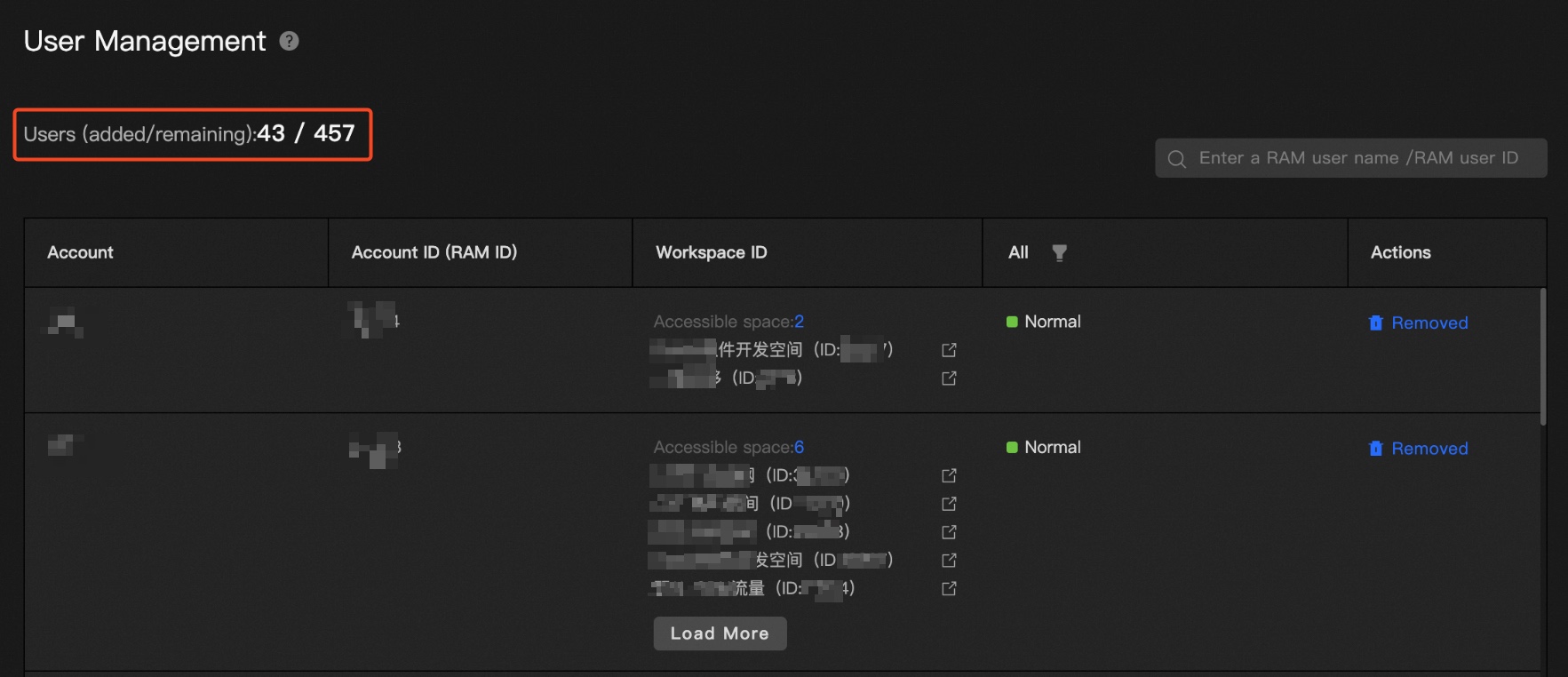
View user quota usage: Check the user quota and current usage for the instance.
-
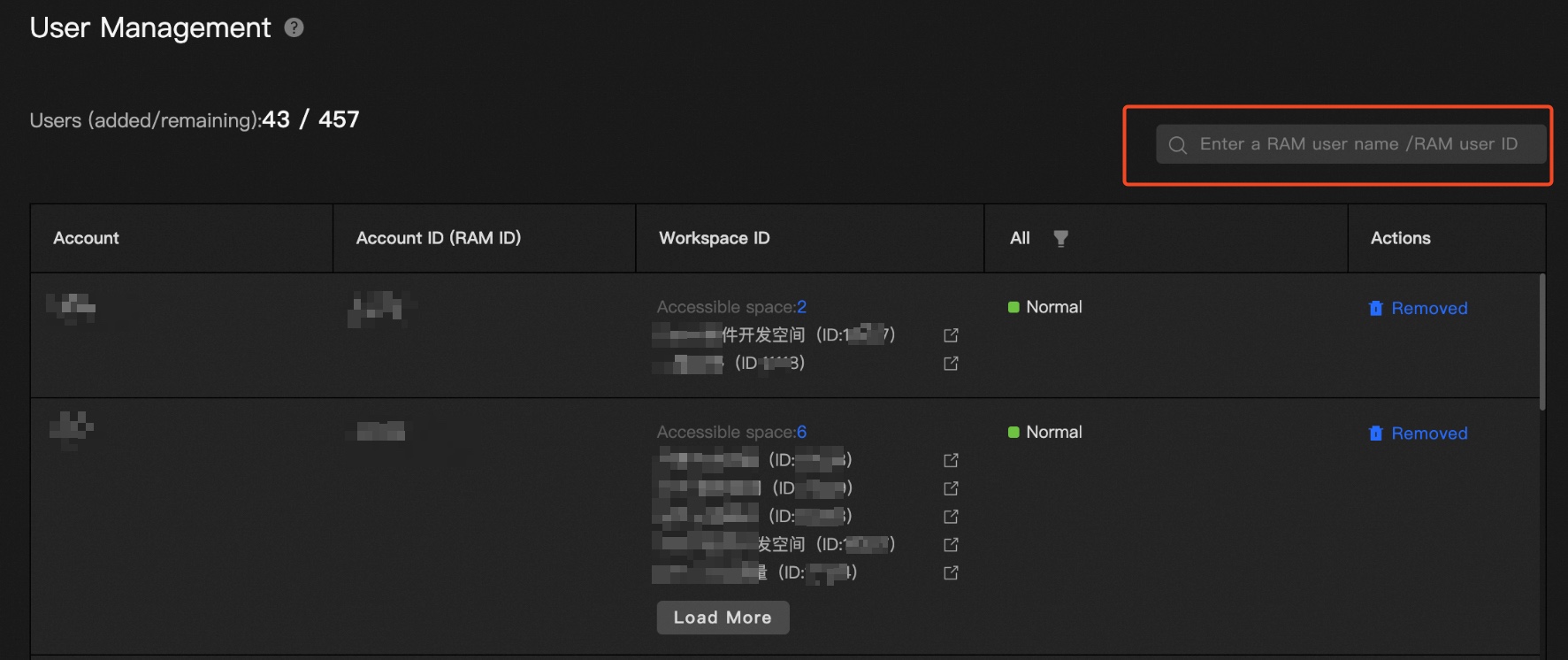
Search for users: Search for an account by RAM user username or RAM user ID.
-
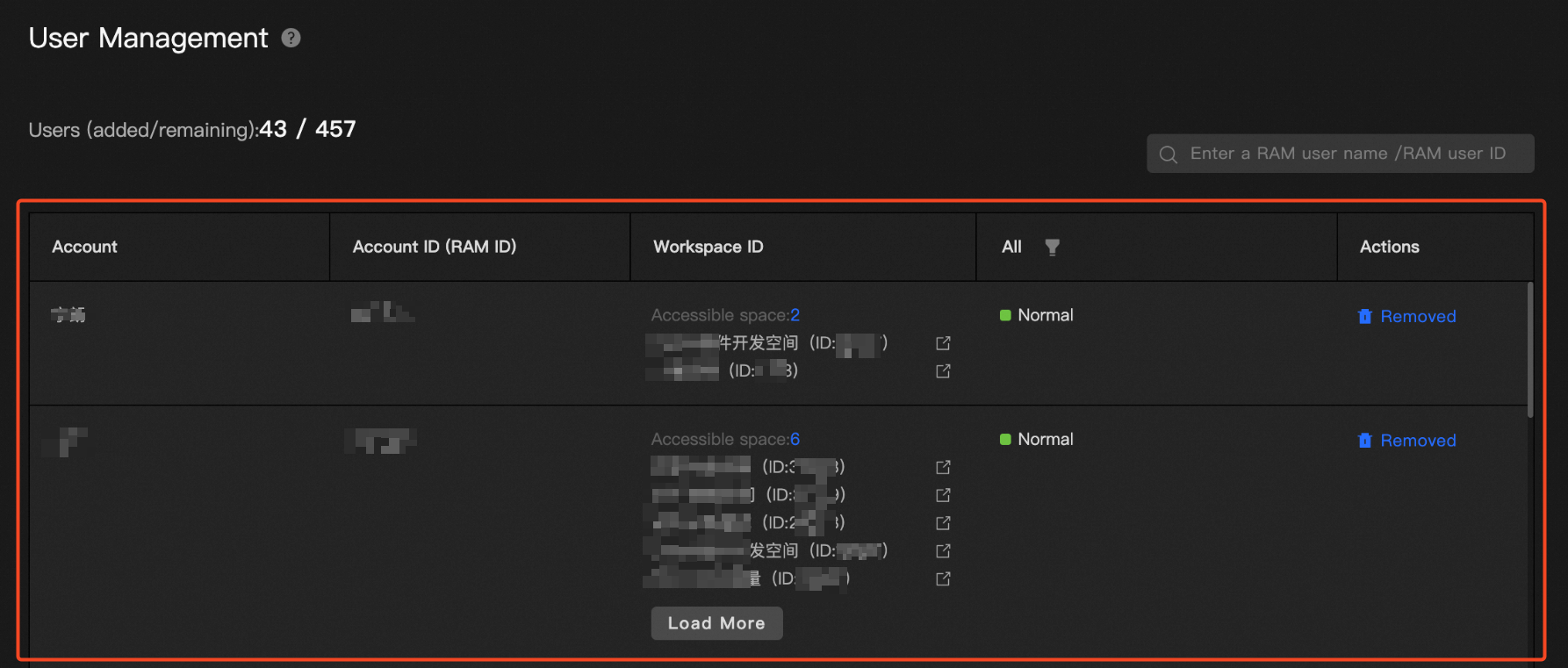
View account details: View accounts, account IDs, associated workspaces, and account statuses for the instance.
-
Remove: Click Remove to remove the account from its associated workspaces.
Account statuses include Normal, Expired, and Released.