Chart analysis
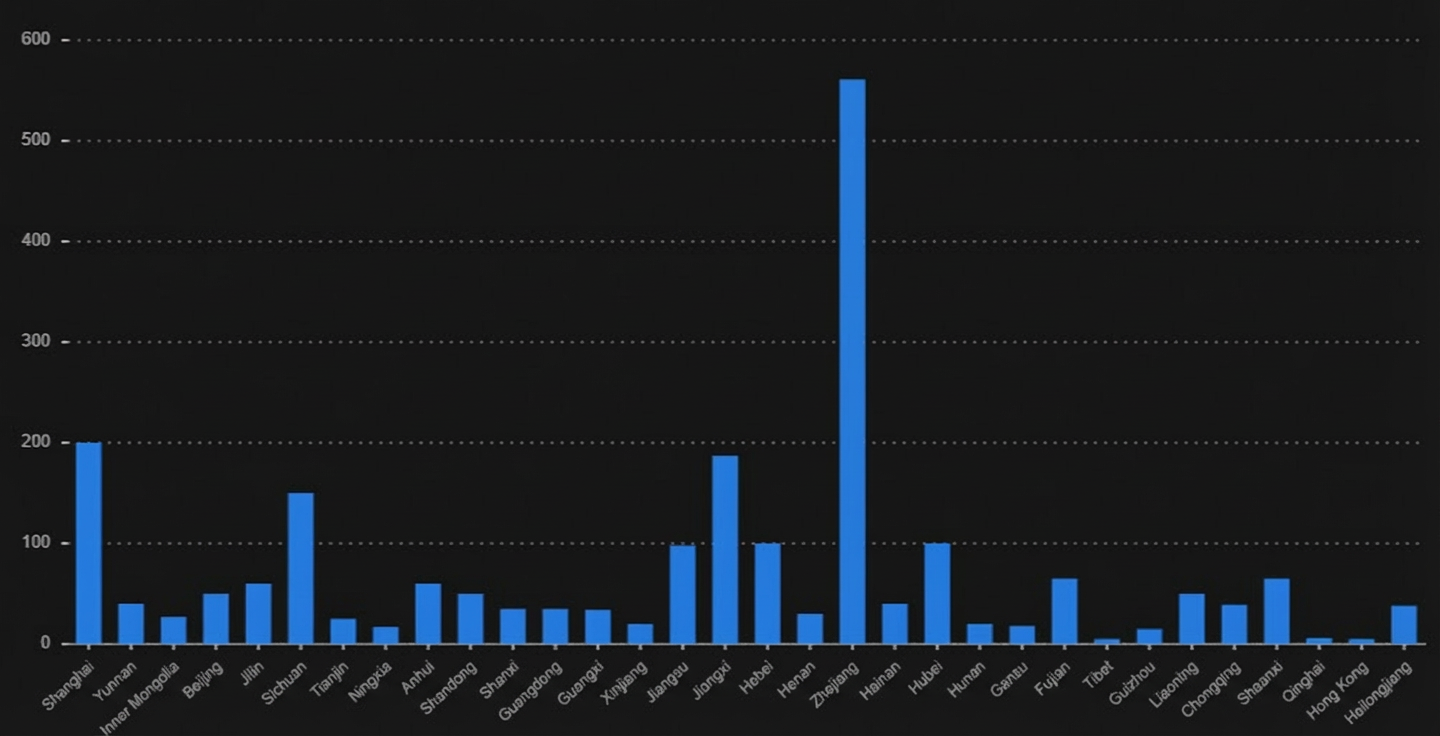
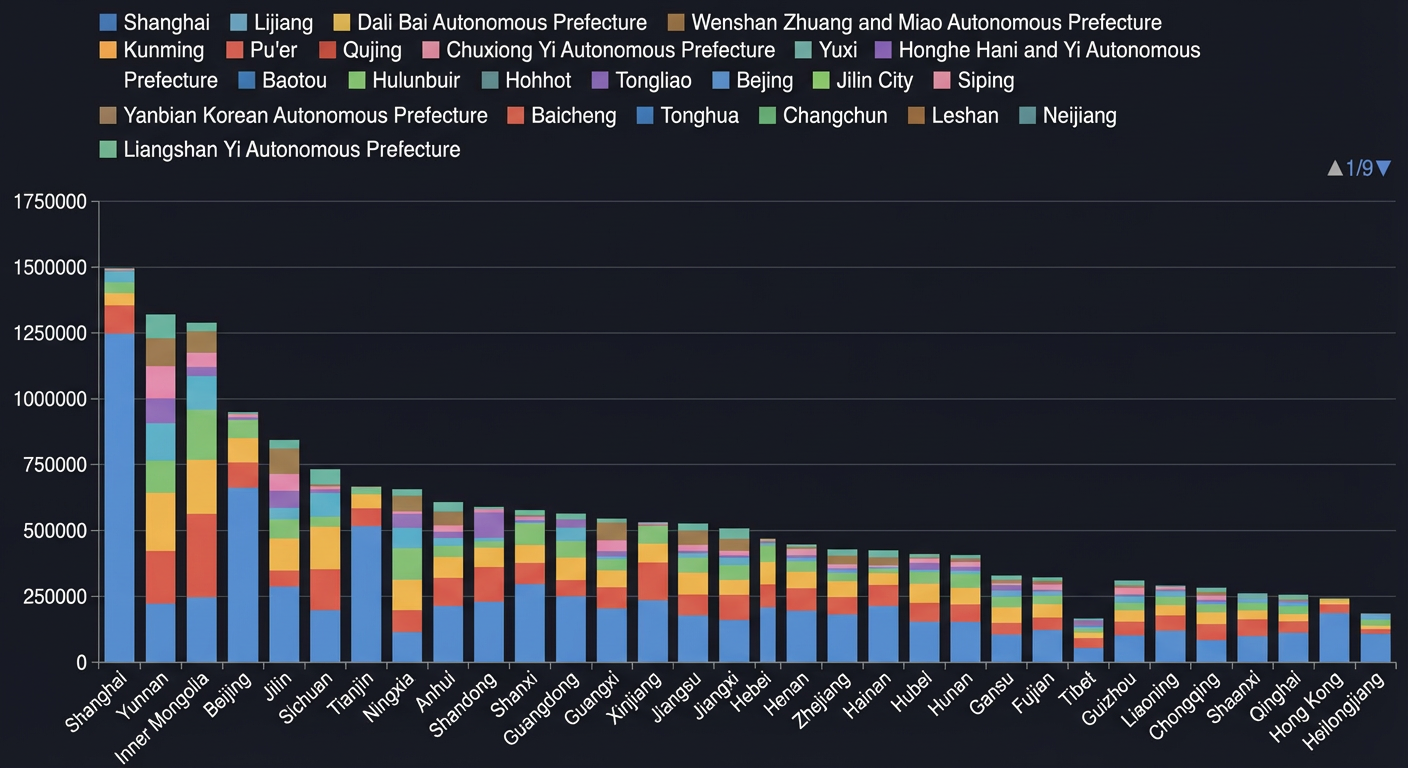
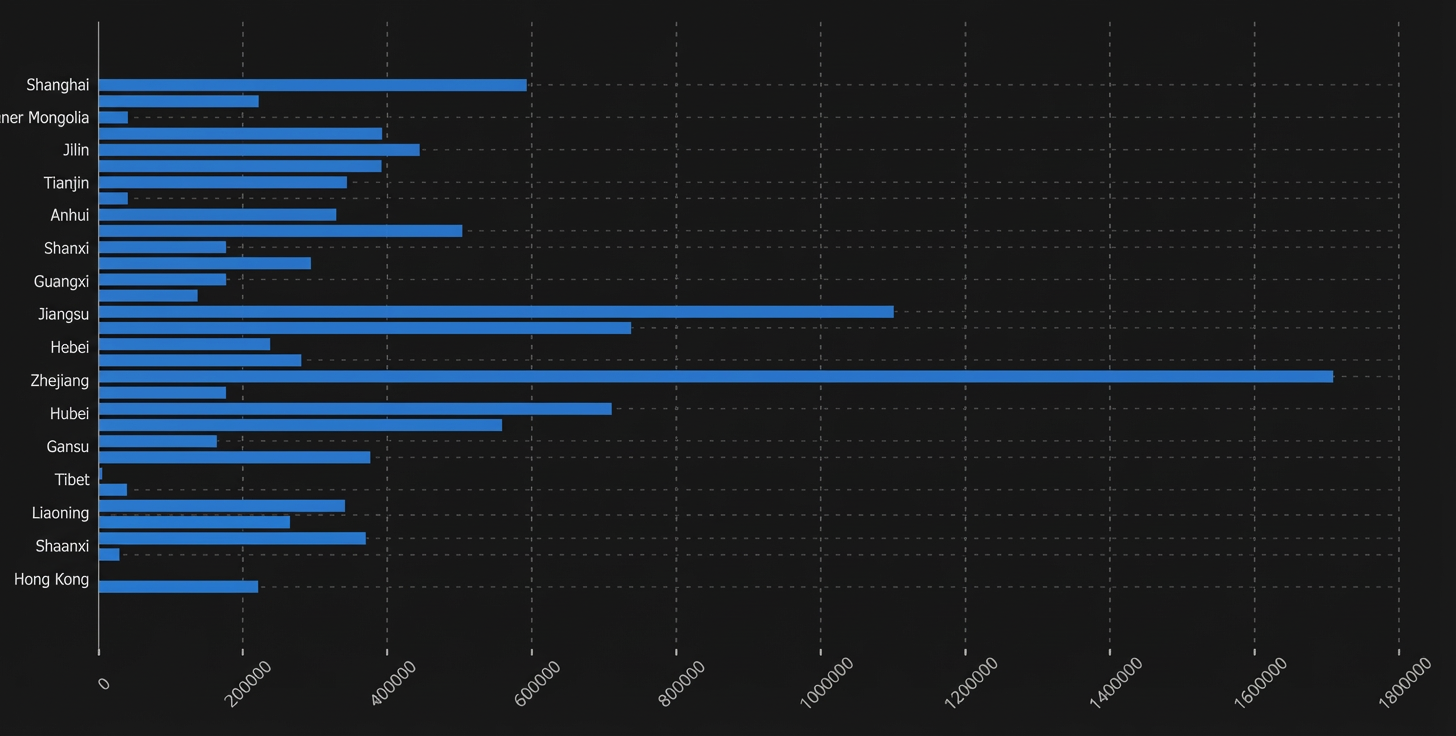
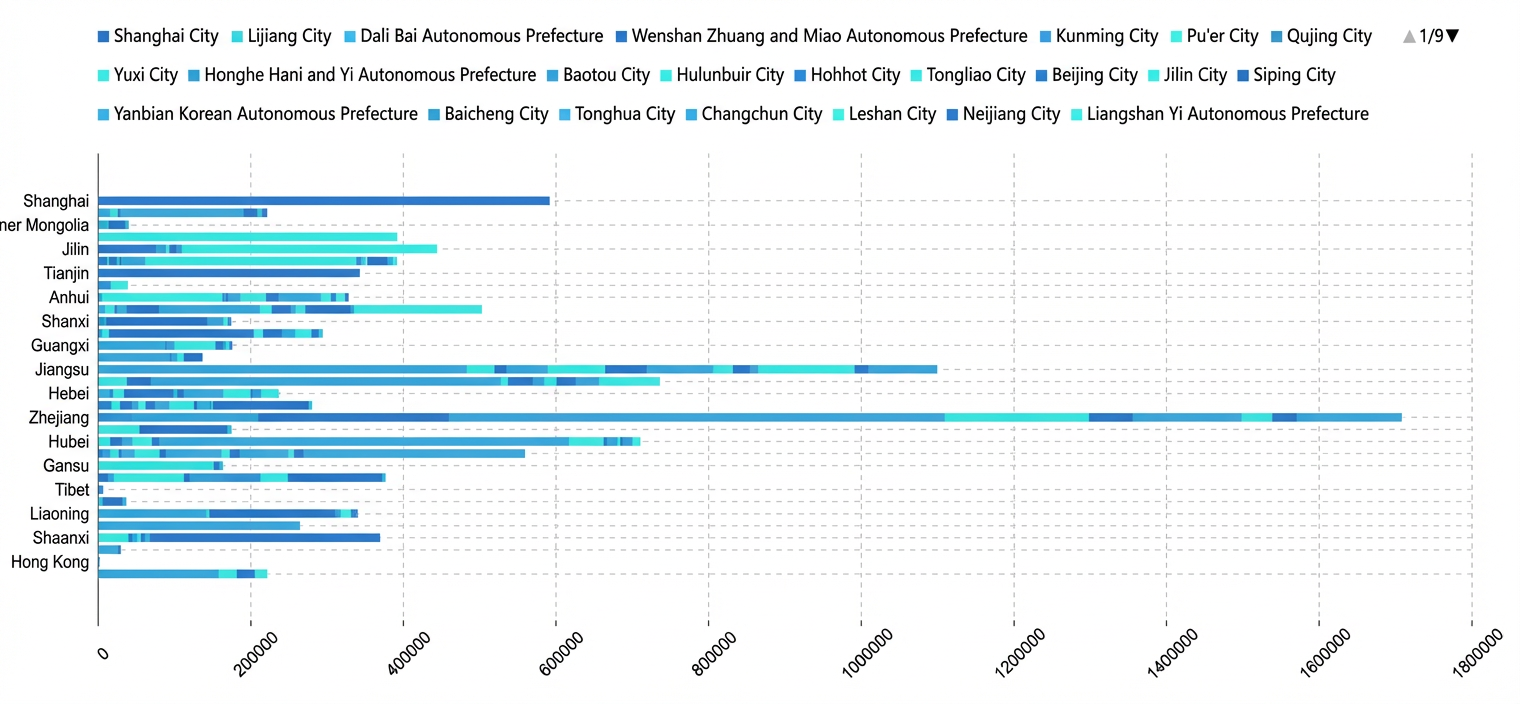
Chart analysis helps you quickly explore and analyze data patterns through visualizations. You can configure styles and add annotations—such as average, maximum, minimum, and median values—to identify data trends and improve analysis efficiency.
Prerequisites
You have created a project. For more information, see Create a project.
You have generated a query result set to visualize and analyze. For more information, see query result set.
Create a chart analysis unit
Go to the project edit page.
Log on to the DataV-Note console.
On the tab, hover over a project and click Edit.
At the bottom of the project edit page, click to create a chart analysis unit.
Alternatively, you can switch to the chart view in the results of an SQL analysis unit to visualize your data.
Use chart analysis
In the upper-left corner of the chart analysis unit, select a query result set generated in the current analysis document (Item 1). The system automatically analyzes the data and creates an appropriate chart. You can then configure the chart as needed.

The following table describes the UI elements in the chart analysis unit.
Item | Description |
1 | Select the query result set that you want to visualize and analyze. |
2 | Filter the data range for specific fields. |
3 | Quickly adjust the chart type and display style as needed. Note Display fields and style settings vary by chart type.
|
Chart configurations
Click more settings in the chart analysis unit to open the details page. On this page, you can set the chart's title and description, and configure the chart's data and styles.
Title and description settings
Double-click the title or description to edit them.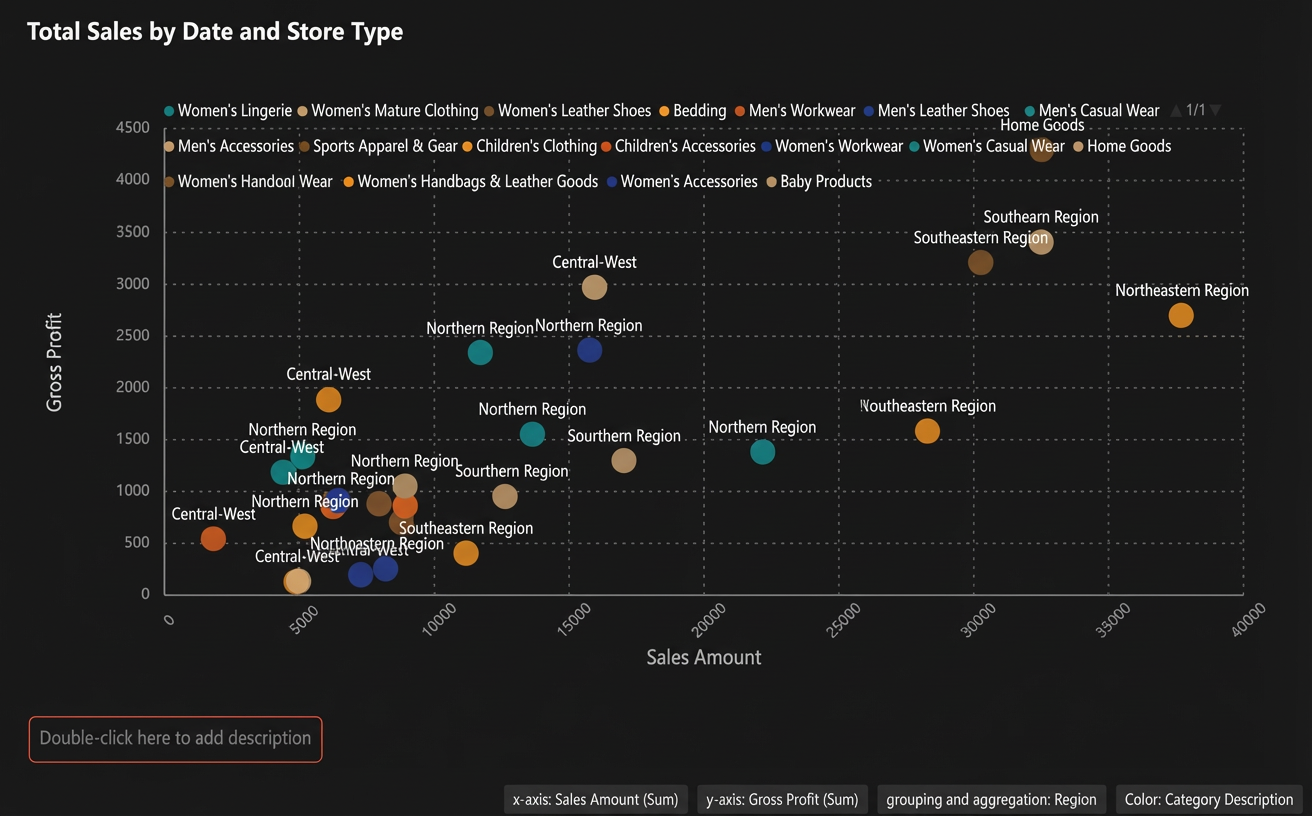
Data settings
In the Data settings area on the left, you can configure the basic display fields and annotations for the chart.

Drag data columns or click the
 icon to set the fields for the corresponding parameters. You can also sort, aggregate, and modify the time granularity as needed.Note
You can use the same data column for multiple fields.
After you configure a field, you can replace it by dragging a new field onto it.
You can add annotations to your chart by using various methods and colors. After you configure an annotation, you can perform the following operations in the Annotation area on the left.
Actions
Description
Example
Rename annotation
Edit the annotation title in the text box and click a blank area to save.

Change annotation color
Click the color block to change the annotation color.
Add/Remove annotation method
Hover over an annotation method and click the
 icon or the icon to add or remove it.
Move annotation
If you have multiple annotations, click Move Up or Move Down to change an annotation's stacking order.
Disable/Enable annotation
Click Disable or Enable to deactivate or activate the annotation.
Delete annotation
Click Delete to remove the current annotation.
 icon or the
  icon to add or remove it.
Style settings
In the Style settings area on the right, you can configure the chart theme, text styles, chart type, and field display styles.

The following settings are available.
Global settings: Select a card theme, and configure text styles and information display styles.
Change chart: Select a chart type based on your use case, such as a column chart or bar chart. For more information, see Chart types and use cases.
NoteWhen you change the chart type, some configurations may become invalid because settings differ between types. A message in the preview area will indicate any missing fields. You can proceed with the change and reconfigure the fields in the data settings.
Chart style: The style settings for different chart types vary. For more information, see Chart configurations.
Chart types and use cases
DataV-Note provides a variety of chart types, each suited for different use cases. For example, a digital flipper is often used for clocks, timers, and counters, or to display financial amounts or key business metrics. Understanding the use cases for different charts can help you quickly select the right one.
Column and bar charts
Chart name
Example
Use case
Commonly used for category comparisons, time-series analysis, and market segmentation.
Commonly used for market share analysis, budget allocation, product sales composition, and demographic statistics.
Commonly used to display product sales across different regions or departmental performance.
Commonly used for market share composition, budget allocation, and resource usage.
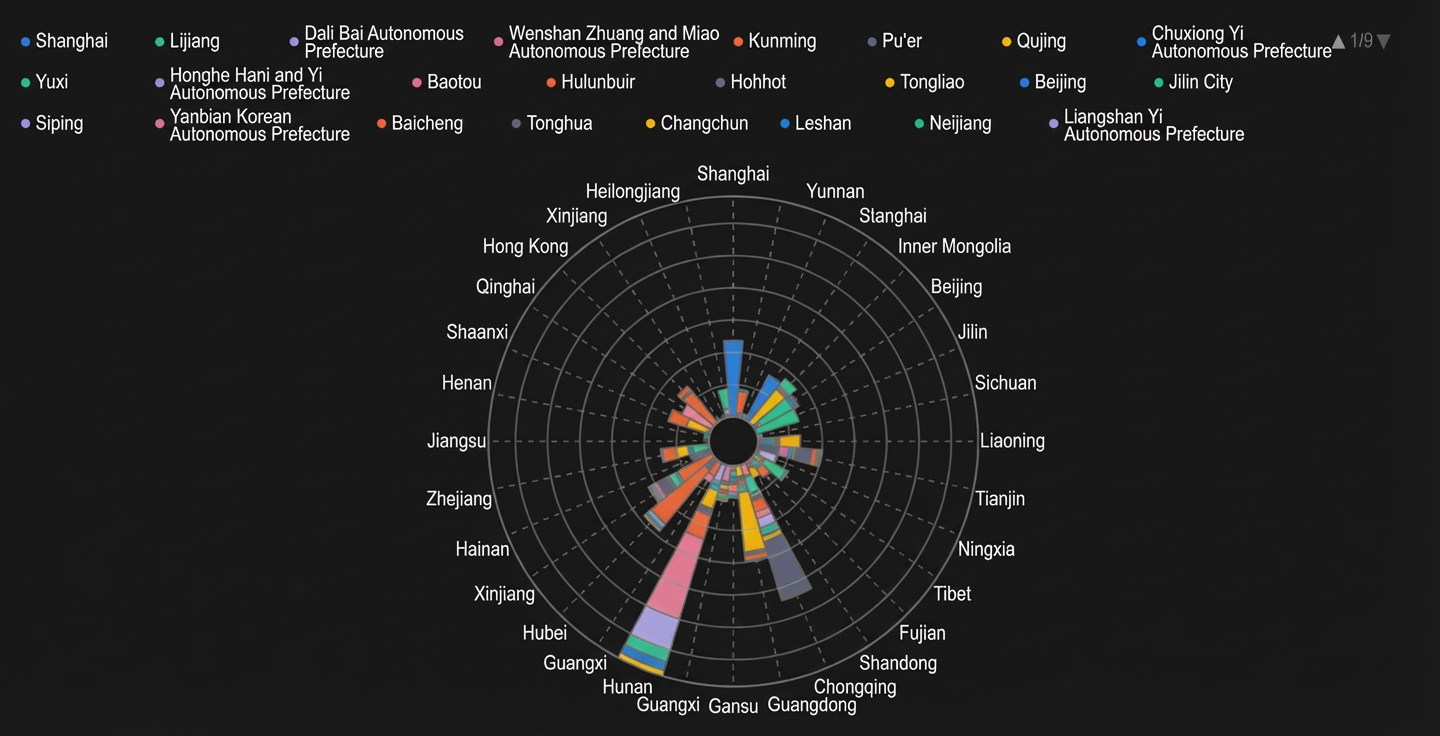
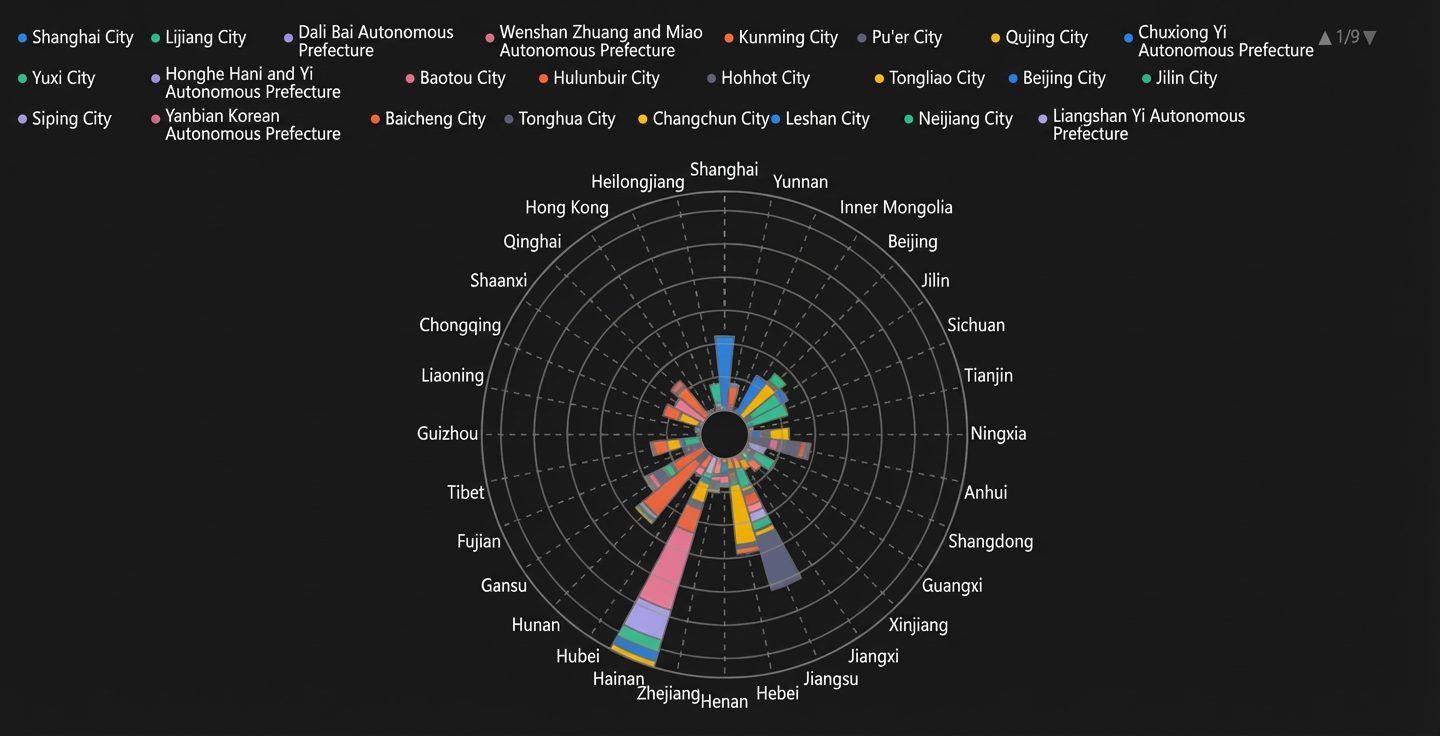
Suitable for displaying periodic or circular data, such as monthly data over a year or hourly data within a day.
Line charts
Chart name
Example
Use case
Suitable for showing data trends. Commonly used to analyze time-series data such as stock prices, temperature changes, and sales figures.
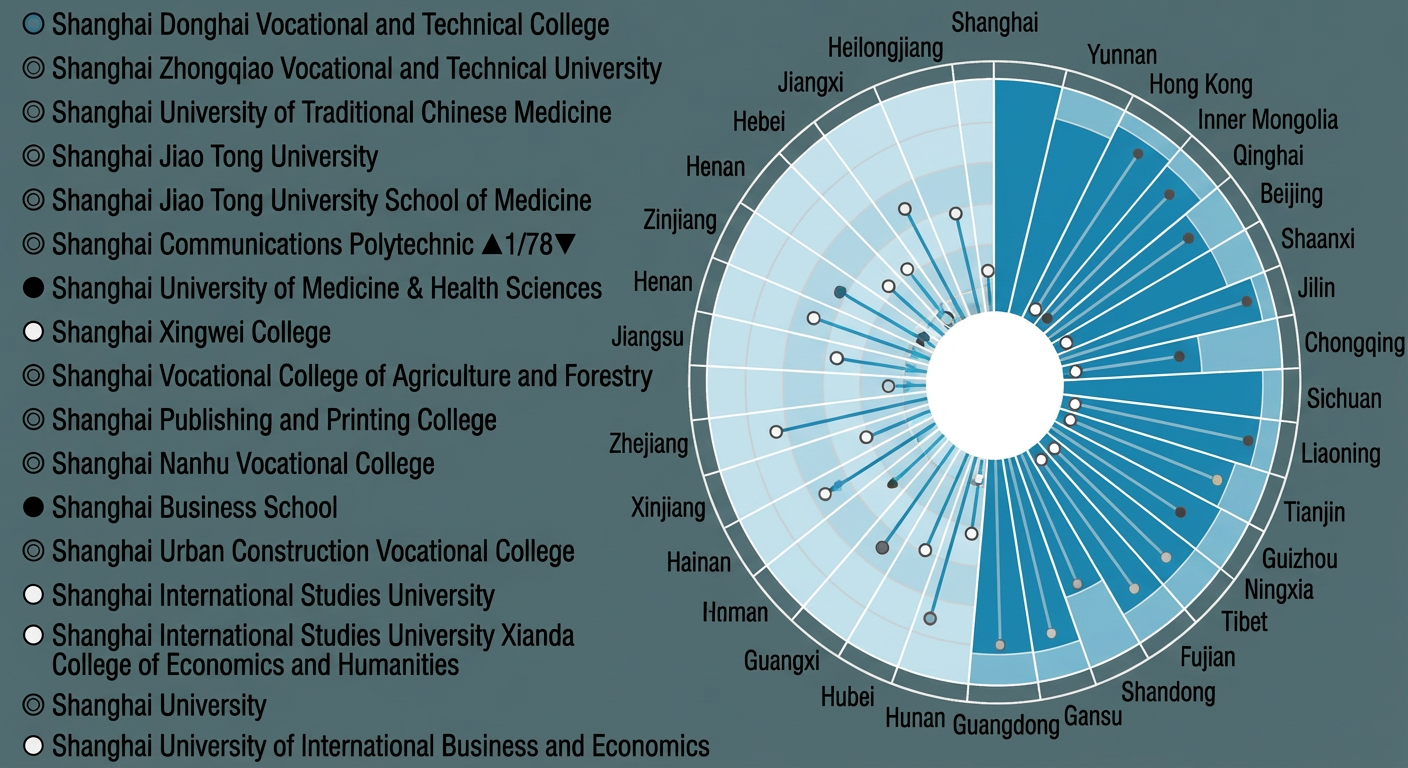
Suitable for displaying periodic, directional, or multi-dimensional data, such as temperature changes, wind direction analysis, and performance evaluations. It can intuitively show data patterns and distribution characteristics.
Pie and rose charts
Chart name
Example
Use case
Suitable for displaying the proportional distribution of a metric. Often used to show the distribution of dimension values, such as in market share and budget allocation analysis.
Suitable for displaying and analyzing periodic or directional data, such as wind speed, wind direction, and traffic flow, to intuitively compare data changes across different directions or time periods.
Text-based charts
Chart name
Example
Use case
Commonly used for devices like clocks, timers, and counters, or to display financial amounts or key business metrics.
Commonly used for public opinion monitoring, market research, brand analysis, and academic research to help users understand text data at a glance.
Other charts
Chart name
Example
Use case
Suitable for comparing and analyzing the performance of multiple objects across multiple dimensions. Commonly used for performance evaluation, market analysis, product comparison, and team or individual skill analysis.
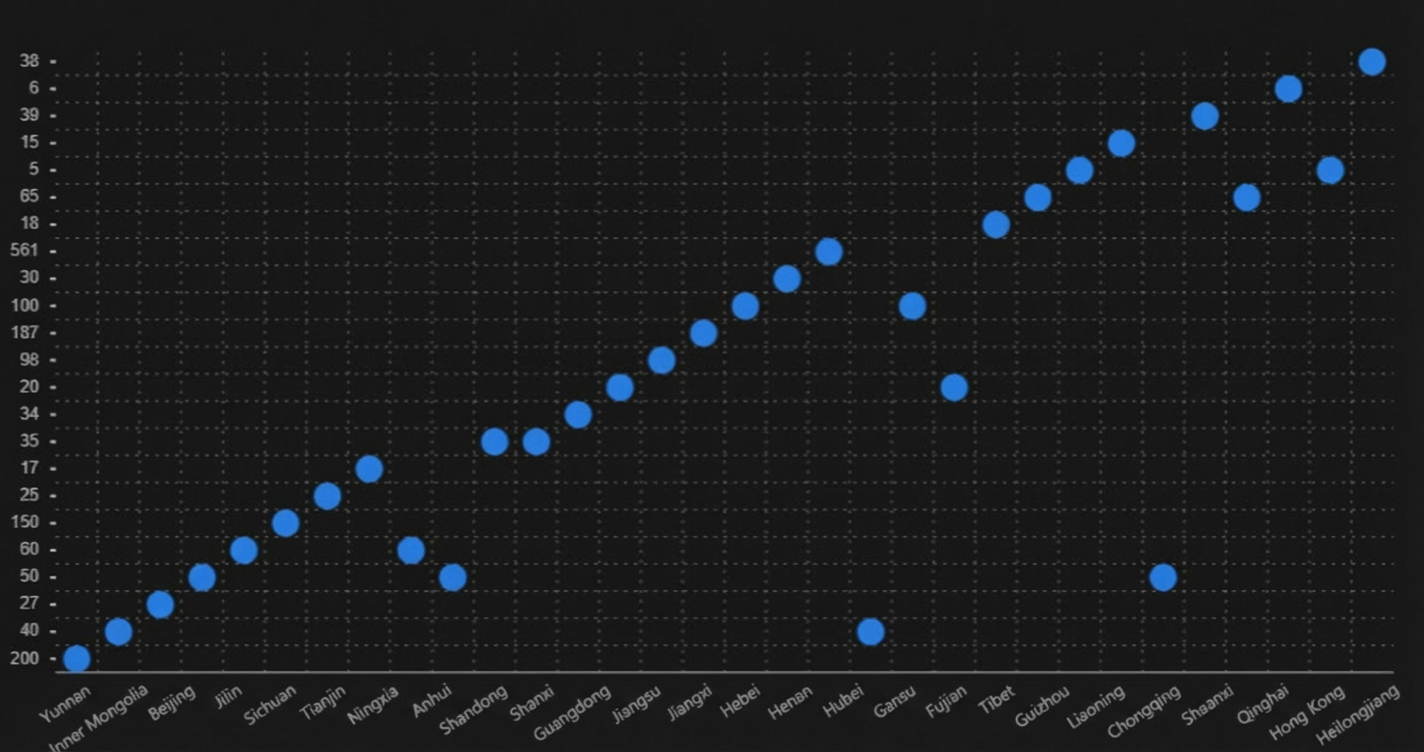
Suitable for displaying and comparing the relationship between three variables. Commonly used for market analysis, financial data visualization, and resource allocation to intuitively present differences and trends.
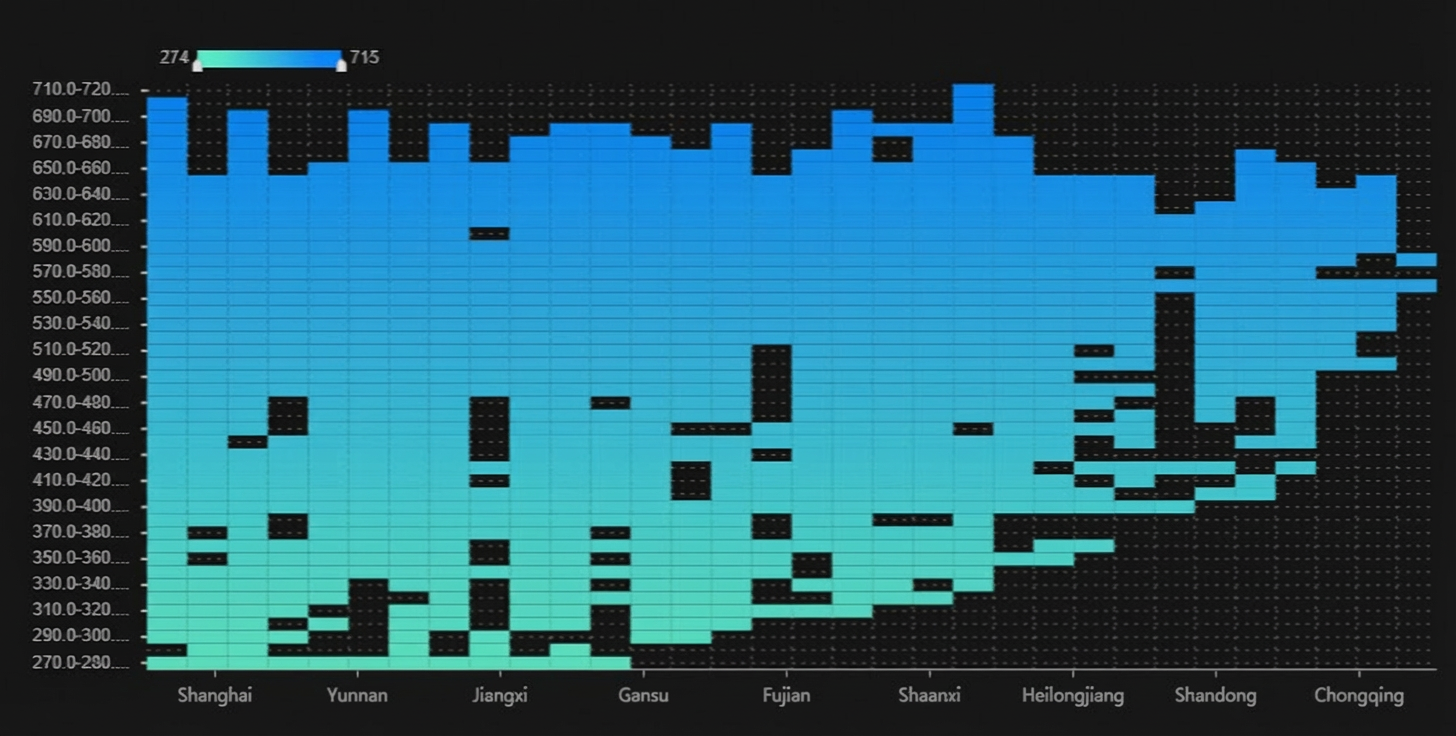
Suitable for intuitively displaying data distribution and density changes. Commonly used for geographical distribution analysis, user behavior tracking, and pattern recognition.
Suitable for intuitively displaying the quantity distribution and proportional differences of various categories. Commonly used for demographics, survey results, and simple percentage representations.