Data analytics and report creation
In DataV-Note (intelligent analysis), an analysis unit is the main workspace for data analytics and report creation. Datasets and variables are the input data for an analysis unit. This topic describes the types of analysis units that DataV-Note supports. It also describes the process for data analytics and report creation.
Concepts
Analysis unit: The editing area for an analysis report. You can write SQL or Python for query analysis, add text for descriptions, and use charts for visualization. Different analysis units have different features and are suitable for different scenarios. You can select an analysis unit as needed.
Dataset: The input data that an analysis unit uses to perform query analysis. Datasets include the following types:
original dataset: The raw data used for query analysis, including databases and file datasets.
Database: Data from a database or data warehouse, such as AnalyticDB for MySQL, Hologres, or MaxCompute. Before you can use a database, you must create a corresponding data source in DataV-Note.
File dataset: Data from local files, such as Excel files. Before you can use a file dataset, you must import the local file into DataV-Note. For more information, see Add file data.
query result set: Data generated by filtering or processing an original dataset based on specified conditions. You can use this data for further analysis in SQL or Python analysis cells or as input for visualizations, such as charts.
Variable: A collection of results that are output after an analysis unit runs. Examples include SQL query results, results generated by filters, and parameters output by controls. You can reference variables in SQL and Python to build filter interactions.
Procedure

Prepare the data.
Before performing data analytics and creating reports, you must connect your databases, data warehouses, and local file data to DataV-Note. This data serves as the raw dataset for query analysis in analysis units. For more information, see Data source management.
Perform data analytics and create a report.
Pre-process the data.
You can create SQL or Python analysis units as needed. You can then select the required raw datasets to perform pre-processing operations such as data cleansing, filtering, and transformation. For more information about how to use raw datasets in an analysis unit, see Use raw datasets.
Generate result data and build a joint query.
After you pre-process raw datasets using SQL and Python, multiple result sets are generated. The output of all analysis units, such as SQL query results, result sets generated by filters, and parameters output by controls, is rendered as variables. You can use result sets and variables to build filter interactions in SQL and Python analysis to generate the final required data. For more information, see Use datasets and variables.
Visualize the data.
You can connect the final output data to a visual analytics unit. You can then display the data in charts, tables, or other forms to observe data trends or correlations.
Throughout the data analytics and report creation process, you can also use analysis units such as text analytics, intelligent analysis, and interactive controls for auxiliary analysis. These units help you add descriptions, assist in writing code, and add controls to improve the interactive experience.
NoteAn analysis report often requires multiple analysis units of one or more types. Each analysis unit is independent and can be used to query, analyze, and visualize different data. You can create the appropriate analysis unit as needed.
Preview and publish the report.
After you create the report, you can preview it and make revisions. You can also publish the report to export and share it with others. For more information, see Preview and publish reports.
Manage analysis units
After you create an analysis unit, you can perform management operations as needed. These operations include testing the unit, renaming it, adjusting its order, and showing or hiding it in the preview. For more information, see Manage analysis units.
Analysis unit types
DataV-Note supports multiple types of analysis units. The following table describes the features and scenarios for each type.
Analysis unit type |
Description |
Scenarios |
Supported input data types |
Demonstration |
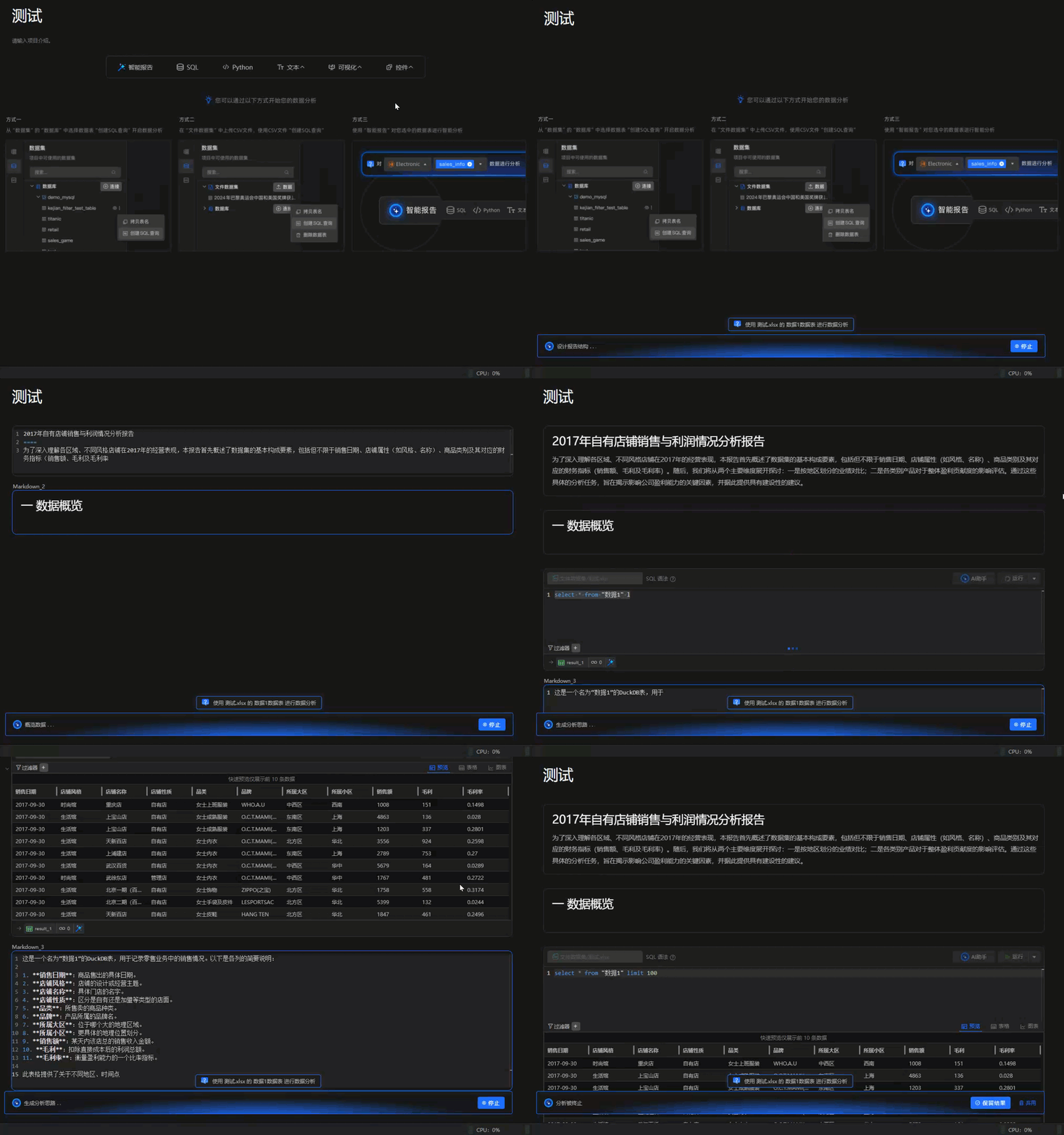
Uses natural language processing algorithms to analyze data with one click. It outputs analytical ideas, procedures, and reports. This greatly reduces the time for data analytics and saves human resources. |
|
|
|
|
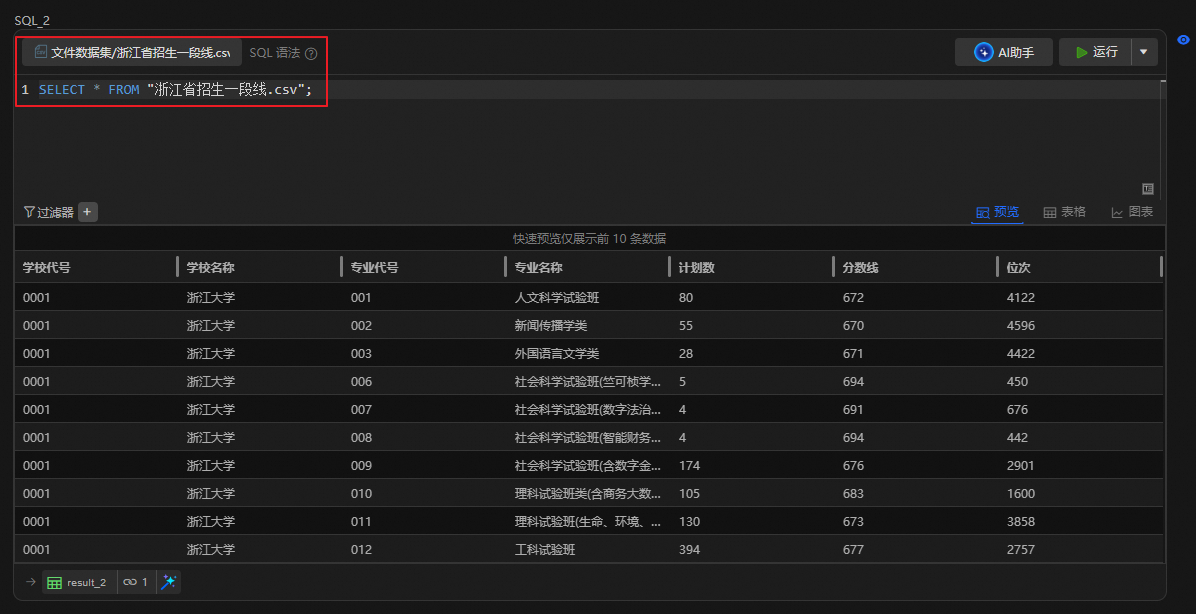
Uses SQL code to fetch, filter, aggregate, and analyze data in a database. |
Suitable for users who are proficient in SQL. |
|
|
|
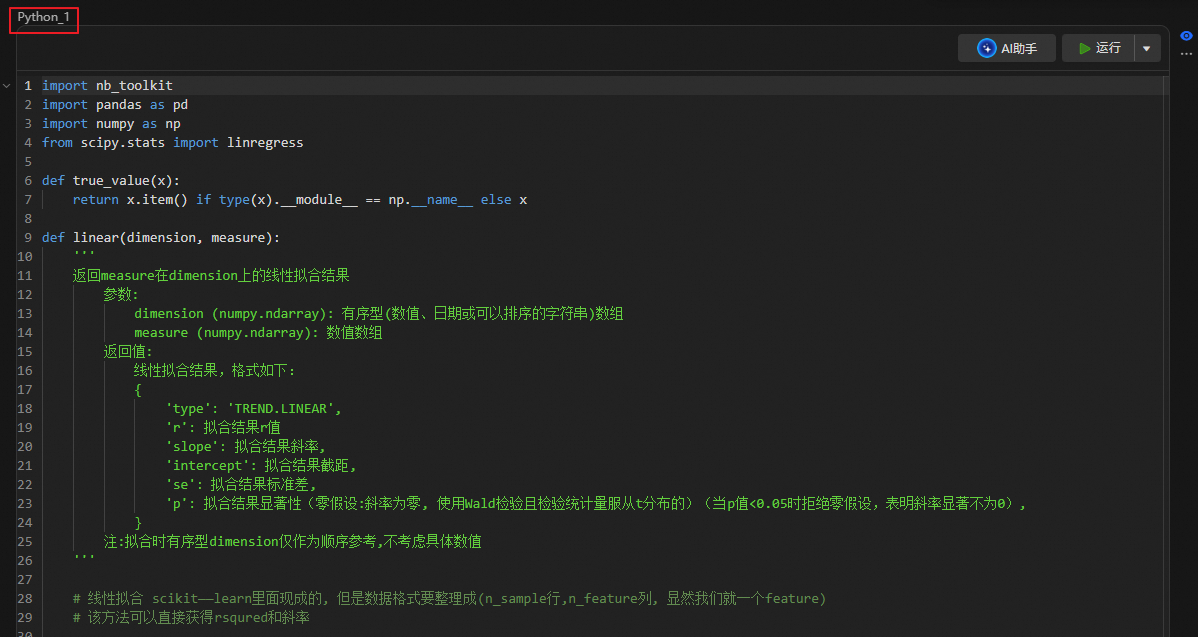
Uses the Python programming language and its rich data analytics libraries, such as Pandas and NumPy, to clean, model, and visualize data. |
Suitable for users who are proficient in Python. |
|
|
|
Uses natural language or Markdown syntax to help write descriptive information for an analysis report. |
Suitable for writing outlines, overviews, descriptions, and notes in a report. |
No input data is required. |
|
|
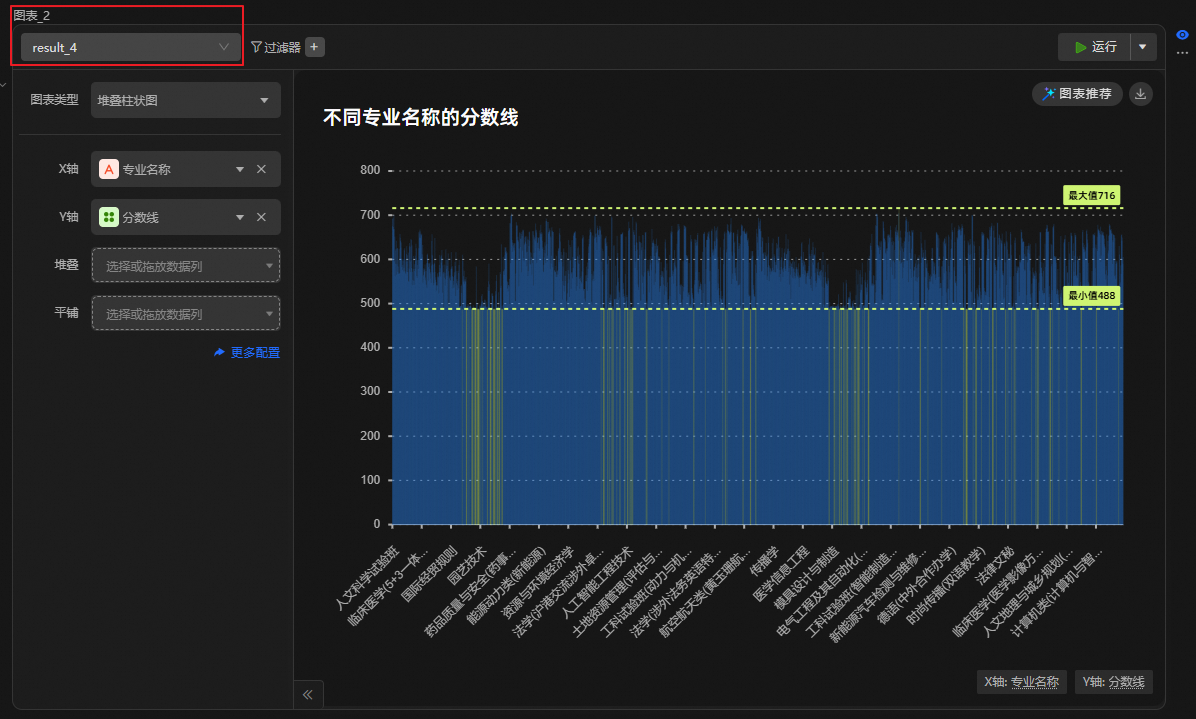
Visually displays data trends, distributions, and comparisons using column charts, line charts, pie charts, and other chart types. |
Suitable for scenarios that require a visual representation of data trends. |
|
|
|
Displays data in rows and columns. It supports sorting, filtering, and conditional formatting. |
Suitable for scenarios that require a detailed view of data for precise analysis. |
|
||
Combines geospatial data with business data to display information such as locations, regions, and paths on a map. |
Suitable for location-based analysis. |
|
||
Displays the relationships and distributions between variables by combining multi-dimensional data. |
Suitable for statistical analysis of categorical data. |
|
|
|
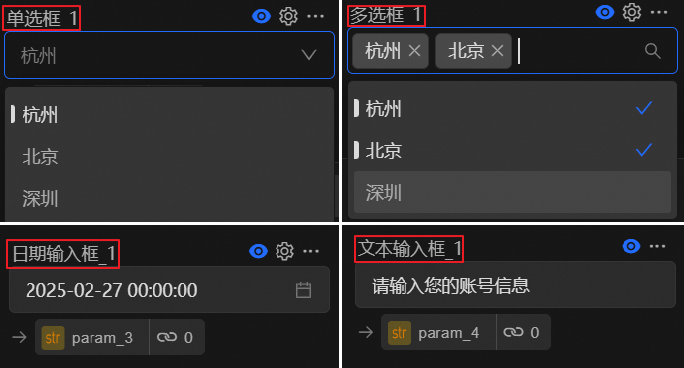
Dynamically adjusts analysis parameters by clicking, dragging, or entering values to update analysis results in real time. Examples include date controls and radio buttons. |
Suitable for scenarios that require building filter interactions quickly and improving the interactive experience. |
Configure the parameters required by the specific control. |
|