Extension widgets
This topic describes the inspector management features for extension widgets in the scene editor.
Logic control
This widget lets you add various logic controls to virtual twin objects in a scene, such as data binding, variable binding, scripts, and blueprint widgets.
Data binding
Click Data Editor to open the Data Editor panel.
Click Add Row to add the required parameter fields. When you are finished, click Save.
View the data binding result for the current object.
Variable binding
Click Variable Editor to open the Variable Editor panel.
Click Add Row, enter the variable name, type, and value, and then click Save.
View the variable binding result for the current object.
Script
Enter the script content or mount a script resource plan. Then, enable the Execute switch.
You can set Runtime Parameters to implement custom features.
Blueprint widget
Property Name |
Parameter |
Description |
Blueprint Widget |
Blueprint Settings |
Select a blueprint widget resource. |
Server-side script
You can enter the server-side script content or mount a script resource plan.
You can set Parameters to configure custom features.
Physical system
This widget lets you add various constraints to virtual twin objects in a scene, such as target constraints, parent constraints, and slots.
Target constraint
Property Name |
Parameter |
Description |
Target Constraint Settings |
Target Object |
Set the target virtual object for the constraint. The object will always face the target. |
Target Slot |
Set the target slot that matches the target virtual object. |
Parent constraint
Property Name |
Parameter |
Description |
Parent Constraint Settings |
Constraint Target |
Set the target virtual object for the constraint. The object will always move with the target. |
Target Slot |
Set the target slot that matches the target virtual object. |
Slot
Property Name |
Parameter |
Description |
Slot |
Slot |
Click the |
 icon to add a slot. You can set the relative position, rotation, and scaling for the current slot.
Advanced primitives
This widget lets you add primitive decorations to virtual twin objects in a scene. These include fence, column chart, radial bubble, highlight pillar, 3D icon, origin-destination (OD) flowline, 2D icon, point heatmap, general line, label bulletin board, point aggregation, breathing bubble, and widened fence widgets.
Fence widget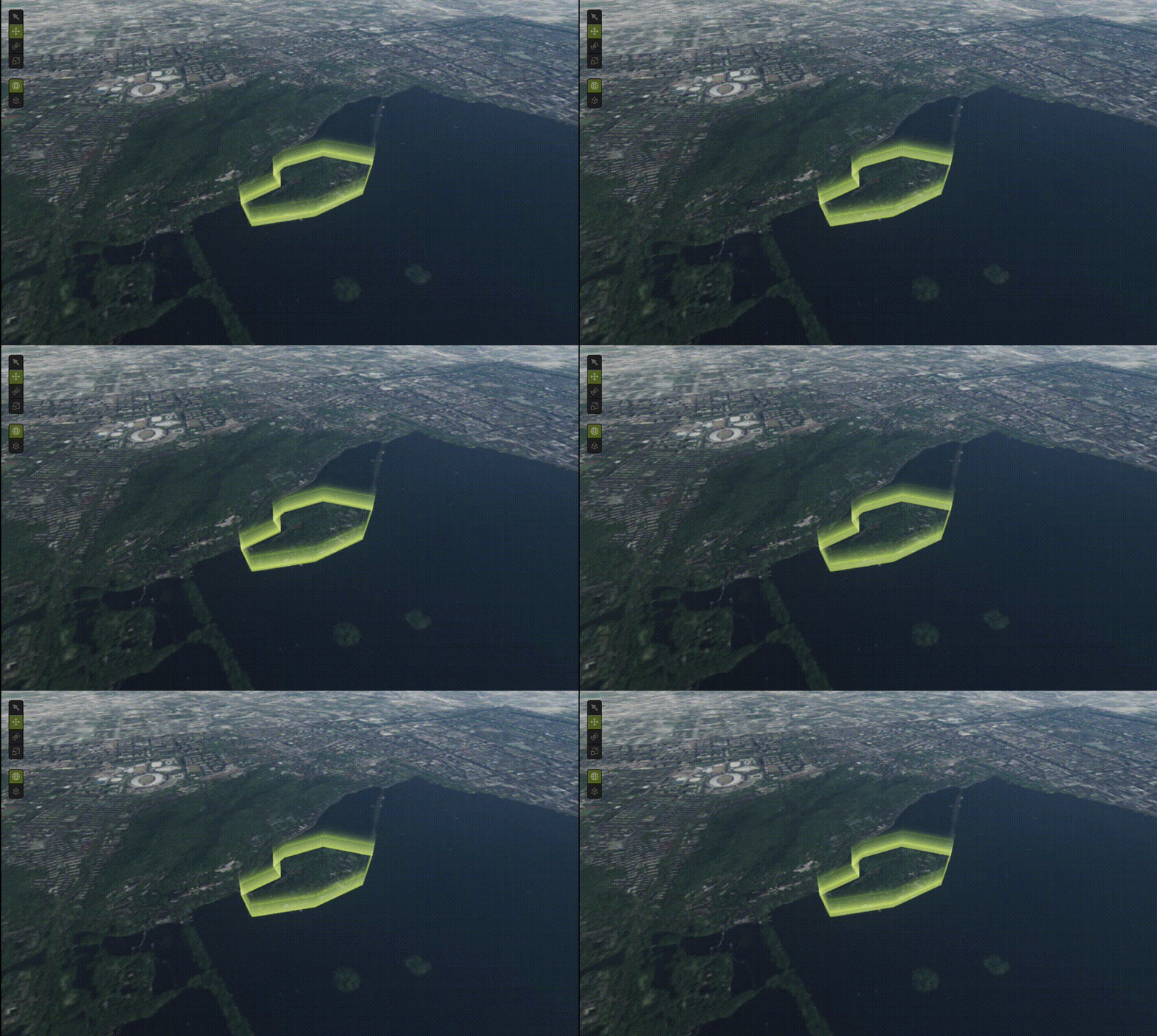
A fence uses a 3D extruded body to represent a surface feature. It can be used to represent a block or an outline.
Key features of this primitive:
The sides have a transparency gradient and texture animation.
Low performance overhead. Supports thousands of data entries.
Uses a transparent material and is not affected by lighting.
You can specify the top surface color and side color for a single area in the data.
Supports selecting a single feature.
Property Name |
Parameter |
Description |
Fence Widget |
Configuration Asset |
Select a fence asset resource. |
Relative Coordinate |
Click the |
|
Data |
Enter the JSON code that contains geographic information. |
 icon to adjust the relative coordinate position of the current object.
Column chart widget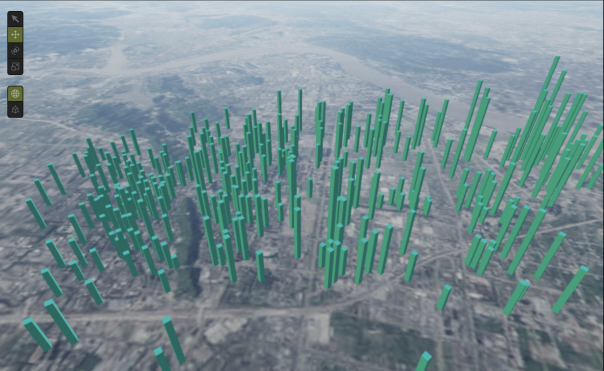
A column chart uses 3D columns to represent point features. The column height maps to a quantity, and the color represents attribute information.
Key features of this primitive:
You can specify the height and color of a single column in the data.
The sides of the columns have a highlight animation.
Supports selecting a single feature.
High performance overhead. Supports hundreds of data entries.
Uses a Physically Based Rendering (PBR) material and is affected by lighting, but does not cast shadows.
Property Name |
Parameter |
Description |
Column Chart Widget |
Configuration Asset |
Select a column chart asset resource. |
Relative Coordinate |
Click the |
|
Data |
Enter the JSON code that contains geographic information. |
Radial bubble widget
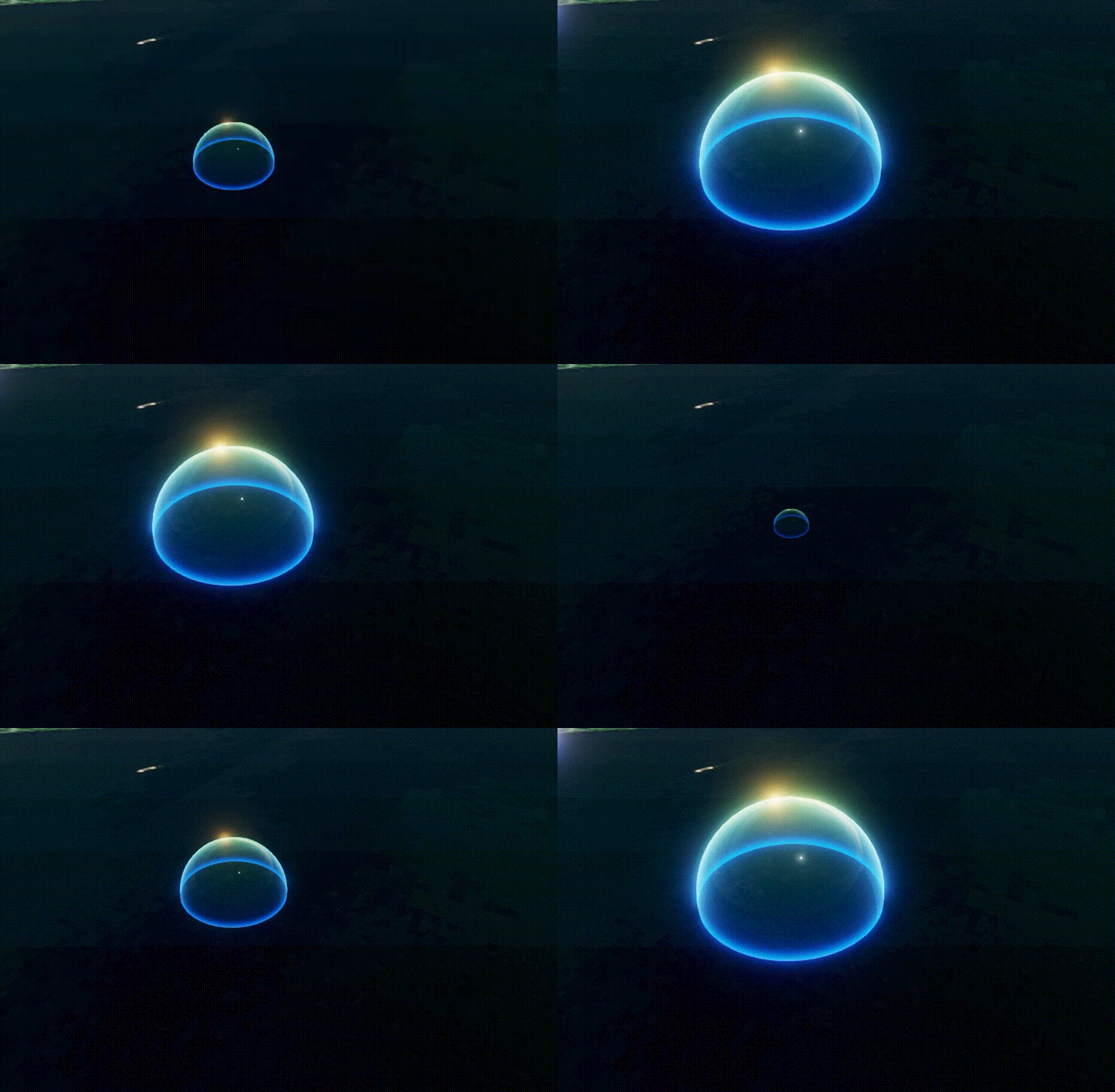
A radial bubble uses a two-color hemisphere to represent a point feature. It is used for indication, decoration, and value mapping.
Key features of this primitive:
You can specify the radius of a single sphere in the data.
It has size and transparency gradient animations.
Uses a Fresnel coefficient to highlight edges and is affected by the environment map.
Low performance overhead. Supports thousands of data entries.
Property Name |
Parameter |
Description |
Radial Bubble Widget |
Configuration Asset |
Select a radial bubble asset resource. |
Relative Coordinate |
Click the |
|
Data |
Enter the JSON code that contains geographic information. |
Highlight pillar widget
A highlight pillar uses a 3D column with a side gradient to represent a point feature. It is mainly used for decoration and in combination with other primitives.
Key features of this primitive:
The sides of the pillar have a transparency gradient and texture animation.
Low performance overhead. Supports thousands of data entries.
Uses a transparent material and is not affected by lighting.
You can specify the height, color, and radius of a single pillar in the data.
Property Name |
Parameter |
Description |
Highlight Pillar Widget |
Configuration Asset |
Select a highlight pillar asset resource. |
Relative Coordinate |
Click the |
|
Data |
Enter the JSON code that contains geographic information. |
3D icon widget
A 3D icon uses a 3D mesh to represent a point feature.
Key features of this primitive:
Uses a PBR material. It supports base color, metallic, roughness, normal, and emissive maps, and is affected by lighting.
Supports three mesh types: triangular prism, quadrangular prism, and cylinder.
Supports selecting a single feature.
It has a rotation animation.
Low performance overhead. Supports thousands of data entries.
Property Name |
Parameter |
Description |
3D Icon Widget |
Configuration Asset |
Select a 3D icon asset resource. |
Relative Coordinate |
Click the |
|
Data |
Enter the JSON code that contains geographic information. |
OD flowline widget
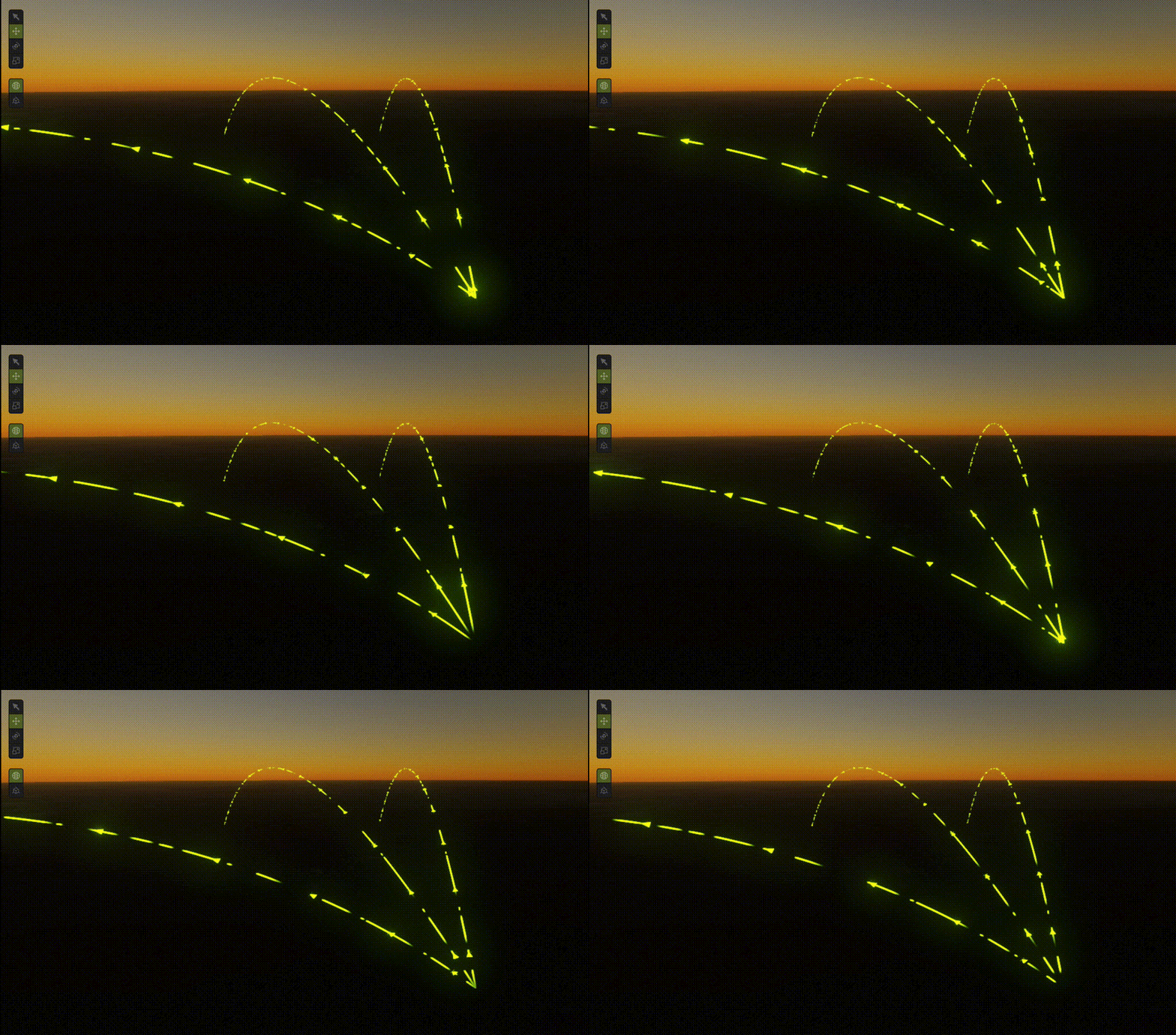
An OD flowline uses an upward-arching arc to represent a connection.
Key features of this primitive:
An arc corresponds to one line data entry. The line contains only a start point and an end point.
The line has a flow animation with directionality. The sign (positive or negative) of the speed in the animation configuration controls the direction.
There are two flowline types: "vector" and "texture". The "vector" type consists of a baseline with a highlight line overlay and does not require a texture. The "texture" type requires a flowline texture or a symbol texture. The former determines the basic texture of the flowline, and the latter determines the point-like symbols that move along the flowline.
Low performance overhead. Supports thousands of data entries.
Uses a transparent material and is not affected by lighting.
You can specify the baseline thickness to map a numerical relationship in the data.
Supports selecting a single line.
Property Name |
Parameter |
Description |
OD Flowline Widget |
Configuration Asset |
Select an OD flowline asset resource. |
Relative Coordinate |
Click the |
|
Data |
Enter the JSON code that contains geographic information. |
2D icon widget
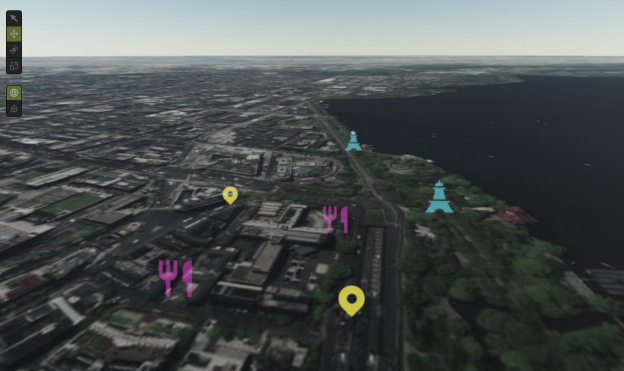
A 2D icon represents a point feature in a point sprite-like manner, which means the icon always faces the camera. It is often used to visualize many infrastructure points.
Key features of this primitive:
You can specify the position, image, size, color, space, type, and quantity relationship for a single icon in the data.
Supports selecting a single feature.
It has a breathing animation.
Not affected by lighting.
Extremely low performance overhead. Supports tens of thousands of data entries.
Property Name |
Parameter |
Description |
2D Icon Widget |
Configuration Asset |
Select a 2D icon asset resource. |
Relative Coordinate |
Click the |
|
Data |
Enter the JSON code that contains geographic information. |
Point heatmap widget
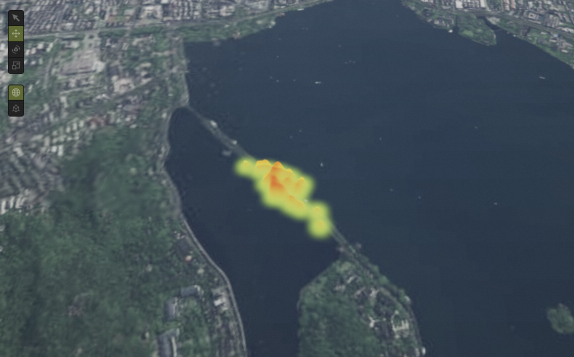
The point heatmap widget constructs and renders a heatmap based on the density and values of points. It reflects the macroscopic features of the data and does not support interaction or animation.
Key features of this primitive:
In areas where points are denser or have higher values, the color is closer to the high-value color and the height is greater.
Low performance overhead. Supports thousands of data entries.
It accurately reflects overall macroscopic heat features only with a large data volume. It is not recommended for small or sparsely distributed datasets.
Not affected by lighting.
Property Name |
Parameter |
Description |
Point Heatmap Widget |
Configuration Asset |
Select a point heatmap asset resource. |
Relative Coordinate |
Click the |
|
Data |
Enter the JSON code that contains geographic information. |
General line widget
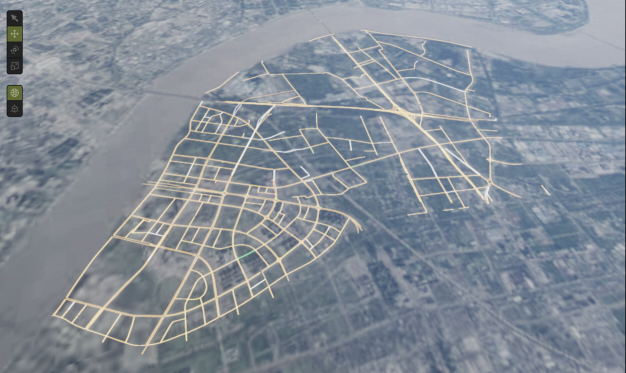
The general line widget uses polylines to represent line features. It can be used to represent roads, administrative boundaries, and other features at a macro level.
Key features of this primitive:
You can efficiently update line colors using state data (stateData).
Low performance overhead. Supports thousands of data entries.
Uses a transparent material and is not affected by lighting.
You can specify the thickness and color of individual line segments in the data.
Supports selecting a single line.
Property Name |
Parameter |
Description |
General Line Widget |
Configuration Asset |
Select a general line asset resource. |
Geometry Data |
Enter the JSON code that contains geographic information. |
|
State Data |
Enter the state JSON code for the general line widget. |
|
Relative Coordinate |
Click the |
Text Label Component
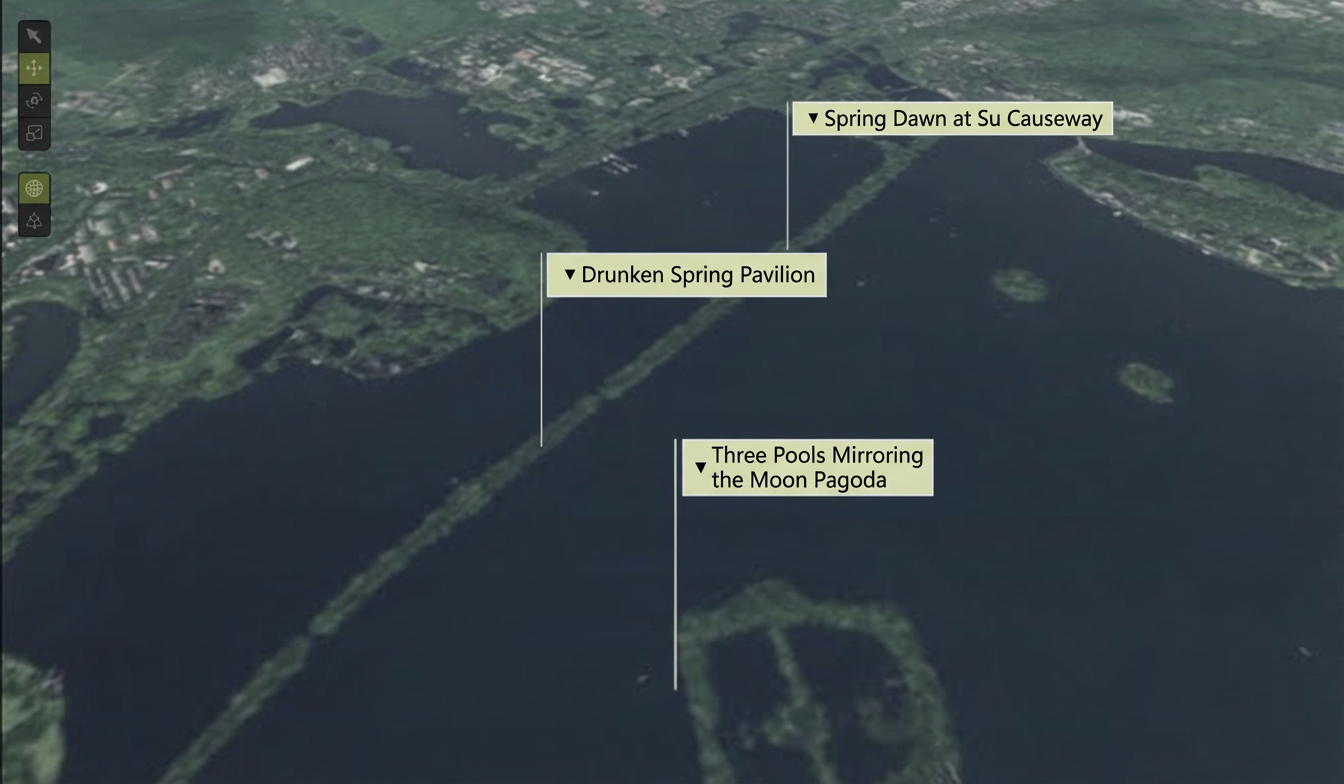
Billboard labels represent point features as point sprites, which are composed of images and text and always face the camera.
Property Name |
Parameter |
Description |
Label Bulletin Board Widget |
Configuration Asset |
Select a label bulletin board asset resource. |
Relative Coordinate |
Click the |
|
Data |
Enter the JSON code that contains geographic information. |
Simple label widget
The simple label widget renders large batches of image-text labels. Unlike the label bulletin board widget that supports only a small number of labels, the simple label widget is used to visualize a large volume of point data.
Key features of this primitive:
Supports only simple layout configurations. Each label consists of one icon, one line of text, and a background filled with either an image or a solid color.
You can specify the text, icon, and background image or fill color for each label in the data. The background image and fill color are mutually exclusive. To create a transparent background, set the fill color to 'rgba(0,0,0,0)'.
Supports selecting a single feature.
Not affected by lighting.
Low performance overhead. Supports thousands of data entries.
Image and text size affect performance. To optimize performance, minimize the image and font sizes.
Supports GeoJSON and Mapbox Vector Tile (MVT) data sources.
Property Name |
Parameter |
Description |
Simple Label Widget |
Configuration Asset |
Select a label asset resource. |
Relative Coordinate |
Click the |
|
Data |
Enter the JSON code that contains geographic information. |
Breathing bubble widget
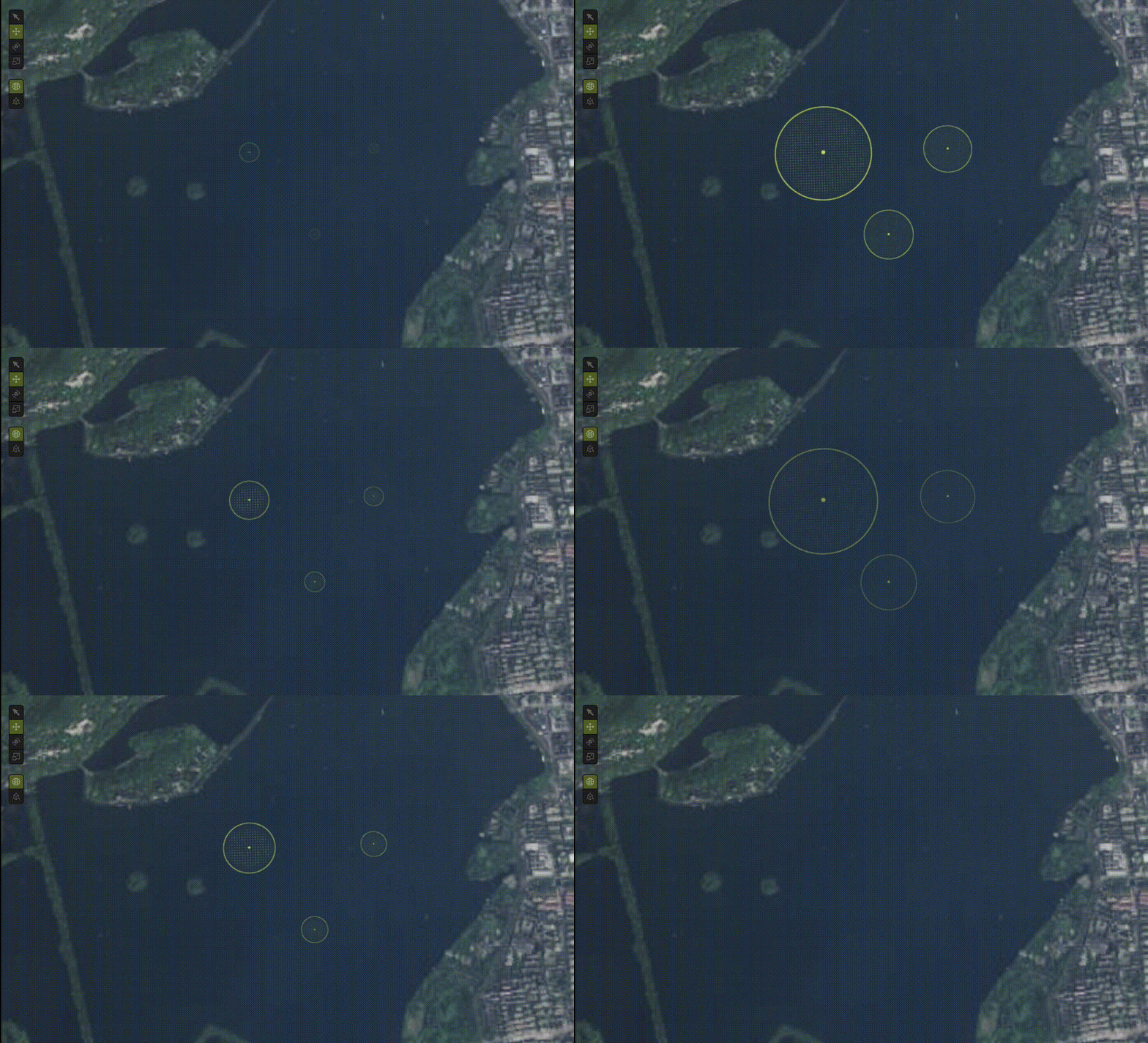
A breathing bubble uses a flat, ground-level patch to represent a point feature. It is used for indication, decoration, and value mapping.
Key features of this primitive:
You can specify the radius of a single patch in the data.
It has a looping sequence frame animation.
Supports selecting a single feature.
Low performance overhead. Supports thousands of data entries.
The number of horizontal and portrait frames must match the sequence frame texture.
Property Name |
Parameter |
Description |
Breathing Bubble Widget |
Configuration Asset |
Select a breathing bubble asset resource. |
Relative Coordinate |
Click the |
|
Data |
Enter the JSON code that contains geographic information. |
Widened fence widget
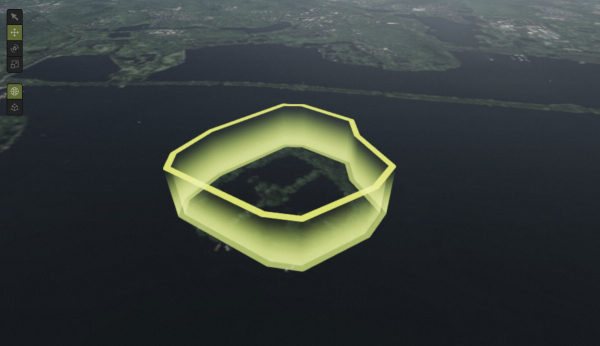
A widened fence first widens a polygon boundary horizontally and then stretches it vertically. It is mainly used to represent area boundaries.
Key features of this primitive:
The sides have a transparency gradient and texture animation.
Low performance overhead. Supports thousands of data entries.
Uses a transparent material and is not affected by lighting.
Supports selecting a single feature.
Property Name |
Parameter |
Description |
Widened Fence Widget |
Configuration Asset |
Select a widened fence asset resource. |
Data |
Enter the JSON code that contains geographic information. |
Storage analysis
This widget lets you add spatial widgets to virtual twin objects in a scene, such as the sphere field of view widget and the cone field of view widget.
Viewshed analysis
Viewshed analysis is a type of geospatial analysis that determines the areas directly visible from a specific observation point. It considers factors such as terrain, obstacles such as buildings and trees, and other elements that might affect the line of sight.
Typical applications of viewshed analysis in different fields:
Urban planning and architectural design: Evaluate the impact of new buildings on the existing visual landscape or assess the scenic value of a specific location.
Environmental protection: Assess the visual impact on specific geographical features, such as mountains, rivers, and cultural heritage sites.
Telecommunications: Plan the optimal locations for radio communication towers and other transmission facilities to ensure effective signal coverage.
Military and security: Determine the best locations for surveillance towers or outposts to maximize monitoring areas and fields of view.
Tourism planning: Evaluate and optimize the placement of viewpoints or scenic routes to provide the best viewing experience.
Sphere field of view widget
The spatial position of the sphere field of view analysis widget is synchronized with the twin object. It can impersonate a moving target, such as a vehicle, to show its surrounding view obstruction.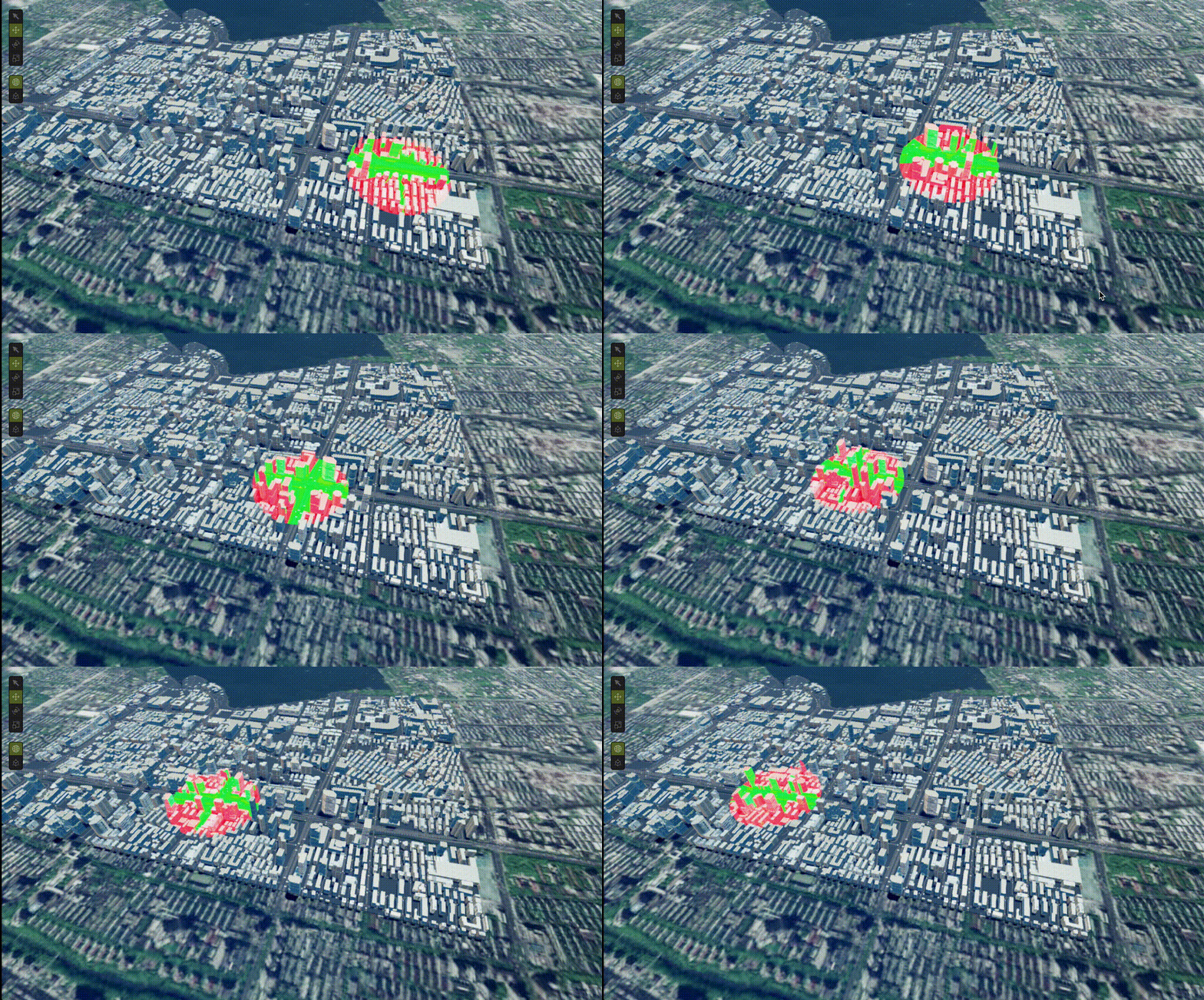
Property Name |
Parameter |
Description |
Sphere Field of View Widget |
Visible Distance |
Set the visible distance between sphere field of view widgets. |
Visible Area Color |
Set the visible area color for the sphere field of view widget. For more information, see Color picker. |
|
Non-visible Area Color |
Set the non-visible area color for the sphere field of view widget. For more information, see Color picker. |
|
Helper |
Click the |
Cone field of view widget
Cone field of view analysis assesses the visibility within a conical range between a starting point and a target point.
Property Name |
Parameter |
Description |
Cone Field of View Widget |
Cone Angle |
Set the cone angle for the cone field of view widget. |
Visible Area Color |
Set the visible area color for the cone field of view widget. For more information, see Color picker. |
|
Non-visible Area Color |
Set the non-visible area color for the cone field of view widget. For more information, see Color picker. |
|
Target Type |
Set the type of visible target. Options include Relative Distance, Absolute Position, and Target Object.
|
|
Geographic Coordinate |
Set the longitude, latitude, and elevation for the widget. This is configurable when you set Target Type to Absolute Position. |
|
Target Object |
Set the target object resource for the widget. This is configurable when you set Target Type to Target Object. |
|
Relative Distance |
Set the relative distance for the widget. This is configurable when you set Target Type to Relative Distance. |
|
Helper |
Click the |