You can use the REST API feature in DataWorks to connect to data sources that support API calls. This lets you perform data integration. This topic describes how to add a REST API (HTTP) data source.
Procedure
Workspaces in standard mode support data source fencing. You can add and fence data sources for the development environment and the production environment separately to ensure data security. For more information, see Isolate data sources in the development and production environments.
If you use a DataWorks workspace in standard mode, follow these steps to add data sources for the development and production environments.
Go to the Data Source Management page.
Log on to the DataWorks console. In the top navigation bar, select the desired region. In the left-side navigation pane, choose . On the page that appears, select the desired workspace from the drop-down list and click Go to Management Center.
In the left-side navigation pane of the SettingCenter page, click Data Sources.
NoteAlternatively, from the Data integration page, you can navigate to the Data source management page to configure a data source. However, this method supports only data sources in the production environment.
On the Data Source List page, click Add in the upper-right corner.
In the Add dialog box, set Data Source Type to REST API.
In the Add REST API Data Source dialog box, configure the parameters.
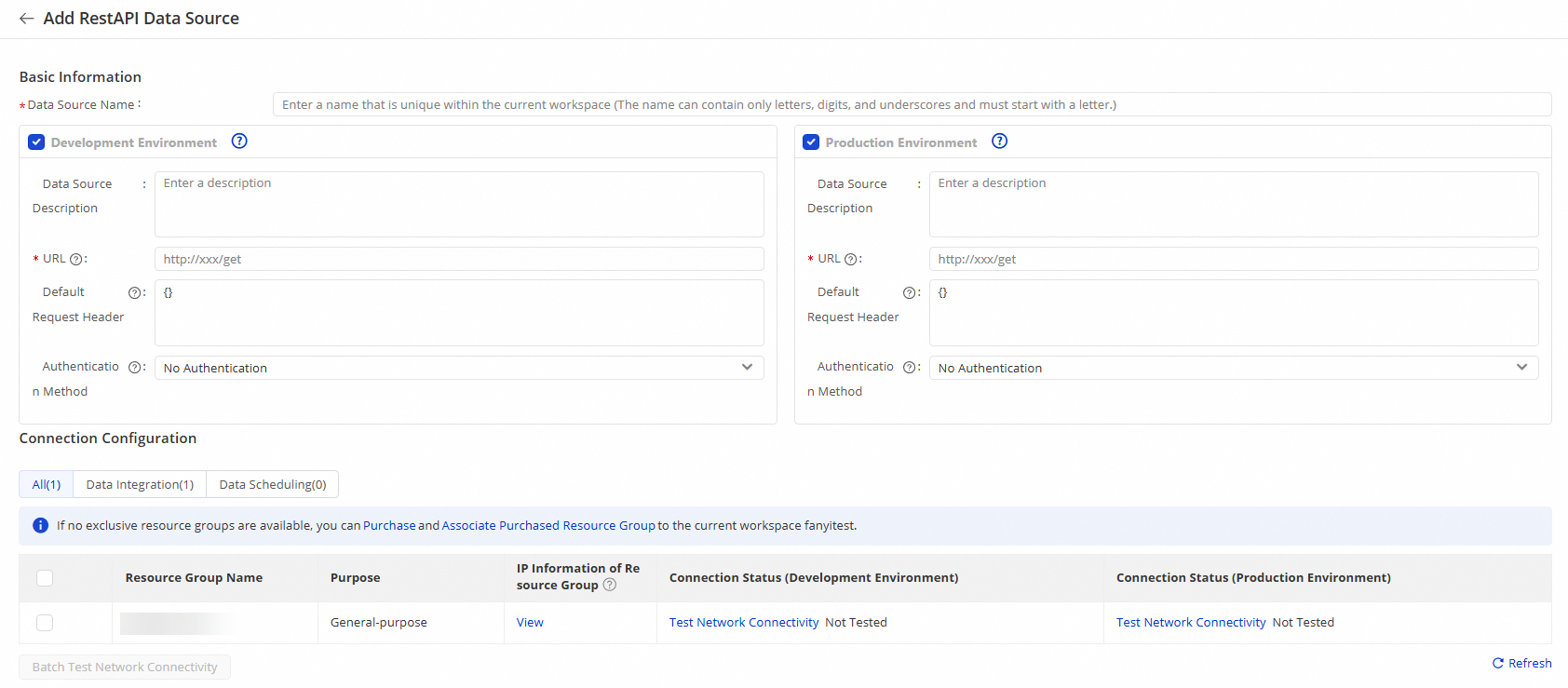
Parameter
Description
Data Source Name
The name must contain only letters, digits, and underscores (_). It cannot start with a digit or an underscore (_).
Description
A brief description of the data source. The description cannot exceed 80 characters.
Url
The endpoint of the RESTful request.
Default request header
The header content sent with each request to the endpoint.
Authentication method
The default value is No Auth. No authentication is performed when you connect to the data source using the REST API.
When you connect to a data source using the REST API, two authentication methods are supported: Basic Auth and Token Auth. Select an authentication method and configure the authentication parameters based on the method that is supported by the data source API.
Basic Auth: Basic authentication.
If the data source API supports authentication with a username and password, select this method. Then, configure the username and password. During data integration, the credentials are sent to the RESTful endpoint through the Basic Auth protocol for authentication.
Token Auth: Token-based authentication.
If the data source API supports token-based authentication, select this method. Then, configure a fixed token value. During data integration, the token is passed in the request header for authentication. For example: {"Authorization":"Bearer TokenXXXXXX"}.
NoteTo use a custom encryption method, you can use the
Tokenauthentication method and provide the encrypted authentication information as theAuthToken.
NoteIf your DataWorks workspace is in standard mode, configure both the production and development environments to use all features and enable standardized development and O&M.
Set Network Connectivity of Resource Group to Data integration.
In the resource group list, click Test Connection for the desired resource group.
The resource group that is used by a sync task must be able to connect to the data source. Otherwise, the sync task cannot run. To test the connectivity of multiple resource groups at the same time, select the resource groups and click Batch Test Network Connectivity. For more information, see Network connectivity solutions.
After the connectivity test passes, click Complete.
What to do next
After you add the data source, you can configure a data integration node. You can configure the node using the codeless UI or the code editor.