Business planning
Business categories, data domains, and data marts form a business-driven management framework that connects data production to consumption. Learn how Business Category, Data Domain, Business Process, Data Mart, and Subject Area relate to each other and how to use them.
Core concept relationships

-
Business Category: The highest-level division of a business area. For example, a retail company might classify its operations into physical retail and e-commerce based on sales channels.
-
Data Domain: A cross-business aggregation of data. A data domain is typically a logical grouping of a company's data, classified by dimensions such as business type, data source, and usage. A data domain can span multiple business categories. For example, a transaction domain can serve both online and offline transaction scenarios.
-
Business Process: A specific business activity within a data domain. For example, a transaction domain may include business processes like placing an order and making a payment. A data domain can contain multiple business processes.
-
Data Mart: A data endpoint tailored for a specific business scenario, such as a data mart for an operations platform.
-
Subject Area: A subdivision of a data mart based on an analytical perspective, such as product analysis or user behavior. A data mart can contain multiple subject areas.
Business category
If your organization has large and complex operations, create business categories to segment data and simplify management.
In the retail industry, common classification dimensions include sales channels, product lines, and core functions. Choose one dimension that best reflects data accountability and business autonomy.
The following table shows business classification examples based on these dimensions:
|
Dimension |
Use case |
Example |
Data scope |
|
Sales channel |
Omnichannel retailer |
1. Physical retail business 2. E-commerce business 3. Cross-border business |
POS transactions/App orders/Overseas warehouse inventory |
|
Product line |
Multi-category group |
1. Fast-moving consumer goods (FMCG) business 2. Home appliance business 3. Fresh produce business |
SKU basic information/Product categories/Shelf-life monitoring |
|
Core function |
Single-channel, multi-department collaboration |
1. Procurement and supply chain business 2. Marketing business 3. Membership operations business |
Supplier profiles/Promotion tables/Member level tables |
Define a business category
In the left-side navigation pane of the Data Warehouse Planning page, click Business Category to go to the Business Category page.
Create a business category
-
On the Business Category page, hover over the
 icon and click Create Top-level Category.
 -
In the Create Top-level Category dialog box, configure the parameters and click OK.
After you create the category, the left-side navigation tree displays the defined business category hierarchy. For example, a top-level category named E-commerce business might contain two subcategories, Xiaohongshu Channel and Taobao Channel, alongside other sibling categories like Retail, Deposit business, and Customer Unification.
Create a sub-business category
To create a sub-business category, follow the same procedure as for a top-level business category.
The sub-business category list includes columns for Business Name, Abbreviation, Creation Time, and Remarks. You can Edit or Delete each record in this list.
Associate data domains
After you create a business category, associate data domains in the "Associate Data Domains" area on the category page to define the data scope for that business line. Once associated, these domains become available for data modeling within the business category.
For more information about data domains, see Data domain.
Select the target data domains from the drop-down list, such as the item domain (itm), traffic domain (log), transaction domain (trd), and customer relationship management (CRM) domain (crm), and click OK. You can also click Load All Data Domains to add all domains at once. The table below displays the selected data domains with their Chinese Name, English Name, Abbreviation, and Remarks. You can Delete any entry.
Data Mart Management
After you create a business category, go to the Data Mart Management area on the category page to view, edit, or delete the data marts associated with the category.
For more information about data marts, see Data mart.
Deleting a data mart disassociates it from the business category and deletes the data mart itself. Proceed with caution.
Use a business category
After creating a business category, associate it when you create a Dimension Table, Fact Table, Aggregate Table, or Application Table in Dimensional Modeling. You can also click the  button above the directory tree on the left to view table classification details from a business data perspective.
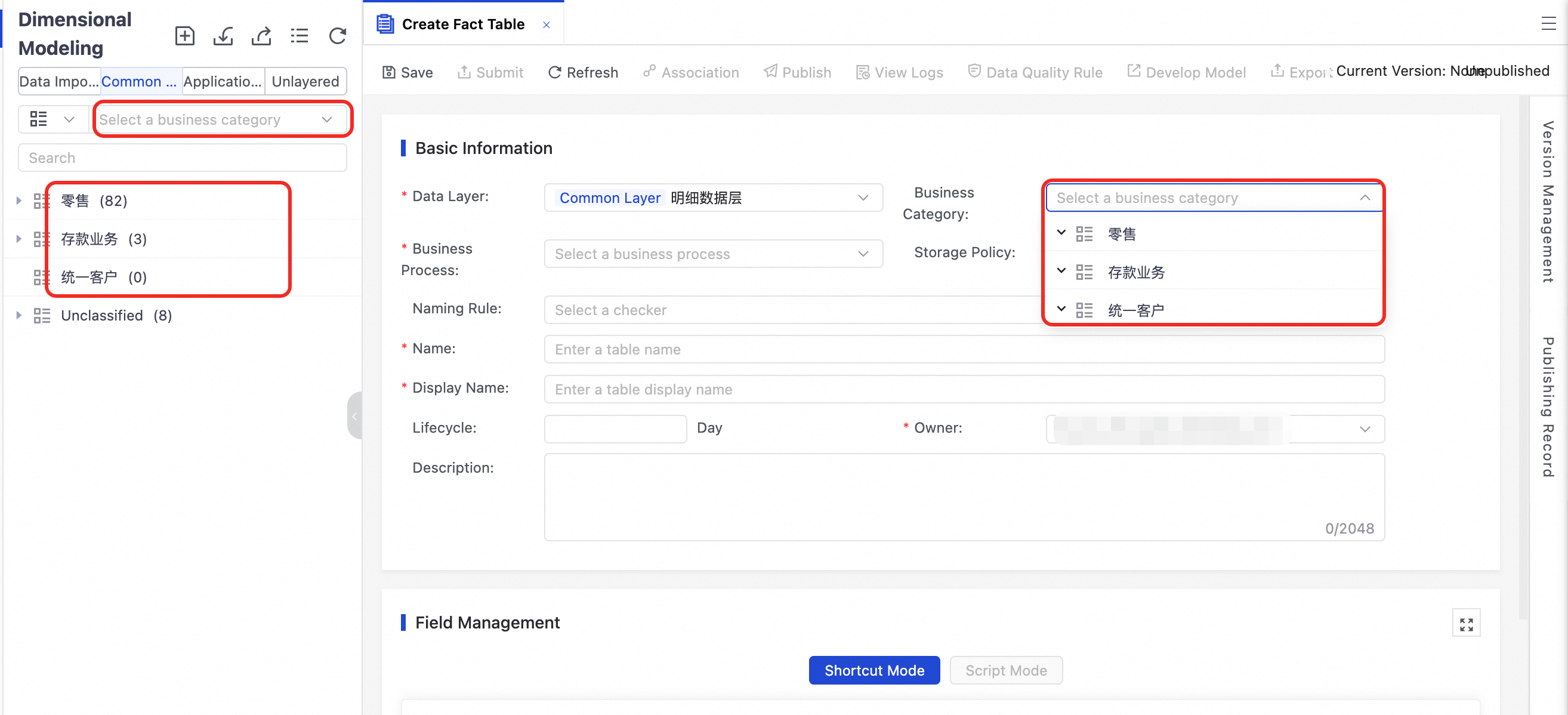
You can also go to Data Metrics and associate the corresponding business category when you create an Atomic Metric, Derived Metric, or Composite Metric in the common layer.
Data domain
A data domain is a high-level data classification standard created by abstracting, refining, and combining business processes. It serves as the primary grouping category for business users, helping them quickly locate their business data from a vast amount of information.
The following diagram shows the relationship between business categories and data domains in the retail industry:

Define a data domain
Create a data domain
-
In the left-side navigation pane of the Data Warehouse Planning page, click Common Layer > Data Domain to go to the Data Domain page.
-
Click Create. In the dialog box, configure the parameters and click Confirm.
System-default data domains cannot be deleted. Before you delete a custom data domain, you must delete all business processes and logical models within it.
Add a business process
After creating a data domain, view its details and add business processes for analysis.
-
On the Data Domain page, click a data domain to go to its details page.
-
After you create a data domain, the system automatically adds a business process with the
_defaultsuffix to it. -
Click Create Business Process. In the Create Business Process dialog box, configure the parameters and click OK.
After creation, the business process list displays the configured business processes, including Abbreviation, Chinese Name, English Name, Data Domain, Owner, and Remarks. You can View, Edit, or Delete each process from the Operations column.
Use a data domain
You can then reference the Data Domain in the following modules:
-
Go to Dimensional Modeling to create a ODS Table, Dimension Table, and Aggregate Table in the specified data domain.
In the tree structure on the left of the Dimensional Modeling page, the hierarchy corresponds to the configuration fields on the right: Business Category (e.g., Retail) > Data Domain (e.g., Product domain) > Data Layer (e.g., fact table) > Business Process (e.g., Product Launch). A created table (e.g.,
dwd_test) appears under its corresponding business process node. In the form on the right, you can configure information such as Data Layer, Business Category, Business Process, Storage Policy, Table Name, Table Chinese Name, Lifecycle, Owner, and Description. -
The English abbreviation of the data domain can be used as an optional attribute in rule definitions when you add a model rule in the Data Layer checker.
Business process
A business process describes the workflow of a business activity. In e-commerce, for example, adding to cart, placing an order, and making a payment are each individual business processes. Business processes are useful for performance analysis such as funnel analysis, which breaks down a purchase into stages (browsing, adding to cart, placing an order, payment, and confirming receipt) to track the "order count" metric at each stage.
The following diagram shows the relationship between business categories, data domains, and business processes, using the retail industry as an example:

Define a business process
-
In the left-side navigation pane of the Data Warehouse Planning page, click to go to the Business Process page.
-
Click Create Business Process. In the Create Business Process dialog box, configure the parameters and click OK.
-
You can delete a business process either directly from the business process list or from the Business Process list within its parent Data Domain.
ImportantBefore you delete a business process, you must first delete its associated logical models and metrics.
Use a business process
You can then reference a business process in the following modules:
-
In Dimensional Modeling, associate a specific business process when you create a Fact Table.
For example, select Logistics domain / Ship from the Business Process drop-down list.
-
In Data Metrics, you can create Atomic Metric, Derived Metric, and Composite Metric to measure attributes for each business process.
On the Create Derived Metric page, in the Basic Information section, select Transaction domain / Add to cart for the Business Process.
Data mart
A data mart provides personalized data statistics for specific application scenarios or products based on a business category. It typically resides in the application layer.
For example, in the e-commerce business of the retail industry, you can build data marts such as an e-commerce mart and a retail customer profile mart to serve the analytical needs of operations personnel.

Define a data mart
Create a data mart
-
In the left-side navigation pane of the Data Warehouse Planning page, click to go to the Data Mart page.
-
On the Data Mart page, hover over the
 icon and click Create First-level Data Mart. In the Create First-level Data Mart dialog box, configure the parameters and click OK.
The following are key parameters:
-
Mart Type
-
Business Mart: A mart for business requirements.
-
Data Application Mart: A mart for data product requirements.
-
Common Mart: Select this type if you want to create application layer models that are common to all marts.
-
-
Business Category
-
The Business Category to which the data mart belongs. For more information, see business category.
-
-
-
To delete a Data Mart, right-click the target mart in the data mart directory on the left and click Delete in the context menu.
 icon and click Create First-level Data Mart. In the Create First-level Data Mart dialog box, configure the parameters and click OK.
Create a sub-data mart
You can create sub-data marts under a top-level data mart. The procedure is the same as creating a top-level data mart.
Subject Area Management
On a data mart's details page, use the Data Mart Management area to create and manage subject areas.
The Subject Area Management page displays a table with the created subject areas. The columns include Subject Area Name, Abbreviation, Creation Time, Remarks, and Operations (Edit, Delete). The example includes four subject areas: channel (channel), region (region), item (itm), and category (category). The remarks for each subject area describe its analytical purpose.
Deleting a subject area disassociates it from the data mart and deletes the subject area itself. Proceed with caution.
Use a data mart
After you create a data mart, you can reference it in the following modules:
-
In Dimensional Modeling, associate the data mart when you create an application table for a specific business data analysis.
In the navigation tree on the left of the Dimensional Modeling page, the hierarchy is Business Category > Data Mart > Subject Area > Application Table. After you select the target application table, its basic information form is displayed on the right. The Mart/Subject Area field associates the application table with a data mart and subject area.
-
In Data Metrics, create a Derived Metric and Composite Metric to measure business attributes for each data mart.
Derived metrics are organized in a hierarchy of Business Category > Data Mart > Subject Area > Derived Metric. When you create a derived metric, you must select a Time Period (e.g.,
1d(last 1 day)), a Modifier (e.g.,exposure), and an Atomic Metric (e.g.,goods_cnt(goods count)) in the business logic section. In the basic information section, you set attributes such as Data Layer, Mart/Subject Area, Abbreviation, and Chinese Name. The metric name is generated by combining the time period, modifier, and atomic metric, for example,last_1_day_exposure_goods_count.
Subject area
A subject area segments a data mart by analytical perspective. It groups closely related data for statistical analysis in business applications.
Take an e-commerce mart as an example. It belongs to the retail business category and primarily serves industry operations personnel. You can segment this mart into subject areas such as "Product," "Category," and "Region" based on different analytical perspectives. When you create application-layer derived metrics and models, you must associate them with a data mart and subject area.

Define a subject area
Create a subject area
-
In the left-side navigation pane of the Data Warehouse Planning page, click to go to the Subject Area page.
-
On the Subject Area page, hover over the
icon, click Create First-level Subject Area, configure the parameters in the Create First-level Subject Area dialog box, and click OK. -
To delete a subject area, right-click it in the subject area directory on the left and click Delete from the context menu.
 icon, click Create First-level Subject Area, configure the parameters in the Create First-level Subject Area dialog box, and click OK.
Create a sub-subject area
You can create sub-subject areas under a top-level subject area. The procedure is the same as creating a top-level subject area.
Use a subject area
After a subject area is created, you can reference it in the following modules:
-
In Dimensional Modeling, associate the subject area when you create an application table.
In the Mart/Subject Area drop-down list, select the target subject area from the tree structure (for example, expand Industry Mart and select Region).
-
In Data Metrics, create a Derived Metric and Composite Metric to measure business attributes for each subject area.
Next steps
Next, define the data warehouse layering structure. Plan the warehouse layers and set up a checker for each layer to establish standards for Dimensional Modeling and Data Metrics modules.
For more information, see data warehouse layering.