Configuration management
Configure categories, manage MaxCompute tables in a workspace, and define custom attributes on the Configuration Management page in Data Map.
Permission requirements
To use Manage Configurations in DataWorks, you must have the required permissions.
-
An Alibaba Cloud account has the required permissions by default.
-
A RAM user must have the Aliyundataworksfullaccess permission to perform operations. If a RAM user does not have this permission, you must first add the Aliyundataworksfullaccess permission. For more information, see Overview of the DataWorks permission management system.
-
In the DataWorks console, go to . In the Role column, grant the Data Directory Administrator role to the user.
Access configuration management
-
Log on to the DataWorks console. In the target region, click in the left-side navigation pane. On the page that appears, click Go to Data Map.
-
In the left-side navigation pane, click Configuration Management and select a configuration item.
Manage categories
Organize and manage tables by category. After you configure categories, you can filter tables by category during searches and add specific tables to your favorites for quick access. The category configurations apply to all workspace members in the current Alibaba Cloud region.
-
In the left-side navigation pane, choose Configuration Management > Manage Categories to go to the Manage Categories page.
-
Create a category.
In the Manage Categories section, click the + icon next to a category to create a subcategory.
 Note
NoteYou can create up to four levels of categories. After a category is created, you can delete or modify it.
-
Manage tables in a category.
Click Quick Add and follow the on-screen instructions to add tables to the current category. The added tables are displayed in the right-side section. You can also remove added tables from the current category.
NoteThe Quick Add feature is available only in leaf categories. After you add a table to a leaf category, you can filter the table by the leaf category or its parent category.
Manage workspaces
Manage Workspaces controls the display policies for metadata at the project and table levels in Data Map.
This feature is supported only for the MaxCompute engine. For other engines, you can control permissions through the metadata collection configuration of the specific engine. For more information, see metadata collection.
-
In the left-side navigation pane, choose Manage Configurations > Manage Workspaces to go to the workspace configuration page.
-
In the Workspaces (I am owner or administrator) section, select a workspace to configure. Then, configure the permission control switches in the Workspace Status section.

-
Manage Metadata: Specifies whether to display the metadata of the current project in Data Map.
-
Data Preview Supported: Specifies whether tables in the project can be previewed by tenant members, even if they have not been granted data access permissions.
-
Allow Only Project Members to View Project Tables: Specifies the default visibility of newly created tables in the project, that is, whether the tables are visible only to project members by default.
NoteThe Manage Metadata and Allow Only Project Members to View Project Tables switches are displayed only when you have the corresponding data security control capabilities. If you do not have the capabilities, only the Preview Data switch is displayed for the workspace. Changes to the switches take effect in near real time.
-
Custom attribute configuration
On the Configuration Management page, configure custom attributes to extend business metadata (such as data security level, data domain, and owner) for workspaces and datasets. Custom attributes support inheritance, allowing attribute values at the workspace level to automatically propagate to associated datasets.
For detailed instructions on creating and managing custom attributes, see Custom attributes.
Other settings
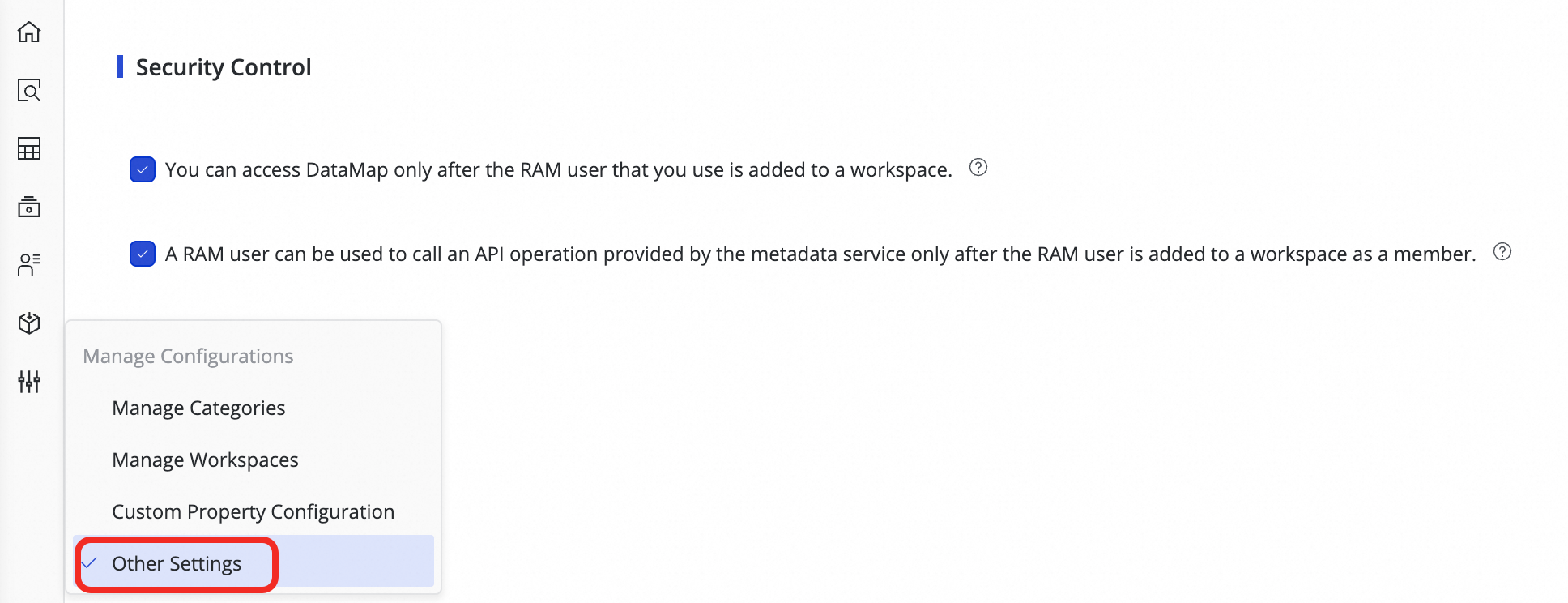
On the Other Settings page, configure the following settings:
-
Whether RAM users are required to join a workspace before they can access Data Map.
-
Whether RAM users are required to join a workspace before they can call metadata Open API operations.
This configuration can be managed only by an Alibaba Cloud account, a RAM user that has the AliyunDataWorksFullAccess permission policy, or a tenant administrator.