MaxCompute data permission control
DataWorks controls access to MaxCompute by mapping workspace roles (built-in or custom) to roles in the associated MaxCompute engine. When you assign a workspace role to a RAM user, the user gains the corresponding permissions in the development environment. Access to the production environment is not granted by default.
Background information
DataWorks provides built-in and custom workspace roles to control user access to workspace modules and development engine project permissions. Both role types support default and manual authorization on the development engine project.
-
An Alibaba Cloud account has the highest permissions on all its cloud resources. The permission controls described in this topic apply primarily to RAM users.
-
Among the built-in roles, only RAM users assigned the Development or Workspace Manager role can create nodes and run table creation commands in DataStudio.
Procedure
|
Step |
Goal |
References |
|
1 |
Understand the basic permissions of DataWorks built-in roles. |
|
|
2 |
Learn how DataWorks workspace members get engine permissions. |
|
|
3 |
Learn how administrators control permissions on the production environment. |
|
|
4 |
Learn how to check engine permissions using commands. |
Notes
-
In a workspace in standard mode, a RAM user does not have permissions on the production project by default. To query tables in the production environment, the RAM user must request permissions in Security Center. For more information about how to request data permissions, see Control access to MaxCompute data.
-
In a workspace in basic mode, a RAM user has all project permissions by default, which makes granular data permission control impossible.
Basic permissions of built-in roles
By default, DataWorks built-in roles grant access to the development environment but not the production environment.
Among the built-in roles, only RAM users assigned the Development or Workspace Manager role can create nodes in DataStudio to run commands to manage tables, resources, and functions.
|
Environment |
Description |
|
MaxCompute engine permissions in a development environment |
DataWorks and MaxCompute both use a role-based access control (RBAC) system, enabling a natural mapping between their roles. When a workspace member is assigned a built-in role, they are automatically granted the permissions of the corresponding engine role in MaxCompute. |
|
MaxCompute engine permissions in a production environment |
By default, a RAM user cannot directly perform operations in the production environment. Neither built-in nor custom roles in a DataWorks workspace grant permissions on the MaxCompute engine in the production environment. To access tables in the production environment, you must request permissions in Security Center. For more information, see Control access to MaxCompute data. Note
Among the built-in roles, only RAM users assigned the Development or Workspace Manager role can create nodes in DataStudio to run table creation commands. |
How RAM users get engine permissions
To protect production data in a workspace in standard mode, DataWorks controls how RAM users access MaxCompute tables.
-
Obtain permissions on the development project (automatic):
-
When a workspace member is assigned a built-in role, the member automatically obtains permissions on the engine project. For more information, see Scenario 1: Authorization process for built-in workspace roles.
-
When a workspace member is assigned a custom role, the member also obtains permissions on the engine project. For more information, see Scenario 2: Authorization process for custom workspace roles.
-
-
Obtain permissions on the production project (manual request required): You must request permissions in Security Center. The following table describes the use cases. For more information about how to use Security Center, see Control access to MaxCompute data.
Scenario
Description
A user in a development environment needs to access a table in the production environment within the same workspace.
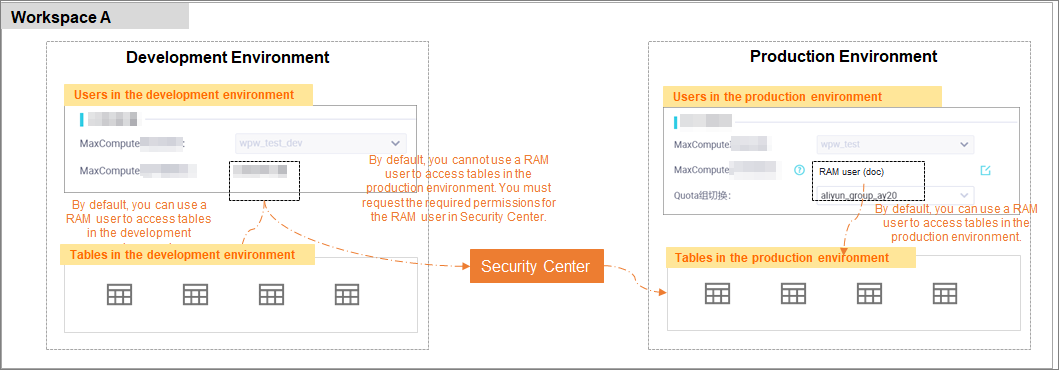
By default, if a RAM user is not configured as the access identity for the production engine, the user cannot operate on production tables from DataStudio. To gain access, the RAM user must submit a request in Security Center. After the request is approved, the user can perform the required operations on the tables in DataStudio.
A user needs to access a table in the development or production environment of another workspace.
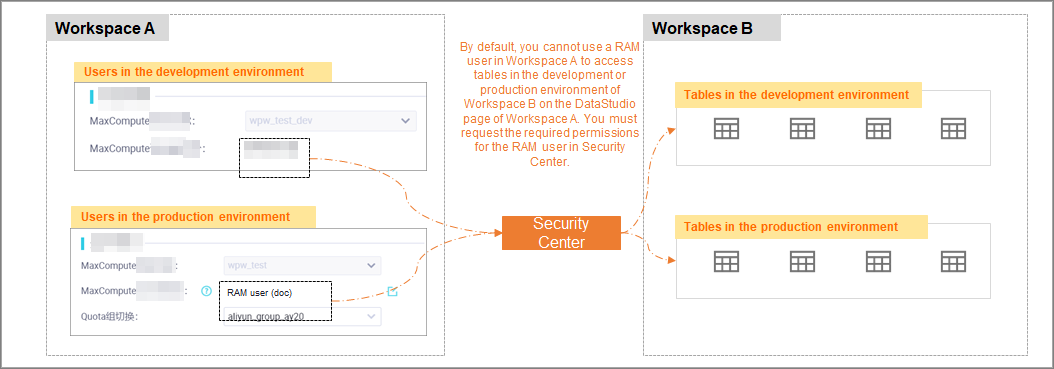
By default, a RAM user cannot access tables in the development or production environment in other projects from DataStudio. To enable cross-project access, the RAM user must submit a request in Security Center. After the request is approved, the user can perform the required operations on the tables in DataStudio.
MaxCompute data permission control
RAM users who need to access production data must follow an approval process, which allows administrators to control permissions on the production environment.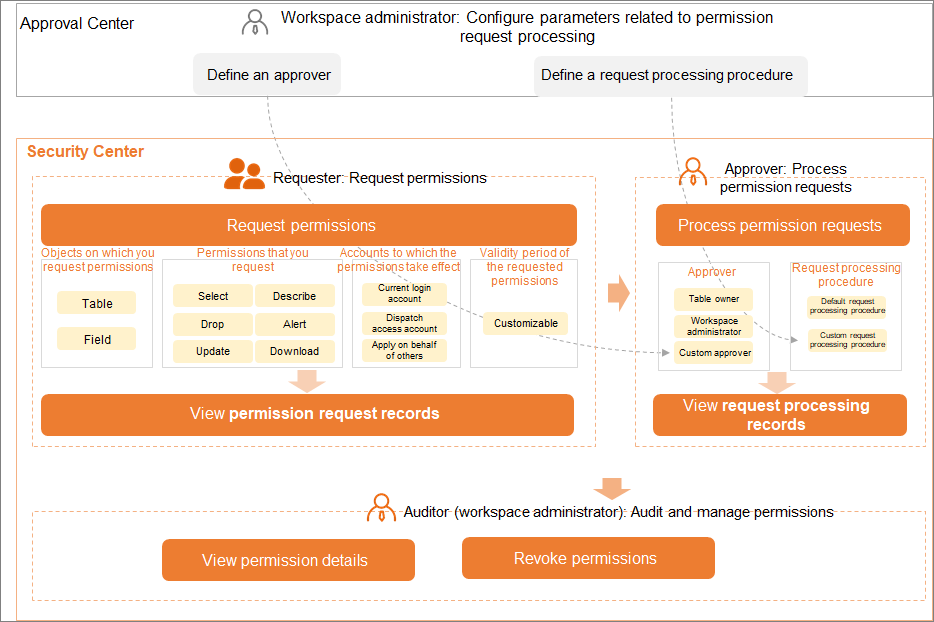
-
Security Center provides a built-in approval workflow for permissions on production tables.
-
Approval Center supports custom approval workflows.
View MaxCompute engine permissions
Run the following commands in a MaxCompute SQL task to query your permissions.
-
show grants: View your own access permissions. -
show grants for <username>: View the access permissions of a specific user. Only workspace administrators can run this command.
Appendix: Workspace role authorization process
Scenario 1: Built-in role authorization
-
How it works: When a RAM user is added to a workspace and assigned a built-in role, a corresponding MaxCompute role is automatically granted to the user. This grants the user the permissions of the underlying MaxCompute role. For more information about the mappings between built-in roles and MaxCompute permissions, see Appendix: Mappings between built-in workspace roles and MaxCompute engine permissions.
-
Example: A user with the Workspace Manager role adds a RAM user as a workspace member and grants them the Development role.
NoteFor more information about how to add members and grant permissions, see Control permissions on workspace modules.
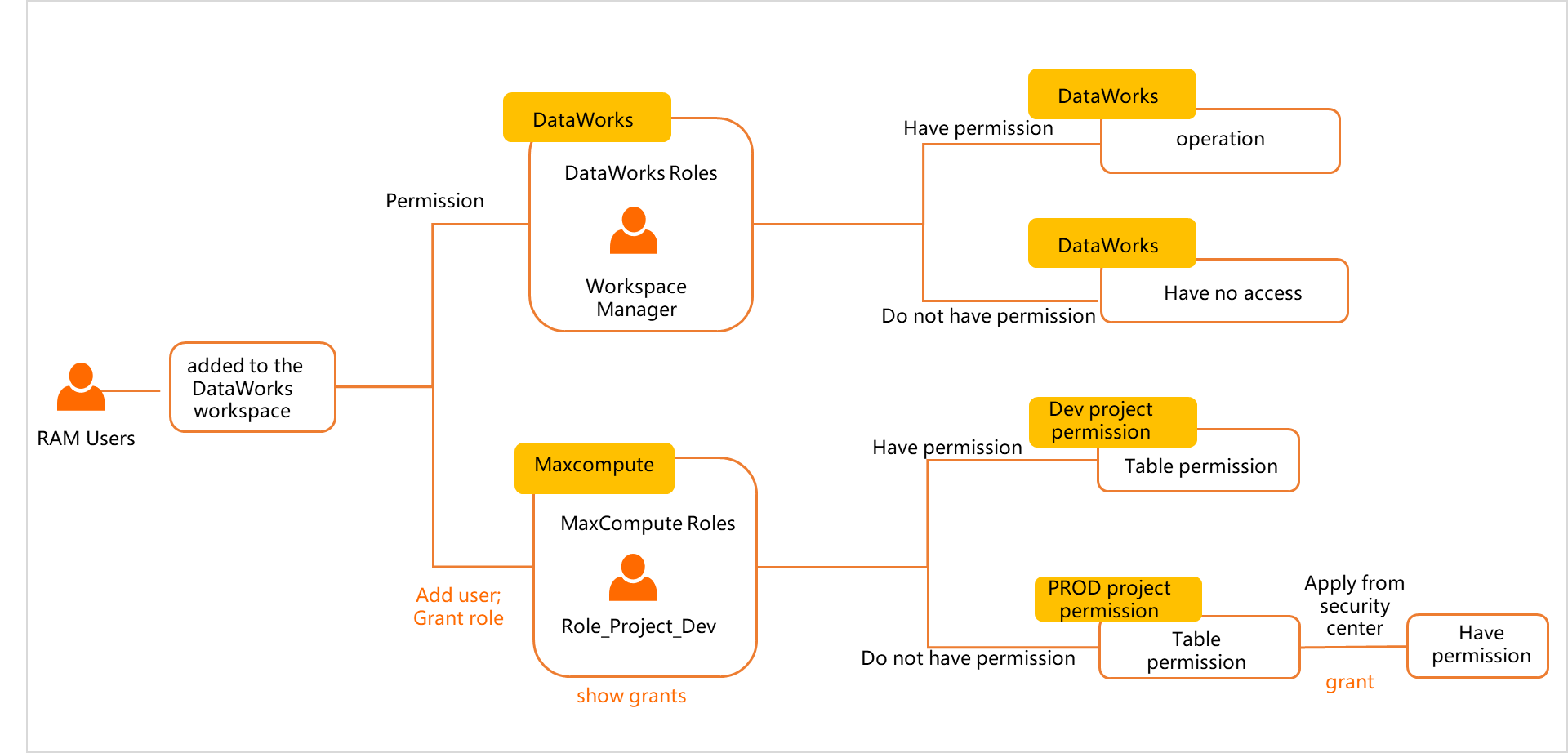
Once added, the RAM user has the following permissions in DataWorks and the MaxCompute engine.
-
DataWorks permissions: With the Development role, the RAM user can develop and commit code in DataWorks but cannot deploy it to the production environment. Deploying to production requires O&M permissions, which are held by roles such as Project Owner, Administrator, and O&M.
-
MaxCompute engine permissions: When the RAM user is granted the Development role, the user is also assigned the Role_Project_Dev role in the MaxCompute engine. This role grants permissions on objects like tables within the MaxCompute development project.
Note-
If you grant a RAM user the built-in Workspace Manager role, the user receives extensive permissions on DataWorks features but still cannot directly access production tables.
-
The RAM user described here refers to a user who is not designated as the scheduling engine's access identity for the production project.
-
Scenario 2: Custom role authorization
Example: A user with the Workspace Manager role adds a RAM user as a workspace member and grants them a custom DataWorks workspace role.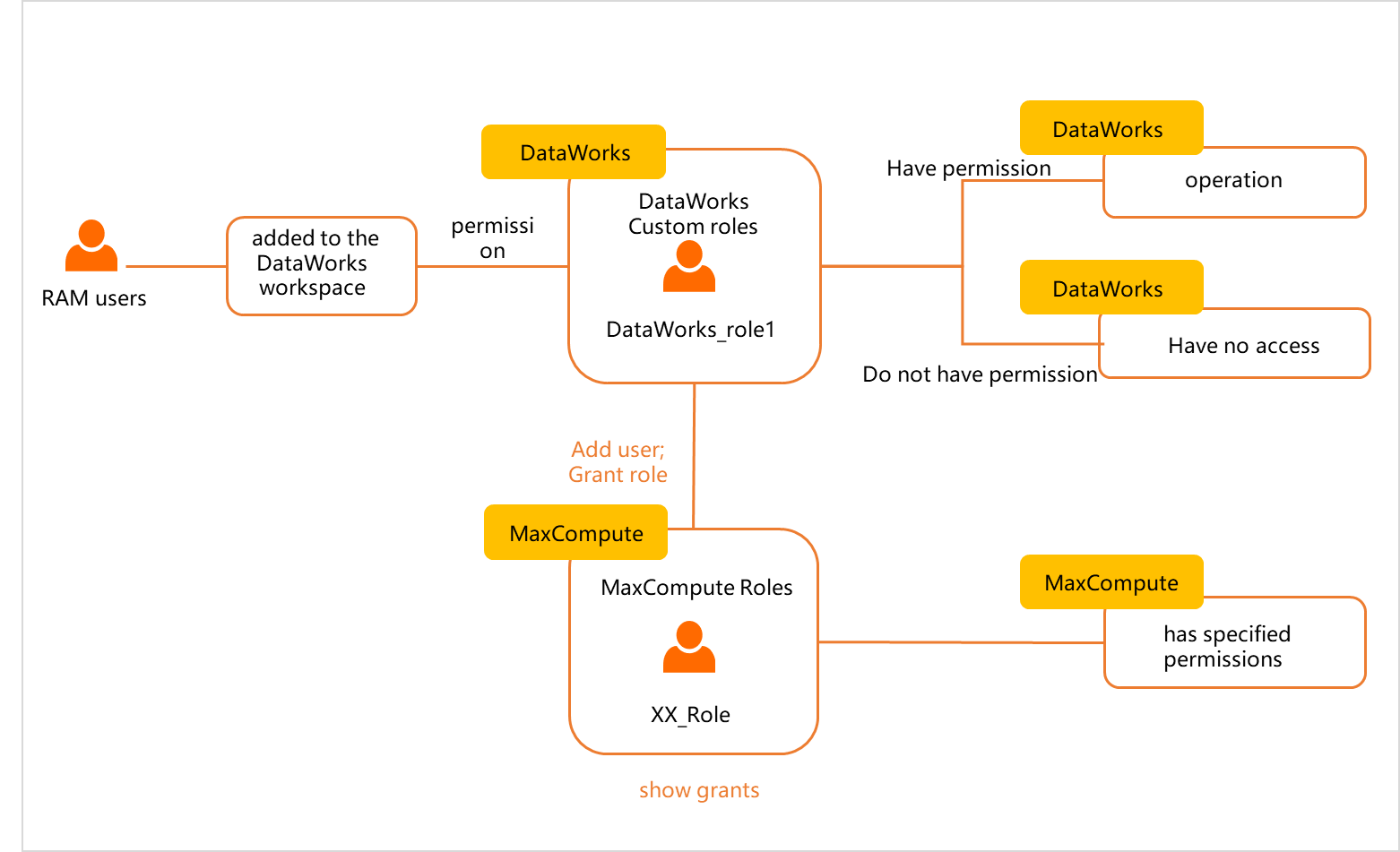 When you create a custom role in a DataWorks workspace, you can map it to a MaxCompute engine role. After the role is assigned to a member, the RAM user gains the corresponding permissions in both DataWorks and the MaxCompute engine. The details are as follows.
For more information about how to create a custom DataWorks role, see Control permissions on workspace modules. For more information about how to add members and grant permissions, see Control permissions on workspace modules.
-
DataWorks permissions: When a RAM user is granted a custom role in DataWorks, the user can access only the modules that the role permits.
-
MaxCompute engine permissions:
-
If the custom DataWorks role is not mapped to an engine role, the RAM user has no permissions in the MaxCompute engine and cannot run commands to query the engine.
-
If the custom DataWorks role is mapped to an engine role, the RAM user inherits the permissions of the mapped MaxCompute engine role.
-
By default, a RAM user added to a workspace has no permissions in the production environment unless designated as the scheduling engine's access identity. To operate on or access production tables, the user must request permissions in Security Center. For more information, see Apply for table permissions in the new version of Security Center. For more information about MaxCompute access identities, see Configure a workspace.
FAQ
For information about common permission-related issues, see FAQ about permission management.
Appendix: Query permissions with MaxCompute SQL
MaxCompute supports querying permission information for users, roles, and objects by using SQL statements. For more information, see Query permission information by using MaxCompute SQL.
Next steps
MaxCompute supports cross-project resource access, allowing developers to access production resources directly from DataStudio. For details on how workspace members can access resources across projects, see MaxCompute resource access and permissions in different workspace modes.