After you configure a synchronization task, you can manage it and view its performance metrics. This topic describes common operations for managing full and incremental synchronization tasks.
Manage full and incremental synchronization tasks
After you configure a task, you can go to the page to view a list of your synchronization tasks. You can filter the tasks based on different criteria and perform the following operations:
|
Actions
|
Description
|
|
Start
|
In the Operations column of the synchronization task, click Submit and Run to start the task.
|
|
Edit
|
In a production environment, business services evolve, and new tables may be added to the source. You can add or remove tables for full and incremental synchronization tasks. In the Operations column, choose to open the task configuration page. After you add or remove tables, click Submit and Run. The system compares the current table list with the list from the last successful run. If new tables are detected, the system initiates a process to add them. For more information, see Add or remove source tables to or from a synchronization solution that is running.
If the synchronization type is one-click real-time synchronization, the system first performs a full data synchronization for the new tables. Once complete, the system adds the new tables to the real-time data synchronization task and starts it.
Note
-
When the checkpoint for the real-time data synchronization task is reset and the task restarts, the system begins to append change data for the new table. The checkpoint is reset to the start time of the full data synchronization for the new table. For example, your synchronization task starts at 08:00 and is still running at 09:00. At 09:00, you add a new table. The full data synchronization for the new table starts at 09:00 and takes one hour, completing at 10:00. At this point, the running real-time synchronization task stops, and the checkpoint is reset to 09:00 to append incremental data. The incremental data for all changed tables between 09:00 and 10:00 is re-synchronized to the Hologres destination tables. The one-click table addition only guarantees eventual data consistency.
-
If you want to initialize all tables, use the Rerun feature.
|
|
Rerun
|
In certain special cases, such as when source data is corrupted or data pipeline issues occur, you can click in the Operations column to force a full and incremental initialization of all source tables and re-migrate source data to the destination tables for quick data recovery.
The following are common scenarios where a rerun is required to recover data for a full-database full and incremental synchronization task:
-
The real-time task has been in a failed state for too long, causing binlogs to be purged, and incremental data cannot be recovered.
-
Columns are missing from destination tables due to various reasons.
-
Data in destination tables is missing or incorrect due to various reasons.
Important
-
A forced rerun synchronizes columns from the source tables to the destination tables. If the destination tables are missing columns that exist in the source tables, the missing columns are added.
-
Before you perform a rerun, verify whether it might conflict with Merge task instances that are running or about to run. If concurrent runs share the same business date, partition data or table data may be overwritten.
You can go to the Scheduled instances page in DataWorks Operation Center to check the execution status of Merge instances for the synchronization task. If a Merge task conflicts with the forced rerun operation, you can:
-
Pause the forced rerun operation. Wait for the Merge task to complete, and then perform the forced rerun.
-
Freeze the upcoming Merge instance. Wait for the forced rerun to complete, and then unfreeze the Merge instance.
-
After the rerun is complete, if data is not generated the next day or the Merge task does not resume automatic execution, you must manually verify and resume the Merge instance:
|
|
Backfill Data for All Data
|
This feature is applicable when MaxCompute destination tables have data loss or correctness issues due to various reasons and you need to re-synchronize full data to restore the data.
In the Operations column of the synchronization task, click Backfill Data for All Data and configure the parameters for backfilling full data:
-
Select the business date for backfilling data.
For partitioned tables, full data is synchronized to the date partition corresponding to the business date.
-
Select the tables for backfilling data.
In the left selection box, select the tables for which you want to perform full synchronization, and click the  icon to add them to the right side. icon to add them to the right side.
-
Click Confirm to start the full data backfill operation.
Important
-
You can select only a single day for the business date. To backfill full data for multiple days, perform the full data backfill operation multiple times.
-
One-click full synchronization synchronizes the common columns between the source and destination tables, as well as the additional columns defined in the full and incremental synchronization task.
-
Before you perform a full data backfill, verify whether the selected business date might conflict with Merge task instances that are running or about to run. If concurrent runs share the same business date, partition data or table data may be overwritten.
You can go to the Scheduled instances page in DataWorks Operation Center to check the execution status of Merge instances for the synchronization task. If a Merge task conflicts with the full data backfill operation, you can:
-
Pause the full data backfill operation. Wait for the Merge task to complete, and then perform the full data backfill.
-
Freeze the upcoming Merge instance. Wait for the full data backfill to complete, and then unfreeze the Merge instance.
|
|
Stop
|
For a running task, you can click Stop in the Operations column to terminate the synchronization task.
|
View task execution details
You can click a task name to go to the task execution details page.
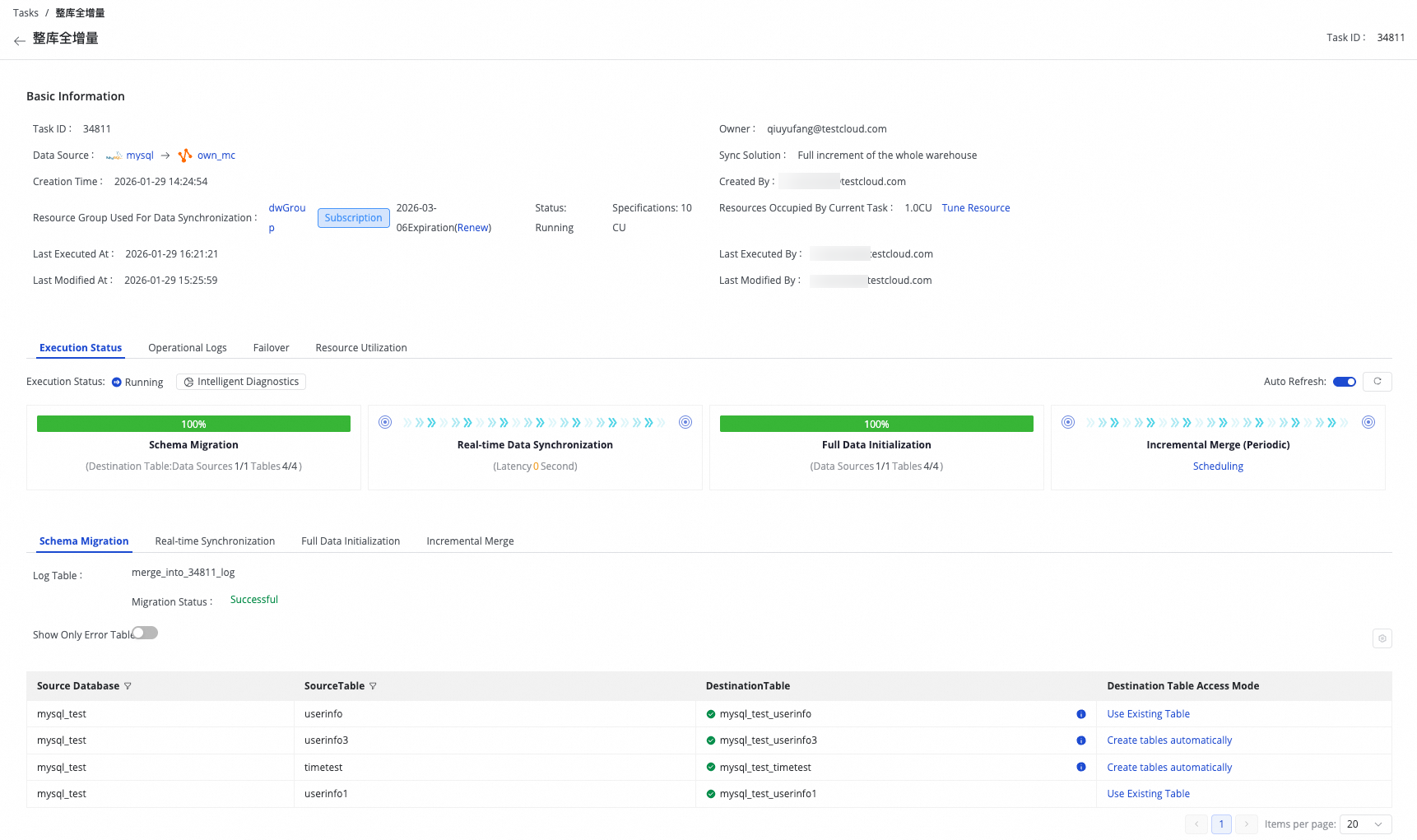
On the task list page, you can view basic information about a task and its current running status.
The task execution consists of four stages: Schema Migration, Full Data Initialization, Real-time Data Synchronization, and Incremental Merge. You can view the current stage based on the progress bar and check the execution details of sub-tasks generated in each stage.
The Incremental Merge task is a scheduled task. You can click the task name to go to Operation Center and view the corresponding scheduled instances.