Dedicated IP
What is a dedicated IP?
By default, emails sent through DirectMail use a shared IP channel.
To provide an enhanced sending service for professional customers, DirectMail offers dedicated IPs as a value-added service. Using a dedicated IP isolates your sending activity from other users, protects your sending domain and IP reputation, and can significantly improve your delivery rate.
Purchase a dedicated IP
Navigate to the purchase page in the DirectMail console.
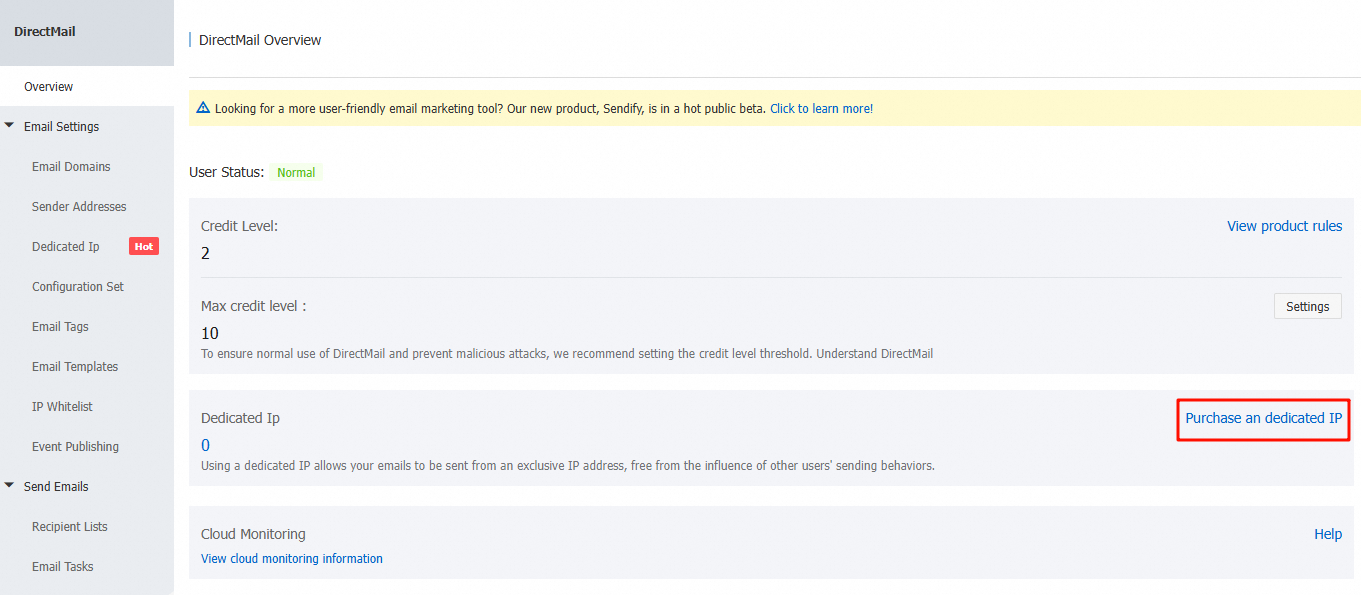
Select the region for the dedicated IP, choose a quantity, and submit your order.
Note: To avoid service interruption, we recommend enabling auto-renewal when you purchase.
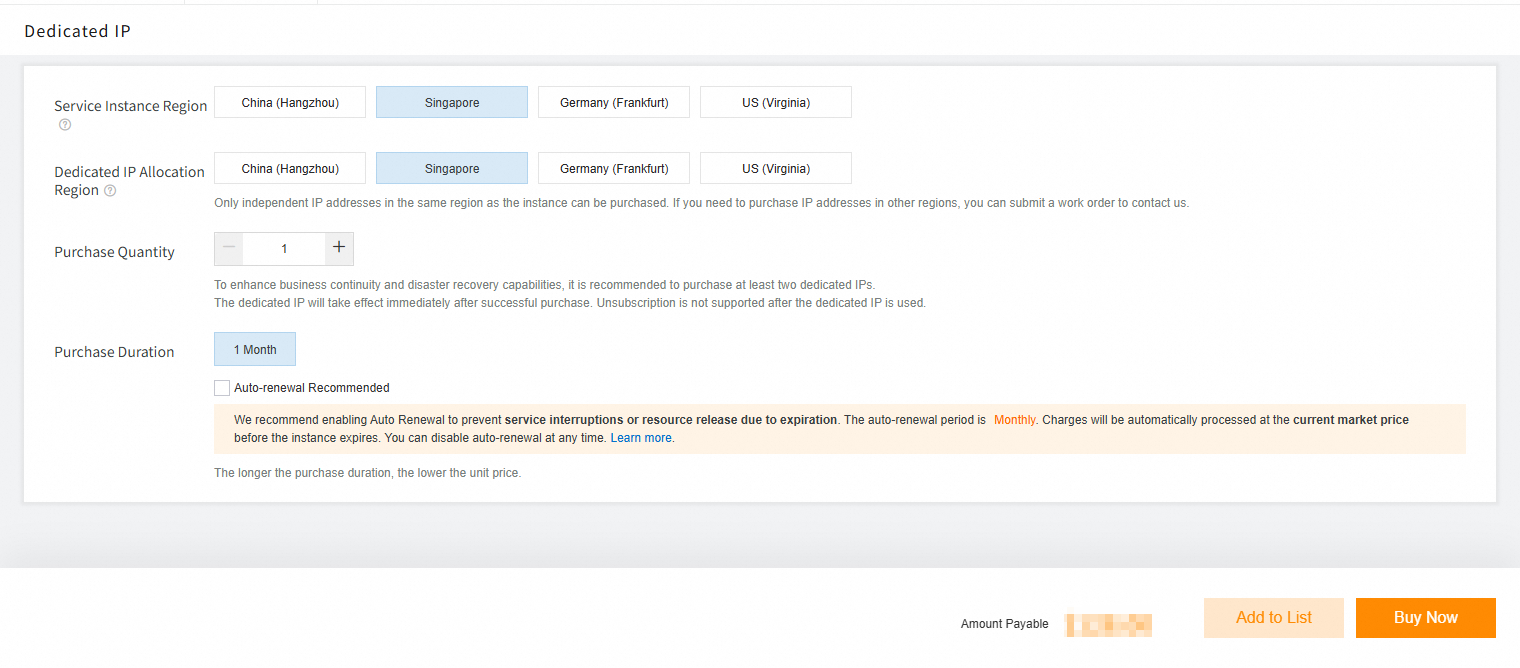
If inventory is insufficient or the requested quantity exceeds the limit, submit a ticket.
After payment is complete, go to the DirectMail console to configure your dedicated IP. It may take 1 to 5 minutes for the resource to take effect.

Use a dedicated IP
Basic configuration steps:
Create an ip pool and bind your dedicated IP to it -> Create a configuration set and bind the ip pool to it -> Bind a sending address to the configuration set -> Test sending.
Note: Unless you have specific business requirements, we recommend using the automatic warm-up mode and enabling fallback to the shared IP channel in your configuration set.
IP pools
If you purchase multiple dedicated IP addresses, you can group them into an ip pool. When you send emails, you can then specify which ip pool to use.
In the upper-right corner of the console, click New IP Pool.
Enter a name for the ip pool and associate your IPs with it. Note that ip pool names must be unique, and each dedicated IP can only be added to one ip pool. The number of ip pools you can create cannot exceed the number of dedicated IPs you have purchased.

A common practice is to create one ip pool for sending marketing emails and another for sending transactional emails.
This approach isolates the reputation of each email type. With this configuration, even if a marketing campaign generates a high number of complaints, the delivery rate of your transactional email is not affected.
Sending methods
You can use one of two methods.
Method 1 (recommended)
In the console, bind a configuration set to your sending address. Once bound, all sending methods for this address automatically use the dedicated IP, eliminating the need to specify the ip pool ID parameter in your send requests. For more information, see Send configuration (configuration set).
Method 2
With this method, you must specify the ip pool parameter with each sending request.
The following examples show the required parameters for each sending method (console, API, or SMTP).
Using the console
When creating a new email sending task, select an ip pool. The system will use the IPs from the selected pool to send the email.

Using API or SMTP
Obtain the ip pool ID (this is not the instance ID or the IP address). See the example code below:

API examples:
SMTP example:
Data statistics
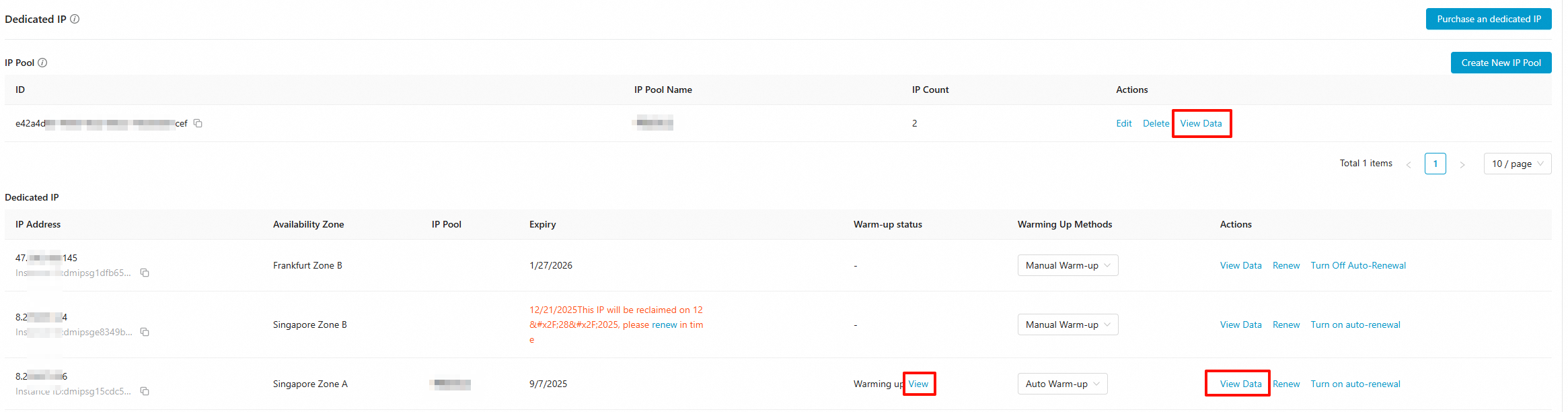
1. View data (ip pool): Displays data only for the specified ip pool. An ip pool can contain multiple dedicated IPs.
2. View data (dedicated IP): Displays data only for the specified dedicated IP.
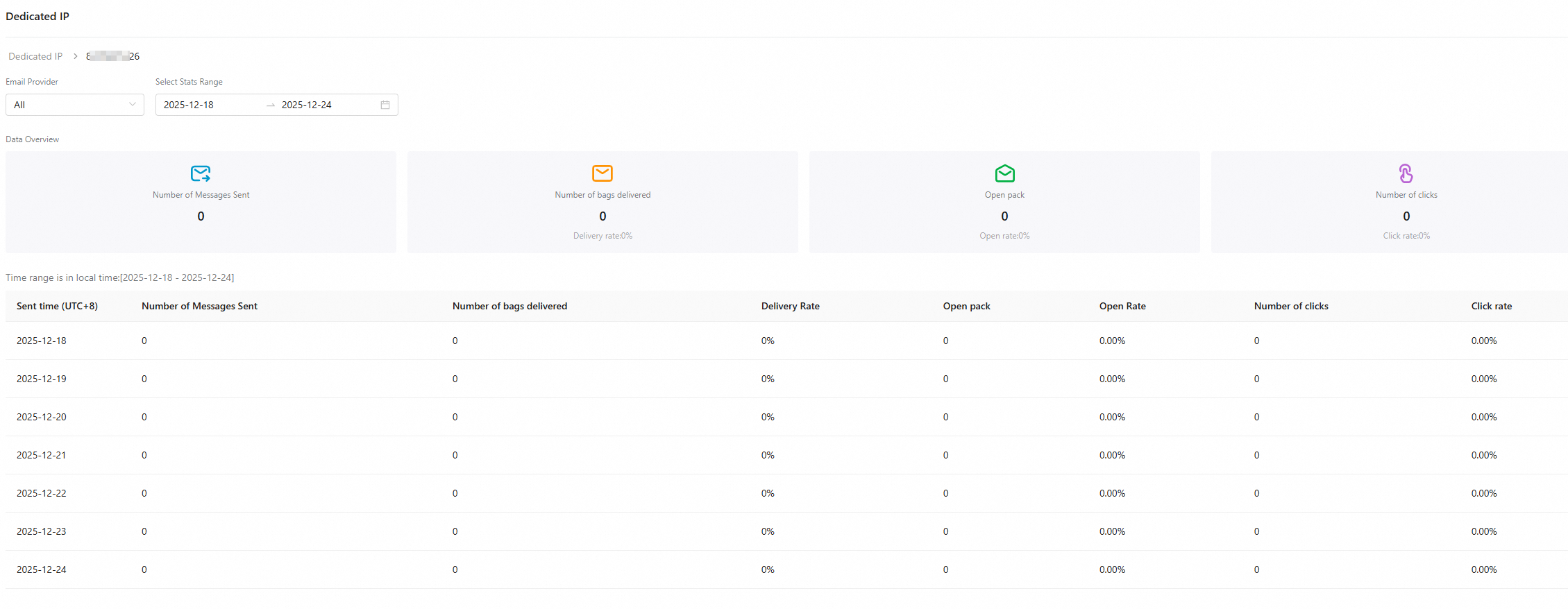
Microsoft personal mailboxes: outlook.com, hotmail.com, live.com, live.cn, msn.com, and more.
Microsoft business mailboxes: business mailboxes that use a custom domain and are hosted by Microsoft (such as Microsoft 365/Exchange).
Different mailbox providers use different throttling policies for sending frequency, which are kept confidential by the providers. The Outlook filter in the dedicated IP data statistics applies only to personal mailboxes.
3. View (warm-up): Displays data only for service providers that support automatic warm-up, such as Outlook, iCloud, Gmail, and Yahoo.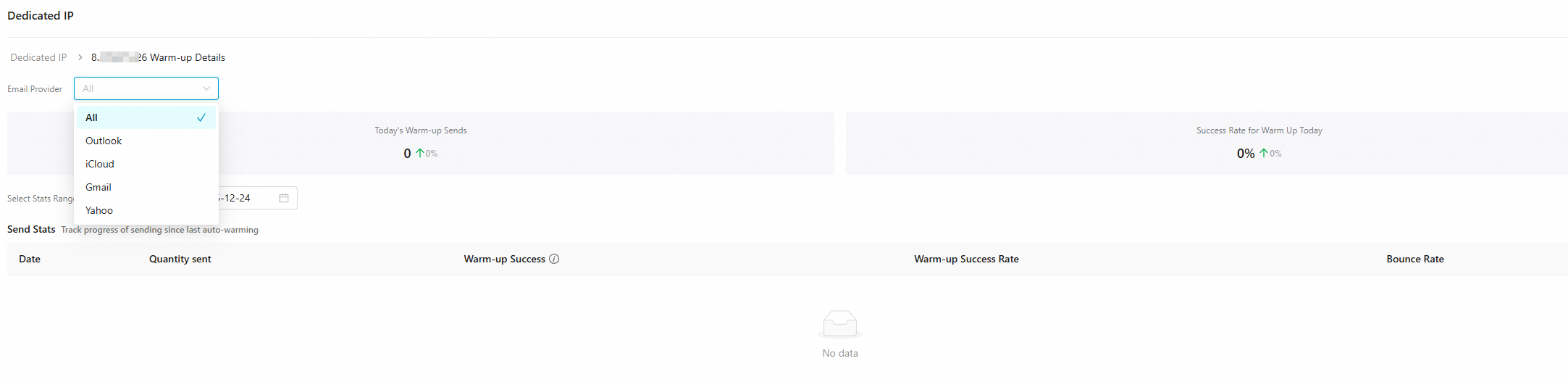
FAQ
Other questions: Dedicated IP related questions