Logical data warehouses
The logical data warehouse feature of Data Management (DMS) offers powerful data source management capabilities. It lets you logically aggregate disparate data sources from your enterprise into a virtual data warehouse that is physically distributed but logically unified. You can then provide data analytics and access services to meet the needs of various roles, such as business personnel, BI analysts, and operations staff.
Background information
In the process of digital transformation, enterprises are increasingly aware of the importance of data as a production factor. They want to use data to drive business and decision-making to improve their competitiveness. However, two common problems often affect the implementation and efficiency of a data-driven approach:
Resource and cost issues
Building and managing a data warehouse is costly. Small and medium-sized enterprises often lack the resources and technical expertise to build a data warehouse to support business analysis and decision-making. This high barrier to entry prevents many enterprises from adopting this solution.
Large enterprises have complex business operations, which makes data warehouse development difficult. These enterprises often lack a sufficient number of professional developers to efficiently meet the growing demand for operational analysis.
Flexible and changing analysis needs
Data warehouses standardize business data through data cleaning, data warehouse modeling, and centralization. This improves the efficiency of data retrieval and analysis. However, in scenarios that require rapid business iteration, a standard data warehouse struggles to adapt to new business needs. It cannot meet flexible and changing business analysis requirements.
Based on customer feedback in recent years, the need to derive data value is moving closer to the point where business activities occur. The ability to generate value from data immediately after a business activity is a key measure of an enterprise's degree of digitalization.
Delays and complexities in the data analysis pipeline prevent traditional data warehouses from effectively supporting operational analysis.
To solve these problems, DMS offers the logical data warehouse feature. This feature lets you logically integrate various disparate data sources into a logical warehouse without migrating the raw data. You can then use the built-in, SQL-compatible, cross-database query engine to create logical views for integrated data analysis. This method avoids tedious extract, transform, and load (ETL) processes and makes data analytics more agile. It also allows business experts to work with data directly and perform analysis as needed, which reduces communication costs between business and development teams.
For more information about the SQL syntax for views, see SQL syntax for logical data warehouses.
Limits
The following data source types are supported for query operations:
Operation Category
Supported data source types
Query
ApsaraDB: RDS for MySQL, AnalyticDB for MySQL, PolarDB, RDS for SQL Server, RDS for PostgreSQL, AnalyticDB for PostgreSQL, ClickHouse.
Self-managed databases on ECS instances: MySQL, SQL Server, PostgreSQL, Oracle.
Databases accessible over the public network: MySQL, SQL Server, PostgreSQL, Oracle, ClickHouse.
Logical views support CREATE and DROP statements, but do not support ALTER, UPDATE, or DELETE statements.
Core features
A cross-source and cross-region SQL federated query service that supports multiple data sources, such as RDS for MySQL, RDS for SQL Server, the cloud-native data warehouse AnalyticDB for MySQL, ApsaraDB for ClickHouse, Object Storage Service (OSS), PolarDB, and PostgreSQL.
Support for query authentication and data masking, with data permissions that are consistent with the underlying data sources.
Support for logical views to simplify queries and facilitate sharing.
Compatibility with DSQL cross-database query syntax, which lets you reference tables using the
dblink.schema.tableformat.
Terms
Term | Description |
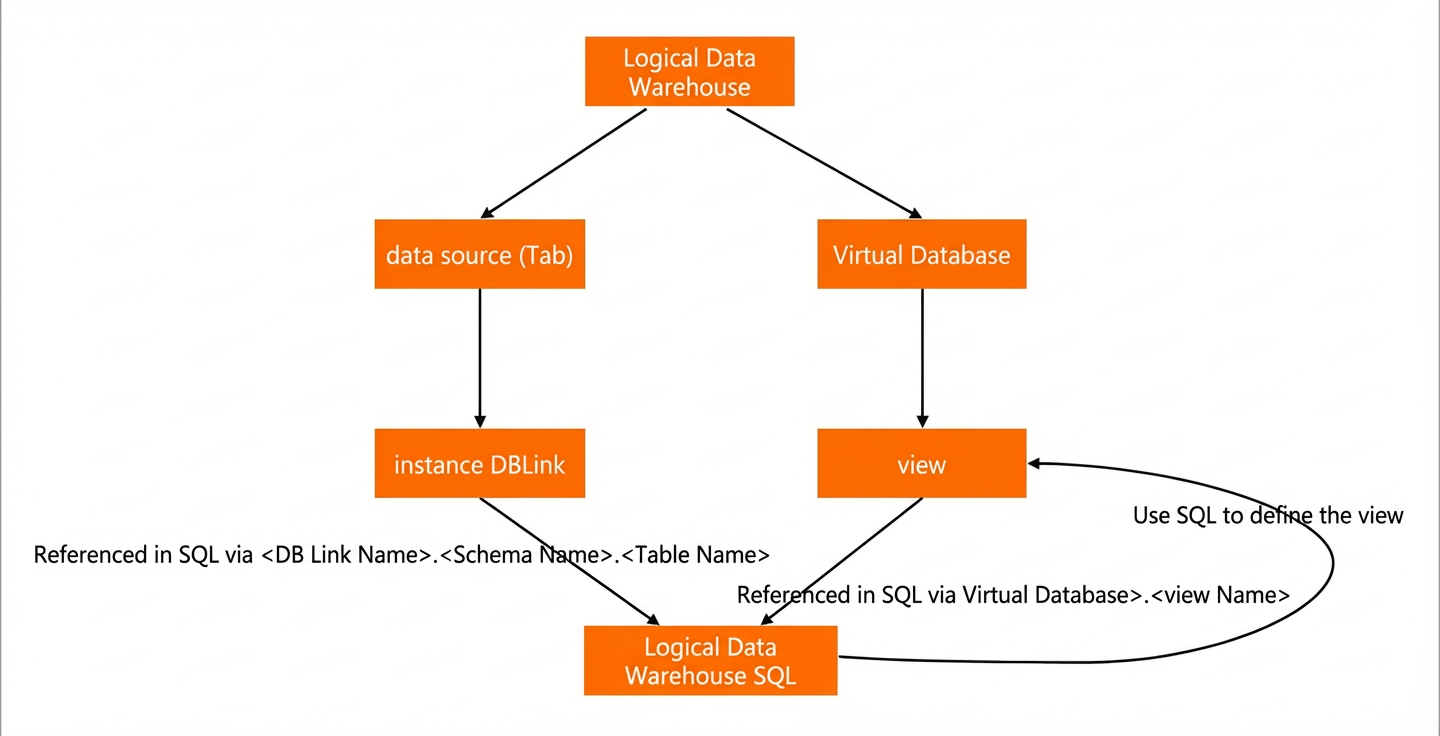
Logical data warehouse | A logical data warehouse is a virtual data warehouse built on your data sources. It consists of data sources, virtual databases, logical views. It provides a management interface for virtual databases and a management and query interface for views. In a logical data warehouse, you can directly query data across databases. You can also create and manage virtual databases and save queries as logical views. |
Data source | A data source corresponds to a connection to a database instance, which is a DBLink. After you set a DBLink name for an instance on the instance editing page, you can use the three-part syntax based on the DBLink to reference a physical table for queries, such as |
Virtual database | A virtual database is similar to the concept of a schema in a regular database. You need to create and manage views within a virtual database. |
Logical view (Logical VIEW) | Similar to a regular database view, a logical view defines the data processing and calculation process. It does not store data, only the definition. When you query a logical view, it extracts data from the source, processes it in the DMS compute engine using operations such as joins, aggregations, filtering, and calculations, and then displays the data. Saving a complex SQL statement as a view and then querying the view simplifies the process of manually entering complex SQL. Views also support nested definitions, which allows for SQL reuse. |
Scenarios
The following scenarios are supported by logical data warehouses for different user roles:
Database and data warehouse developers:
Cross-database query and development, logical archiving of business data, data preparation and supply, lightweight data warehouses, data warehouse construction simulation, and agile data warehouse construction and loading.
Operations analysis and BI personnel:
Data preparation and analysis, cross-database queries, query and analysis acceleration, and periodic reports.
Workflow
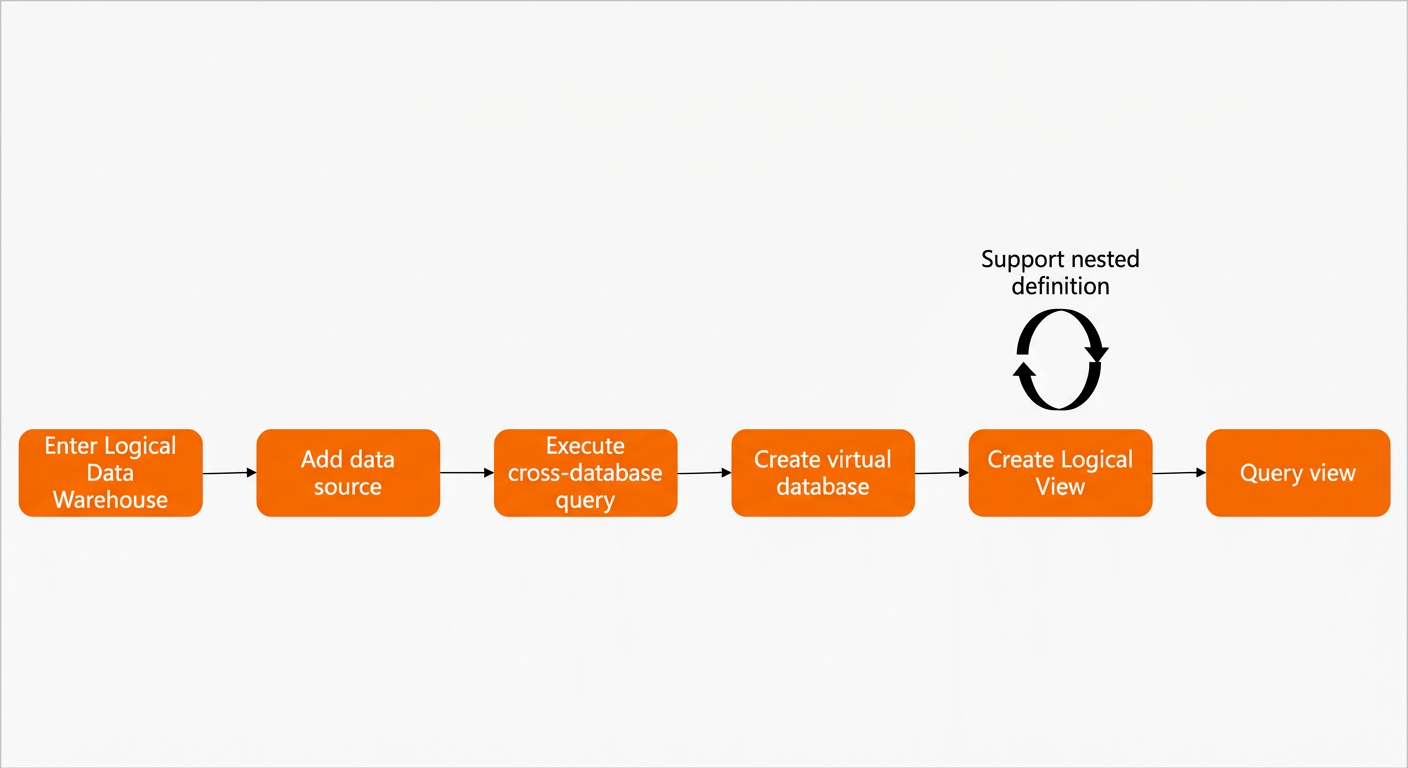
After you navigate to the Logical Data Warehouses page, you can view the list of queryable data sources on the Data Sources tab.
NoteIf no queryable data sources are displayed, check whether cross-database queries are enabled for the corresponding instance and whether a DBLink name is defined.
Expand a data source and double-click a table name to automatically generate a three-part SQL statement for a single-table query, such as
SELECT * FROM dblink1.schem1.table1 LIMIT 20. Click Execute or manually enter and execute a three-part SQL query.Click the Virtual Databases tab. On this page, you can add a virtual database and perform the following operations:
Add a view using the interface or using a
CREATE VIEWstatement.Double-click a view name to generate an SQL statement, or manually enter
SELECT * FROM <virtual_database_name>.<view_name>to execute a two-part view query.
Procedure
Log in to DMS 5.0.
Configure a DBLink.
In the list of database instances in the navigation pane on the left of the home page, right-click the target instance and select Edit Instance.
In the Edit Instance dialog box, click Advanced Information.
By default, Enable DBLink is selected and a DBLink name is specified. You can use this name when you execute SQL query commands.
NoteThe DBLink name must start with a letter and can contain only lowercase letters, digits, and underscores (_).
The DBLink name must be globally unique within the tenant.
Click Submit.
Navigate to the SQL window for the logical data warehouse.
In the database instance list in the navigation pane on the left of the home page, click Logical Data Warehouses.
Execute a cross-database query.
In the Data Sources (DBLink) section of the left-side visualization pane, select the target data source and double-click the target table name. A SELECT statement is generated in the SQL window.
Click Execute.
NoteYou can modify the SQL statement. Based on the multi-part syntax for cross-database queries, you can join tables from different databases. For example:
SELECT * FROM dblink1.db1.table1 t1 join dblink2.db2.table2 t2 ON t1.c_id=t2.c_id WHERE t1.age > 20;
Connect to a DBLink.
NoteIf the instance is in Flexible Management or Stable Change control mode, you must configure an account and password to connect to the DBLink after you log on to the database.
In the Data Sources section of the left-side visualization pane, right-click the target DBLink and select Connect to DBLink.
In the Connect to DBLink dialog box, enter the Database Account and Database Password.
Click Confirm.
On the SQL Console page, execute a three-part SQL statement to query data from the DBLink.
Optional: Create a DBLink.
In scenarios where you use different accounts to connect to a DBLink for the same instance in Flexible Management or Stable Change mode, you can create additional DBLinks in the logical data warehouse. This is in addition to the default DBLink configured on the instance editing page. In general, we recommend that you use only the default DBLink created by the system.
NoteYou cannot create additional DBLinks for instances in Security Collaboration mode. The system automatically generates a DBLink for you.
On the Data Sources tab, click the
 icon to create a DBLink.
In the Create DBLink dialog box, configure the DBLink Name, Instance, Database Account, and Database Password parameters.
Click Confirm.
Optional: Create a virtual database.
On the Virtual Databases tab, click
 and select Create Virtual Database.
Configure the name, alias, and other information for the virtual database.
NoteVirtual database name: This name is used when you enter SQL statements. This name cannot be modified after the virtual database is created.
The virtual database name must start with a letter or an underscore (_) and can contain only letters, digits, and underscores (_).
You can directly create views in the default virtual database
public.
Click Confirm.
Create a logical view.
On the Virtual Databases tab in the left-side visualization pane, click
and select Create Logical View.On the Create Logical View page, enter the View Name and select the Virtual Database in which to save the view.
NoteYou can select the built-in public database for your virtual database.
Enter the SELECT SQL statement that defines the view. For more information about the SQL syntax for views, see SQL syntax for logical data warehouses.
You can click Data Preview to check whether the result of the SQL statement meets your expectations.
Click Submit.
NoteAfter the logical view is created, you can view it under the corresponding Virtual Database.
Query a logical view.
In the SQL window for the logical data warehouse, enter a SELECT statement and add the prefix of the virtual database where the view is located, such as
public, before the view name.For example, enter
SELECT * FROM public.v_ex_customerin the SQL window and click Execute to query the logical view v_ex_customer.NoteYou can also expand the virtual database on the Virtual Databases tab in the left-side visualization pane and double-click the target logical view. The system automatically generates an SQL statement in the SQL window to query the target logical view.