Connect Grafana to the Alibaba Cloud Time Series Database (TSDB) For InfluxDB®️ service
This topic describes how to connect a TSDB for InfluxDB® instance to Grafana so you can visualize and analyze your time series data using Grafana dashboards.
Prerequisites
Before you begin, ensure that you have:
-
A TSDB for InfluxDB® instance with an account, a database, and a storage policy configured. Grant the account the permissions to access the database. For more information, see .
-
Data written to the database. Grafana generates charts based on existing data.
Install and start Grafana
-
Download Grafana from the Grafana official website and follow the installation instructions for your operating system. The following commands install Grafana on CentOS (x86_64):
wget https://dl.grafana.com/oss/release/grafana-6.1.4-1.x86_64.rpm
sudo yum localinstall grafana-6.1.4-1.x86_64.rpm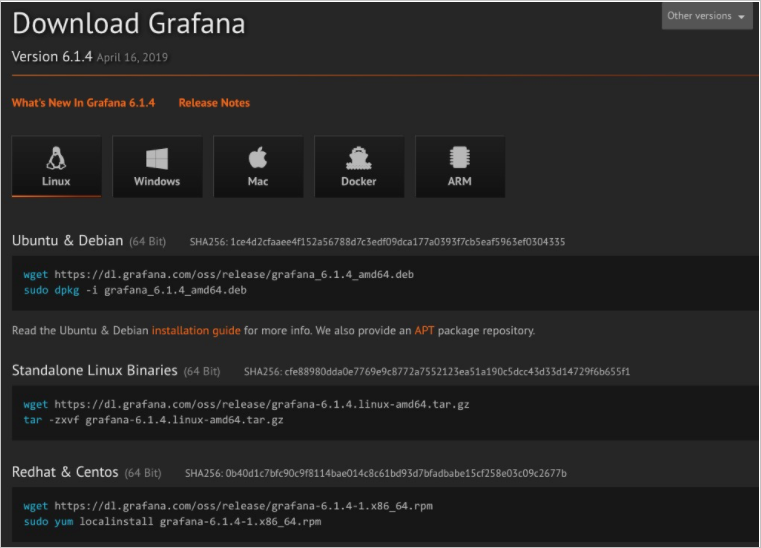
-
Start Grafana. On CentOS:
service grafana-server startOn macOS:
brew services start grafana -
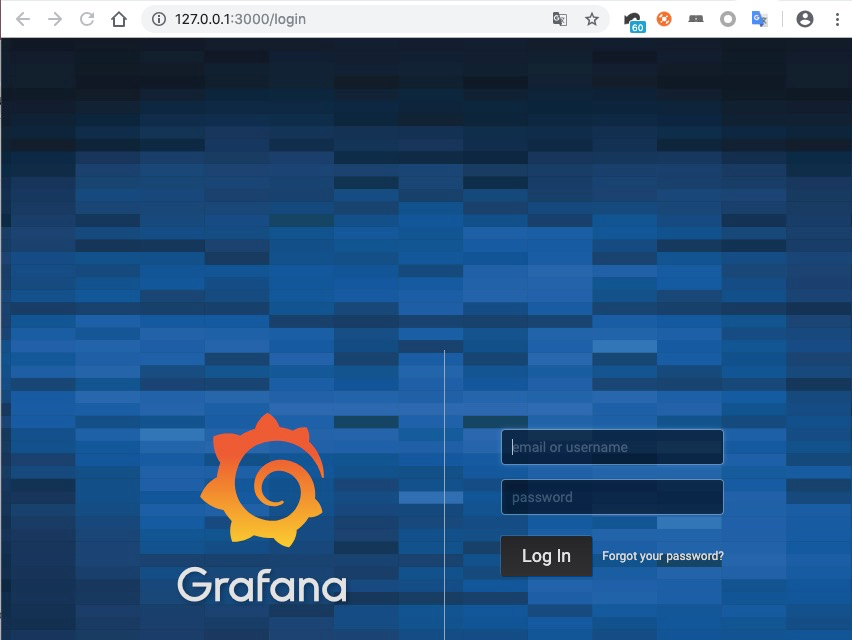
Open Grafana in your browser. By default, Grafana listens on port 3000.
-
If Grafana is running on your local machine, go to
127.0.0.1:3000. -
If Grafana is running on an Elastic Compute Service (ECS) instance, use the public endpoint of the ECS instance. Find the endpoint in the ECS console.
-
-
Log on with the default administrator credentials: username
admin, passwordadmin. Change the password after your first login.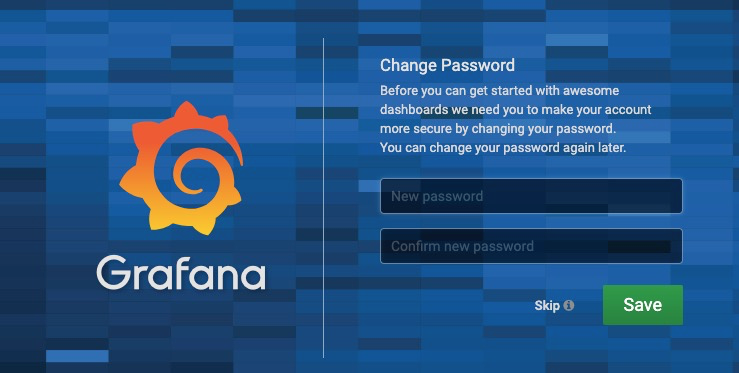
Add a TSDB for InfluxDB® data source
-
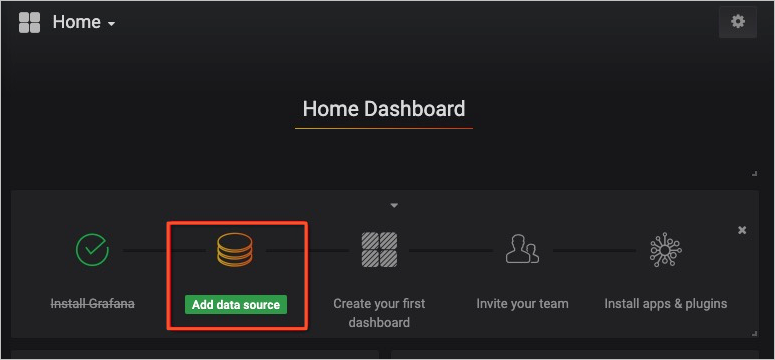
On the Grafana homepage, click Add data source.
-
Configure the following parameters.
Parameter Description Type Select InfluxDB. HTTP URL Enter the public endpoint of your TSDB for InfluxDB® instance. To find it: in the left-side navigation pane of the TSDB for InfluxDB® console, click Instances, then click Manage in the Actions column for your instance. InfluxDB Details Enter the database name, username, and password used to access the database.
Create a dashboard and configure queries
Create a dashboard
Grafana queries data from TSDB for InfluxDB® based on query configurations, then displays the results on dashboards.
-
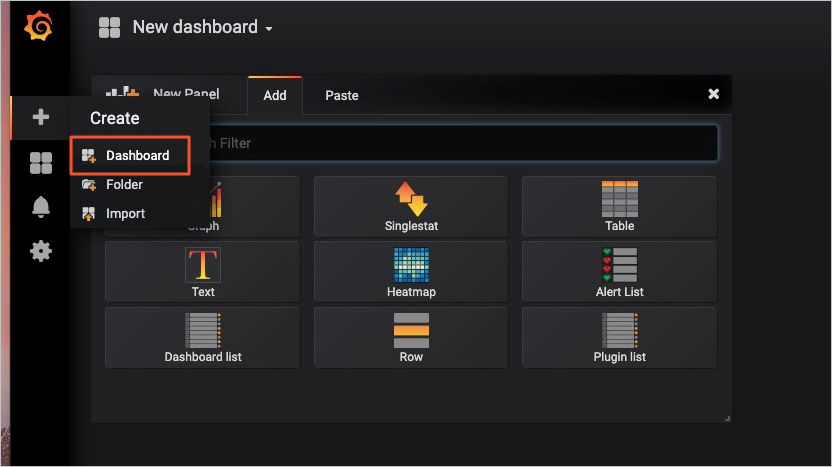
Click the Create icon, then click Dashboard.
-
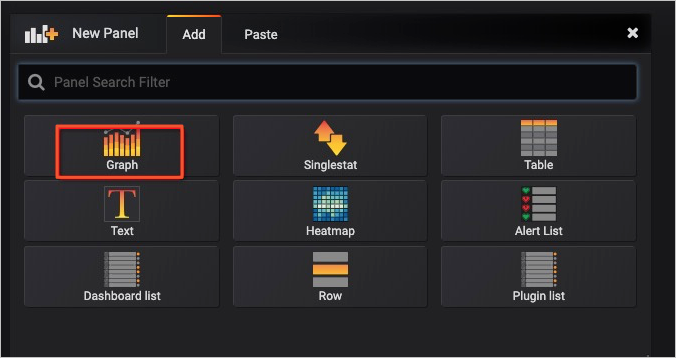
Click Graph to add a graph panel.

Configure queries
-
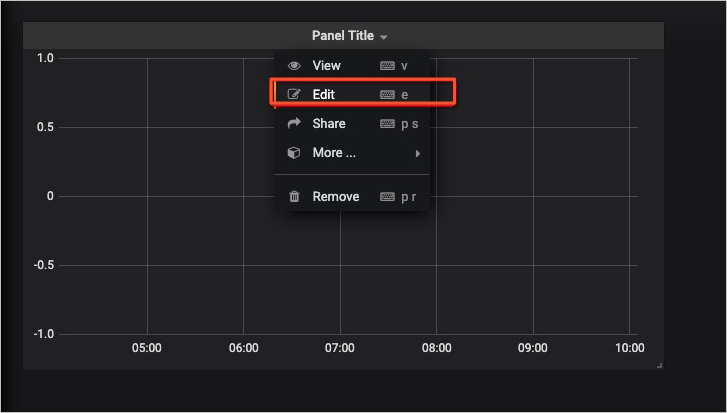
Click Panel Title, then click Edit.
-
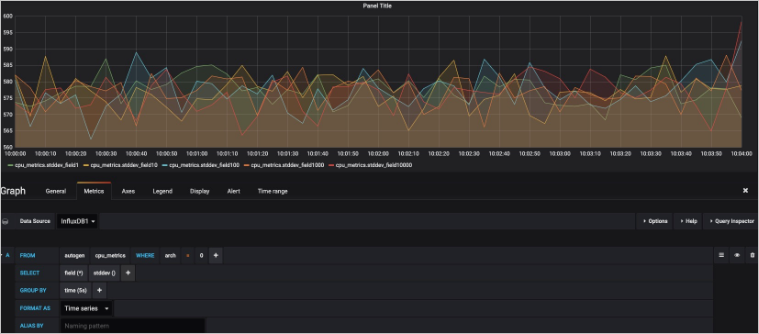
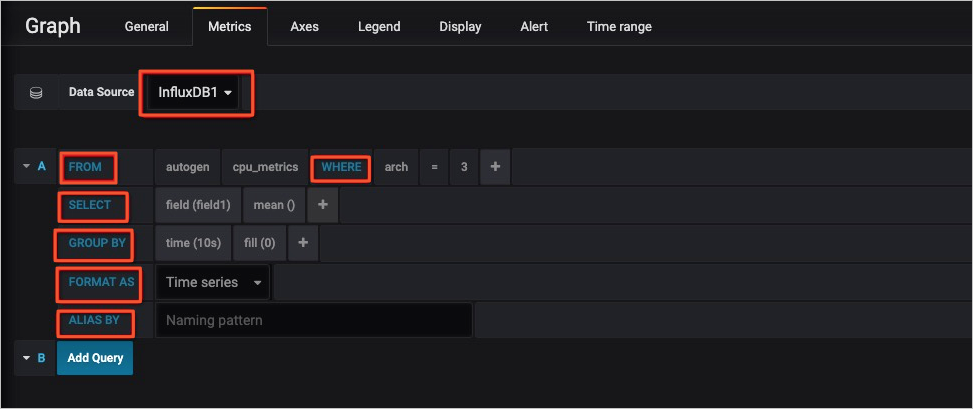
Configure the query using the following fields.
-
Data Source: select the data source you configured.
-
FROM: enter the storage policy name in the first field and the measurement name in the second field.
-
WHERE: add one or more tag filters.
-
SELECT: specify a field and one or more aggregate functions. Aggregate functions are applied left to right. If you use GROUP BY to group data by time, you must specify at least one aggregate function. For example, the following aggregate function configuration:
Produces this InfluxQL SELECT clause:
SELECT derivative(mean("field10"),10s)/10 AS "REQ/s" FROM .... -
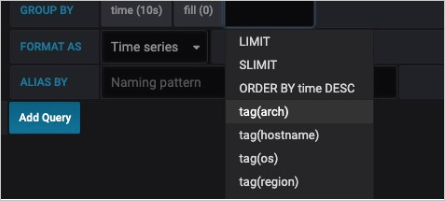
GROUP BY: click the plus icon to group data by time or by tag. You can also set ordering rules and limits.
-
FORMAT AS: select a display mode.
-
ALIAS BY: enter an alias for the measurement or tag.
-
Add Query: click to configure additional queries on the same panel.
-
-
Click the Save icon at the top of the page.

View results
Query results appear immediately in the graph based on your query configuration.