Debug devices
Use online debugging to test the connection between a device and the cloud. This feature also lets you view the device's operational log.
Prerequisites
A test device has been added. For more information, see Add a test device.
If you debug a physical device, the device must be configured to connect to the platform. For more information, see Connect a device to the platform.
If you want to debug a Bluetooth device or use voice debugging, you need a registered Taobao account. This account must be linked to the Tmall Genie app, and you must have a device bound within the app.
Device debugging overview
The debugging method varies based on the product's project and network connection type, as shown in the following table. For standard devices, you can debug both physical and virtual devices. For Bluetooth devices and voice debugging, you can only debug physical devices.
| Project category | Network connection type | Debugging method |
| Proprietary brand project | All | Debug standard devices |
| Tmall Genie ecosystem project | Wi-Fi | Debug standard devices, Voice debugging |
| Bluetooth Mesh | Debug Bluetooth devices, Voice debugging | |
| Bluetooth GATT | Debug Bluetooth devices, Voice debugging |
Debug standard devices
- Log on to the IoT Platform console.
- Go to the Device Debugging page for the product.
- Click Debug or Online Debugging for the target device to open the device debugging page.
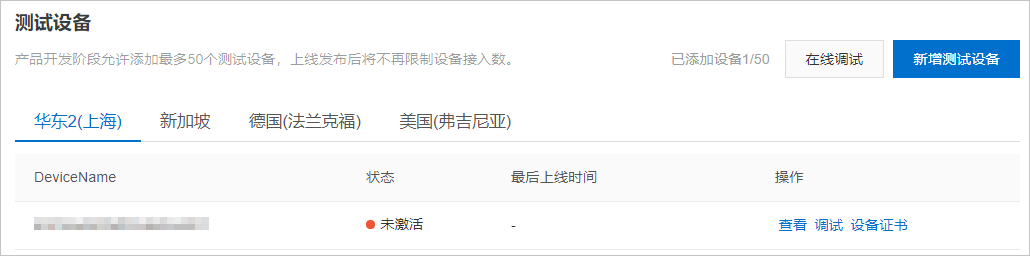
- From the Debug Device drop-down list, select the DeviceName of the device.
- Debug the device online.
You can debug standard devices as either physical or virtual devices.
- Debug a physical device:
On the Debug Physical Device tab, select a function and method for the device, and then click Send Instruction. After the "Instruction sent successfully" message is displayed, the corresponding real-time log is displayed on the right.
Note To debug a physical device, you must first connect the device to the platform and complete operations, such as network configuration.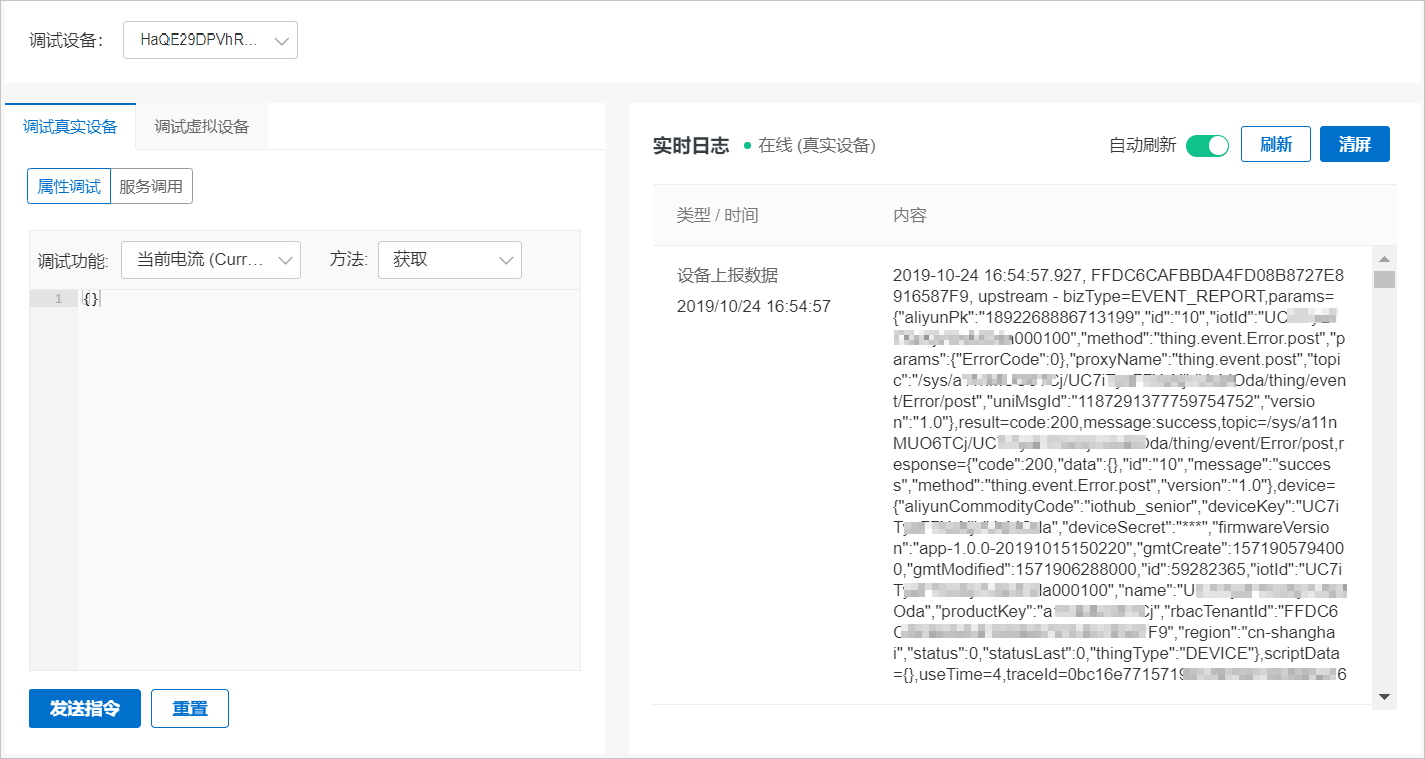
- Debug a virtual device:
On the Virtual Device tab, click Start Virtual Device.
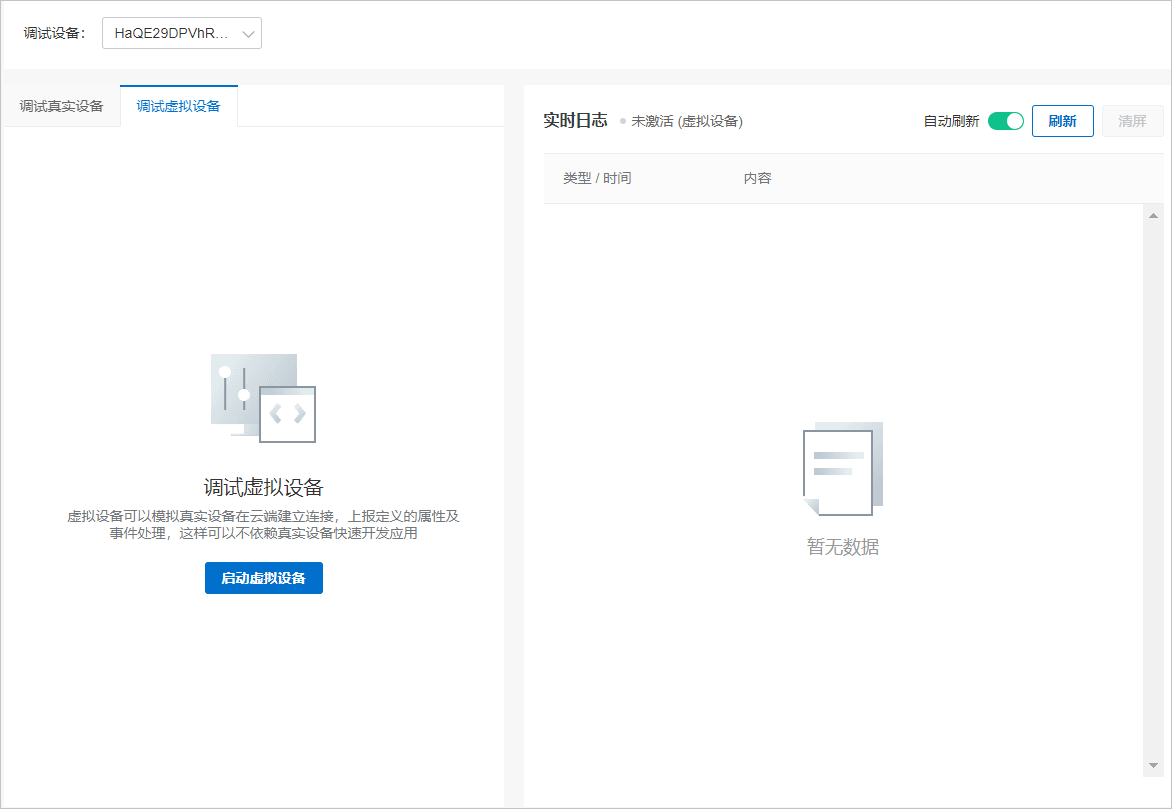
You can push messages to the virtual device in the following two ways.
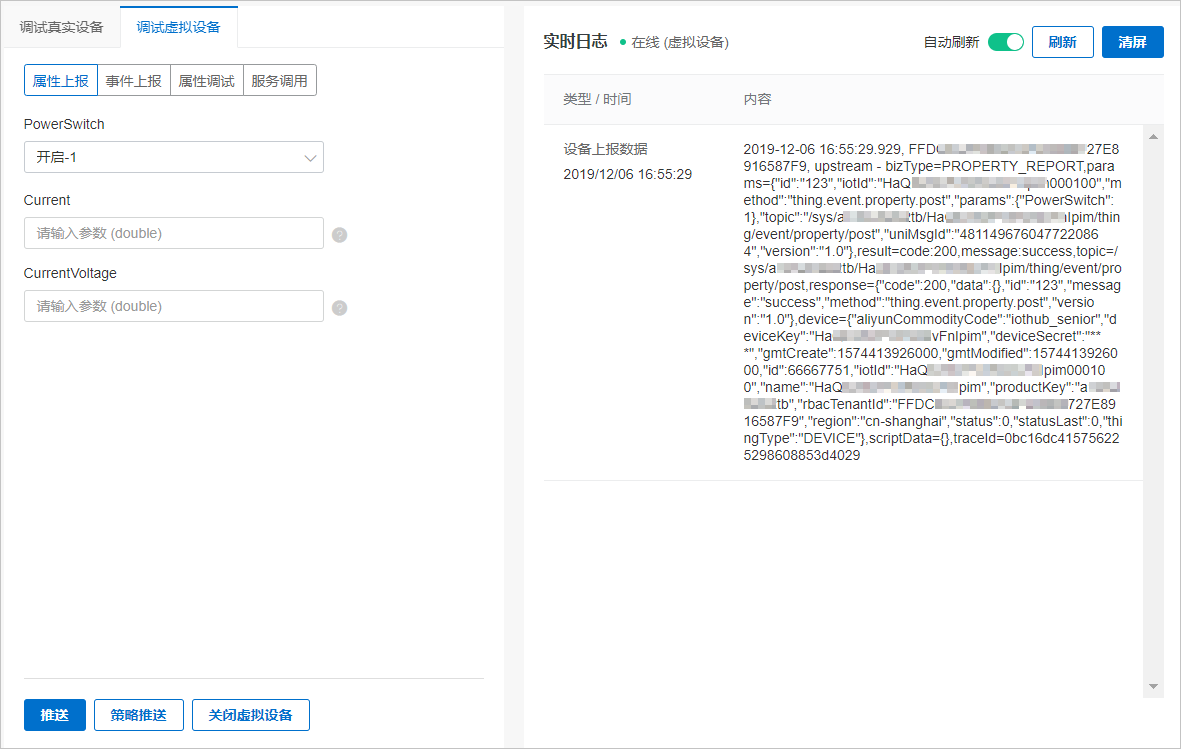
- Standard push:
Configure the parameters and click Push. The corresponding real-time log is displayed on the right.
- Policy-based push:
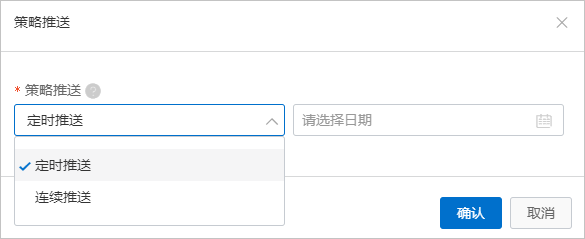
After you configure the parameters, click Policy-based Push and configure the push method.
A policy-based push automatically sends a message at a scheduled time. There are two types of policy-based pushes:
- Scheduled push:
Automatically pushes a message at a specified future time.
- Continuous push:
Continuously pushes messages at a specified interval within a specified future time range.
- Scheduled push:
- Standard push:
- Debug a physical device:
Debug Bluetooth devices
- Log on to the IoT Platform console.
- Go to the Device Debugging page for the product.
- Click Debug or Online Debugging for the target device to open the device debugging page.

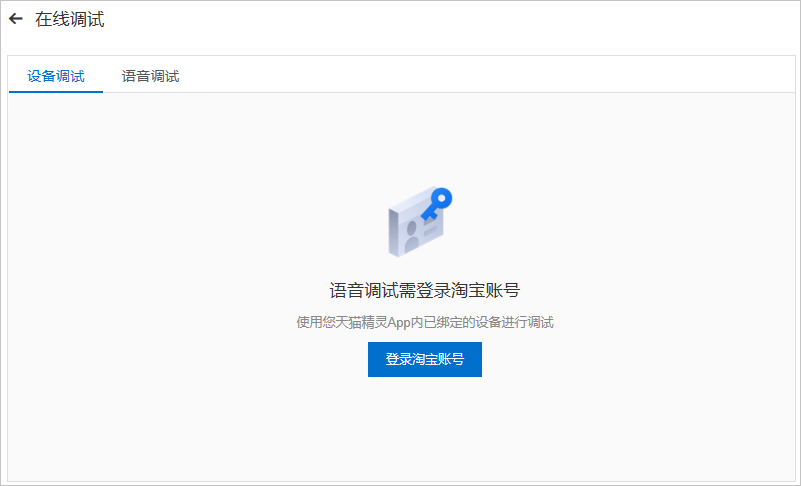
- Click Log on with Taobao Account.
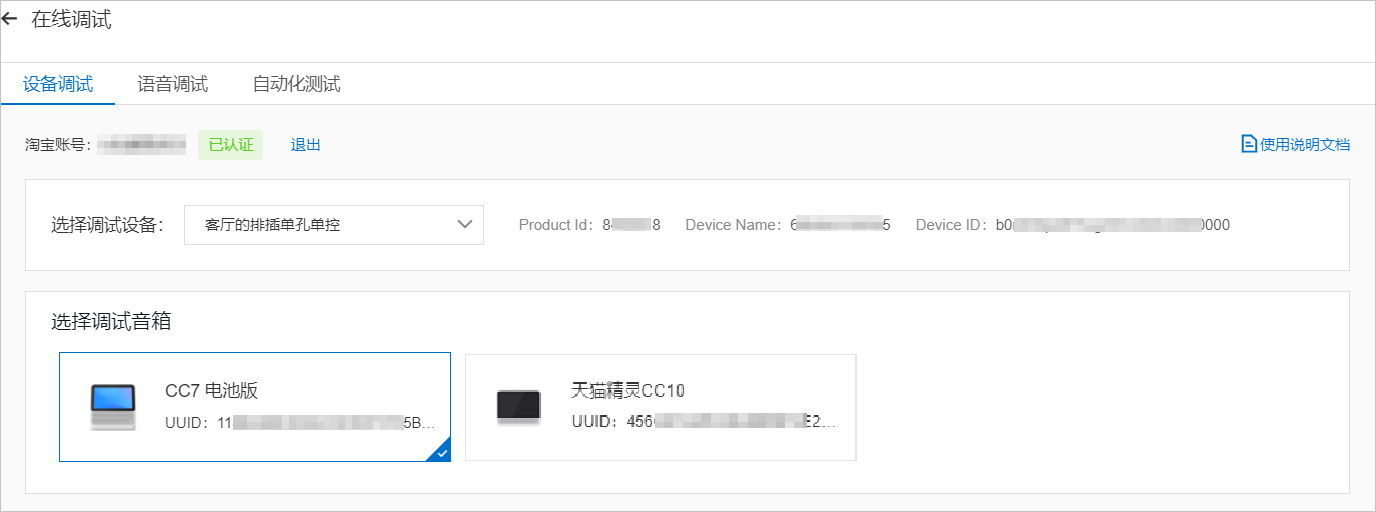
- From the Select a device to debug drop-down list, select a device that is bound in the Tmall Genie app.After you select a device, its Product Id, Device Name, and Device ID are displayed.
- (Optional) Select a speaker to debug.If multiple speakers are bound to your Tmall Genie app, you must also select a specific speaker for debugging.
- Debug the device online.
You can debug Bluetooth devices using the Thing Specification Language (TSL) model or by sending instructions.
- TSL model:
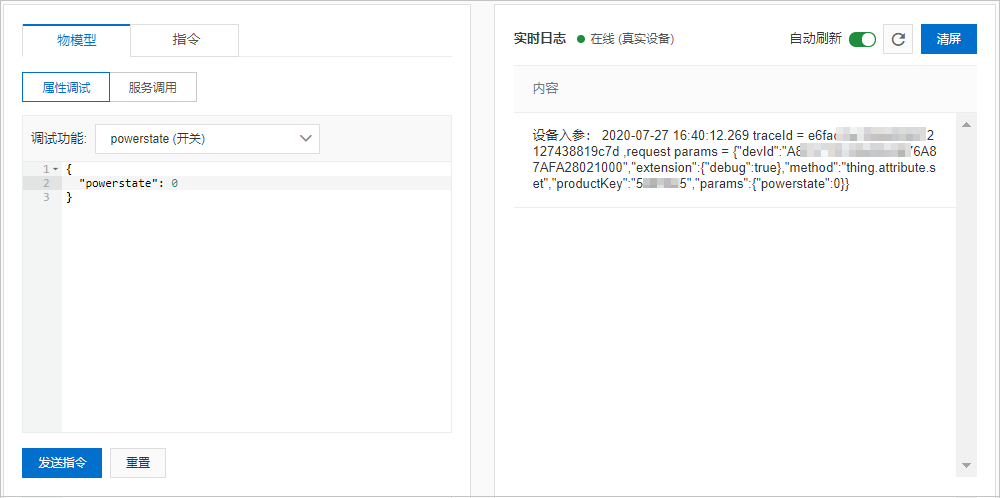
On the TSL Model tab, select a debug function for the device and click Send Instruction.
For example, the following figure shows how to send a "turn off light" instruction to the device using the TSL Model method. You can view the corresponding operational log for the device in the log area on the right.
- Instruction:
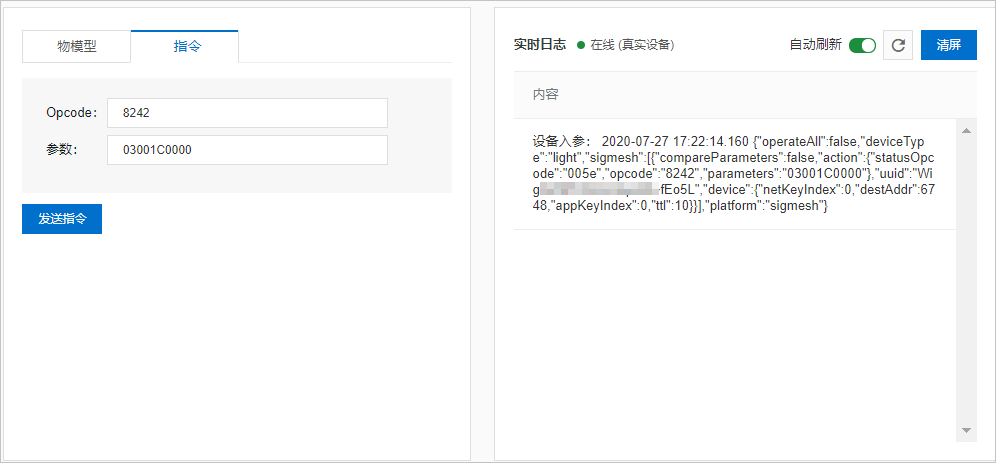
On the Instruction tab, enter the Opcode and Parameters for the instruction to test, and then click Send Instruction.
For example, the following figure shows how to send an instruction to the device to switch the light scenario to night light mode using the Instruction method. You can view the corresponding operational log for the device in the log area on the right.
- TSL model:
Voice debugging
- Log on to the IoT Platform console.
- Go to the Device Debugging page for the product.
- Click Debug or Online Debugging for the target device to open the device debugging page.
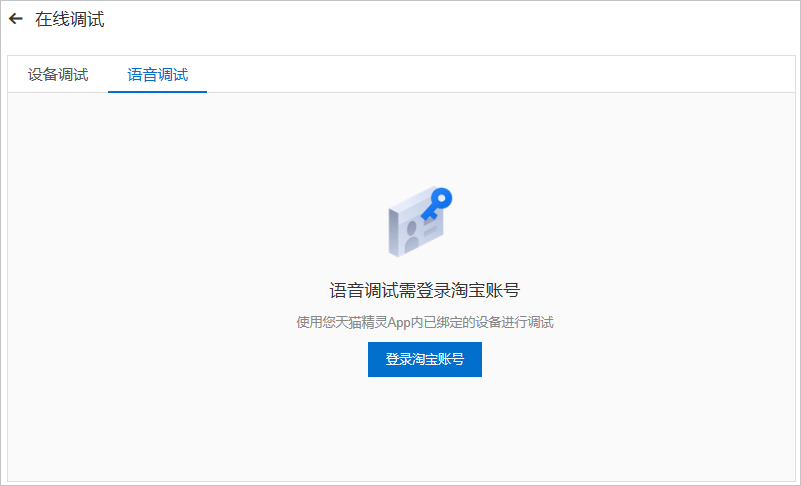
- Select the Voice Debugging tab and click Log on with Taobao Account.
- From the Select a device to debug drop-down list, select a device that is bound in the Tmall Genie app.After you select a device, its Product Id, Device Name, and Device ID are displayed.
- (Optional) Select a speaker to debug.If multiple speakers are bound to your Tmall Genie app, you must also select a specific speaker for debugging.
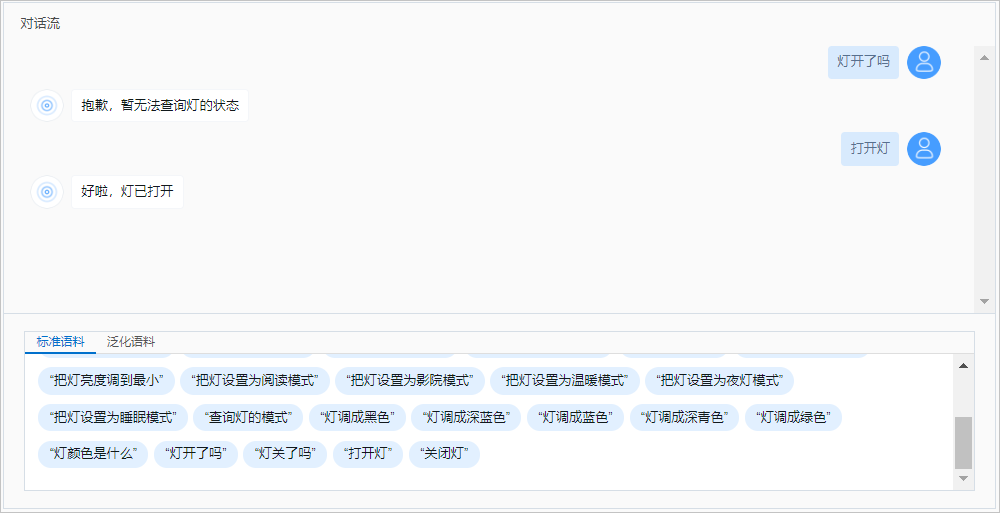
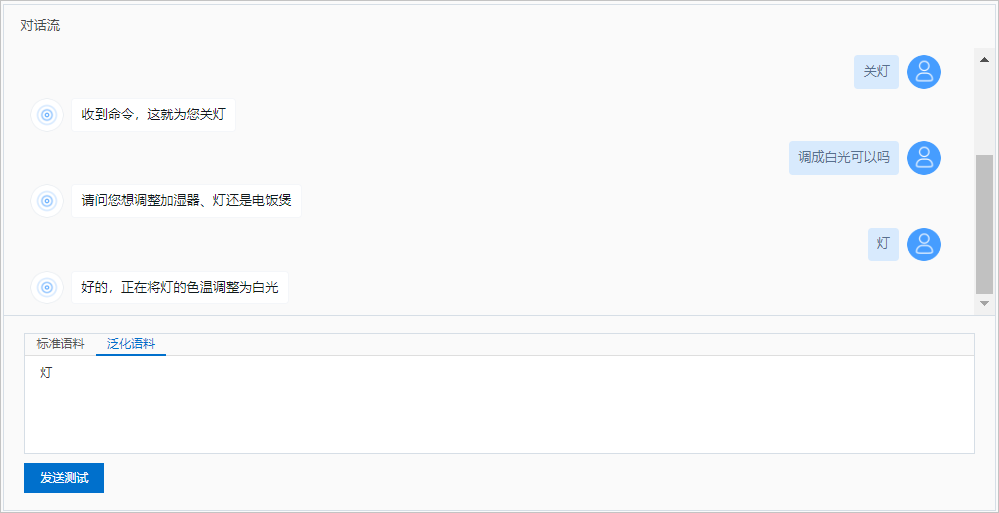
- In the Conversation Flow area, enter a conversational utterance.The platform supports two types of utterances: standard and generalized.
- Standard utterance:
On the Standard Corpus tab, click a standard utterance provided by the platform. For more information about standard utterances, see Configure voice commands.
- Generalized utterance:
On the Generalized Corpus tab, enter a generalized test utterance and click Send Test.
- Standard utterance: