Create an AIPL model
You can create AIPL models for AIPL analytics, AIPL flow analytics, and filtering audiences with AIPL models.
Prerequisites
Context
A (Awareness): The brand awareness audience. This audience includes people who have passive contact with the brand, such as those reached by brand advertisements or who search for category keywords.
I (Interest): The brand interest audience. This audience includes people who actively engage with the brand. Examples include clicking ads, visiting the brand or store homepage, participating in brand interactions, viewing product pages, searching for brand keywords, claiming trial products, subscribing, following, becoming members, or adding products to carts or wishlists.
P (Purchase): The brand purchase audience. This includes anyone who has made a purchase.
L (Loyalty): The brand loyalty audience. This includes customers who make repeat purchases, or post positive reviews or share content about the brand.
When you create an AIPL model, you can choose one of two analysis types:
Context
Customer Data: Analyze customer data to create an AIPL model.
Behavioral Dataset: Analyze a behavioral dataset to create an AIPL model.
The following sections describe how to create a model using each method.
Create an AIPL model from customer data
Prerequisites:
The AIPL model data table is stored in the data source. For a sample format, see AIPL Model Sample.
The data source is connected to Quick Audience. For more information, see Create a data source or Grant data source table permissions.
Follow these steps to create an AIPL model from customer data:
Click Next.
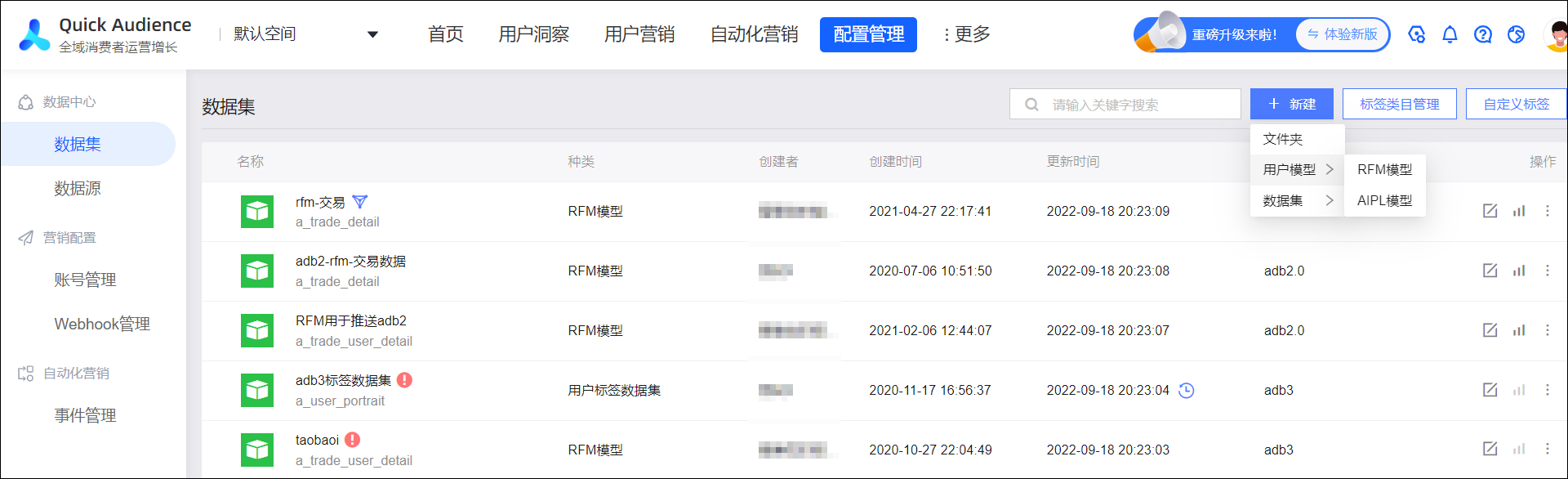
In the upper-right corner, click New > User Model > AIPL Model to open the AIPL model configuration page.
Click Customer Data to create an AIPL model from customer data.
Click Select Data Table. In the dialog box that appears, select a data source and a data table, and then click Confirm.
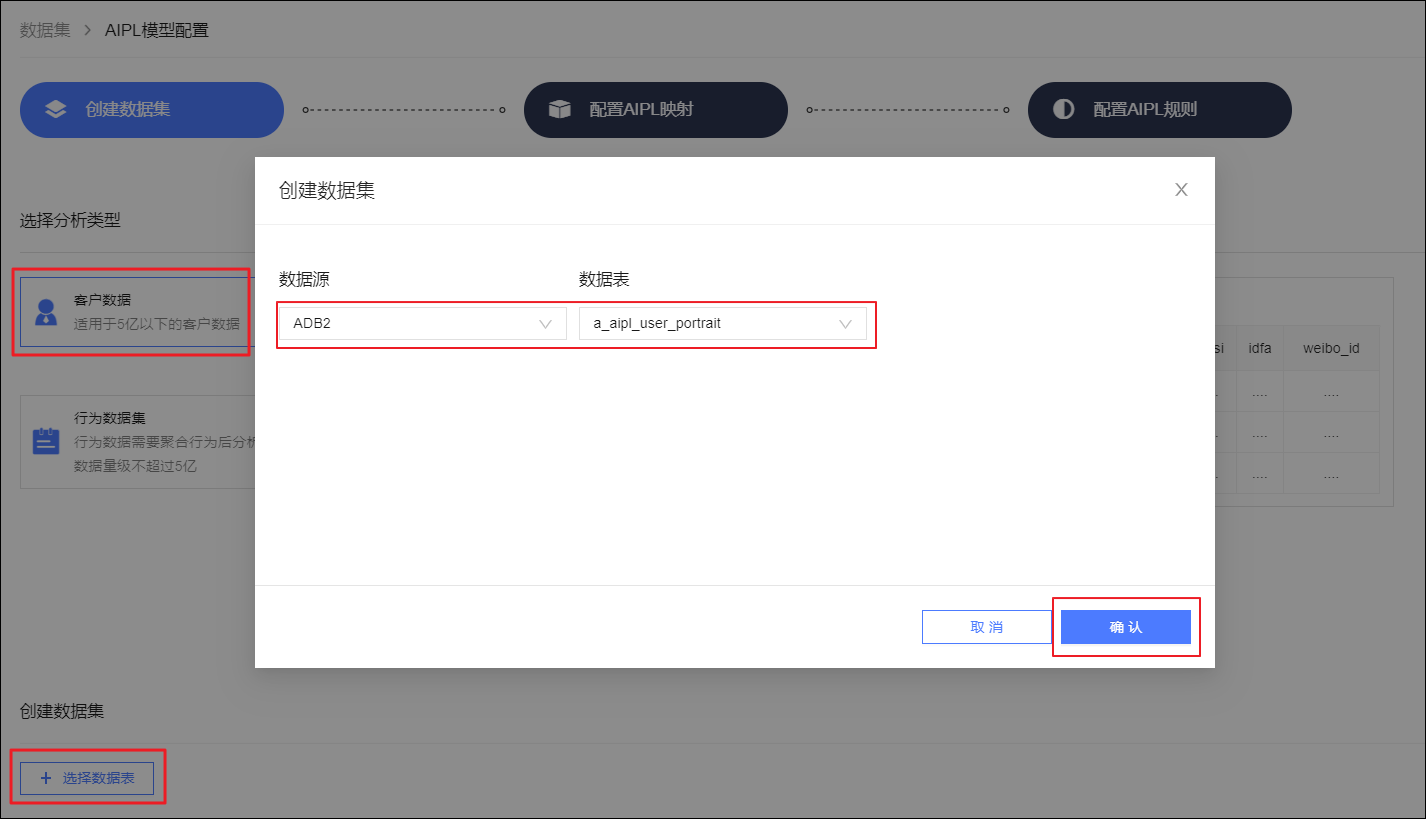
Click Next.
Configure the AIPL mapping as shown in the following figure.
Set the user identity field and user identity class for the dataset.
The user identity is the unique identifier for a user in this dataset.
The user identity type is the ID type that corresponds to the user identity. This becomes the default ID type when you filter audiences.
The following 15 ID types are supported: OneID, UnionID, mobile phone number, email address, Taobao ID, Taobao Nickname, Taobao OUID, Alipay ID, Weibo ID, IMEI (International Mobile Equipment Identity), IDFA (identifier for advertisers), IMSI (International Mobile Subscriber Identity), OAID (Open Anonymous Device Identifier), MAC address, and OpenID.
Set a tag alias and tag type for each field, and configure an ID type for each ID field.
Supported tag types are enumeration, text, numeric, and time. Text and numeric types with fewer than 50 unique values are automatically identified as enumeration types.
NoteSet the ID type for ID fields. This ensures that you can select from multiple ID types when you push the AIPL model or its audience packages to Data Bank.
(Optional) Select the channel name field from the table. Then, add a channel dimension table below and select the channel name field from the dimension table.
Click Next.
Configure the AIPL rules as shown in the following figure.
For each of the four audience types (A, I, P, and L):
Select a Channel Source from the drop-down list.
The channel source is different from the channel name that you configured in Step 6. It is used to distinguish channel sources when you push the AIPL model to Data Bank. The system provides several default channel sources. To edit them, click the
 icon. For more information, see Edit channel sources below.
Set Rules based on your brand's requirements.
If you configured a channel name in Step 6, you must select one or more channels when you set the rules.
Click Add Rule to add a rule. You can join adjacent rules using an intersection or a union. The default join type is intersection. To switch the join type, click the intersection icon
 or the union icon
  between the rules.
After you configure the rules for all four audience types, click Finish. In the dialog box that appears, enter a name and select a location for the AIPL model, and then click Confirm.
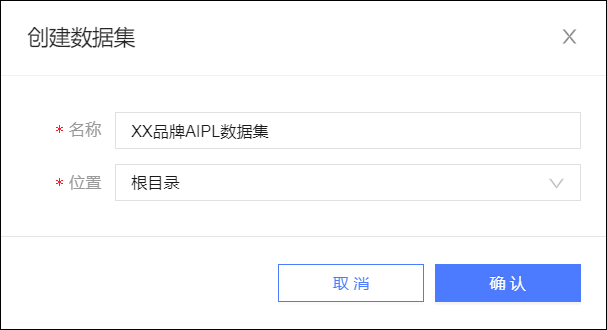 The page redirects to the dataset management page, where you can find the new AIPL model in the dataset list. For information about related management operations, see Manage AIPL models. The AIPL dataset takes some time to compute. Do not use the new AIPL model until the computation is complete.
Create an AIPL model from a behavioral dataset
If you have a behavioral dataset, you can use it to create an AIPL model. Because the behavioral dataset already has user identities and field mappings configured, you only need to configure the AIPL rules for the model. For more information about how to create a behavioral dataset, see Create a behavioral dataset.
Follow these steps to create an AIPL model from a behavioral dataset:
Go to Workspace > Configuration Management > Data Center > Dataset to open the dataset management page.

In the upper-right corner, click New > User Model > AIPL Model to open the AIPL model configuration page.
Click Behavioral Dataset to create an AIPL model from a behavioral dataset.
Click Select Dataset. In the dialog box that appears, select a configured behavioral dataset and click Confirm.
Click Next.
Configure the AIPL rules as shown in the following figure.
For each of the four audience types (A, I, P, and L):
Select a Channel Source from the drop-down list.
The channel source is different from the behavior channel in the behavioral dataset. It is used to distinguish channel sources when you push the AIPL model to Data Bank. The system provides several default channel sources. To edit them, click the
icon. For more information, see Edit channel sources below.Set Rules based on your brand's requirements.
Click Add Rule to add a rule. You can join adjacent rules using an intersection or a union. The default join type is intersection. To switch the join type, click the intersection icon
or the union icon between the rules.
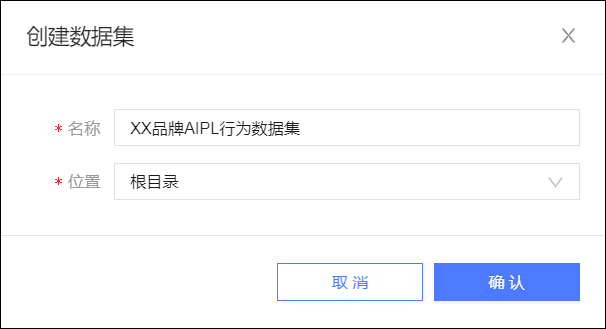
After you configure the rules for all four audience types, click Finish. In the dialog box that appears, enter a name and select a location for the AIPL model, and then click Confirm.
The page redirects to the dataset management page, where you can find the new AIPL model in the dataset list. For information about related management operations, see Manage AIPL models. The AIPL dataset takes some time to compute. Do not use the new AIPL model until the computation is complete.
Edit channel sources
After you click , the Edit Channel Sources dialog box appears, as shown in the following figure.

The system provides several default channel sources. You can add, edit, or delete sources:
Click + on the right to add a channel.
Click an existing channel. Then, click the
icon to edit the channel or the icon to delete it.
 icon to edit the channel or the
  icon to delete it.