Two-way VPC access
TSDB for InfluxDB® instances support only VPC network connectivity. By default, instances in the same virtual private cloud (VPC) can reach your TSDB for InfluxDB® instance, but the reverse is not true — your TSDB for InfluxDB® instance cannot initiate connections back to those instances. Two-way VPC access removes that restriction, enabling your TSDB for InfluxDB® instance to act as a client and push data to other instances in the same VPC.
How it works
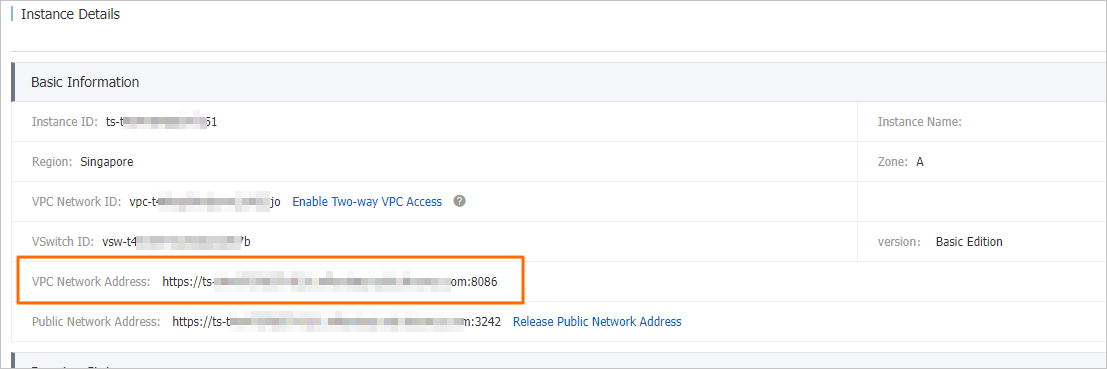
A VPC is a private network on Alibaba Cloud. Layer 2 logical isolation separates different VPCs, so instances can only communicate within the same VPC. When you purchase a TSDB for InfluxDB® instance, you must assign it to a VPC. Instances in that VPC can then connect to the TSDB for InfluxDB® instance using its VPC endpoint.
With default (one-way) access, only the instance-to-TSDB direction is allowed. Two-way access adds the TSDB-to-instance direction, so your TSDB for InfluxDB® instance can actively push data outward.
Use cases
Two-way VPC access is required when a service on another instance must receive data pushed by the TSDB for InfluxDB® instance:
Kapacitor data subscription — Kapacitor subscribes to data streams from your TSDB for InfluxDB® instance. The instance must be able to push data back to the Kapacitor instance.
Telegraf data collection — Telegraf-based collection services (coming soon).
Before you begin
Make sure that:
The TSDB for InfluxDB® instance and the target instance (for example, the instance running Kapacitor) are in the same VPC.
Your Alibaba Cloud account has the permissions required to enable this feature. If not, the console prompts you to authorize access via Resource Access Management (RAM).
Enable two-way VPC access
Log on to the TSDB console, go to the instance details page, and click Enable Two-way VPC Access in the Basic Information section.
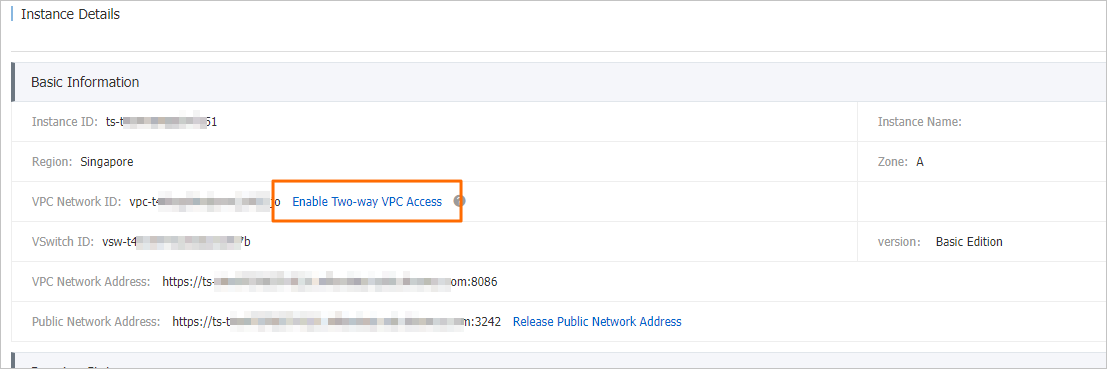
The console checks whether you have the required authorization. If you are not authorized, a message appears. If you are already authorized, the system continues to enable the feature automatically.
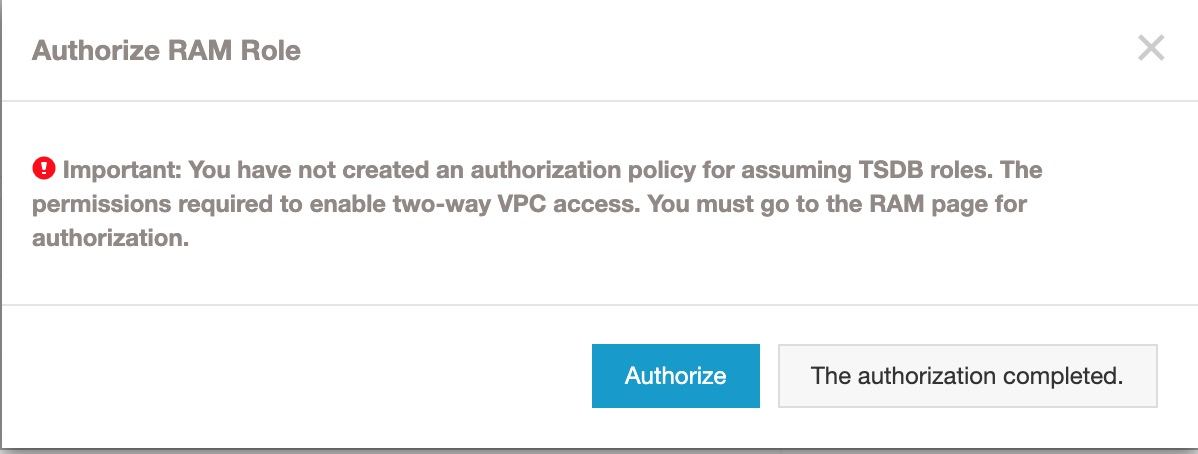
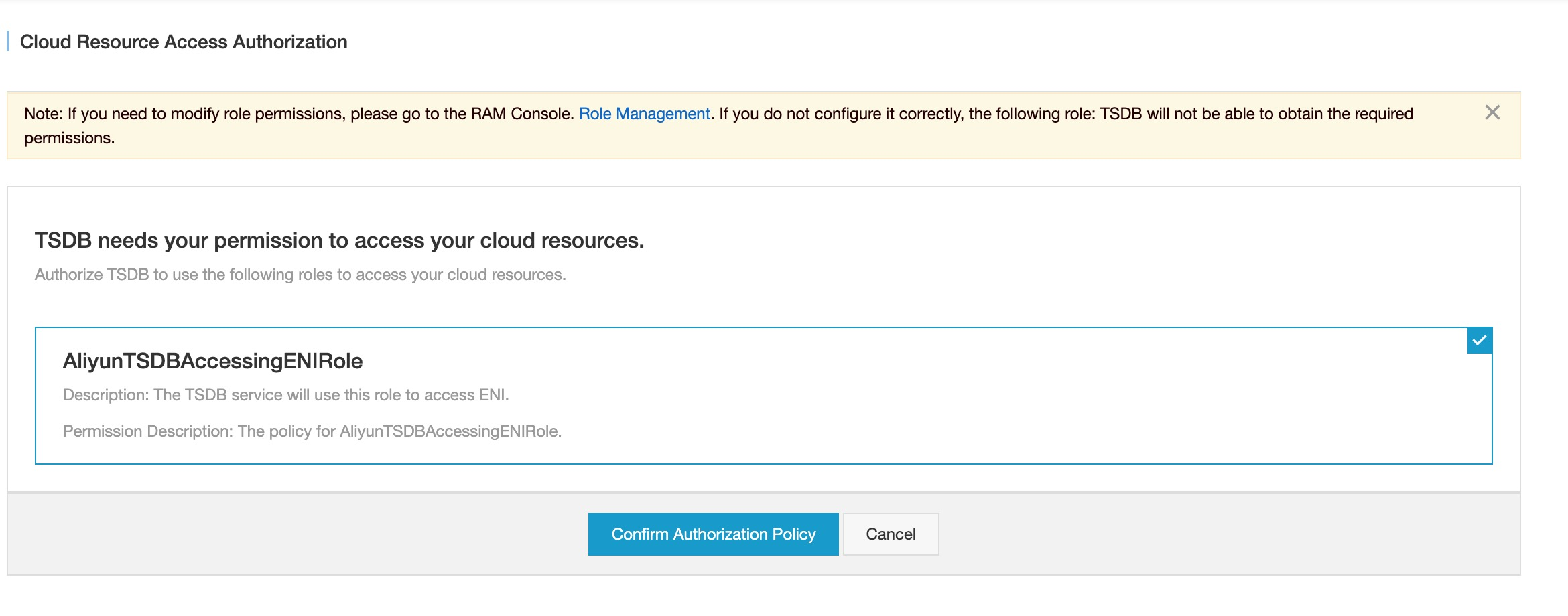
In the message, click Authorize. On the page that appears, click Confirm Authorization Policy.
Return to the instance details page and click Enable Two-way VPC Access again.
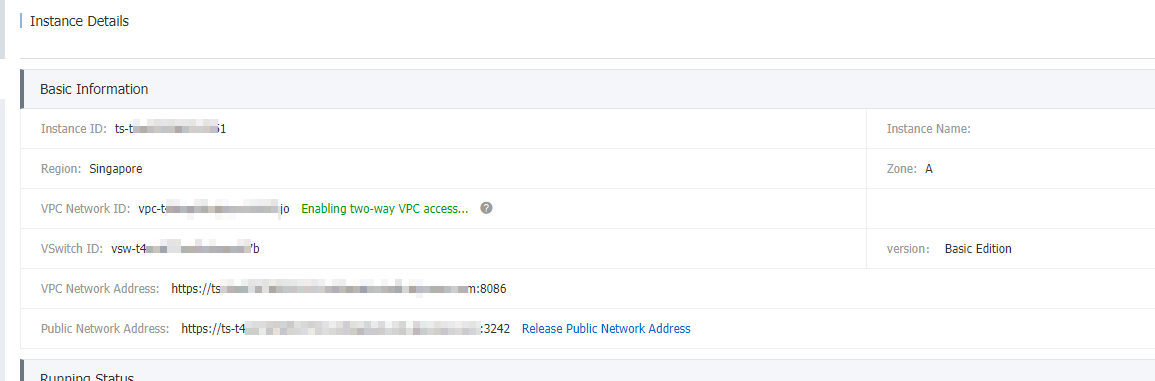
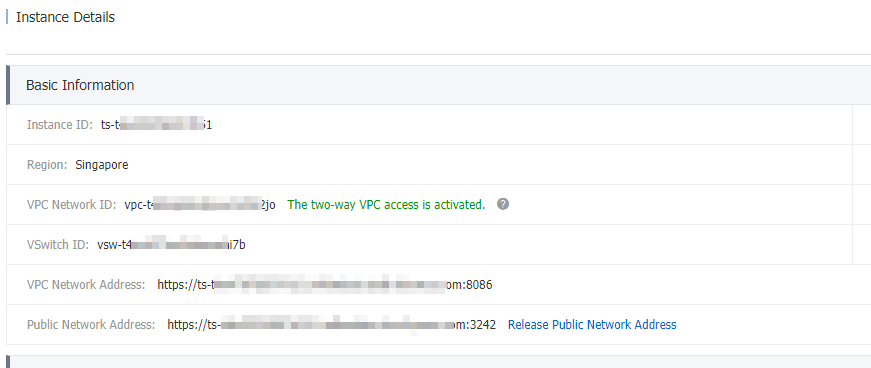
When the message "The two-way VPC access is activated." appears, the feature is enabled.

Configure the security group on the target instance
After two-way access is enabled, update the security group of the target instance to accept inbound traffic from the TSDB for InfluxDB® instance. The following steps use Kapacitor as an example.
On the Instance Details page of the TSDB for InfluxDB® instance, note the IP address assigned for two-way access.
Go to the management page of the instance running Kapacitor. In the left-side navigation pane, click Security Groups.
Click Add Rules.
Create an inbound rule. Set the source to the IP address from step 1 and specify the port range used by Kapacitor.