Create an automated marketing task
This topic describes the types of automated marketing tasks and how to create them.
Automated marketing task types
After a user triggers an automated marketing task, they enter a task flow. The flow consists of a series of marketing action, conditional control, and flow control components.
Automated marketing tasks are divided into two types based on their trigger conditions. The following table describes the scenarios and available components for each type.
Task type |
Scenarios |
Available components |
||
Marketing action components |
Conditional control components |
Flow control components |
||
Behavioral event trigger |
The user enters the task flow when they perform a specified behavioral event. |
|
Behavioral Event Branch, Result Multi-branch, Tag Multi-branch, Copy Branch, and Random Branch |
End |
Specific audience trigger |
The specified audience enters the task flow. |
Send Email, Send Text Message, PUSH Marketing, WeChat Message, Generate Audience, Push to Kafka, U-Oplus, Ocean Engine, Tencent Ad, Baidu Marketing, webhook, Send Coupon |
Behavioral Event Branch, Result Multi-branch, Time Multi-branch, Tag Multi-branch, Copy Branch, and Random Branch
Note
The Behavioral Event Branch can be used in specific audience trigger tasks only after you add an organization data source of the ADB 3.0 type. For more information about how to add an organization data source, see Data source table authorization. |
Wait, End |
For more information about how to use each component, see its documentation, such as Marketing action - Send Email component.
Configure an automated marketing task
Procedure:
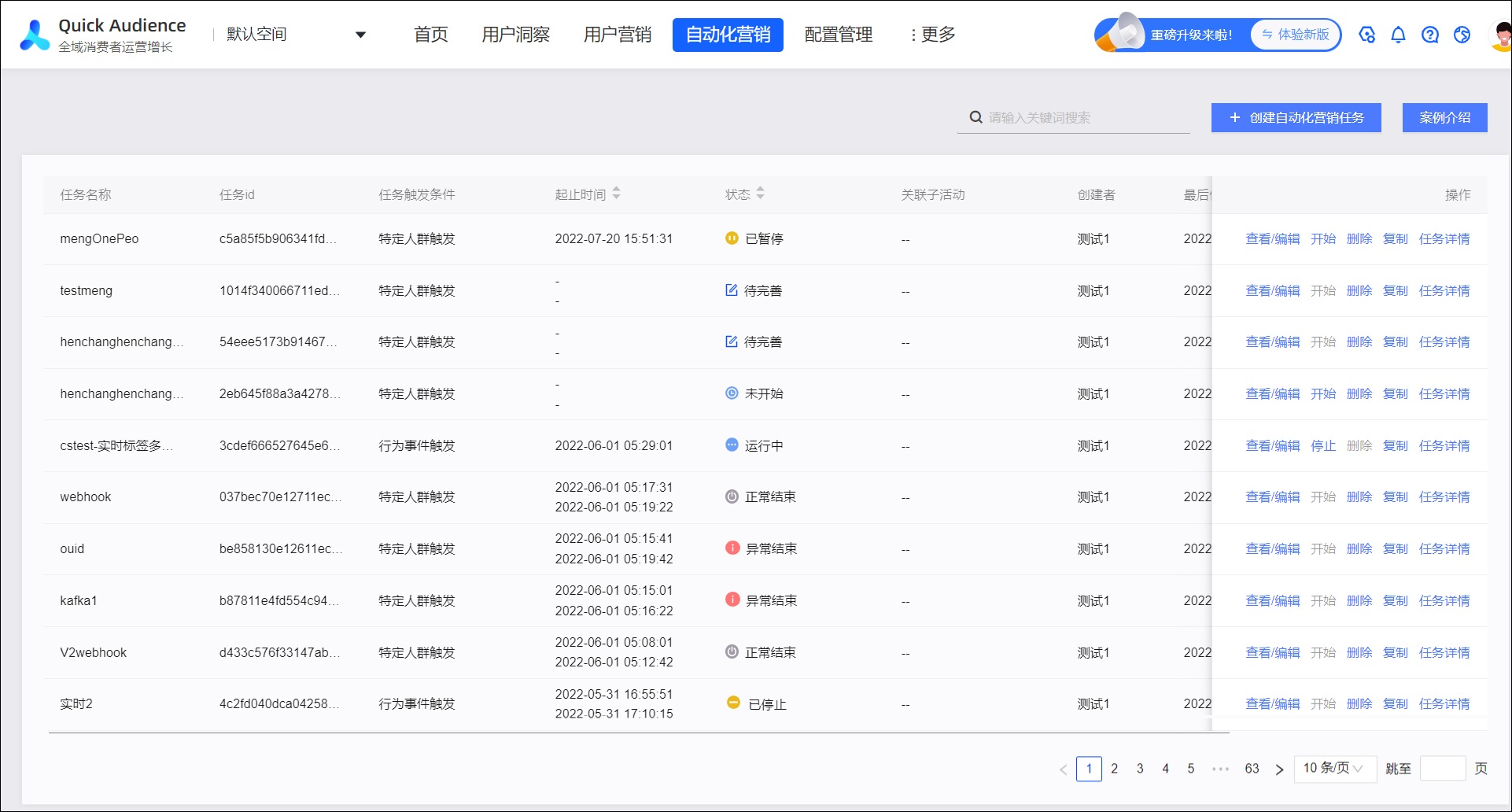
Select a workspace > Automated Marketing. In the upper-right corner, click Create Automated Marketing Task.
Configure the start condition for the task.
Select a task type, set the trigger conditions, and then click Next.
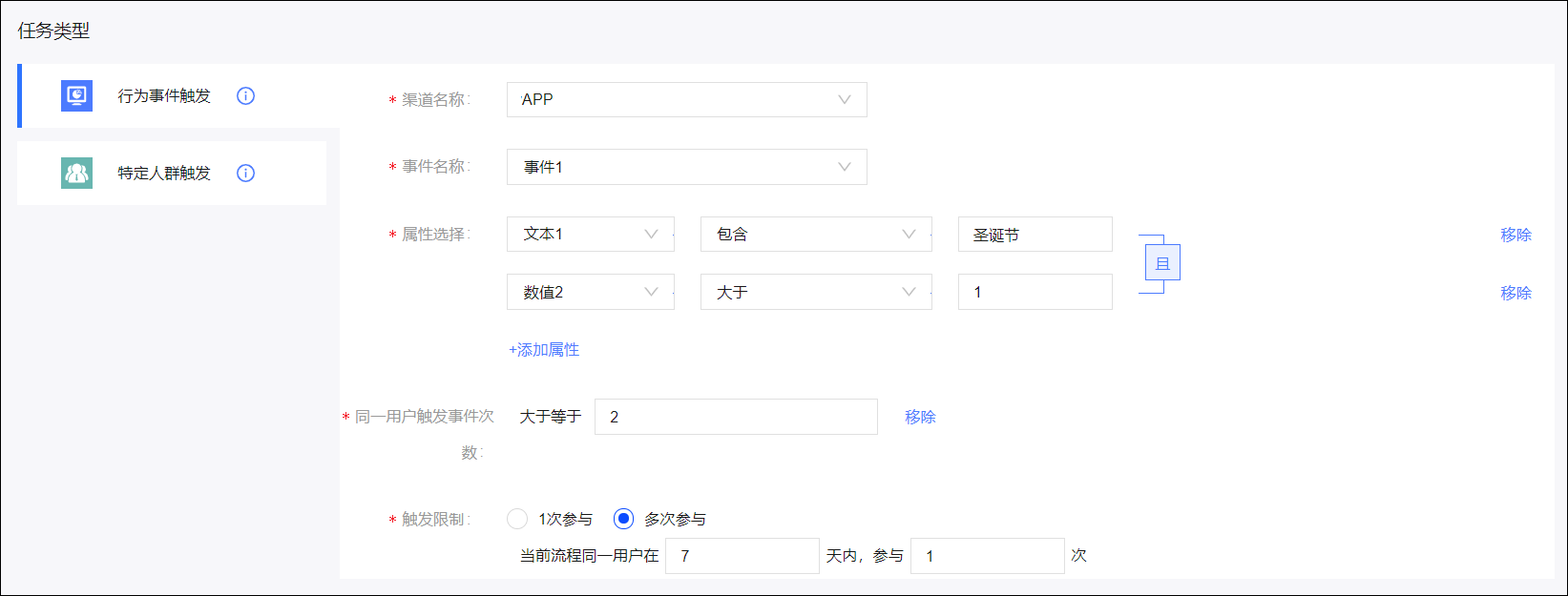
If you select Behavioral Event Trigger, set parameters such as Channel, Event, and Trigger Limit.
Parameter
Description
Channel Name
Select a channel name. For more information about how to configure channels, events, and properties, see Event Management.
Event Name
Select an event.
(Optional) Property Selection
Click Limit Properties to specify properties that must be met. For example, if the event is purchasing a product in an app, you can limit the property to a specific product.
As shown in the following figure, click Add Property to add property conditions. If you add multiple property conditions, you can use the AND or OR operator. Click the text to the right of the condition to switch the operator.
(Optional) Number of times a user triggers the event
Click Limit Occurrences to specify the number of times the event must occur before the user can enter the flow.
Trigger Limit
Set the trigger limit:
Participate once: A user can enter the flow only once within 30 days, even if the conditions are met multiple times.
Participate multiple times: A user can enter the flow a maximum of Y times within X days, even if the conditions are met multiple times. The maximum value for X is 30 days, and the maximum value for Y is 10 times.
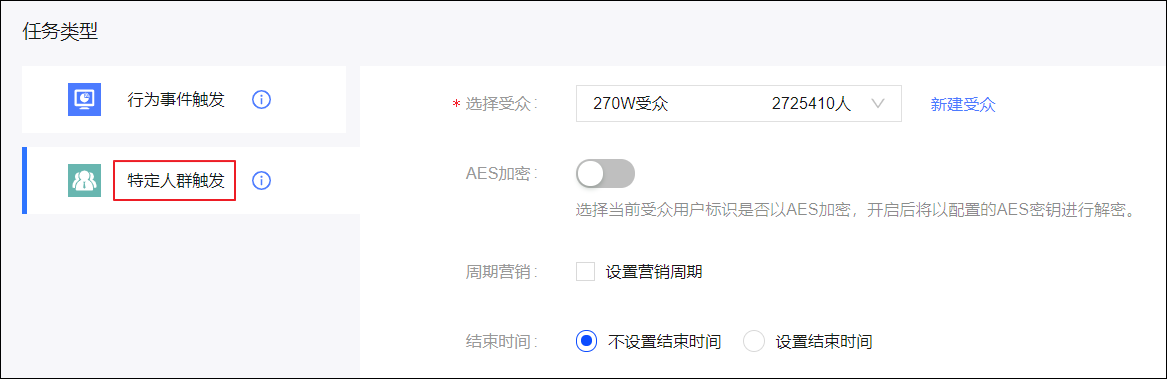
If you select Specific Audience Trigger, select an audience and set the time to run the marketing task.
Parameter
Description
Select Audience
Select the audience that will enter the flow.
AES Encryption
Select whether the audience identity is encrypted using Advanced Encryption Standard (AES).
If it is AES-encrypted, you must decrypt it before use. An AES key is required for decryption. For more information about how to configure an AES key, see Organization Settings.
Periodic Marketing
Select whether to set a marketing period to run the task periodically.
If you set a period, you can set it to a fixed time daily, weekly, or monthly. For example, 18:00 every day, 16:00 every Monday, or 14:00 on the first day of every month. You can also set a custom period to run the task every N days or hours, starting from a specific day.
End Time
Set the end time for the marketing task:
Do not set an end time: The task does not stop automatically. You must pause it manually.
Set an end time: The task stops at the specified time. You can also pause it manually.
For periodic tasks, if the end time is reached, the current cycle continues until it finishes normally, but the next cycle does not start.
Configure the task flow.
The configuration page is shown in the following figure.
The components available for the current task type are on the left.
The task name, associated sub-campaign settings, and the Save and Start, Save, and Back buttons are at the top.
The rest of the page is the canvas.
Click the
 task start node on the canvas to edit the start condition (the trigger condition) for the task. The configuration method is the same as in the previous step.
Drag a component from the left to the
 icon at the end of a branch on the canvas. The component becomes a new node in the flow, which completes the automated marketing task flow.Note
The last node of each branch in the task (except for
 ) must be a marketing action component or an end component. Otherwise, the flow is incomplete.
Hover over a node. A trash can icon
appears above it. Click the icon to delete the node. If you delete a conditional control component, only one branch can be kept. For a copy multi-branch component, you can select the branch to keep. For other conditional control components, the first branch is kept by default. Delete nodes with caution to avoid mistakes.
Configure the flow nodes.
If a node has a red border and a red dot in the upper-right corner, such as
, it means the node needs to be configured.Click the node to open a configuration panel on the right. For more information about how to configure each component, see its documentation, such as Marketing action - Send Email component.
NoteFor tasks triggered by behavioral events, the user ID reported for the custom event must include the ID type required by the marketing action component. Otherwise, the component cannot send messages. Social interaction events directly connect to the social interaction module to retrieve the ID, so no reporting is needed.
For tasks triggered by a specific audience, the selected audience or the source dataset of the audience must include the ID type required by the marketing action component. Otherwise, the message No available ID type appears when you configure the marketing action component.
(Optional) Copy a node or branch.
Copy.
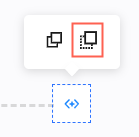
Hover over a node. A copy icon
appears above it. Click the icon to copy the node, as shown in the following figure.Hover over the
icon before a branch. A copy icon appears above it. Click the icon to copy the branch, as shown in the following figure.Paste.
After copying, hover over any
icon. A paste icon appears above it. Click the icon to paste the copied node or branch.NoteYou cannot paste a branch where a node already exists.
After you paste a node, the existing downstream nodes are shifted one position.
The new node or branch created by pasting has the same configuration as the original, but a different name.
At the top of the page, enter a name for the automated marketing task.
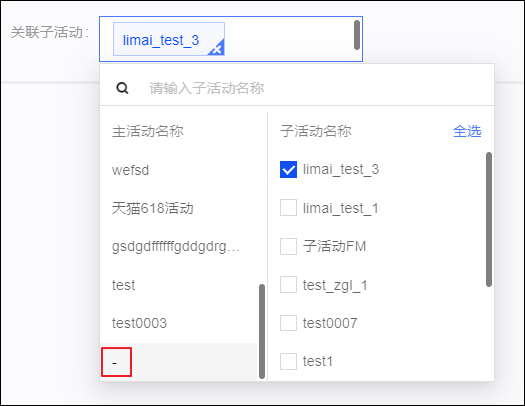
(Optional) Select an associated sub-campaign. In the Associated Sub-campaign drop-down list, select a main campaign, and then select a sub-campaign under it. Independent sub-campaigns are displayed under - at the end of the main campaign list. You can associate the marketing task with one or more sub-campaigns. For more information about campaigns, see Marketing Campaign documentation.
When each marketing action node in the automated marketing task runs, a sub-task of the corresponding marketing type is generated. This sub-task is also associated with the selected sub-campaign.
If you pause a non-periodic task triggered by a specific audience and then change the associated sub-campaign, the association for both executed and unexecuted sub-tasks is updated.
If you pause a periodic task triggered by a specific audience and then change the associated sub-campaign, only the sub-tasks for subsequent periods are updated. Executed sub-tasks are not affected.
After you finish configuring the task, click Save and Start to save the task and start it immediately.
NoteIf the task is not fully configured, or if you do not need to start it right away, you can click Save. This saves the current configuration without starting the task. You can complete the configuration and start it later.
You can manage tasks and view their execution status in the task list. For more information, see Manage automated marketing tasks.
To ensure performance, under the current cloud resource configuration, if 100 automated marketing tasks are running in the same workspace, you cannot create and start another task.
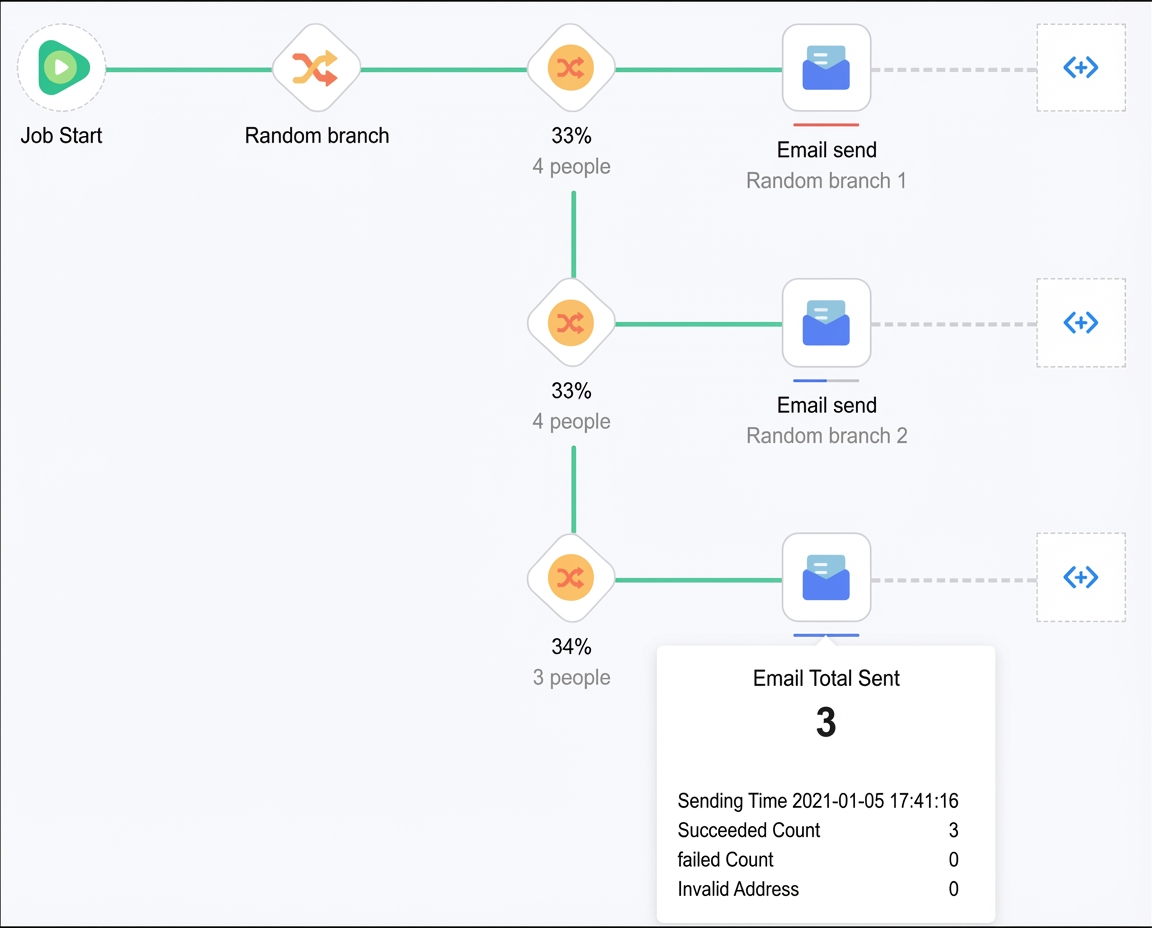
As shown in the following figure, after the task starts, a gray line between adjacent nodes indicates that the flow has not reached that point yet. A green line indicates that the flow has been executed. A progress bar appears below each marketing action node. A blue progress bar indicates normal execution, and a red progress bar indicates a failure. When you hover over the task start node or a marketing action node, the settings or execution information for that node is displayed.
To view the execution details of each marketing action node, go to the Task Details > Marketing Action tab of the automated marketing task. For more information, see Marketing action sub-tasks.
 appears above it. Click the icon to delete the node. If you delete a conditional control component, only one branch can be kept. For a copy multi-branch component, you can select the branch to keep. For other conditional control components, the first branch is kept by default. Delete nodes with caution to avoid mistakes.
 , it means the node needs to be configured.
 appears above it. Click the icon to copy the node, as shown in the following figure.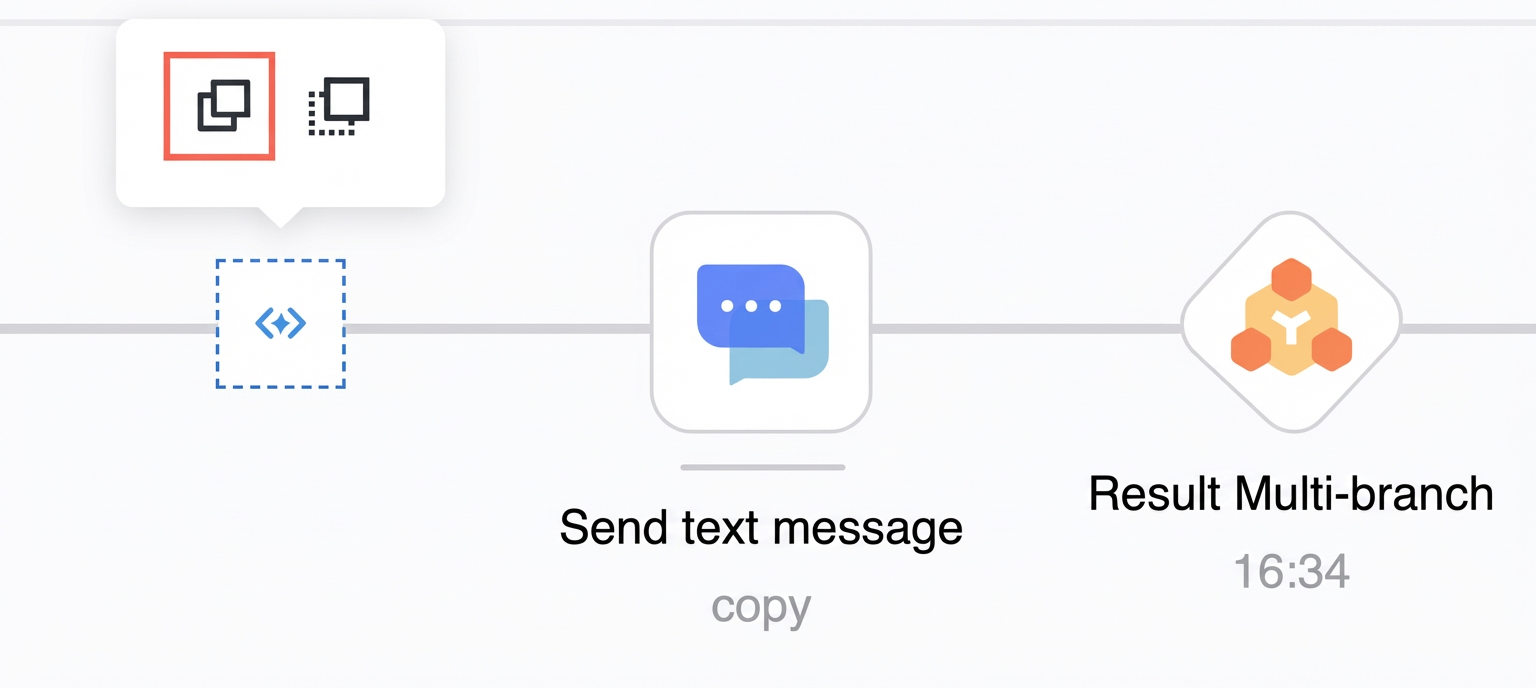
 appears above it. Click the icon to paste the copied node or branch.