Deploy an application to an image repository using IntelliJ IDEA
Updated at:
Alibaba Cloud Toolkit lets you quickly deploy applications to an image repository for secure image hosting. After you install and configure Alibaba Cloud Toolkit in IntelliJ IDEA, you can set the deployment parameters in the configuration interface to automate the deployment.
Prerequisites
- Docker is installed and configured.
- Alibaba Cloud Toolkit is installed and configured. For more information, see Install and configure Cloud Toolkit in IntelliJ IDEA.
Configure an image repository
To deploy an application to an image repository using Cloud Toolkit, follow these steps:
- Open your project in IntelliJ IDEA.
- In the IntelliJ IDEA menu bar, choose .
- In the Deploy to Registry dialog box, set the deployment parameters.
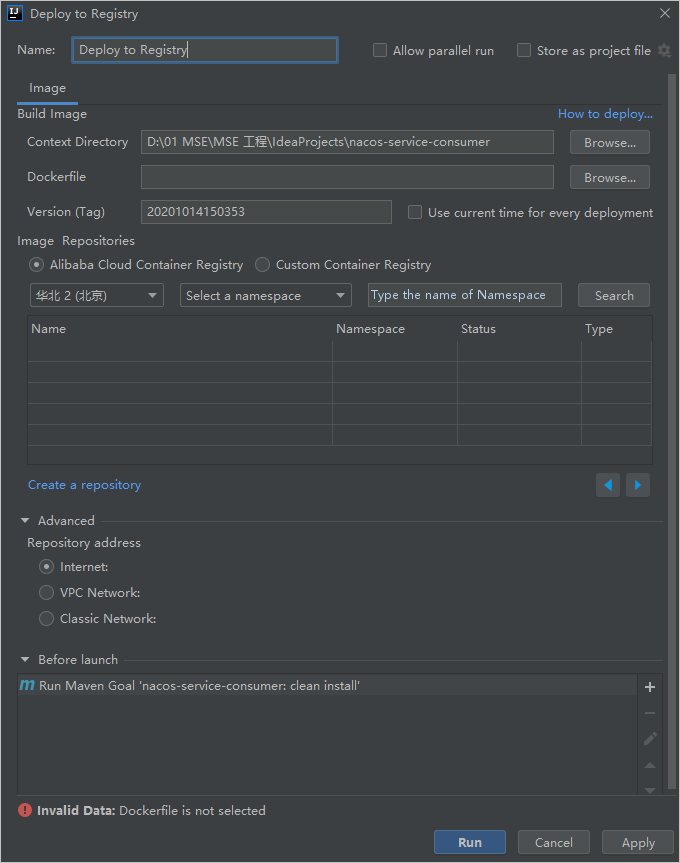
The following table describes the deployment parameters for an image repository.
Parameter Description Build Image - Context Directory: The directory of the file.
- Dockerfile: The Dockerfile.
- Version: The image version number.
Image Repositories - Alibaba Cloud Container Registry: The Alibaba Cloud image repository. For more information, see Deploy an application to ACR.
- Custom Container Registry: A custom image repository. For more information, see Deploy an application to other image repositories.
Note Context Directory and Dockerfile are based on your local application project.
Deploy an application to ACR
- On the deployment parameters page, select Alibaba Cloud Container Registry.
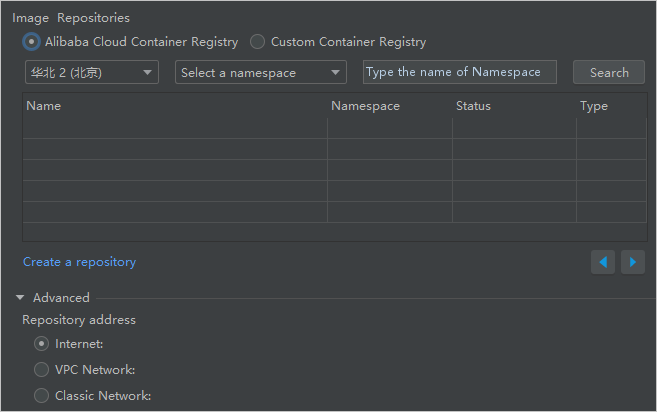
- Select the Region, Namespace, and Image Repository.
- From the Advanced drop-down list, select a network type.
- Internet: The public network.
- VPC Network: A virtual private cloud (VPC).
- Classic Network: The classic network.
- Click Apply, and then click Run.
Deploy an application to another image repository
- On the deployment parameters page, select Custom Container Registry.
- Click Add to configure the registry information.
- In the Registry dialog box, set the Name, Address, Username, and Password. Click Apply, and then click OK.
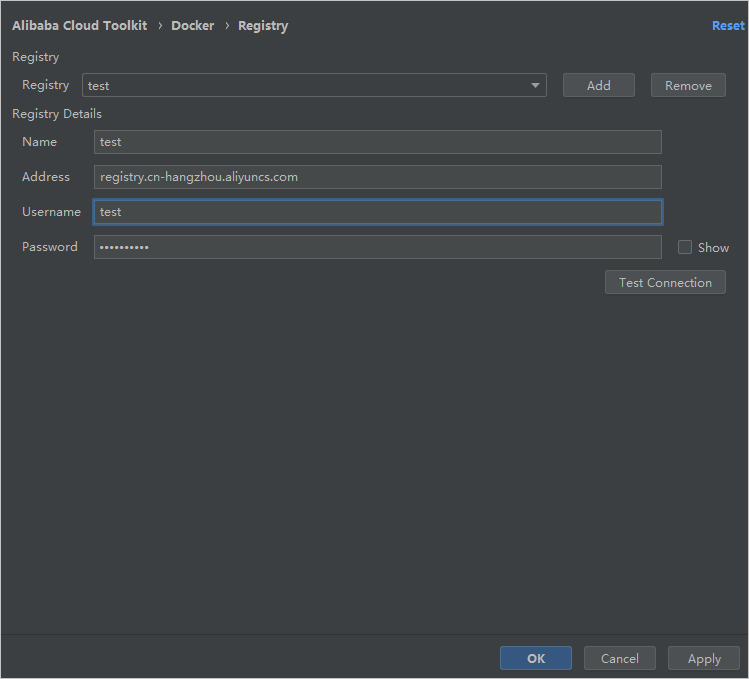 Note Click Test Connection to test the connection to the remote repository.
 - In the Repository dialog box, enter your Registry Address.
- Click Apply, and then click Run.
Verify the result
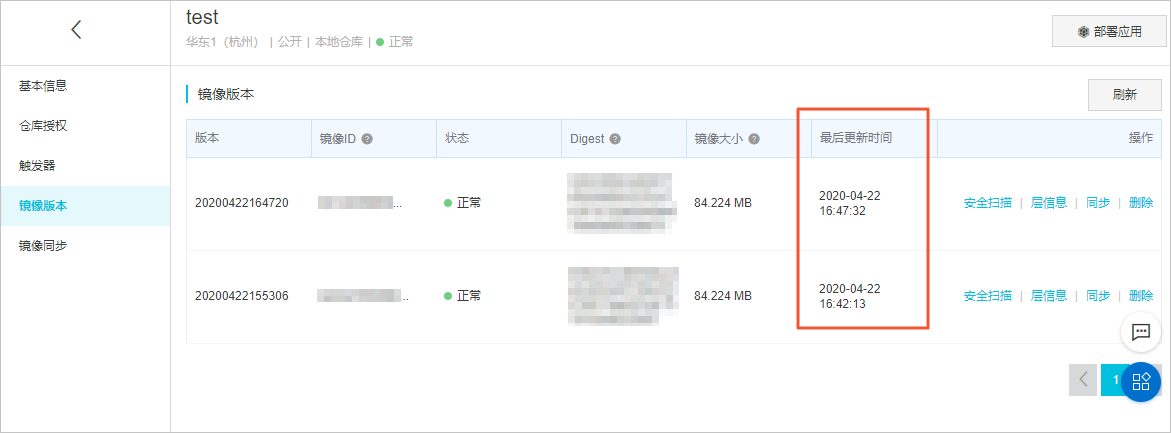
For example, on the Alibaba Cloud Container Registry platform, you can confirm that the image was pushed successfully by checking the update time of your Image Version.
Is this page helpful?