Conference hardware configuration
Alibaba Cloud video conference hardware is created in partnership with leading manufacturers. The devices have a built-in Alibaba Cloud software development kit (SDK). When used with the Windows, Mac, Android, iOS, and Web SDKs, the devices support several features. You can share your screen from a Windows or Mac computer in a meeting room. You can join video conferences using the hardware or software. You can also promote your company culture by setting a custom background image on the device's standby screen.
When you receive the conference hardware, initialize it as follows:
Add a conference room in the Alibaba Cloud console.
Start the device and enter the activation code when prompted.
Set the standby background image for the device.
Log on to the Cloud Video Conference console. In the navigation pane on the left, choose Conference Room Management. Click the Add Conference Room button, as shown in the following figure:
On the Add Conference Room page, enter the following information:
Conference Room Name: Enter a name that is easy to remember, such as "Headquarters Training Room 1". This name usually matches the name of the physical conference room.
Conference Room ID: Enter an ID used for internal resource management. For example, HZ-1-5-88 can represent conference room 88 on floor 5 of Building 1 in Hangzhou.
S/N: Enter the device serial number (S/N). You can find the S/N on the exterior of the device.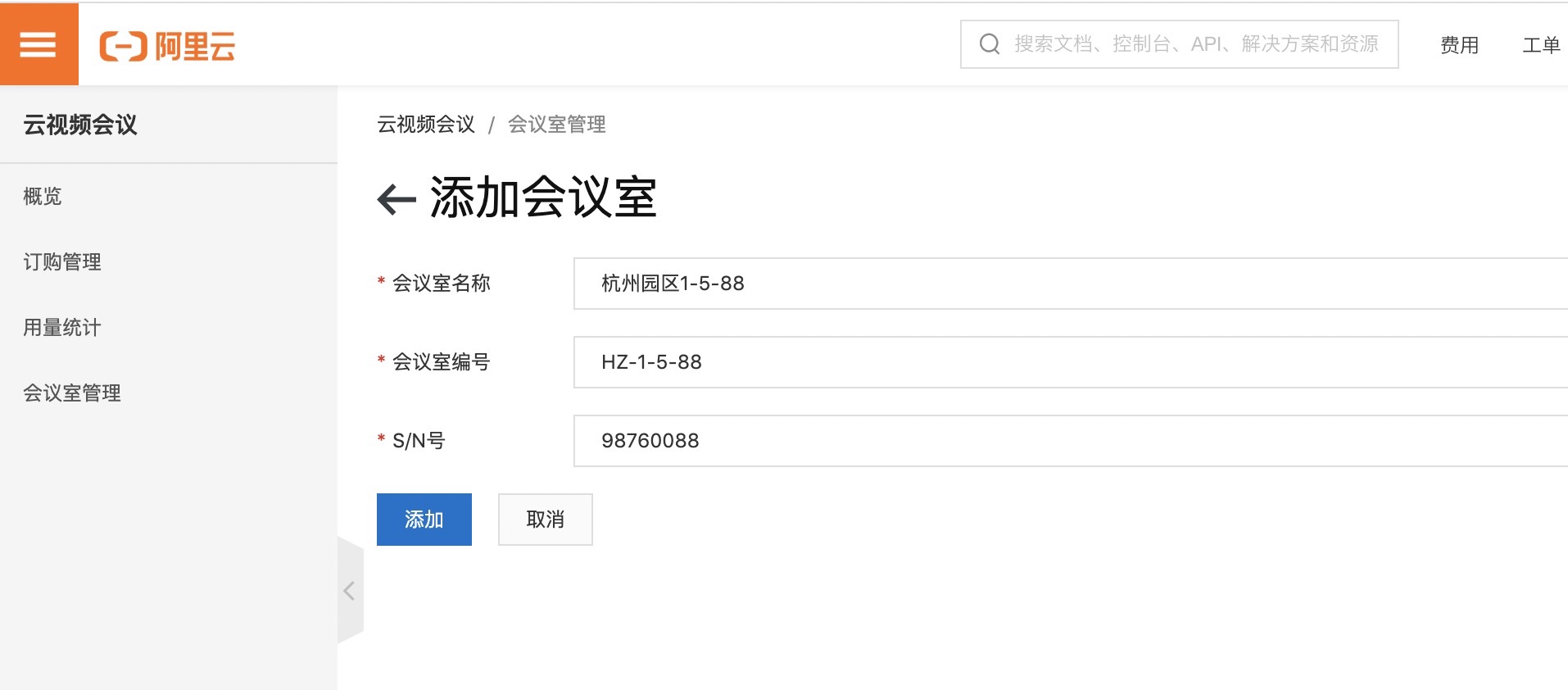
After you add the conference room, a new record for the room is displayed on the Conference Room Management page. This record displays information such as Conference Room Name, Manufacturer, Conference Room ID, Activation Code, Screen Sharing Code, Device Model, Status, Creation Time, and Background Image. The Screen Sharing Code is assigned after the hardware is started and activated. The initial Status is Not Activated, as shown in the following figure:
Activate the conference room device
After you add the conference room in the Alibaba Cloud console, note the device's Activation Code. When you start the device for the first time, you must configure its network settings. A page is displayed that prompts you for the activation code. Enter the code as prompted to activate the device. After activation, you can use the device to:
Create a conference: Create a conference directly from the device. Others can join the conference from other hardware or software by entering the conference ID.
Join a conference: Enter a conference ID to join an existing conference.
Share your screen locally: Use a Windows or Mac program that has the Screen Sharing SDK integrated. Enter the screen sharing code displayed on the device to share your screen.
Set the device background image
In the console, choose Conference Room Management from the navigation pane on the left. Find the record for the conference room device and click the Settings icon to set the standby background image.