Add a secure signature
Before you use audio and video calls, you must add a signature to your call application to ensure call security. The signature validates communication between the client and the streaming media server-side.
How to add a secure signature
Before each call, the client requests a signature from your business server. The client then passes this signature to the streaming media software development kit (SDK). The SDK uses the signature to perform a security check with the streaming media server-side. The complete flow is as follows:
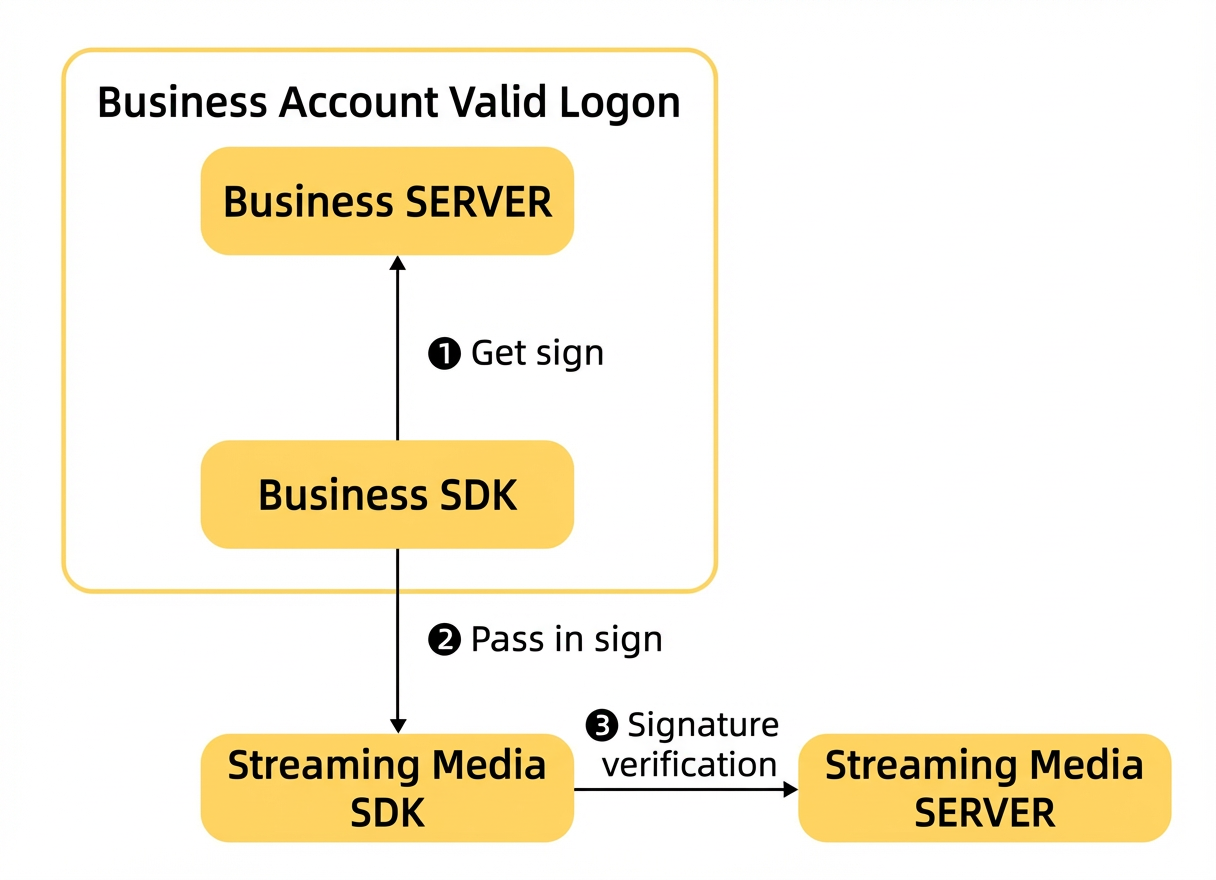
Follow these steps to add a secure signature to an application:
Obtain the application and audio/video call parameters from the mPaaS console. Before you add the signature, you must obtain the appId, workspaceId, bizName, and key because they are required by the signing code.
Generate a signature on your business server using the key and following the specified rules.
Procedure
Obtain the appId and workspaceId.
Log on to the mPaaS console and navigate to the target application.
Click Download iOS Code Configuration or Download Android Code Configuration. The Code Configuration panel for the client opens. Obtain the appId and workspaceId from the Code Configuration panel on the right.
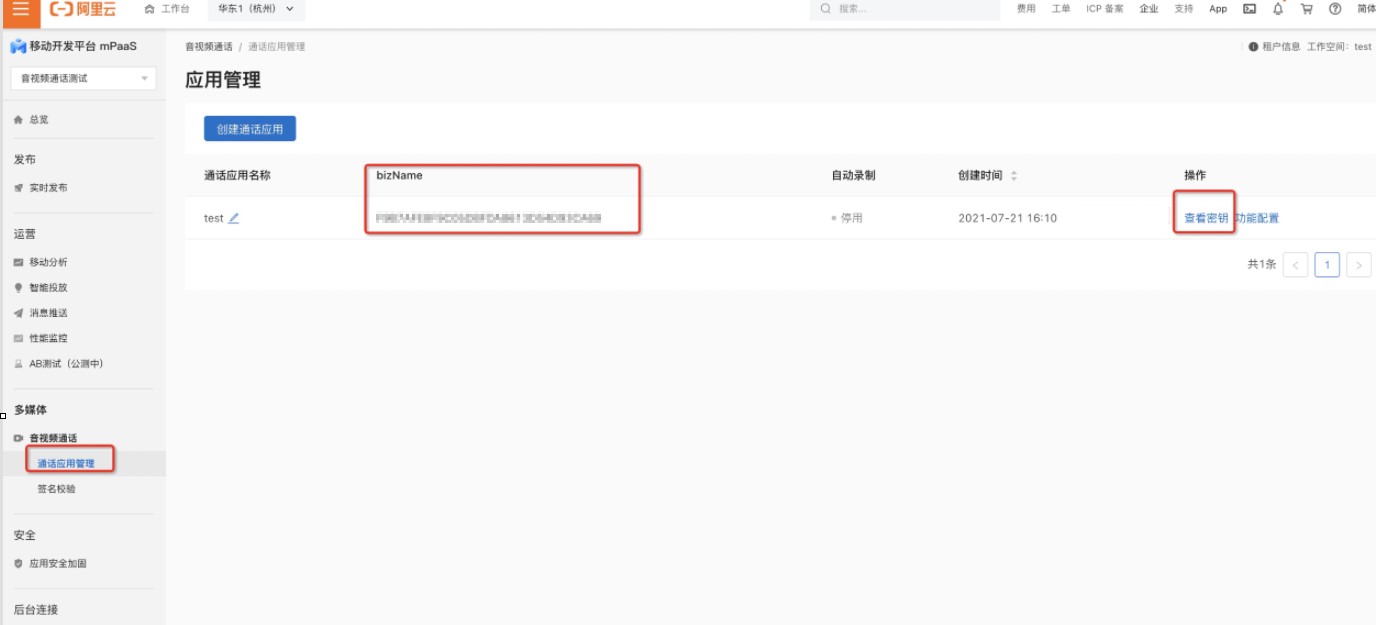
Obtain the application's bizName and key. The bizName is the business ID for the video application. The key is the application's private key.
Log on to the mPaaS console and navigate to the target application. Click Audio & Video Call > Call Application Management.
Obtain the bizName on the Call Application Management page.
Click View Key to obtain the key.
Generate the signature on the business server.
Concatenate the parameters in the following order to create the string to be encrypted.
String encryptStr = bizName + appId + workspaceId + uid + expireTime;Where:
Use the actual values for
appId,workspaceId, andbizNamethat you obtained from the mPaaS console.uidandexpireTimeare custom parameters.uidis the business user ID provided by your application.expireTimeis the signature's expiration time in milliseconds. This value is the sum of the current time and the validity period. For example:NoteThe `uid` can contain only letters, numbers, and underscores. The length cannot exceed 128 characters.
long expire = 5 * 60 * 1000L; // Signature validity period in milliseconds (ms), for example, 5 minutes
long expireTime = System.currentTimeMillis() + expire; // Signature expiration time: current time + validity period
Generate the signature using RSA encryption with the `key` that you obtained from the mPaaS console.
String sign = EncryptUtils.encryptByPrivate(encryptStr, EncryptUtils.getPrivateKey(key)); // Encrypt the string

// Encrypt with the RSA private key
 public static String encryptByPrivate(String content, PrivateKey privateKey) throws Exception {
     Cipher cipher = Cipher.getInstance("RSA");
     cipher.init(Cipher.ENCRYPT_MODE, privateKey);
     return Base64.getEncoder().encodeToString(cipher.doFinal(content.getBytes("UTF-8")));
 }

  // Convert the Base64-encoded RSA private key string to a PrivateKey instance
 public static PrivateKey getPrivateKey(String privateKey) throws Exception {
     byte[] keyBytes = Base64.getDecoder().decode(privateKey);
     PKCS8EncodedKeySpec keySpec = new PKCS8EncodedKeySpec(keyBytes);
     KeyFactory keyFactory = KeyFactory.getInstance("RSA");
     return keyFactory.generatePrivate(keySpec);
 }