Customize the OA UI for an Android app
Prerequisites
You have integrated the Account and User SDK. For more information, see Account and User SDK.
Customization options
The following table lists the customization options for the OA UI in an Android app.
Interface | Customization |
| Modify native elements
|
Add new elements
|
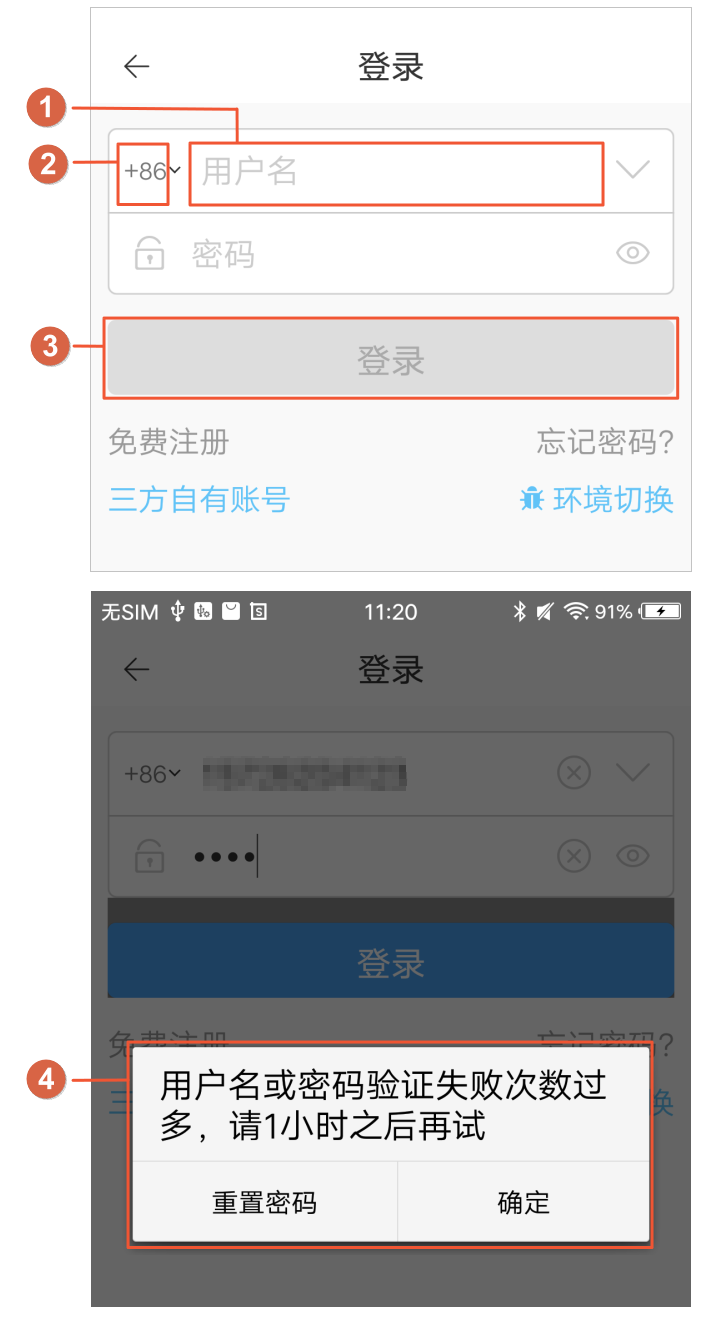
On Android, you cannot modify failure messages from the client side or add new types of events to existing controls. You can, however, replace the event handlers for existing controls or add new controls with custom events.
Display the country code
By default, the country code is not displayed on the login and registration pages. To display the country code, such as +86, follow these instructions.
Add the following code to your app project. Set the supportForeignMobileNumbers parameter to control whether the country code is displayed.
// Display the country code on the login page.
OpenAccountUIConfigs.AccountPasswordLoginFlow.supportForeignMobileNumbers=true; // Set to true to display, false to hide.
// Display the country code on the Forgot Password page.
OpenAccountUIConfigs.MobileResetPasswordLoginFlow.supportForeignMobileNumbers=true; // Set to true to display, false to hide.
Change Login and Register button color
The Login and Register buttons are light gray by default. To change their color, follow these steps.
In the code project's styles.xml file, add a new style.
Modify the color of the login and registration buttons in the style. The corresponding parameter is ali_sdk_openaccount_attrs_next_step_bg.
<style name="NewLogin" parent="@style/Login">
        // Modify the value of the item attribute.
        <item name="ali_sdk_openaccount_attrs_next_step_bg">@color/color_1FC88B</item>
</style>
Modify the theme configuration of the activity in AndroidManifest to apply the specified color.
// Modify the activity's theme configuration in AndroidManifest.xml.
<activity
            android:name="com.aliyun.iot.ilop.demo.page.login3rd.OALoginActivity"
            android:configChanges="orientation|screenSize|keyboardHidden|locale|layoutDirection|keyboard"
            android:theme="@style/NewLogin" />
Modify control events
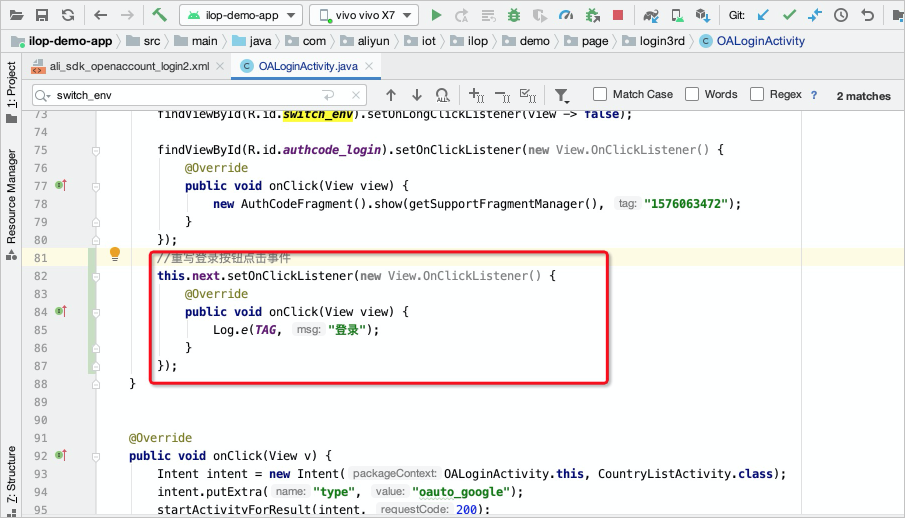
To modify the event of an existing control, provide a new event handler for it. For example, to override the login event on the login screen, redefine its handler as shown in the following figure.
Change login limit message style
When you log on to the app, if you exceed the maximum number of login attempts, the app restricts further operations and prompts you to reset your password. If you need to customize the style of this error message dialog, you only need to modify toastUtils.alert().
Rewrite the
toastUtils.alert()code.// LoginTask in OALoginActivity protected class LoginTask extends TaskWithDialog<Void, Void, Result<LoginResult>> { private String loginId; private String password; private String sig; private String nocToken; private String cSessionId; public LoginTask(Activity activity, String loginId, String password, String sig, String nocToken, String cSessionId) { super(activity); this.loginId = loginId; this.password = password; this.sig = sig; this.nocToken = nocToken; this.cSessionId = cSessionId; } protected Result<LoginResult> asyncExecute(Void... params) { Map<String, Object> loginRequest = new HashMap(); if (this.loginId != null) { loginRequest.put("loginId", this.loginId); } if (this.password != null) { try { String rsaKey = RSAKey.getRsaPubkey(); if (TextUtils.isEmpty(rsaKey)) { return null; } loginRequest.put("password", Rsa.encrypt(this.password, rsaKey)); } catch (Exception var4) { return null; } } LoginActivity.this.hideSoftInputForHw(); Result result; if (!CommonUtils.isNetworkAvailable()) { if (ConfigManager.getInstance().isSupportOfflineLogin()) { return LoginActivity.this.tryOfflineLogin(this.loginId, this.password); } else { result = new Result(); result.code = 10014; result.message = MessageUtils.getMessageContent(10014, new Object[0]); return result; } } else { if (this.sig != null) { loginRequest.put("sig", this.sig); } if (!TextUtils.isEmpty(this.cSessionId)) { loginRequest.put("csessionid", this.cSessionId); } if (!TextUtils.isEmpty(this.nocToken)) { loginRequest.put("nctoken", this.nocToken); } result = OpenAccountUtils.toLoginResult(RpcUtils.pureInvokeWithRiskControlInfo("loginRequest", loginRequest, "login")); return ConfigManager.getInstance().isSupportOfflineLogin() && result.code == 10019 ? LoginActivity.this.tryOfflineLogin(this.loginId, this.password) : result; } } protected void doWhenException(Throwable t) { this.executorService.postUITask(new Runnable() { public void run() { ToastUtils.toastSystemError(LoginTask.this.context); } }); } protected void onPostExecute(Result<LoginResult> result) { this.dismissProgressDialog(); super.onPostExecute(result); try { if (result == null) { if (ConfigManager.getInstance().isSupportOfflineLogin()) { ToastUtils.toastNetworkError(this.context); } else { ToastUtils.toastSystemError(this.context); } } else { android.net.Uri.Builder builder; Intent h5Intent; String accountName; switch(result.code) { case 1: if (result.data != null && ((LoginResult)result.data).loginSuccessResult != null) { SessionData sessionData = OpenAccountUtils.createSessionDataFromLoginSuccessResult(((LoginResult)result.data).loginSuccessResult); if (sessionData.scenario == null) { sessionData.scenario = 1; } LoginActivity.this.sessionManagerService.updateSession(sessionData); accountName = ((LoginResult)result.data).userInputName; if (TextUtils.isEmpty(accountName)) { accountName = this.loginId; } if (ConfigManager.getInstance().isSupportOfflineLogin()) { OpenAccountSDK.getSqliteUtil().saveToSqlite(this.loginId, this.password); } boolean isExist = LoginActivity.this.loginIdEdit.saveInputHistory(accountName); if (AccountPasswordLoginFlow.showTipAlertAfterLogin && !isExist) { String message = ResourceUtils.getString(LoginActivity.this.getApplicationContext(), "ali_sdk_openaccount_dynamic_text_alert_msg_after_login"); LoginActivity.this.showTipDialog(String.format(message, this.loginId)); } else { LoginActivity.this.loginSuccess(); } return; } break; case 2: SessionData sessionData1 = OpenAccountUtils.createSessionDataFromLoginSuccessResult(((LoginResult)result.data).loginSuccessResult); if (sessionData1.scenario == null) { sessionData1.scenario = 1; } LoginActivity.this.sessionManagerService.updateSession(sessionData1); LoginActivity.this.loginSuccess(); break; case 4037: if (AccountPasswordLoginFlow.showAlertForPwdErrorToManyTimes) { String postive = LoginActivity.this.getResources().getString(string.ali_sdk_openaccount_text_confirm); accountName = LoginActivity.this.getResources().getString(string.ali_sdk_openaccount_text_reset_password); final ToastUtils toastUtils = new ToastUtils(); android.content.DialogInterface.OnClickListener postiveListener = new android.content.DialogInterface.OnClickListener() { public void onClick(DialogInterface dialog, int which) { toastUtils.dismissAlertDialog(LoginActivity.this); } }; android.content.DialogInterface.OnClickListener negativeListener = new android.content.DialogInterface.OnClickListener() { public void onClick(DialogInterface dialog, int which) { LoginActivity.this.forgetPassword((View)null); } }; // Override the alert() method of the ToastUtils class. toastUtils.alert(LoginActivity.this, "", result.message, postive, postiveListener, accountName, negativeListener); } else { ToastUtils.toast(this.context, result.message, result.code); } break; case 26053: if (result.data != null && ((LoginResult)result.data).checkCodeResult != null && !TextUtils.isEmpty(((LoginResult)result.data).checkCodeResult.clientVerifyData)) { builder = Uri.parse(((LoginResult)result.data).checkCodeResult.clientVerifyData).buildUpon(); builder.appendQueryParameter("callback", "https://www.alipay.com/webviewbridge"); h5Intent = new Intent(LoginActivity.this, LoginDoubleCheckWebActivity.class); h5Intent.putExtra("url", builder.toString()); h5Intent.putExtra("title", result.message); h5Intent.putExtra("callback", "https://www.alipay.com/webviewbridge"); LoginActivity.this.startActivityForResult(h5Intent, RequestCode.NO_CAPTCHA_REQUEST_CODE); return; } break; case 26152: if (result.data != null && ((LoginResult)result.data).checkCodeResult != null && !TextUtils.isEmpty(((LoginResult)result.data).checkCodeResult.clientVerifyData)) { builder = Uri.parse(((LoginResult)result.data).checkCodeResult.clientVerifyData).buildUpon(); builder.appendQueryParameter("callback", "https://www.alipay.com/webviewbridge"); h5Intent = new Intent(LoginActivity.this, LoginIVWebActivity.class); h5Intent.putExtra("url", builder.toString()); h5Intent.putExtra("title", result.message); h5Intent.putExtra("callback", "https://www.alipay.com/webviewbridge"); LoginActivity.this.startActivityForResult(h5Intent, RequestCode.RISK_IV_REQUEST_CODE); } break; default: if (TextUtils.equals(result.type, "CALLBACK") && LoginActivity.this.getLoginCallback() != null) { LoginActivity.this.getLoginCallback().onFailure(result.code, result.message); return; } LoginActivity.this.onPwdLoginFail(result.code, result.message); } } } catch (Throwable var8) { AliSDKLogger.e("oa", "after post execute error", var8); ToastUtils.toastSystemError(this.context); } } }Customize the pop-up dialog and display the
result.messageerror message.toastUtils.alert(LoginActivity.this, "", result.message, postive, postiveListener, accountName, negativeListener);
Add controls and click events
To add a new control with a corresponding click event to your app, follow these steps.
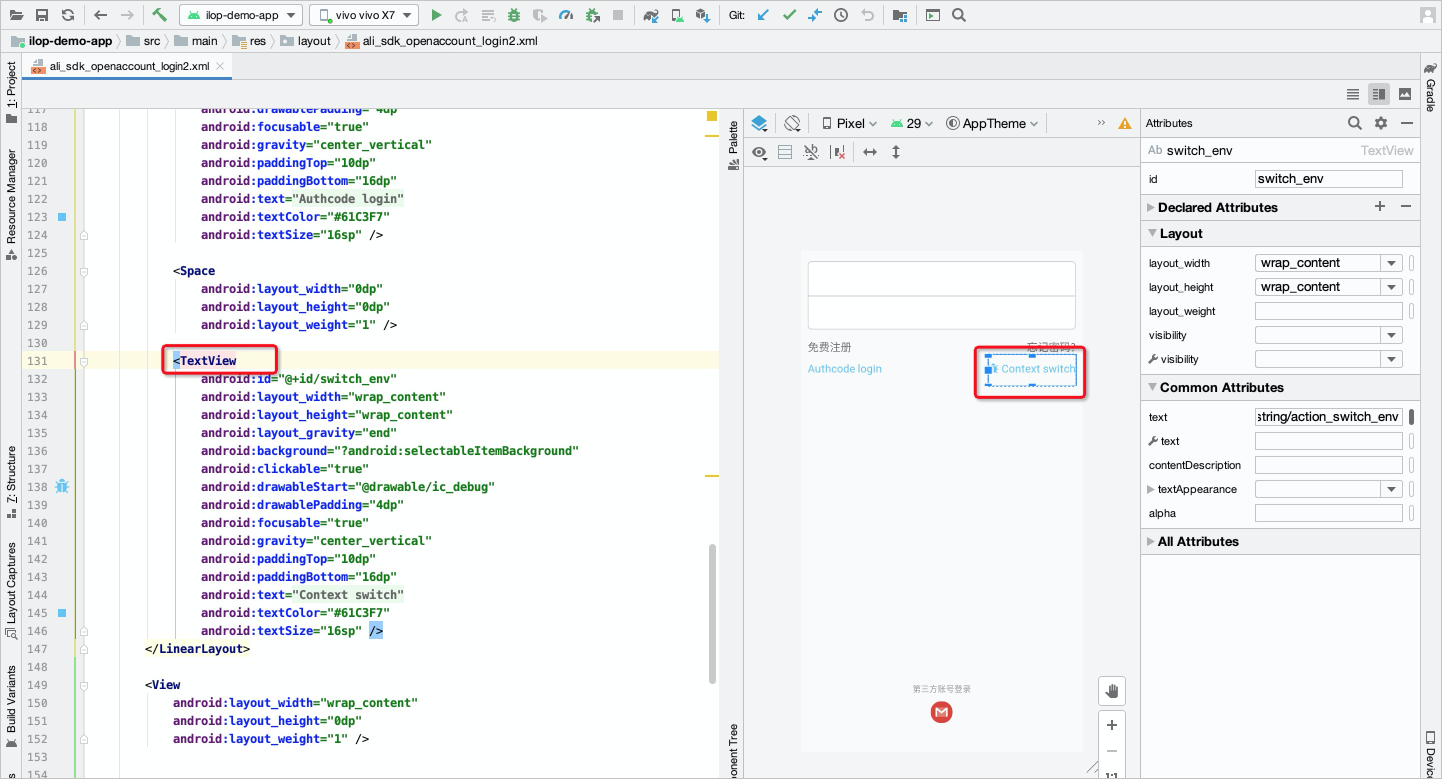
Add a new control to the interface and add its information to the rewritten XML file.
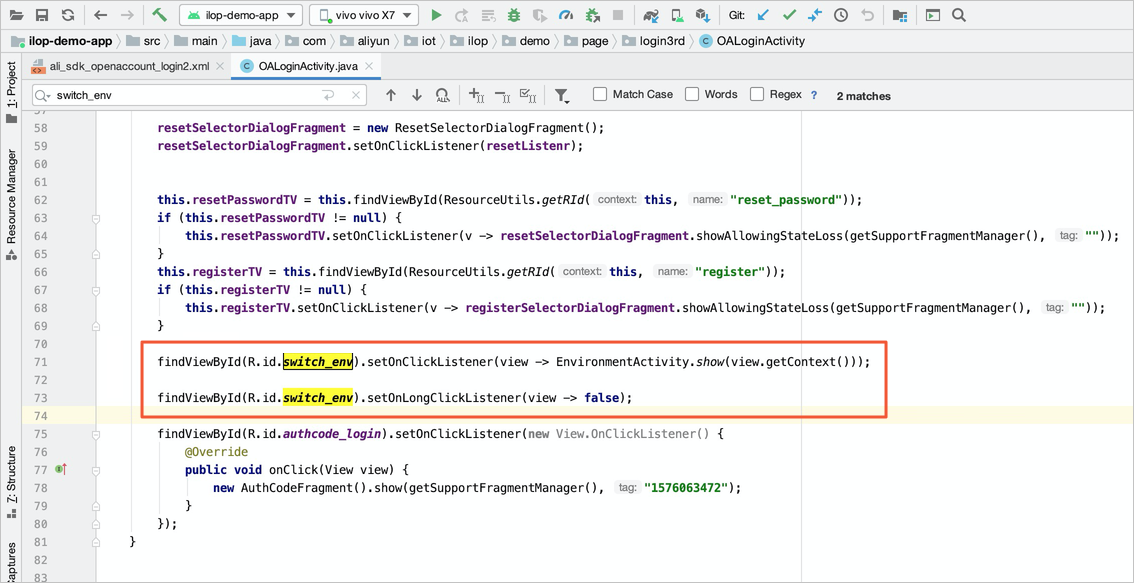
Add a click event for the control in the activity.
Add an email login method
To add support for email login, you must implement the related features shown in the figure below: email login (①), email registration (②), and password reset by email (③).
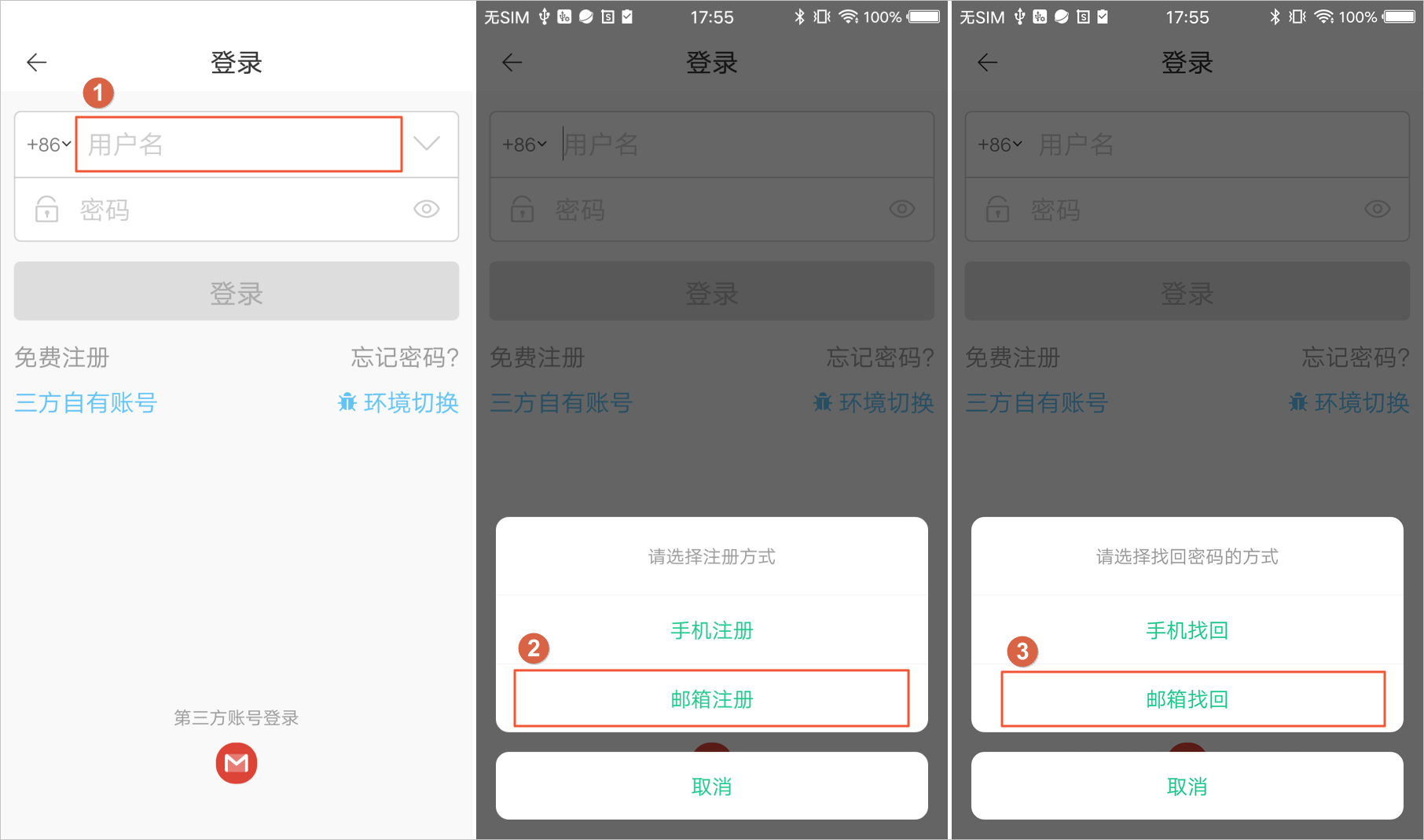
Add email login to the app login page.
The
OALoginActivityof the Android Account and User SDK supports both mobile number and email login by default. Simply hide the country code and modify the login hint text.Hide country code.
// Hide the country code.
 OpenAccountUIConfigs.AccountPasswordLoginFlow.supportForeignMobileNumbers = false;
Modify email login information.
// Modify the login hint text.
this.loginIdEdit.getEditText().setHint("Please enter your mobile number or email account");
Added the email registration feature.
Add an Email Registration button to the login page.
For instructions, see Add a new control and click event.
Define the registered callback function.
// The callback function for registration.
 private EmailRegisterCallback getEmailRegisterCallback() {
        return new EmailRegisterCallback() {

            @Override
            public void onSuccess(OpenAccountSession session) {
                // Registration successful.
            }

            @Override
            public void onFailure(int code, String message) {
                // Registration failed.
            }

            @Override
            public void onEmailSent(String email) {

            }

        };
    }
Navigates to the email registration page.
// Navigate to the email registration screen.
OpenAccountUIService openAccountUIService = OpenAccountSDK.getService(OpenAccountUIService.class);
openAccountUIService.showEmailRegister(OALoginActivity.this, getEmailRegisterCallback());
Added the email password reset feature.
When a user forgets the password for their email-based account, they can use this feature to reset it.
Add an Email Recovery button to the login page.
For instructions, see Add a new control and click event.
Define the callback method for email password recovery.
   private EmailResetPasswordCallback getEmailResetPasswordCallback() {
        return new EmailResetPasswordCallback() {

            @Override
            public void onSuccess(OpenAccountSession session) {
                // Password reset successful.
            }

            @Override
            public void onFailure(int code, String message) {
               // Password reset failed.
            }

            @Override
            public void onEmailSent(String email) {
                // Verification code email sent.
            }

        };
    }
Navigate to the Change Password page.
OpenAccountUIService openAccountUIService = (OpenAccountUIService) OpenAccountSDK.getService(OpenAccountUIService.class);
openAccountUIService.showEmailResetPassword(this, this.getEmailResetPasswordCallback());
Advanced UI customization
To perform more advanced UI customizations, such as modifying other native elements, use the following methods.
Modify the styles of more components
The Account and User SDK exposes the styles for all components. The deali_sdk_openaccount_styles.xml file in the SDK defines all the styles that you can directly override. You can inherit the corresponding style and then modify the activity's configuration in
AndroidManifest.xml. For detailed steps, see the "Change Login and Register button color" section in this document.Modify the OA UI layout
Controls or activities load layout files through the
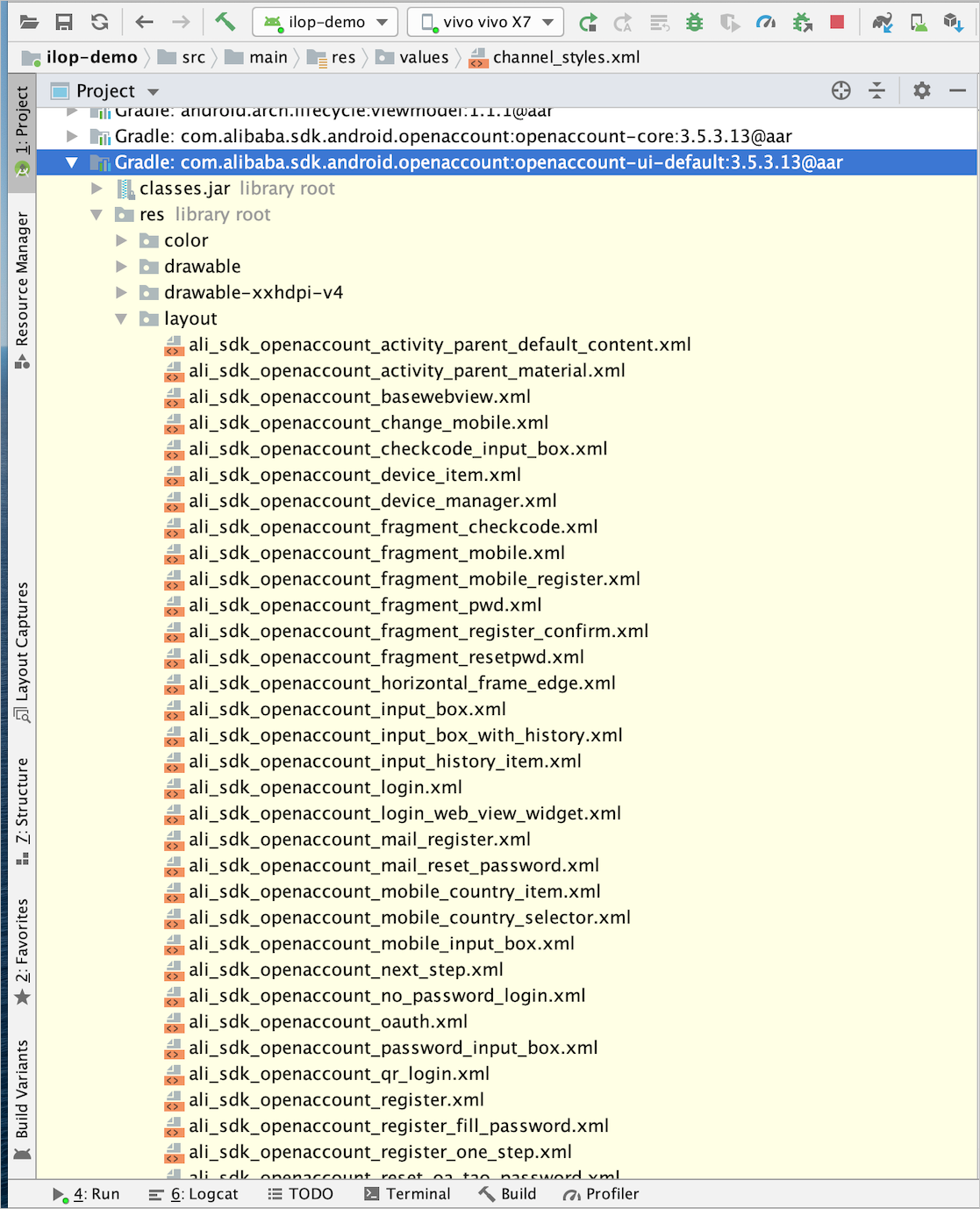
LayoutMappingclass. In your custom layout, avoid modifying the IDs of existing controls; you can add new controls as needed.com.alibaba.sdk.android.openaccount.ui.LayoutMapping.put(控件(或activity).class,R.layout.xxx);You can find the required layout files in the directory shown in the following figure.

Customize an OA module screen
To customize an entire screen, inherit the original activity and then register your new activity with the SDK. You can refer to the following code example.
// Example: Login screen // 1. Inherit LoginActivity and override it with OALoginActivity. public class OALoginActivity extends LoginActivity{} // 2. In OALoginActivity, override the getLayoutName method to return your layout file name. @Override protected String getLayoutName() { // Replace with your own layout file name. return "ali_sdk_openaccount_login2"; } // 3. After the Account and User SDK is initialized, replace the login screen in the SDK. OALoginAdapter adapter = (OALoginAdapter) LoginBusiness.getLoginAdapter(); adapter.setDefaultLoginClass(OALoginActivity.class);NoteWhen overriding a screen, your new layout must include all controls from the original layout, and their IDs must remain unchanged. If a control is not needed, set its visibility to hidden rather than deleting it. Deleting controls will cause "control not found" errors.
For more information, refer to the following resources.