Configure control security token
For products in the Tmall Genie ecosystem project, you can view which features support voice control and see their corresponding voice commands. You can also test and train the voice semantics. The control commands on this page are for viewing only and cannot be modified.
Prerequisites
You have created a product for a Tmall Genie ecosystem project in the console. For more information, see Create a product.Background information
Products in the Tmall Genie ecosystem project support voice control for IoT devices. On this page, you can view and test the voice control commands.The voice and semantics self-training test includes the following checks:
- Check whether the attached voice skill is active.
- Check whether the speech recognition is correct.
- Check whether the statement triggers the correct skill or application.
- Verify that the speech recognition is correct.
- Provide feedback to train the statement when a speech recognition error occurs.
Procedure
- Log on to the IoT Platform console.
- Go to the Human-Computer Interaction page for the product.
- In the navigation pane on the left, choose Control Commands.
The page displays the names of features that support voice control for the current product category, along with their definitions and voice utterances.
- Click Go to Voice Test to go to the Voice and Semantics Self-training page. The first time you open this page, you must log on with your Taobao account.
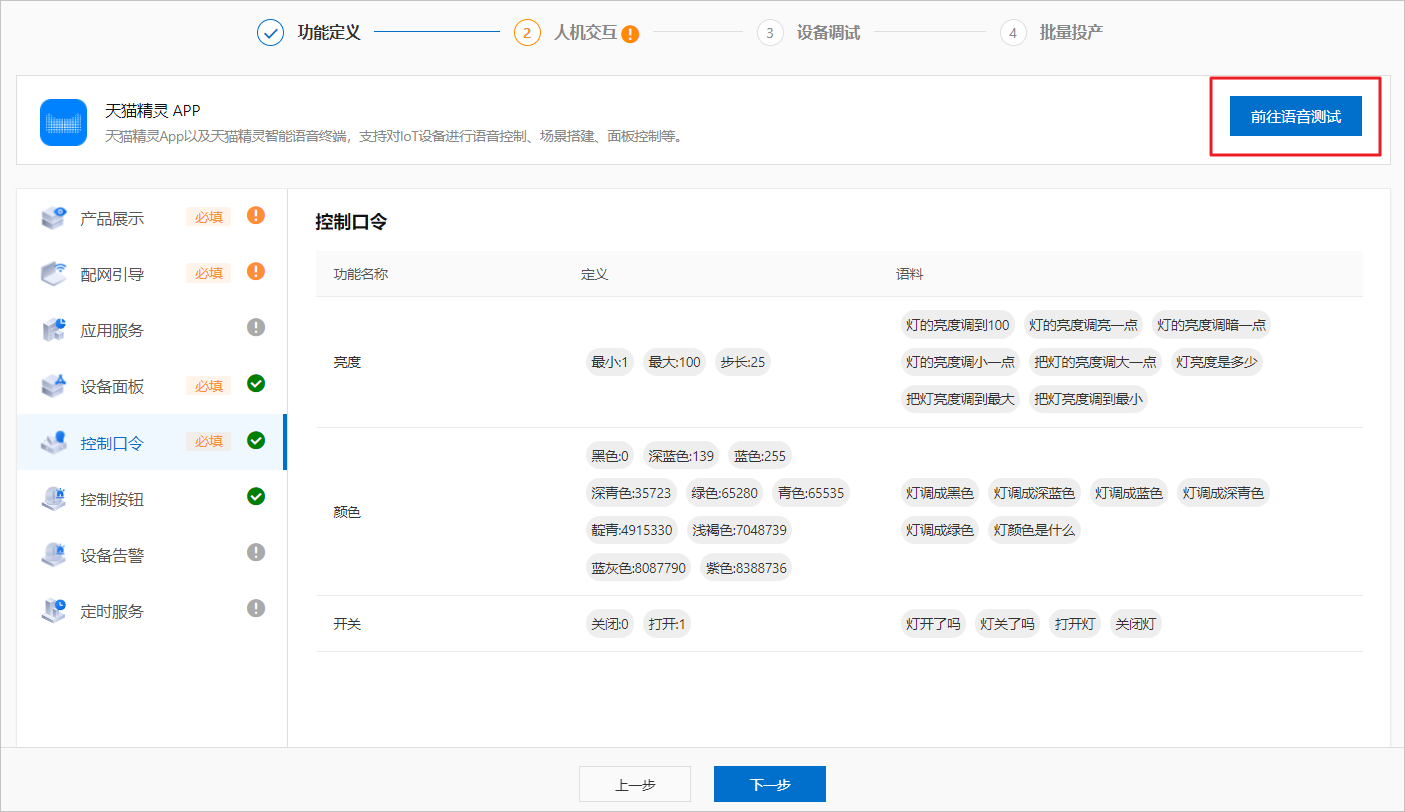
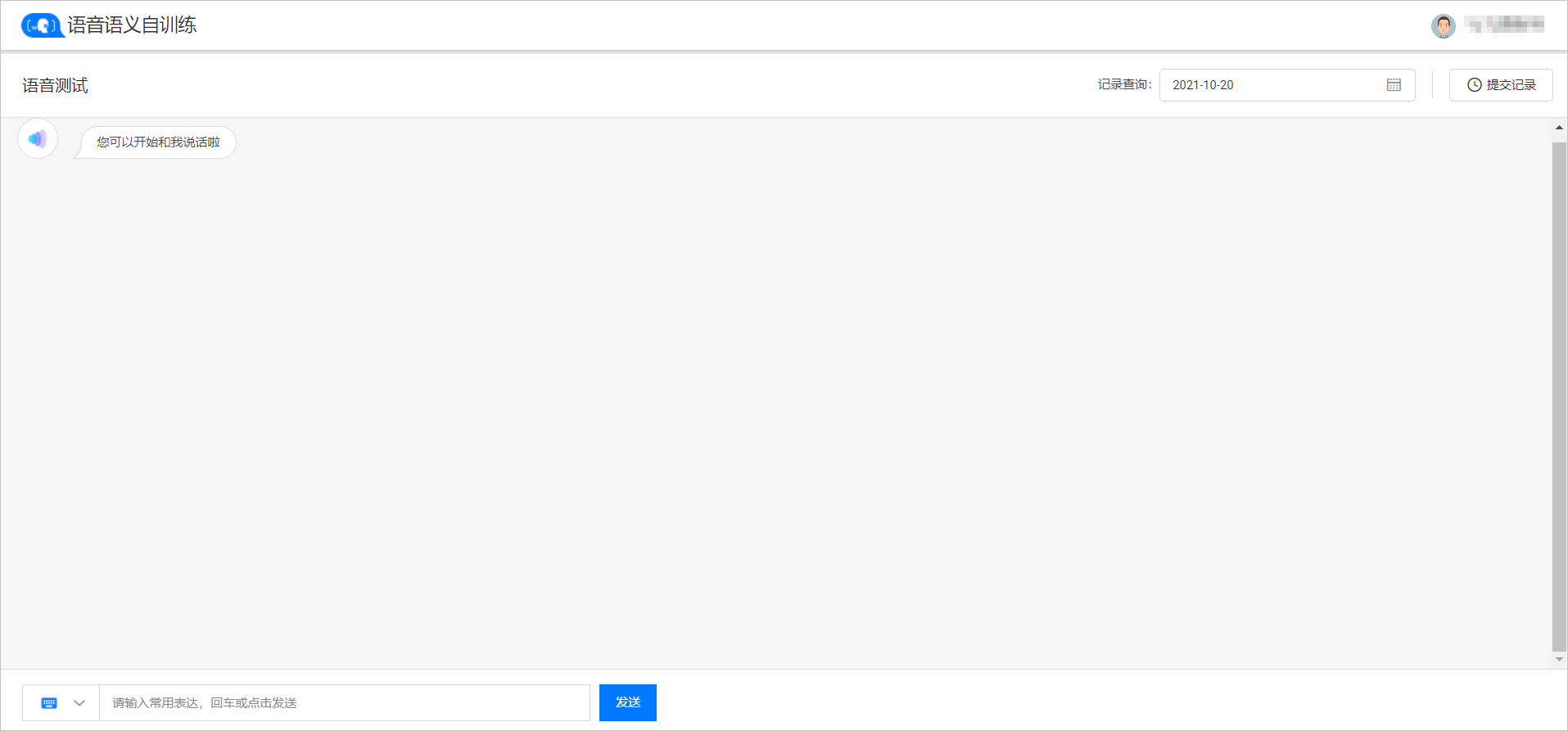
You can use the voice test feature to train speech recognition based on product usage. This training helps Tmall Genie understand control commands more accurately when users control your product with their voice, which provides a better voice control experience.
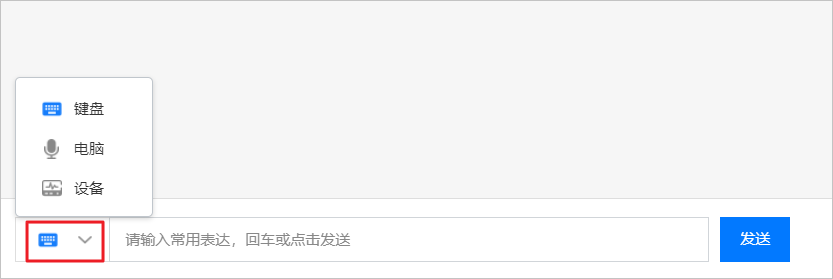
Note This feature is in beta testing and is available only to invited customers.- The platform supports three input methods for testing: keyboard, computer, and device. You can click the drop-down list in the lower-left corner to select a test method.
- Keyboard input method
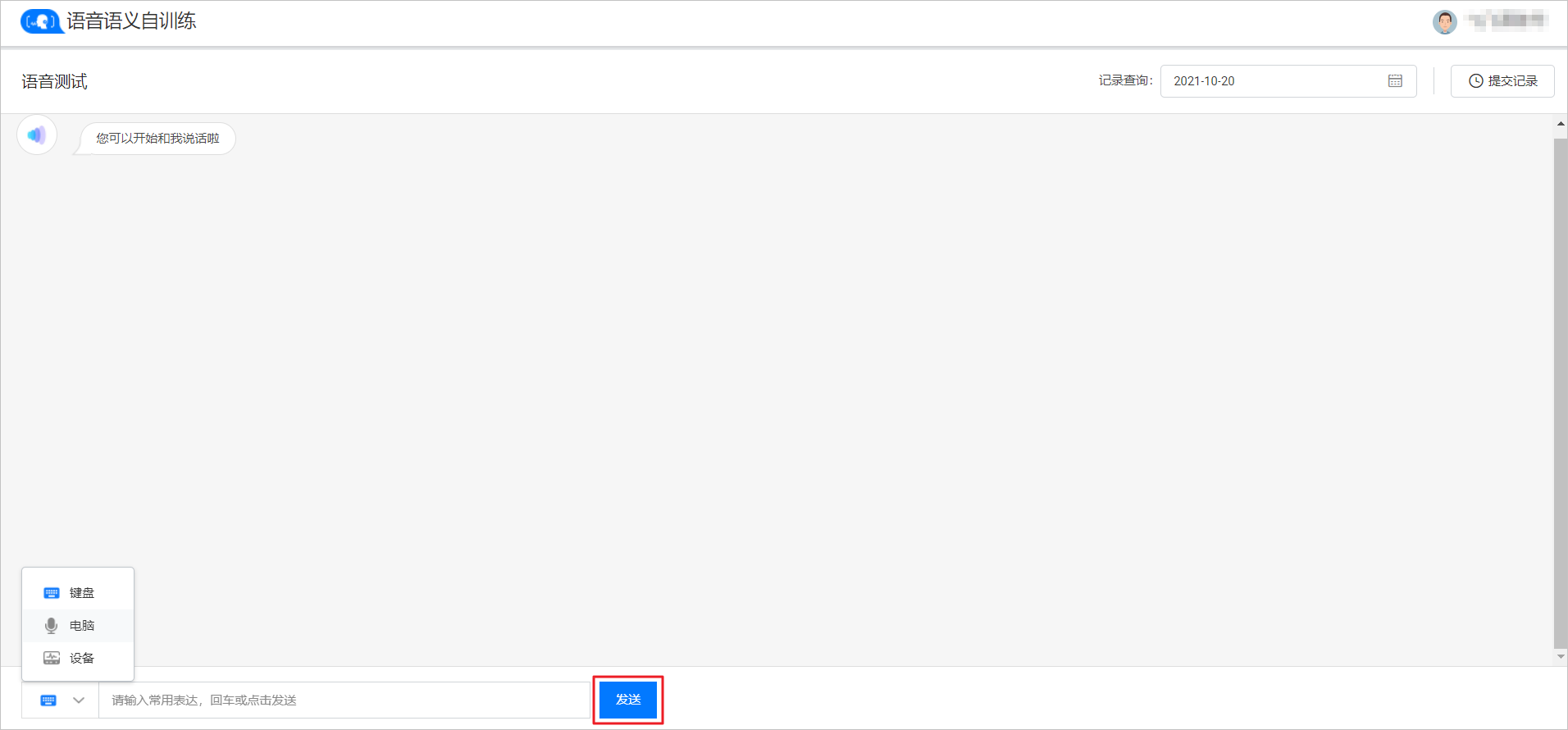
Enter a test statement in the input box and click Send to start a voice conversation test with Tmall Genie.
- Computer input method
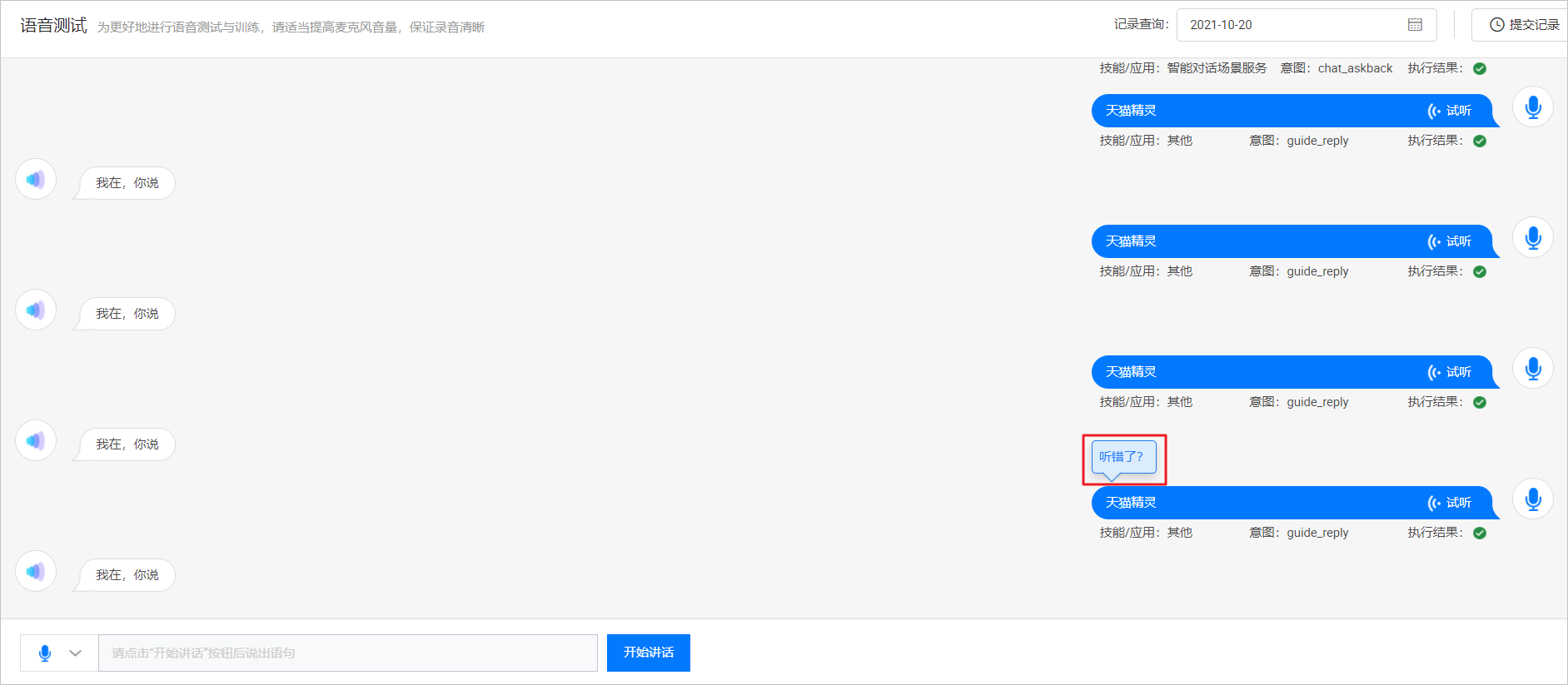
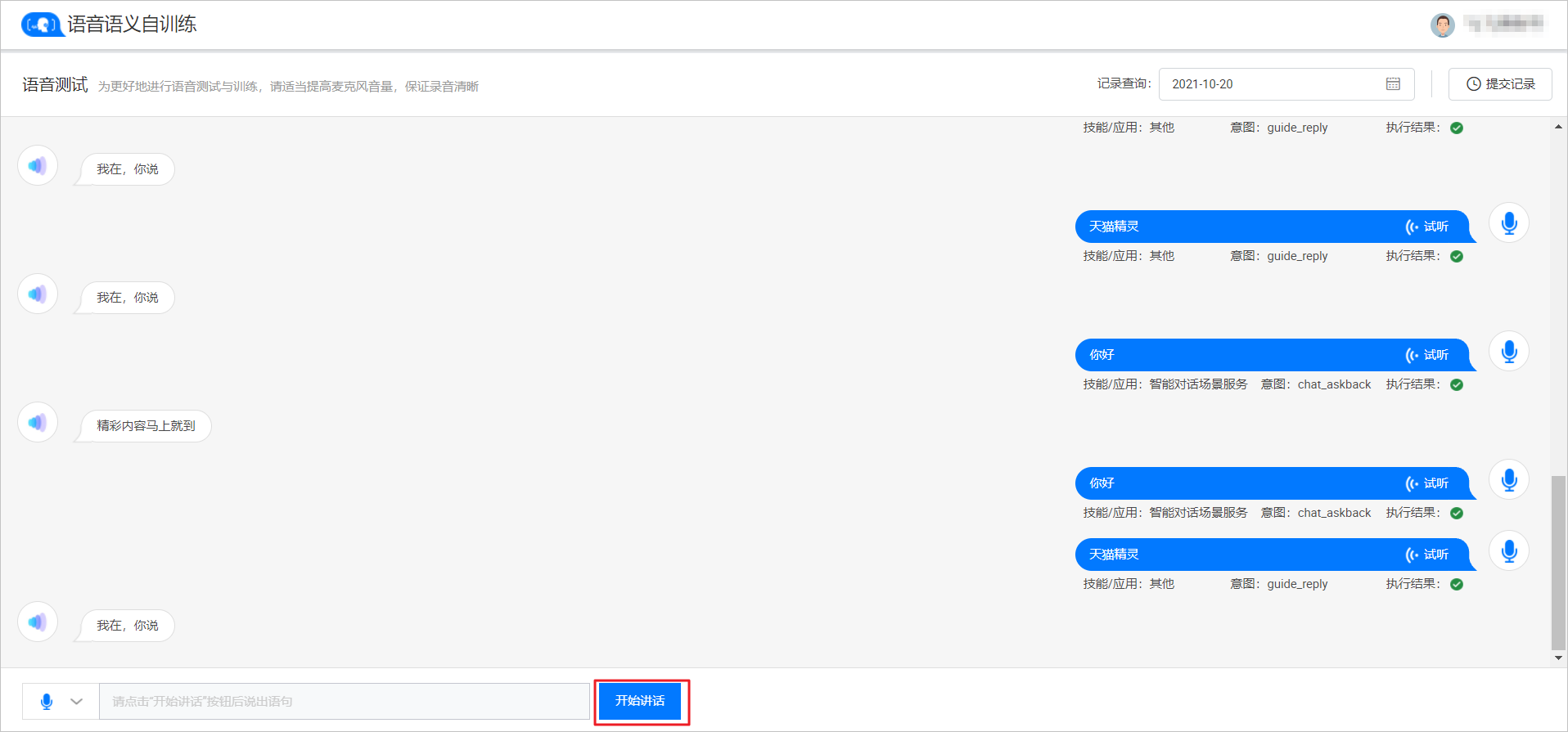
Click Start Speaking, say the test statement into your computer's microphone, and then click Stop Speaking to run the test. In the voice dialog box, you can click Listen to check whether the input was clear.
- Device input method
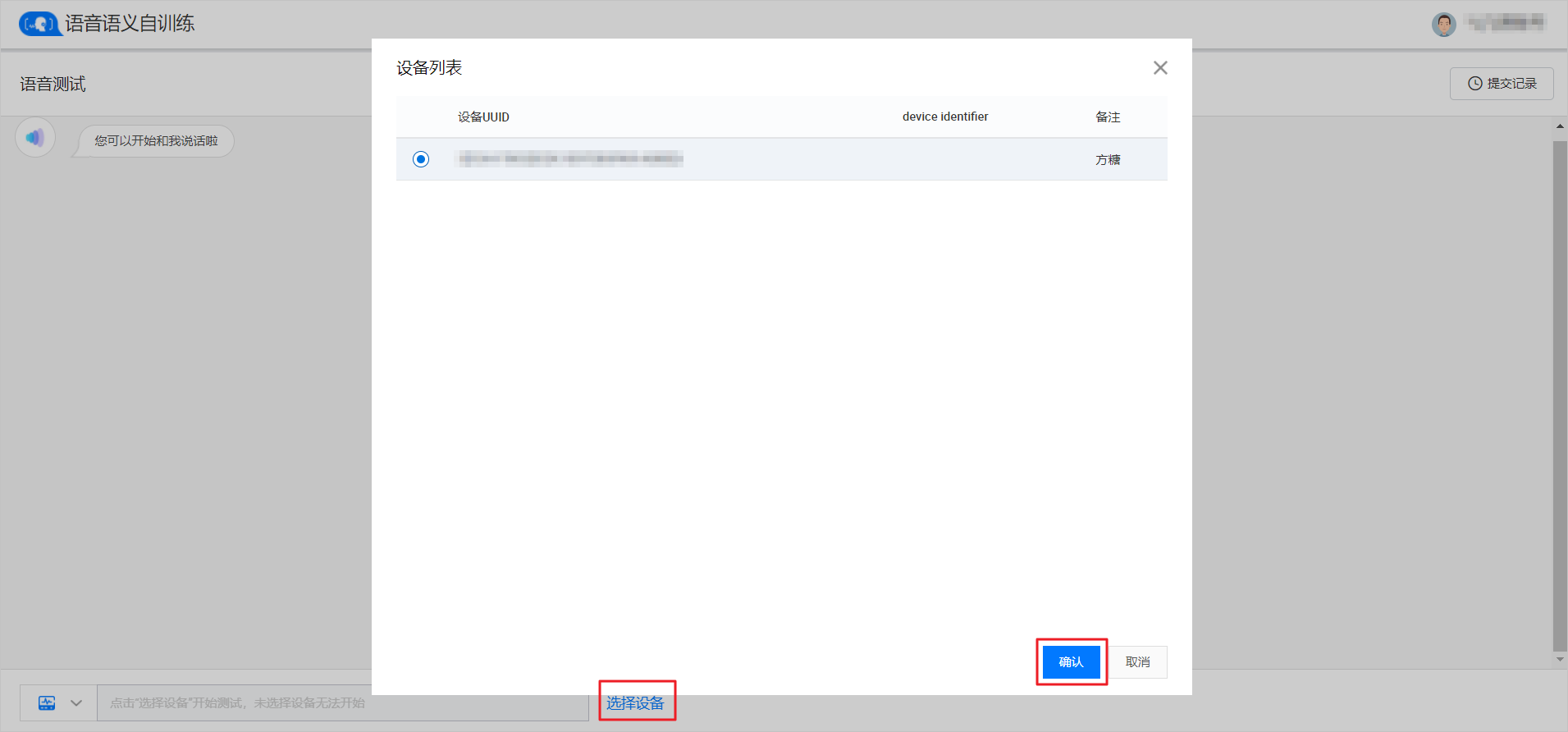
- For the device input method, first click Select Device.

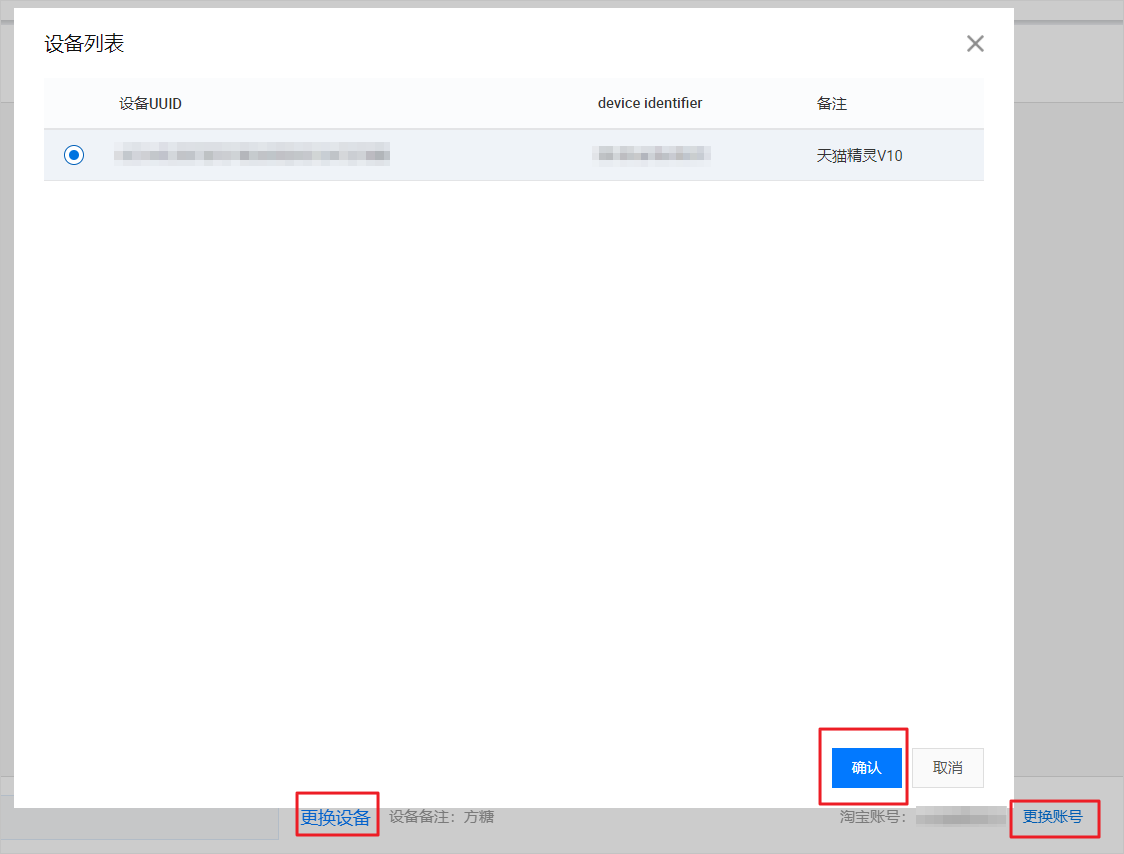
- In the Device List dialog box, select a speaker device and click Confirm. Then, use that speaker device to perform the voice conversation test.
Note- To change the device, click Change Device and select a new device from the list.
- To switch Taobao accounts, click Change Account to log out of the current account, and then log on with a new one.
- For the device input method, first click Select Device.
- Keyboard input method
- During the test, you can provide feedback on statements that were recognized incorrectly or did not trigger the expected skill/application.
Two types of errors can occur in the statement recognition dialog box. The voice understanding process involves two steps: converting speech to text (heard wrong) and understanding the meaning of the text (understood wrong).
Note The computer and device test methods can have both types of errors. The keyboard input method can only have the "understood wrong" error.- If you think the system Heard wrong: Hover over the dialog box to display Heard wrong?. Click Heard wrong to submit feedback on the speech recognition issue. After you submit feedback, you can view the submission details and statement training status in Submission Records.
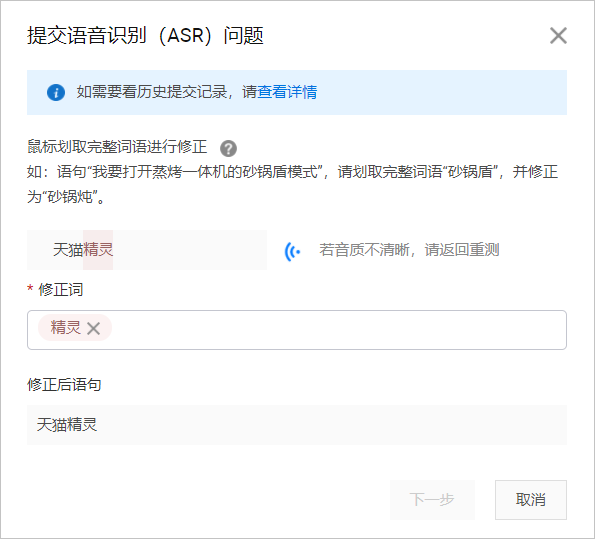
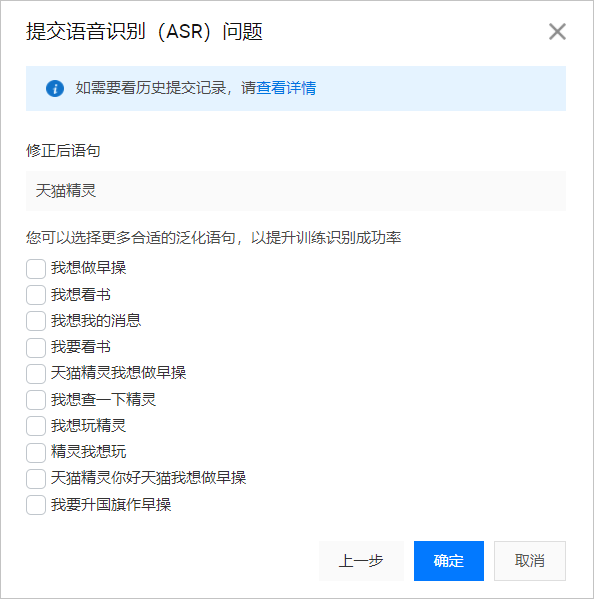
For speech recognition feedback, follow the prompts in the figure below. Select the complete words that Tmall Genie AI incorrectly converted from speech to text, change them to the correct words, and click Next to perform statement generalization. This helps the automatic speech recognition (ASR) understand your meaning more clearly.
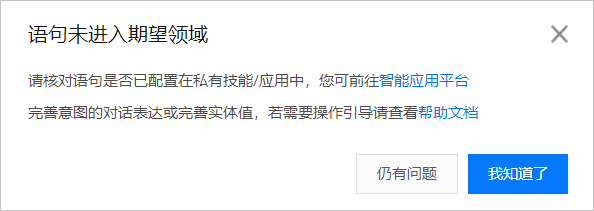
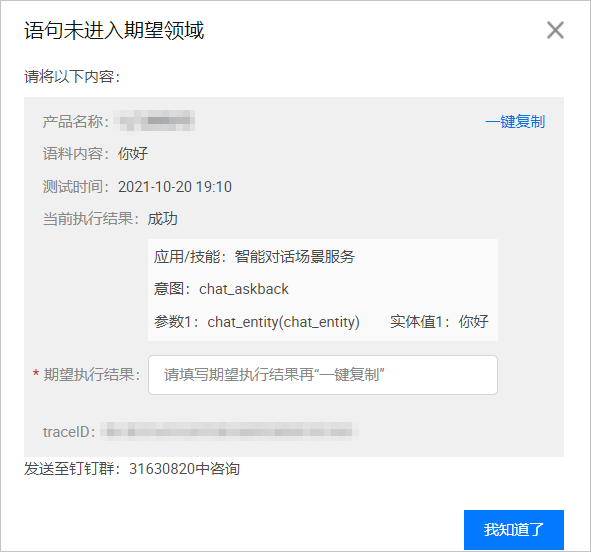
- If you think the system Understood wrong: Hover over the skill/application below the dialog box to display Understood wrong?. Click Understood wrong to check whether the statements in the skill or application are fully configured. If they are fully configured but still trigger the wrong skill or application, contact technical support for assistance.
Note For Genie AI Consortium customers, most statements should trigger the Genie AI Consortium. If they do not, submit Understood wrong feedback.
- If you think the system Heard wrong: Hover over the dialog box to display Heard wrong?. Click Heard wrong to submit feedback on the speech recognition issue. After you submit feedback, you can view the submission details and statement training status in Submission Records.
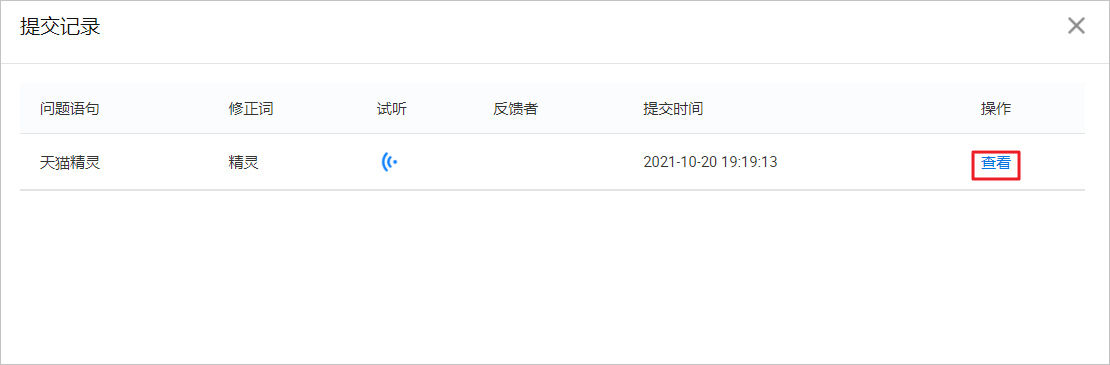
- Click Submission Records in the upper-right corner to view the feedback records for speech recognition issues, as shown in the following figure.
Click View to see the details of the corrected statements and generalized utterances, as shown in the following figure.
- (Optional) Verify the speech recognition test.
Note After a statement is published, you should test it multiple times to confirm the optimization results. If the verification test results are still not ideal, you can submit feedback again to continue the optimization.
- The platform supports three input methods for testing: keyboard, computer, and device. You can click the drop-down list in the lower-left corner to select a test method.