View the instance list
This topic describes the information and operations available on the instance list page.
View instance list information
Log on to the OceanBase console. In the navigation pane on the left, click Instance List to go to the instance list page.
Click Create Database Instance in the upper-right corner to purchase a cluster or tenant instance. For more information, see Purchase an instance.
Click the edit icon next to an instance name to change its name.
Enter an instance name or ID, or a tenant name or ID, in the search box and click the search icon to find the target instance or tenant.
Click Instance Recycle Bin to view information about released cluster instances. For more information, see Instance recycle bin.
You can view a list of all your current instances and their basic information, including Instance Name/ID, Instance Type, Series, Zone, Specifications, Storage Space, Billing Method, Tags, and Status. In the Actions column, click More to perform operations on a target instance.
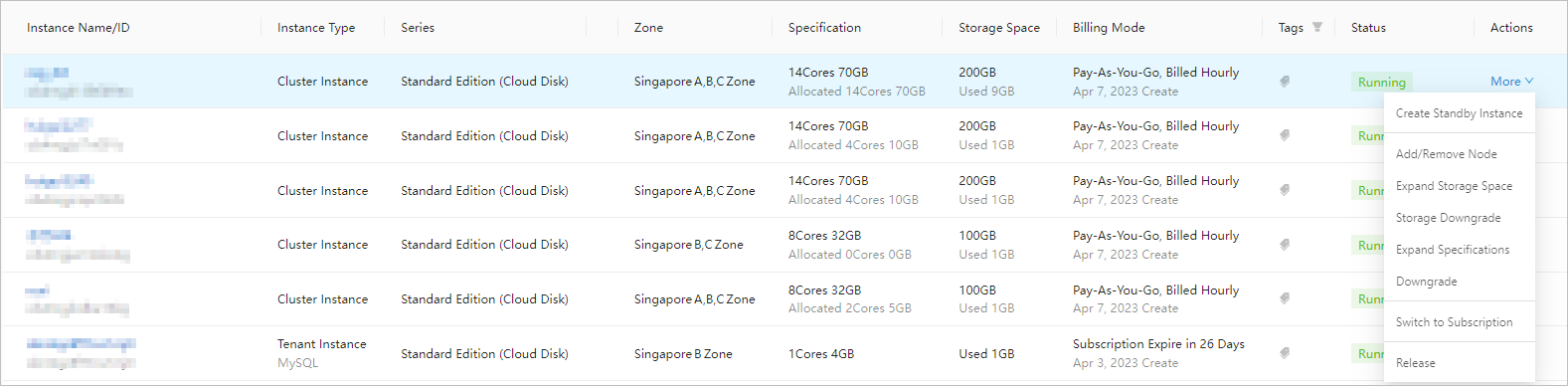
Parameter | Description |
Resource group filter | In the top navigation bar, click Default Resource Group to filter resource groups. Click Manage Resource Group in the Resource Group Filter drop-down list to go to the Resource Group Management page in the Alibaba Cloud console. |
Instance Name/ID | Click a cluster instance name in this column to go to the cluster instance details page. For more information, see Cluster instance workbench. Click a tenant instance name in this column to go to the tenant instance details page. For more information, see Tenant instance workbench. |
Instance Type | The instance type that you selected when you purchased the instance. |
Series | The series of the instance that you purchased. |
Zone | The zone that you selected when you purchased the instance. |
Specifications | The instance specifications that you selected and the resource capacity that is allocated. You can change the specifications of the current instance by upgrading its package specifications. For more information, see Change package specifications. |
Storage Space | The storage space that you selected when you purchased the instance. You can expand the storage space of the current instance. For more information, see Modify storage space. |
Billing Method | The billing method and expiration time of the instance. The current billing methods are subscription and pay-as-you-go. For more information, see Pricing. |
Tags | The tags of the current instance. Click the icon under the tag, and then click Add Tag. You can add up to 10 tags to each instance. You can also click Tags to add or remove tags. Note Allowed characters include Unicode letters and numbers, and the following special characters: |
Status | The status of the instance and information about ongoing operations. Note
|
Actions |
Note
|