This feature is available only to existing paid customers and is no longer sold to new customers.
To start monitoring your ads and collecting data, first create a monitoring activity. This generates a monitoring link. Then, add this link to the corresponding ad order.
Create a single monitoring activity
You can create monitoring activities individually or in a batch. This section describes how to create a single activity.
Procedure:
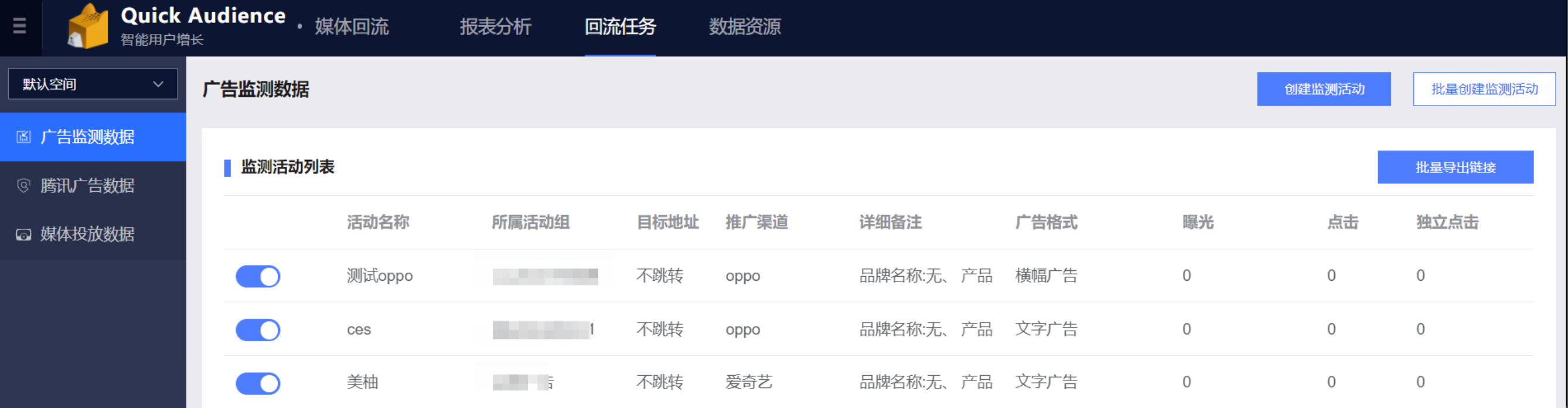
Go to Media Backflow > Your Workspace > Backflow Tasks > Ad Monitoring Data and click Create Monitoring Activity.
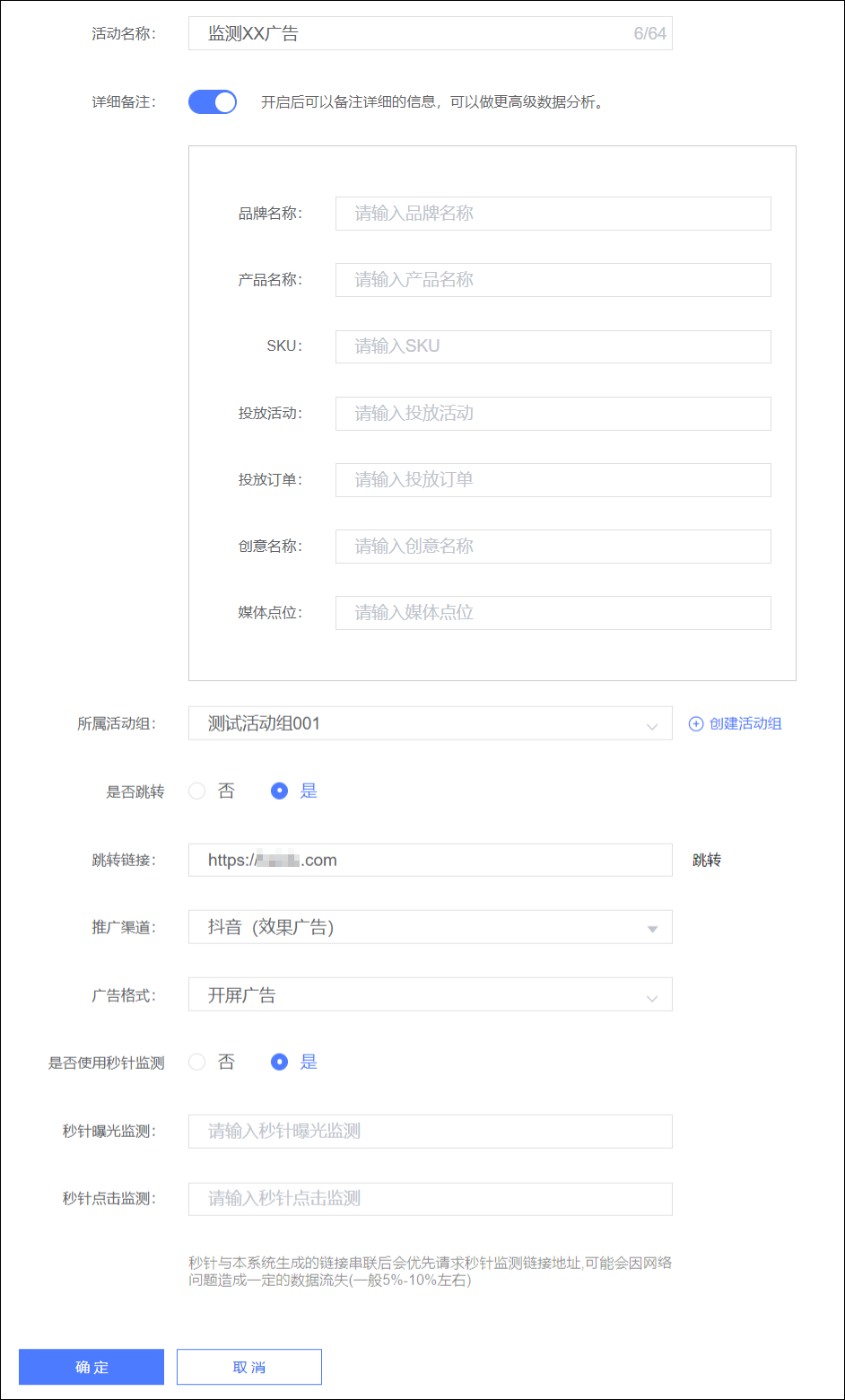
Configure the parameters as described in the following table.
Parameter
Description
Activity Name
Enter a name for the activity to distinguish it from others.
Detailed Remarks
Turn on the switch to show remark items, such as Brand Name. Fill in the remark items as needed.
Activity Group
Select the activity group to which the activity belongs.
Activity groups are used to manage activities. To create a new activity group, click Create Activity Group, enter a name for the group in the dialog box that appears, and click OK.
Redirect
Select whether the monitored ad includes a click-to-redirect link.
If it does, enter the redirect URL, which must start with HTTP or HTTPS. Click Redirect to view the redirect page.
Promotion Channel
Select the promotion channel for the ad.
Ad Format
Select the display format for the ad.
Use Miaozhen Monitoring
Select whether to use Miaozhen Monitoring.
If you have purchased the Miaozhen Monitoring service, enter the corresponding Miaozhen impression monitoring link and Miaozhen click monitoring link.
Miaozhen Monitoring will run as normal. The monitoring data will still flow back to the Miaozhen Monitoring platform. Log on to the Miaozhen Monitoring platform for subsequent operations.
Click OK. The monitoring activity is created and enabled by default.
The system generates an impression monitoring link and a click monitoring link. To obtain these links, see Manage monitoring activities. Then, add the links to the corresponding ad order to ensure that monitoring data flows back correctly.
Create monitoring activities in a batch
Creating monitoring activities in a batch is similar to creating a single activity. The difference is that you can sync the values for Activity Group, Redirect URL, Channel Name, and Ad Format across all activities in the batch.
Procedure:
Go to Media Backflow > Your Workspace > Backflow Tasks > Ad Monitoring Data and click Create Monitoring Activities in Batch.
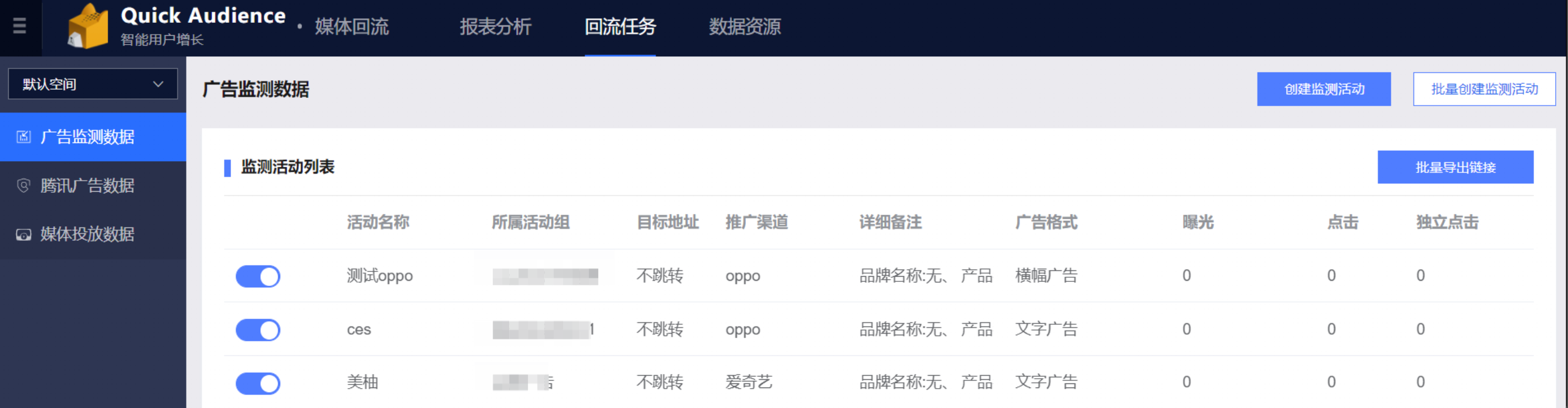
Click Add Activity to add the number of activities you want to create.
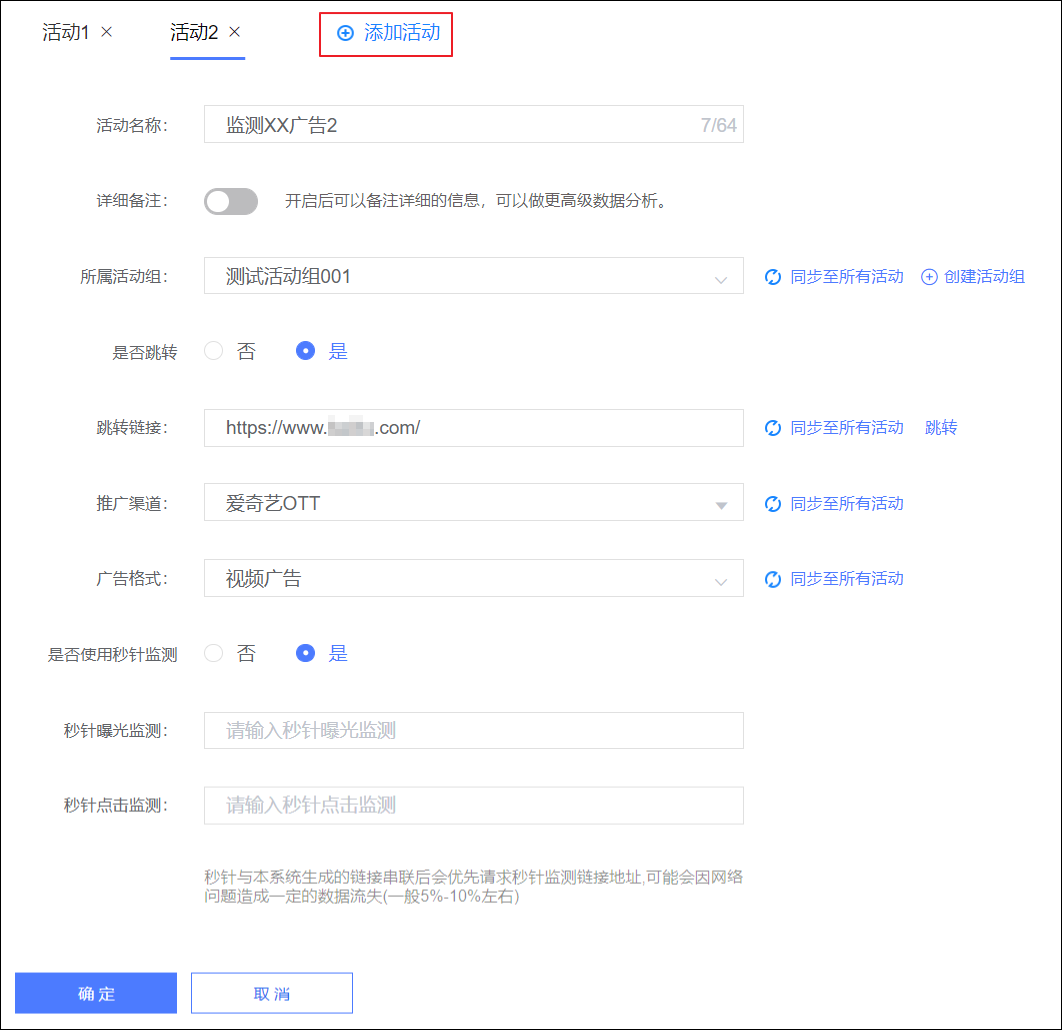
Configure the parameters. For parameter descriptions, see Create a single monitoring activity.
For Activity Group, Redirect URL, Channel Name, and Ad Format, you can enter a value and then click Sync to All Activities next to the parameter. This applies the value to all activities you are creating in the batch.
Click OK. The monitoring activities are created and enabled by default.
The system generates an impression monitoring link and a click monitoring link for each monitoring task. To obtain these links, see Manage monitoring activities. Then, add the links to the corresponding ad order to ensure that monitoring data flows back correctly.
Manage monitoring activities
After a monitoring activity is created, it is enabled by default and runs automatically. You can manage your activities in the monitoring activity list.
The monitoring activity list, as shown in the following figure, displays the configuration information, task status, and the monitored impressions, clicks, and unique clicks. Hover over the remarks to view the complete information.
If you use Miaozhen Monitoring, the system-generated impression and click monitoring links will include the corresponding Miaozhen monitoring links. This enables Miaozhen Monitoring. In this case, Quick Audience ad monitoring still runs independently of Miaozhen Monitoring. However, because requests are sent first to Miaozhen for impressions and clicks, about 5% to 10% of the data that flows back to Quick Audience may be lost due to network issues.
Switch: Turn a monitoring activity off temporarily and turn it on again when needed.
If resources are insufficient, the monitoring activity is automatically turned off. After you renew your service, you must turn it on manually.
Edit: Click to modify the monitoring activity configuration. The Activity Group and Promotion Channel cannot be modified.
Fetch Link: Click to obtain the impression monitoring link and click monitoring link, as shown in the following figure. You can then click Copy Link or Access for each link.
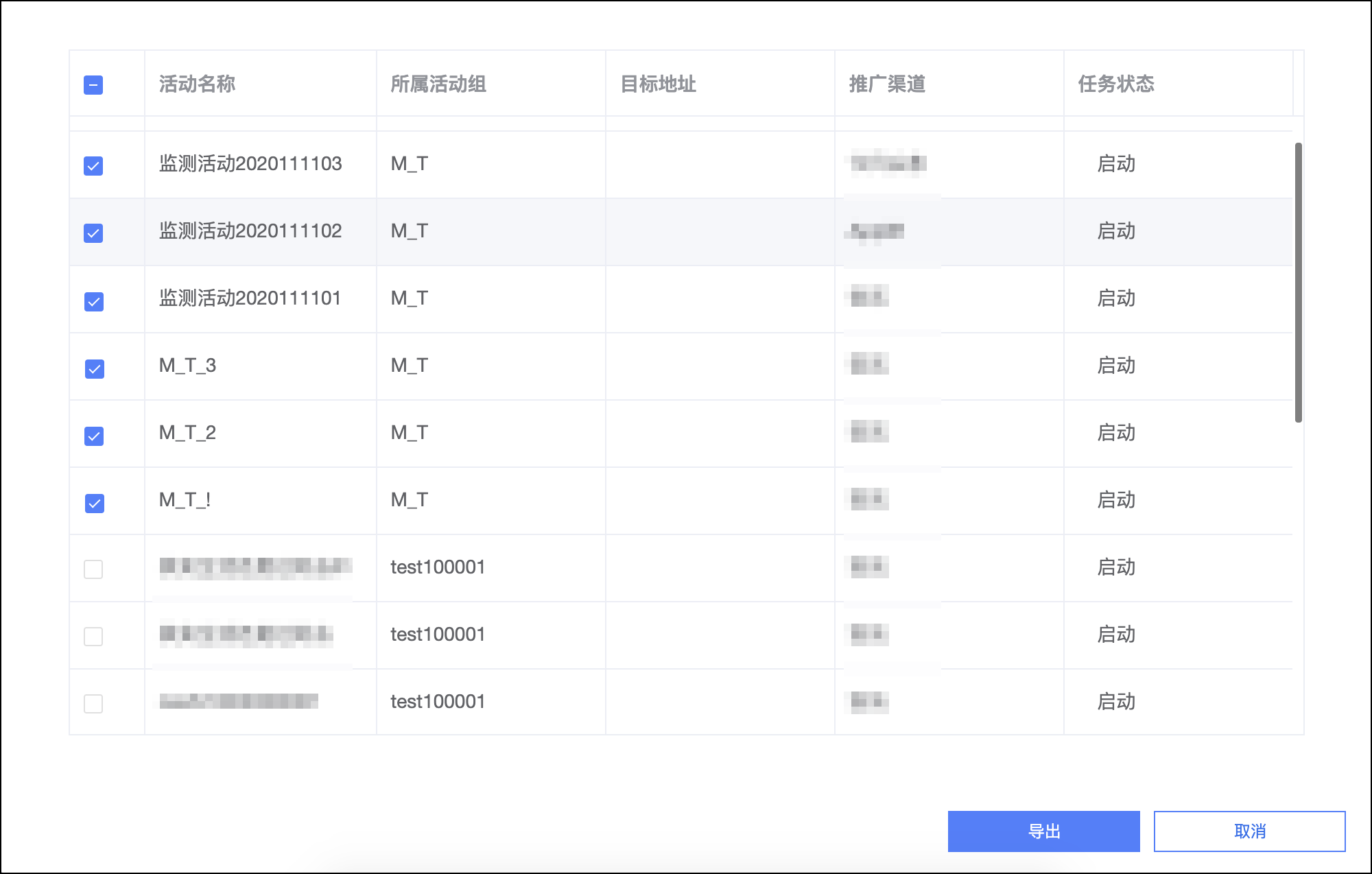
Batch Export Links: In the upper-right corner, click Batch Export Links. In the dialog box that appears, select the monitoring activities whose links you want to export, and then click Export. This exports the impression and click monitoring links for the selected activities in a batch.