Create digital SMS task
You can create digital message tasks to reach users. Digital messages can contain text, images, audio, and video. This feature is available only for digital message tasks sent through the Alibaba Cloud platform.
Procedure
Go to Workspace > User Marketing > Reach Marketing > SMS.
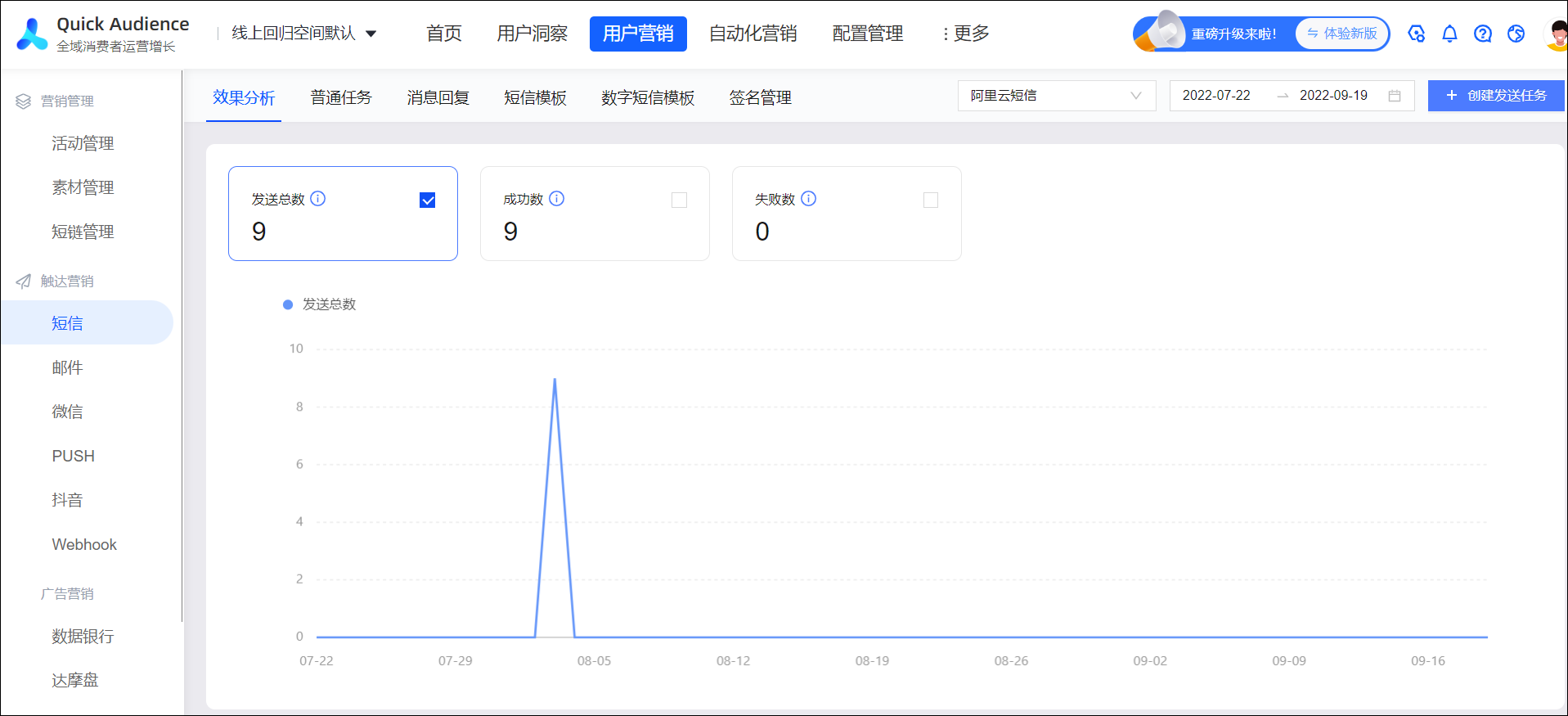
In the upper-right corner, click Create Sending Task to open the Create SMS Task page.
Configure the following parameters:
Task Name: Enter a name for the task. The name helps you identify the purpose of the task.
NoteThe task name does not affect the actual content sent.
SMS Platform: From the drop-down list, select Alibaba Cloud SMS.
NoteFor digital messages, you can only select Alibaba Cloud SMS.
SMS Type: Select Digital Message.
Select Template:
Select Existing Template: Select a template from the drop-down list. To create a template, see Create Digital SMS Template.
Create Template: Enter a template name and subject, select a signature, and edit the content to create a new template.
NoteA template can be sent to a mobile number only after the corresponding carrier approves it. You can move the mouse over the
 icon next to the template name to view the carriers that have approved the template.
Template Subject: The template subject is sent to the user with the text message.
Select Signature: From the drop-down list, select an existing signature, or click Create Signature or Add Approved Signature. The signature is sent to the user with the text message.
When you add an approved signature, do not add the brackets【】. The system automatically adds them when sending the message to prevent duplication.
NoteA signature must be approved on the corresponding SMS platform before you can add it. Otherwise, the message sending will fail. You can go to the Alibaba Cloud SMS console to confirm that your signature is approved. For more information about how to create a new signature, see SMS Signature Management.
Add Content: The available content options depend on the selected SMS template. A preview of the message content appears on the right side of the page. Verify the content in the preview pane.
NoteIf you change the content, including the subject and signature, after you select a template, a new template is created. This new template also requires approval before it can be used to send messages.
To add content, click the + area to add items such as text, images, audio, or video. You can add only one video.
When you move the mouse over a content item, buttons to reorder and delete the item appear.
Recipient Numbers: Specify the recipients for the text message. You can use one of the following two methods:
Select Audience: Click Select Audience and select an audience that uses mobile numbers as the ID type.
Manual Upload: Upload a CSV or TXT file that contains a list of recipient mobile numbers.
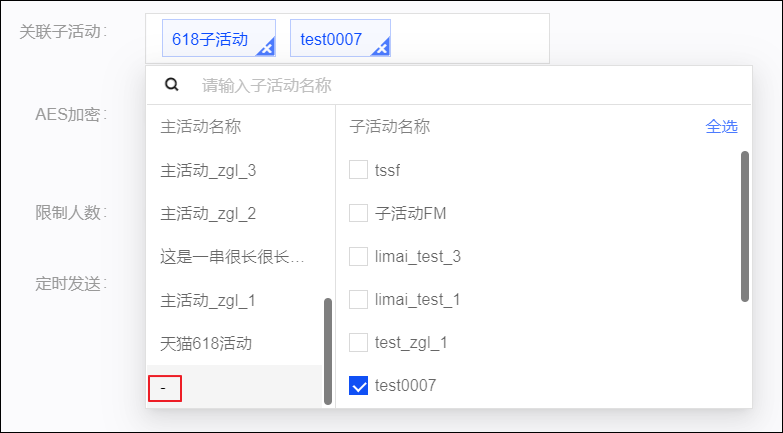
Associate Sub-campaign: Select a main campaign and then select a sub-campaign. Independent sub-campaigns are displayed under - at the end of the main campaign list. For more information about campaigns, see Marketing Campaign.
AES Encryption: Select whether the recipient IDs are encrypted using Advanced Encryption Standard (AES).
If the IDs are AES-encrypted, they must be decrypted before the push. Decryption requires an AES key. For more information about how to configure an AES key, see Organization Settings.
Limit Recipients: For example, if you select an audience of 1,000 people but want to send the message to only 100 of them, you can turn on this switch and enter 100. The limit cannot be greater than the total number of recipients in the selected audience.
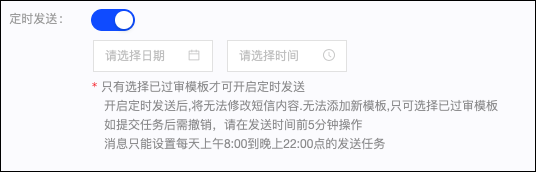
Scheduled Send: You can turn on this switch to specify a time to send the message. If you schedule the send, you must select an approved SMS template. After you select the template, you cannot change its content.
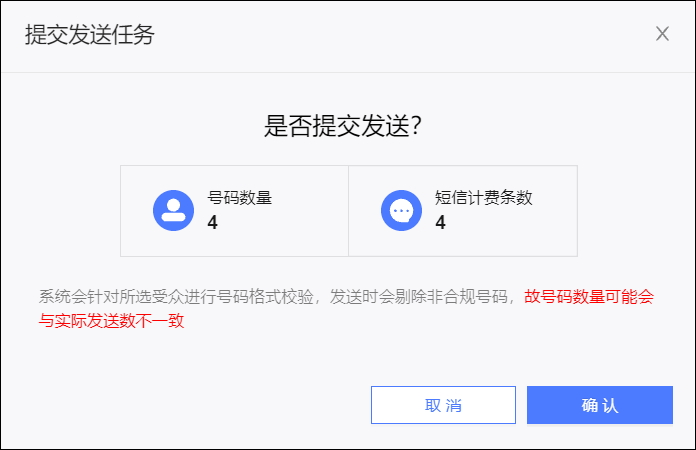
Click Submit Sending Task. In the dialog box that appears, verify that the task information is correct, and then click Confirm to create the digital message task.