This feature is available only to paying customers and is no longer sold to new customers.
On the Coupon page, you can manage your coupons. This includes creating coupons, viewing details, editing inventory and validity periods, promoting coupons, and deleting them.
Create a coupon
Coupon types include discount coupons, cash-value coupons, gift coupons, points coupons, and cash coupons. You can also create generic coupons if the five types do not meet your needs. Additionally, you can use external coupons generated by third-party systems.
Go to Social Interaction > your workspace > Coupon to open the Coupon page.
In the upper-right corner, click Create Coupon to open the Select Coupon Type page, as shown in the following figure.
NoteFor cash coupons:
Cash coupons are available only for channels with payment features enabled.
Once a cash coupon is created, its amount and quantity cannot be changed.
Select a coupon type and click OK to open the coupon information page. The following figures show the page for a generic coupon as an example.

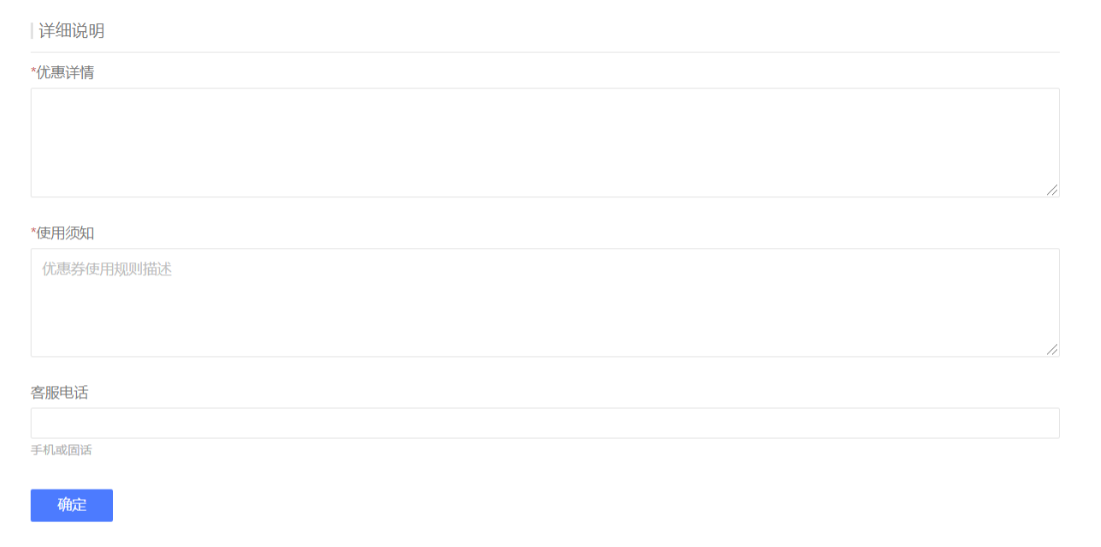
Enter the coupon information as prompted.
The following list describes some of the configuration items:
Validity Period: There are three types of validity periods:
Valid within a specified date range.
Activates on the day of redemption (immediately) or after a specified number of days, and is valid for a set number of days.
Activates immediately upon redemption and expires within 1 to 23 hours.

Minimum Spend: For cash-value coupons, you can set a minimum spend. A consumer must meet this minimum spend to use the coupon.
Applicable Products: A consumer can use the coupon only when purchasing a specific product. Currently, you can select only a single product.
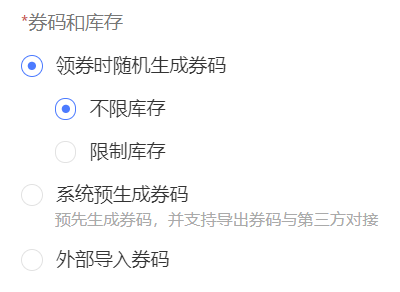
Coupon Codes and Inventory: Three methods are supported for generating coupon codes:
Randomly generate coupon codes upon redemption: You can set an unlimited or a limited inventory. If you limit the inventory, enter a positive integer for the quantity.
System-generated coupon codes: You must enter an inventory quantity.
Import external coupon codes: You can import coupon codes by uploading a file. You can import multiple times. Each file can contain up to 100,000 coupon codes. If the file contains codes that are incorrectly formatted, duplicated, or already exist, those codes will not be imported. A link to download a file of the failed codes will be provided on the page.
Self-service Redemption: If you select this option, consumers can redeem the coupon themselves at the store using the redemption button.
Gifting Settings: Discount, cash-value, and gift coupons can be gifted to friends. Gifting only transfers ownership of the coupon. It does not change the validity period or inventory, as shown in the following figure. If you select Notify the giver after a friend claims the coupon, you must set up an Official Account template message or a text message as the notification content.
Expiration Reminder: You can send an expiration reminder to consumers before the coupon expires. Select a time to send the reminder and set up an Official Account template message or a text message as the notification content.
After you enter the coupon information, click OK at the bottom of the page. The coupon is created and appears in the coupon list.
Edit coupon inventory and validity period
You can edit the inventory and validity period of a coupon directly from the coupon list.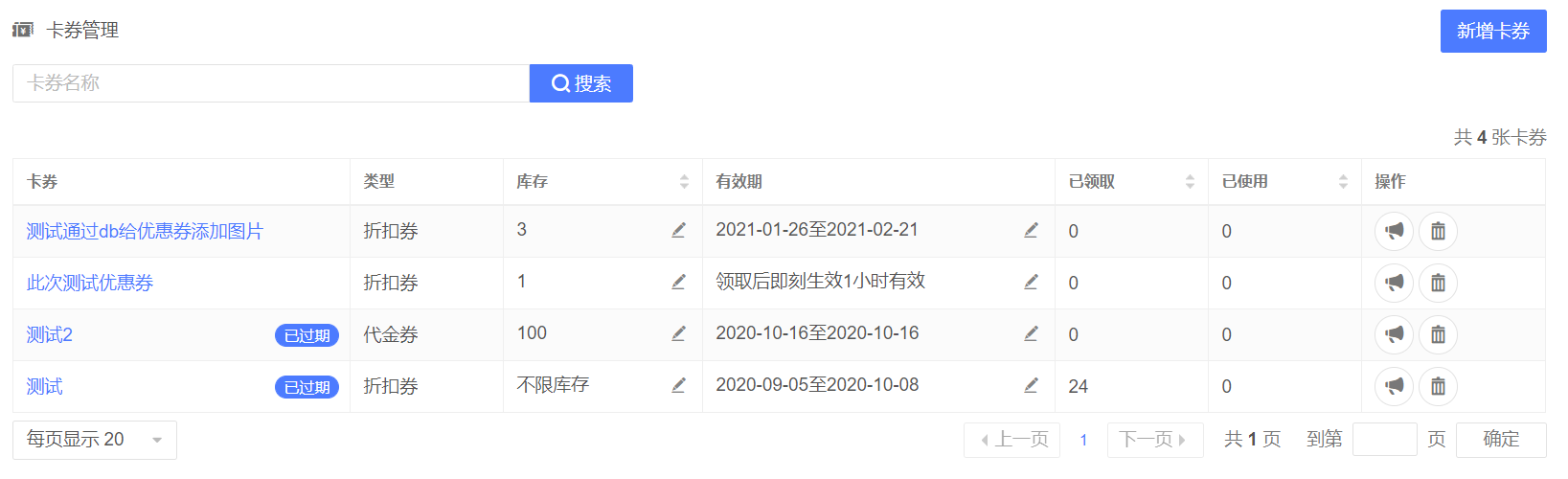
Edit inventory:
In the Inventory column, click the
 icon for the coupon to open the inventory editing page, as shown in the following figure.
Modify the coupon inventory and click OK. The inventory is updated and the new quantity appears in the list.
Edit validity period:
In the Validity Period column, click the
icon for the coupon to open the validity period editing page, as shown in the following figure.Modify the coupon validity period and click OK. The validity period is updated and the new period appears in the list.
 icon for the coupon to open the inventory editing page, as shown in the following figure.
View coupon data and details
In the coupon list, click a coupon name to go to the Coupon Details page.
On the Data tab, you can view coupon data.
The key coupon metrics are Claimed and Used.
Key metric trends: The report shows statistics for one week by default. You can select different time ranges to view data for different periods.
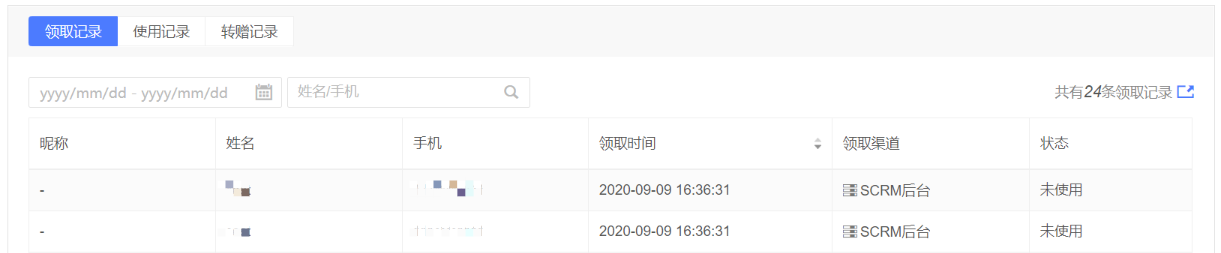
View redemption and usage records: You can search redemption and usage records by time range, nickname, name, or phone number. The search uses an Exact Match.
On the Coupon Details tab, you can view the coupon details, as shown in the following figure.
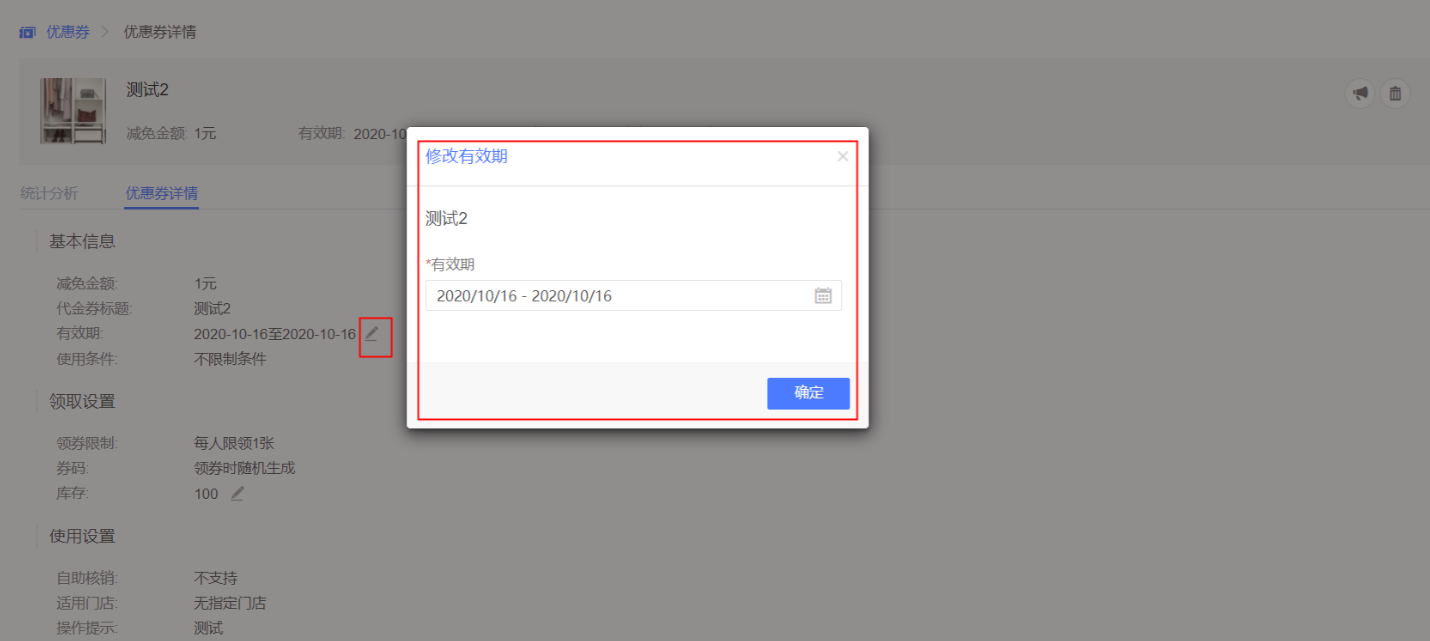
You can edit the coupon validity period on the details page. Click the Edit icon next to the validity period to make changes, as shown in the following figure.
You can edit the inventory on the details page. Click the Edit icon next to the inventory to make changes, as shown in the following figure.
Promote a coupon
You can promote a coupon using a URL or a QR code. To obtain the URL or QR code, follow these steps:
In the coupon list, find the coupon to promote and click the
icon in the Operations column. The Promote Coupon window appears, as shown in the following figure.In the Promote Coupon window, obtain the URL or QR code.
Promote with a URL:
Select a promotion channel.
On the promotion page, click the Copy icon, as shown in the following figure. Use the copied URL for promotion.
Promote with a QR code:
Select a promotion channel.
Select a QR code size. The system supports five different QR code sizes for download. You can select one or more sizes and click Download to download them simultaneously, as shown in the following figure.
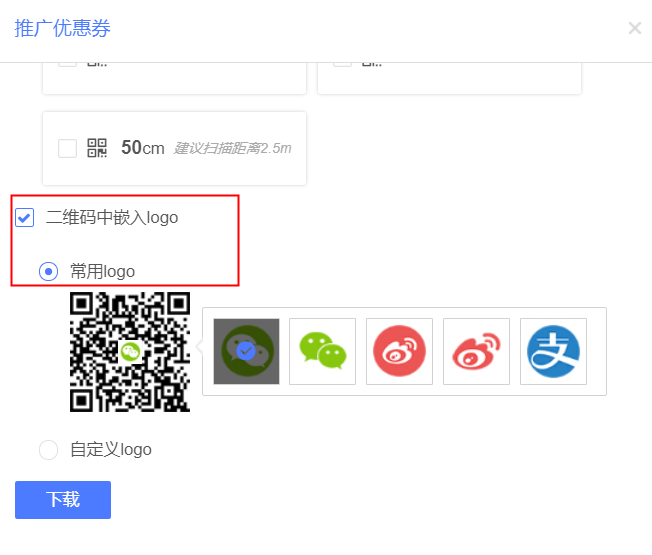
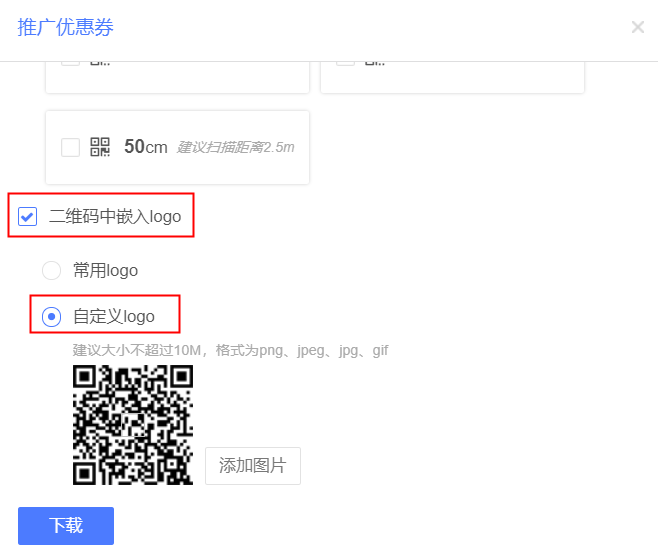
Choose whether to embed a logo in the QR code.
To embed a common logo, select Common Logo and choose one from the available options. Click Download to download the QR code, as shown in the following figure.
To use a custom logo, select Custom Logo and click Add Image. Select an image from the image library and click OK. The selected image is added as the logo. Click Download to download the QR code.
NoteThe system automatically saves the last logo you used for future use.
If you change the promotion channel and then close and reopen the promotion window, the previously selected channel is displayed by default.
 icon in the Operations column. The Promote Coupon window appears, as shown in the following figure.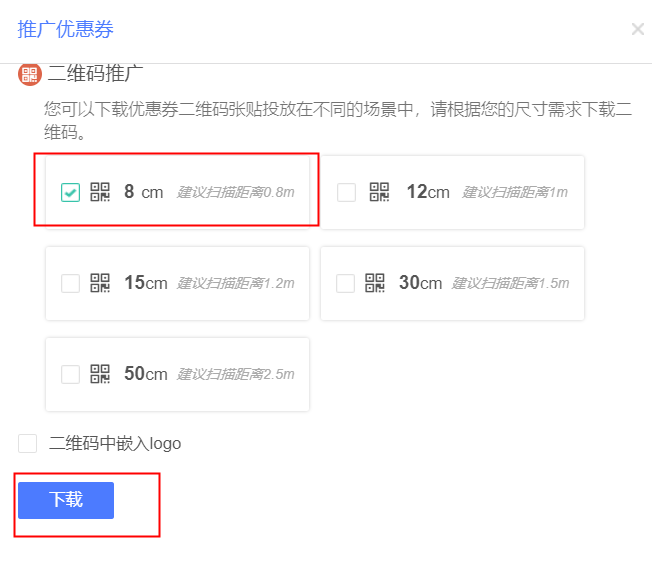
Delete a coupon
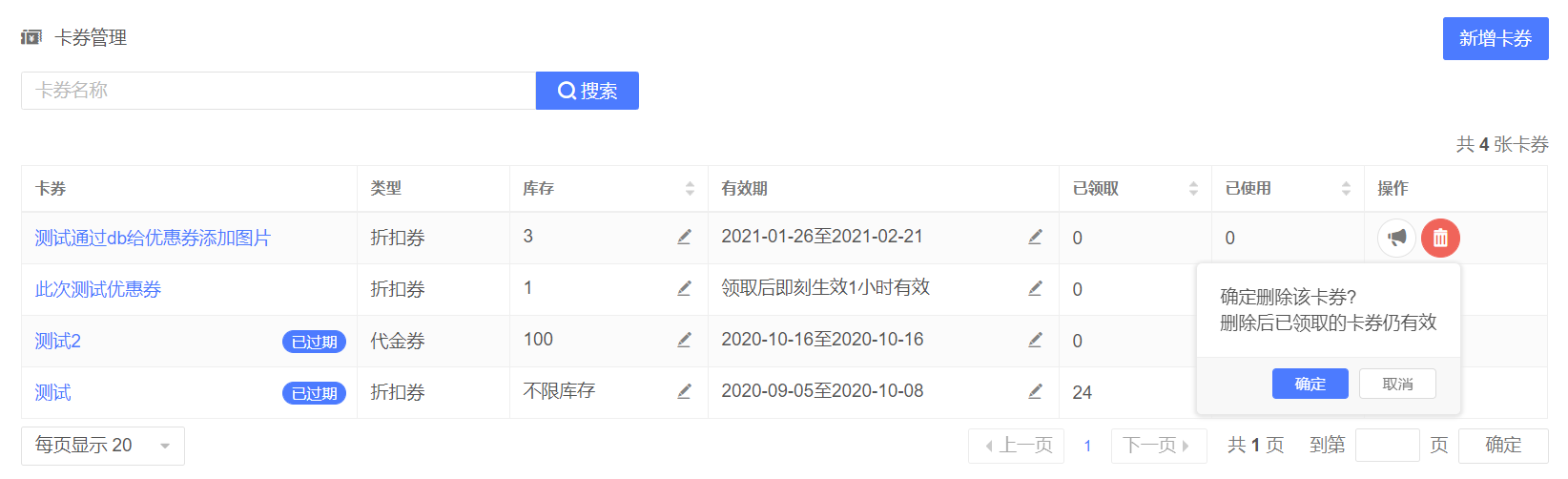
Select the coupon to delete and click the Delete icon. A confirmation window appears, as shown in the following figure.
Click OK. The coupon is deleted and no longer appears in the list. However, coupons that have already been claimed remain valid.