Access a Windows host via a bastion host
This topic describes how to connect to a Windows host by using a bastion host.
Prerequisites
- The ApsaraDB for MyBase cluster uses the SQL Server engine.
- OS permissions are enabled for the ApsaraDB for MyBase cluster. For more information, see Create a cluster.
- A host account is created. For more information, see Create a host account.
Authorize a bastion host
Log on to the ApsaraDB for MyBase console.
In the upper-left corner of the page, select a region.
Find the target cluster and click Details in the Actions column.
In the left-side navigation pane, click Bastion Hosts. Find the bastion host you want to use and click Associate with Bastion Host in the Actions column.

Select the target host and click Next.
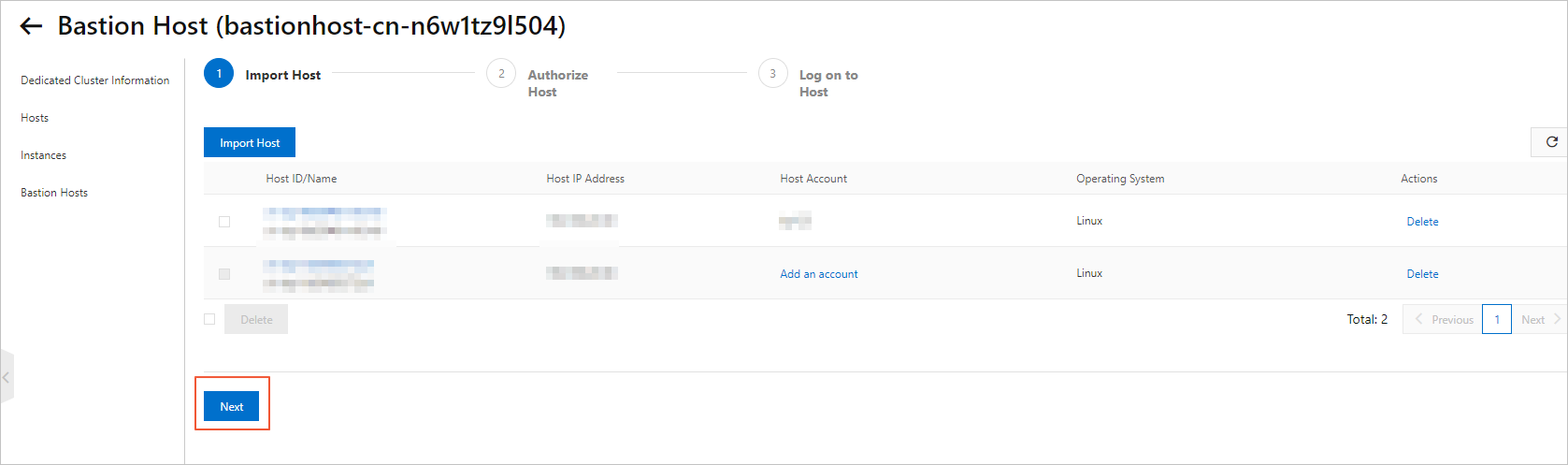
Create a bastion host account.
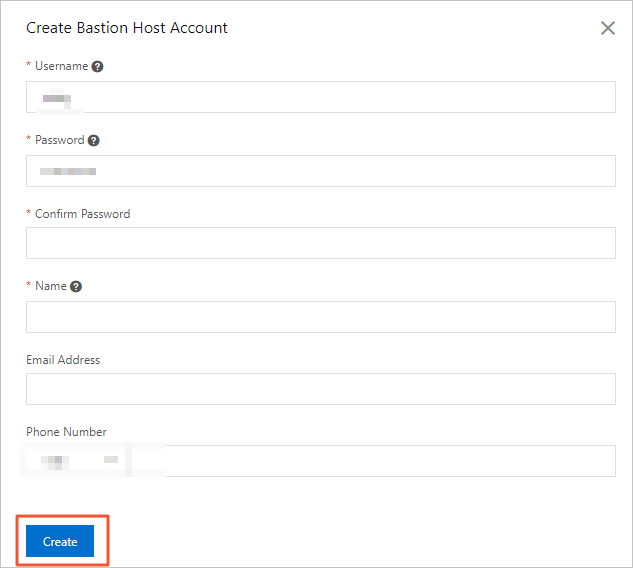
Click Create Bastion Host Account. In the Create Bastion Host Account dialog box, configure the following parameters.
Parameter
Description
Username
The username for the bastion host account must meet the following requirements:
Up to 50 characters in length.
Contains at least three of the following character types: uppercase letters, lowercase letters, digits, and special characters.
Supported special characters:
_-.%
Password
The password for the bastion host account must meet the following requirements:
8 to 64 characters in length.
Contains uppercase letters, lowercase letters, digits, and special characters.
Examples of special characters:
@,#,$.
Confirm Password
Re-enter the password for confirmation.
Name
The user's name, which can be up to 100 characters long.
Email
Optional. The user's email address.
Phone Number
Optional. The user's phone number.
Click Create.
Authorize the bastion host account.
In the Actions column of the target bastion host account, click Authorize Hosts to go to the Bastionhost console.
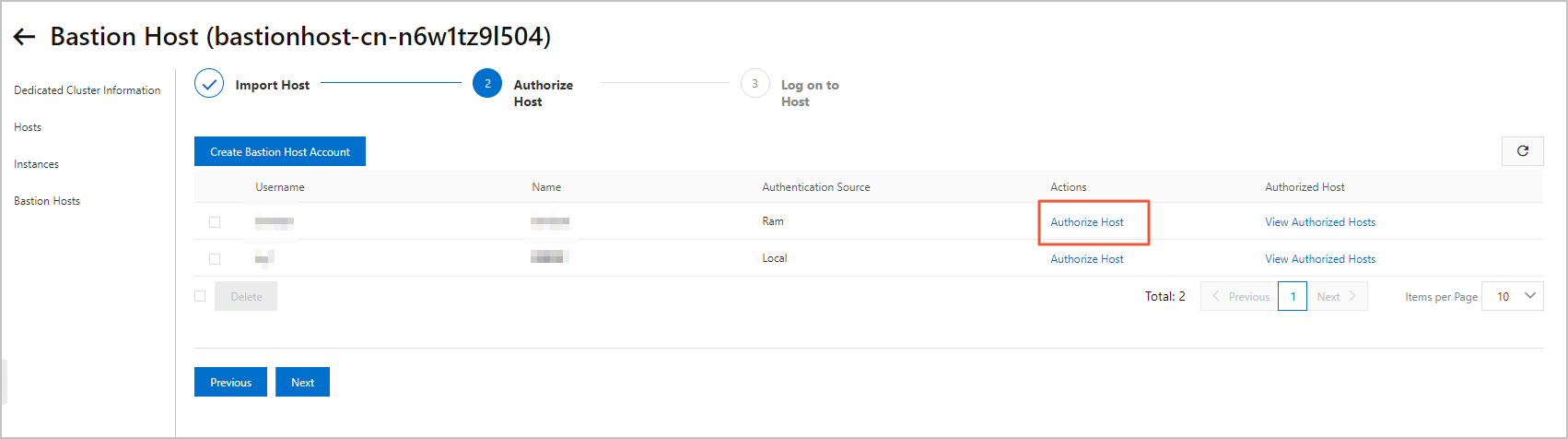
On the Users page, find the target bastion host account and click Authorize Hosts in the Actions column.

On the Authorized Hosts tab, click Authorize Hosts.
In the Authorize Hosts panel, select the target host and click OK.
NoteAfter the authorization is complete, return to the Authorize Hosts wizard. In the Authorized Hosts column, click View Authorized Hosts.
Connect via a bastion host
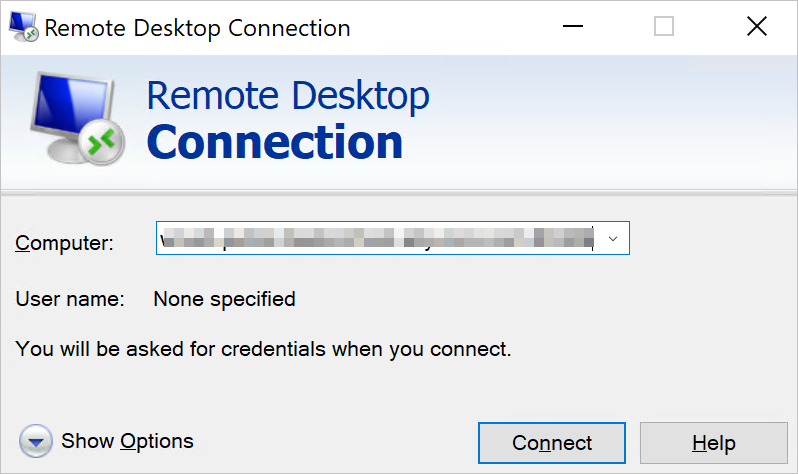
On your local Windows machine, open the Remote Desktop Connection (MSTSC) tool.
Enter the Bastionhost O&M address and click Connect.
The format of the Bastionhost O&M address is
<Bastionhost O&M address>:63389. For example,kagp******-public.bastionhost.aliyuncs.com:63389.The default RDP port is 63389. If you need to change the O&M port for Bastionhost, see Configure Bastionhost.

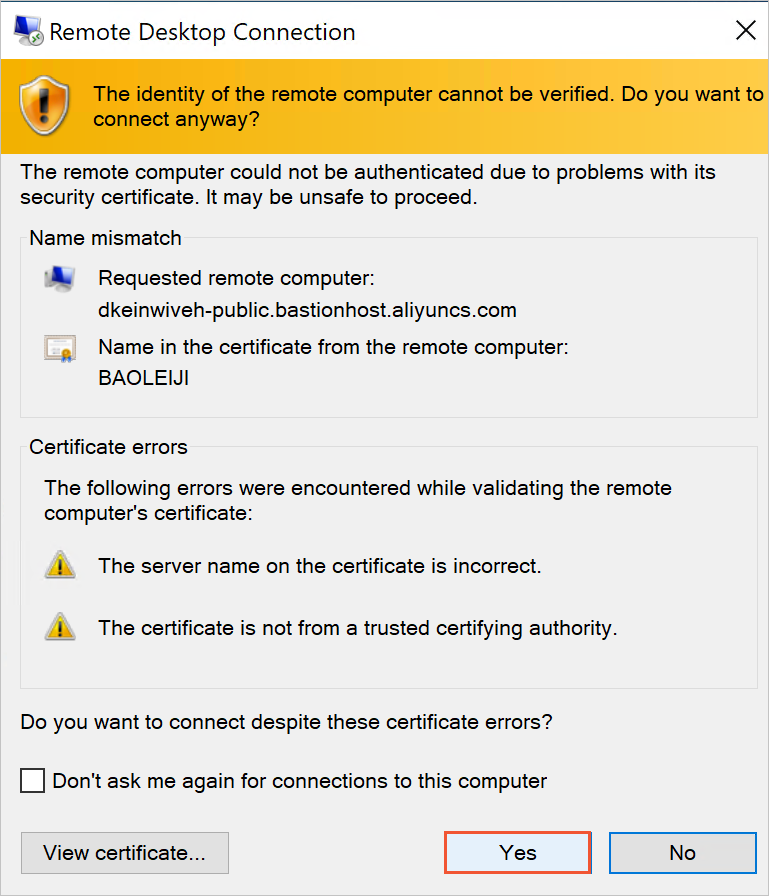
In the Remote Desktop Connection dialog box, click Yes.
In the login dialog box, enter your Bastionhost username and password, and then click Login.
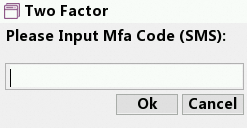
If two-factor authentication is enabled for the Bastionhost user, enter the verification code.
For more information about how to configure two-factor authentication, see Enable two-factor authentication.
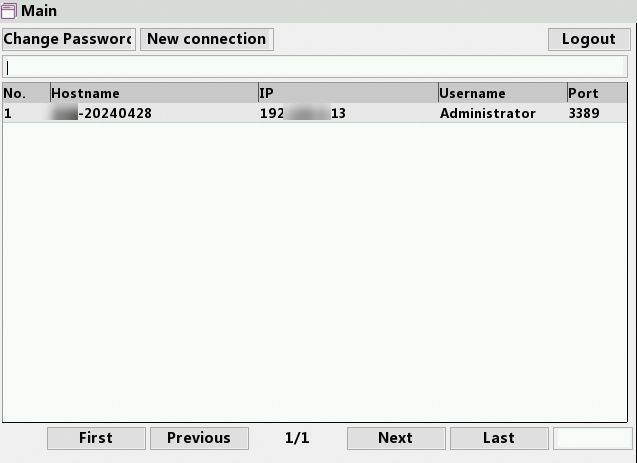
- Find the host.
In the connection list of the Main window, find the target host by its Hostname, IP, Username, and Port.
On the asset management page, double-click the host that you want to manage. A session opens, allowing you to perform O&M tasks on the host.