Cloud-based recording
Alibaba Cloud Real-Time Communication (RTC) provides the cloud recording feature. You can determine the recording content based on your business requirements. For example, you can synchronize the screen during audio and video calls to the cloud for stream mixing and record the mixed content. This topic describes how to store the recordings in Object Storage Service (OSS).
Prerequisites
An Alibaba Cloud account is created and identity verification is complete. To create an Alibaba Cloud account, visit the Alibaba Cloud official website. For more information, see Create an Alibaba Cloud account. For information about identity verification, see Individual identity verification or Enterprise identity verification.
You have activated the Real-Time Communication service. For more information, see Activate the service.
- The cloud-based recording feature is enabled in the RTC console. For more information, see Enable cloud-based recording.
You have created an application in the Real-Time Communication console. For more information, see Create an application.
- OSS, in which you can store recordings, is activated. For more information, see Activate OSS.
- Message Service (MNS), which is used to receive recording callback messages, is activated. For more information, see Activate MNS.
Flowchart
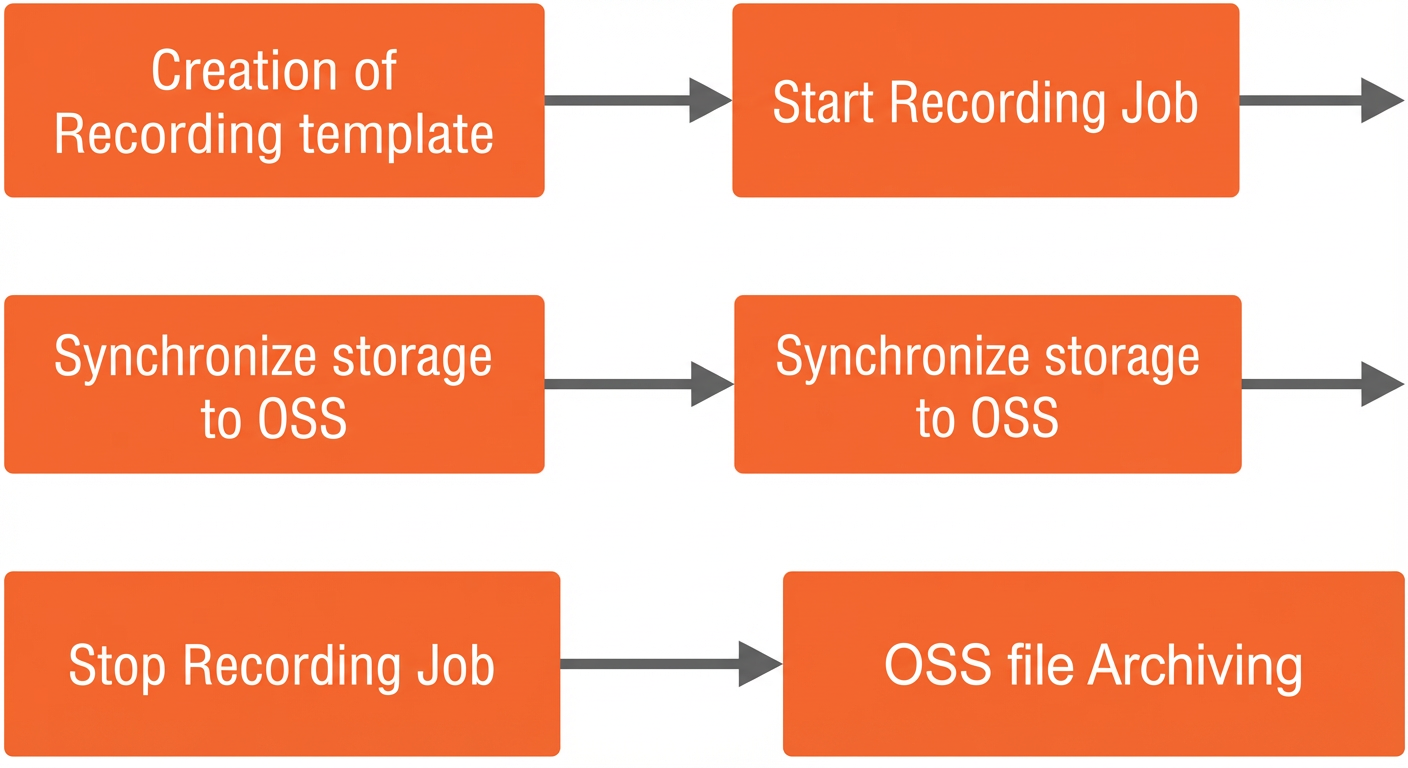
Store recordings in OSS
Alibaba Cloud RTC allows you to record source video streams. You can configure the recording cycle and specify the recording start time and end time. Custom recording index files are generated. The recordings are in the M3U8 format and contain TS segments. The files are stored in the specified OSS bucket.
- Only OSS buckets in the China (Shanghai) region are supported.
- After recording is complete, you can view the recorded content in the OSS bucket.
- To store recorded videos in OSS, you must grant RTC the write permissions on OSS. For more information, see Grant write permissions on OSS to RTC.
- In order to prevent truncation of recordings due to network jitter or temporary stream interruption, the system delays stream interruption for 180 seconds. If the stream is ingested again within 180 seconds after interruption, the system considers that there is only one recording by default. If the stream is interrupted for more than 180 seconds, the system considers that there are two recordings.
Configure OSS
- Create an OSS bucket.
- Log on to the OSS console.
- In the Bucket Management section, click Create Bucket.
- Configure the information about the bucket.
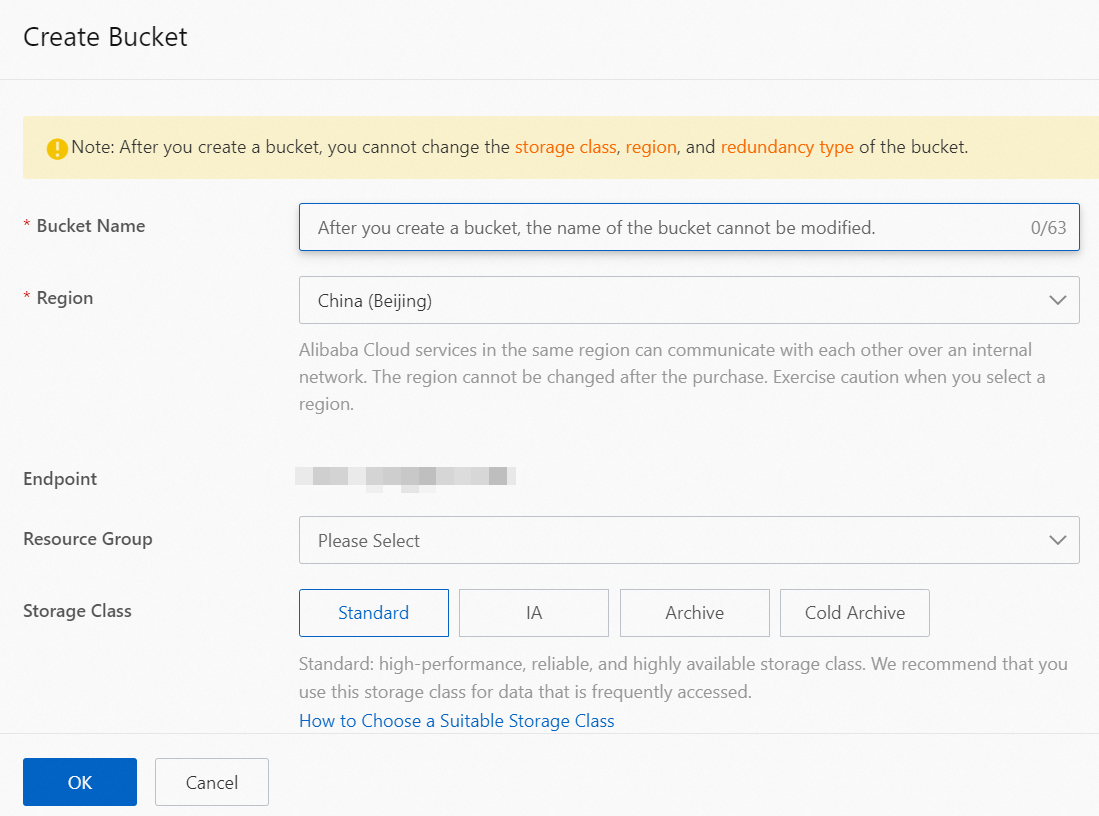
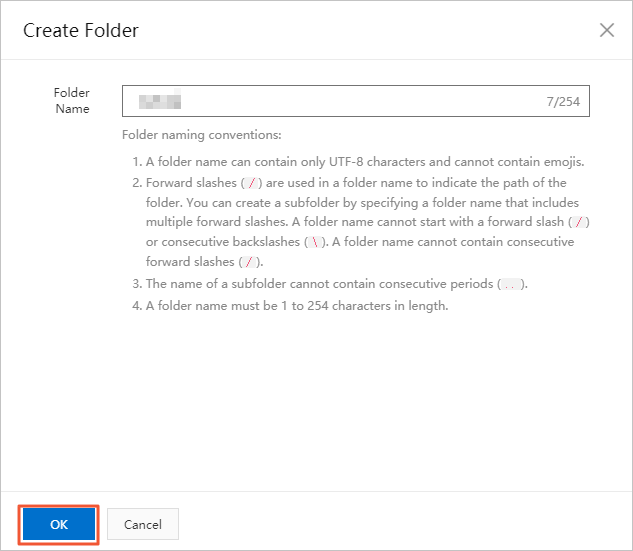
- On the Buckets page, click the name of the created bucket. On the Files page, click Create Folder.
Note If you have a number of recordings, you can create folders to classify and store the recordings. This facilitates the recording management.
- In the Create Folder panel, specify the Folder Name parameter and click OK.
- Grant write permissions on OSS to RTC.
- Log on to the RAM console by using your Alibaba Cloud account.
- In the left-side navigation pane, choose . The Policies page appears.
- Click Create Policy to go to the page for creating a custom policy.
- Specify the policy name and select the script mode to configure the policy. Enter the following script content:
{
    "Statement": [
        {
            "Action": [
                "ram:CreateServiceLinkedRole"
            ],
            "Resource": "acs:ram:*:Alibaba Cloud account ID:role/*",
            "Effect": "Allow",
            "Condition": {
                "StringEquals": {
                    "ram:ServiceName": [
                        "rtc.aliyuncs.com"
                    ]
                }
            }
        }
    ],
    "Version": "1"
}
Note Replace "Alibaba Cloud account ID" with the ID of your Alibaba Cloud account. - Click OK. The custom policy is created.
- Return to the user page again. In the User Logon Name /Display Name column, click the target RAM user to go to the management page.
- Click Permissions, and then click Add Permissions.
- Select Custom Policy, add the custom policy, and then click OK.
API reference
| API operation | Description |
| AddRecordTemplate | Creates a recording configuration template. |
| DeleteRecordTemplate | Deletes a recording configuration template. |
| UpdateRecordTemplate | Updates a recording configuration template. |
| DescribeRecordTemplates | Queries recording configuration templates. |
| DescribeRecordFiles | Queries the information about recording files. |
| StartRecordTask | Starts a video recording task. |
| StopRecordTask | Stops a video recording task. |
| UpdateRecordTask | Updates a video recording task. |