Conditional control: Behavior event branch component
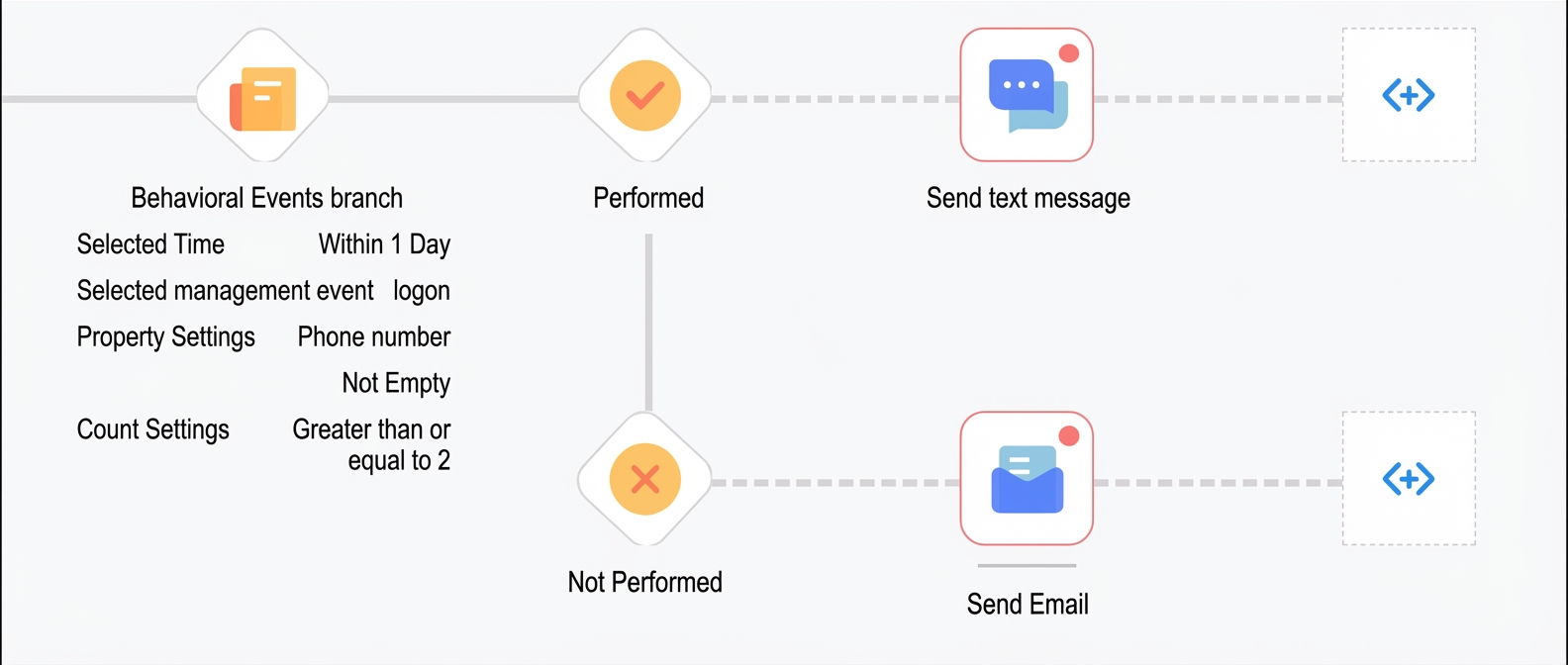
The behavior event branch component executes different branch operations based on whether a user has performed a specific event. For example, you can send a text message to users who log on to a specific H5 page at least twice within a single day and have a non-empty phone number, and send an email to all other users.
Configuration steps:
Drag the behavior event branch component to the canvas. The component becomes a node in the flow.
Click the behavior event branch node. Configure the node in the panel that appears on the right, as shown in the following figure.
Parameter
Description
Specific time
For tasks triggered by a behavior event, specify a period in minutes, hours, or days. The maximum period is 1 day.
For tasks triggered for a specific user group, specify a period in days. The maximum period is 15 days.
Channel name
For tasks triggered by a behavior event, the channel is fixed to the source channel of the event that triggered the task. This means the event for the behavior event branch must come from the same channel as the event that triggered the task.
For tasks triggered for a specific user group, select any source channel for the event.
Event name
Select an event from the selected source channel.
(Optional) Property selection
Click Limit properties to set conditions for event properties. For example, select the phone number property and add a condition that it cannot be empty.
In this case, the "not performed" group includes users who performed the event but did not meet the property conditions.
Click Add property to add more property conditions. Multiple conditions can be combined using AND or OR logic. Click the text to the right of a condition to switch between them.
(Optional) Event occurrences
Click Limit Count to set a limit on the number of occurrences of a conditional event.
In this case, the "not performed" group includes users who performed the event but did not meet the occurrence condition.
Select behavior
Select Performed, Not performed, or both.
Click OK. The corresponding Performed and Not performed branches are created on the canvas, as shown in the following figure.