Record a meeting
DingTalk provides the recording feature to record meetings. This topic describes how to record a meeting.
Prerequisites
The first step is to create or join a DingTalk meeting.
For more information, see Create a meeting and Join a meeting.
Procedure
Local recording
In the video meeting on your computer, choose to start the recording. To stop the recording, choose .
Cloud recording
Cloud recording is supported on mobile phones and computers. Only the meeting host or co-host can start a cloud recording.
On the DingTalk mobile app, the host or co-host can go to the video meeting interface and choose ... More in the lower-right corner > Cloud Recording to start the recording.

On the DingTalk desktop client, the host or co-host can go to the to start the recording. To stop the recording, choose .
View recording files
Local recordings
The recording process creates an audio file and a video file. The video file also contains the audio. After the recording ends, you can click the Recording complete. Open folder notification in the lower-left corner. Alternatively, in the video meeting interface, you can click Settings > Record > Open in the lower-right corner to open the folder where the video is saved.
Note: If the selected path does not exist or is deleted, a new folder is automatically created for the local recording.
Cloud recordings
After the meeting ends, you can view the cloud recording in the following ways:
1. After the cloud recording ends, it is sent to the host (the person who started the recording) as a DingTalk Flash-note. On the DingTalk mobile app or desktop client, you can search for DingTalk Flash-note in the top search bar to view the recording.
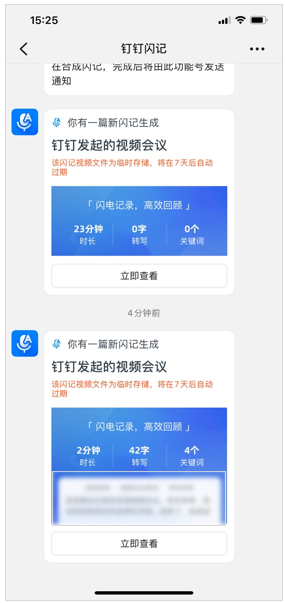

Clicking the flash-note displays a speech-to-text transcript, the video, and a progress bar. You can also adjust the playback speed.

2. On the DingTalk desktop client, you can click ... More in the lower-left corner and then Flash-note to view the recordings.

3. On the DingTalk desktop client, you can go to Meetings on the left > Cloud Recording > From Meeting (Cloud Recording) to view the recordings.

Share meeting recording files
Local recordings
You can share a local recording by copying and pasting the file. However, this might reduce the video quality. To maintain the quality, you can upload the file to a cloud disk before sharing.
To upload the file, go to the DingTalk desktop client and navigate to Cloud Disk on the left. Choose a location, and then click Upload > Upload File. In the dialog box, navigate to This PC > Documents, select the recording file, and click Open. After the upload is complete, click Share. To allow others to view the file, you must set permissions. To do this, go to Cloud Disk, click ... to the right of the file, and choose Permission Management > Add specified people.


Cloud recordings
On the DingTalk mobile app, tap the Phone icon > Cloud Recording. Open the recording for the meeting, tap ... in the upper-right corner, and then tap Share. You can then send the file to a chat and set the necessary permissions.
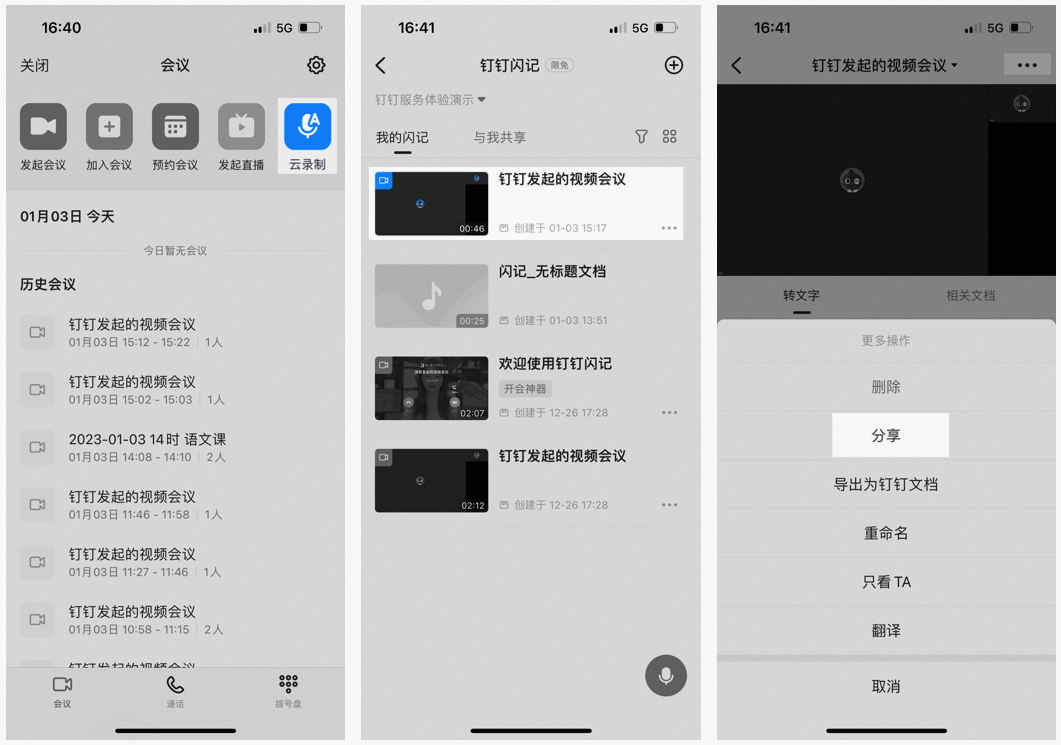
On the DingTalk desktop client, go to Meetings on the left > Cloud Recording. Open the recording, and click Share in the upper-right corner to copy the link. You can also click Accessible only to specified people to add viewers.
