Marketing Reach - WeCom Broadcast Component
The WeCom Broadcast Component broadcasts text, images, videos, links, and miniapps to your WeCom contacts. Use it for promotions and notifications.
-
Users entering this component are matched to WeCom user IDs from all data sources by QAID. This applies to workflows starting from the Behavior Event Component or the Target Audience Component.
-
WeCom contact data flows automatically to the computing source in your workspace and then to the analysis source. The generated user tag table uses the WeCom account name as its alias. Filter by tags to create audiences for broadcasting.
-
Bind your WeCom account in Account Management.
To configure the component:
-
Click the WeCom Broadcast Component and configure settings in the right panel.
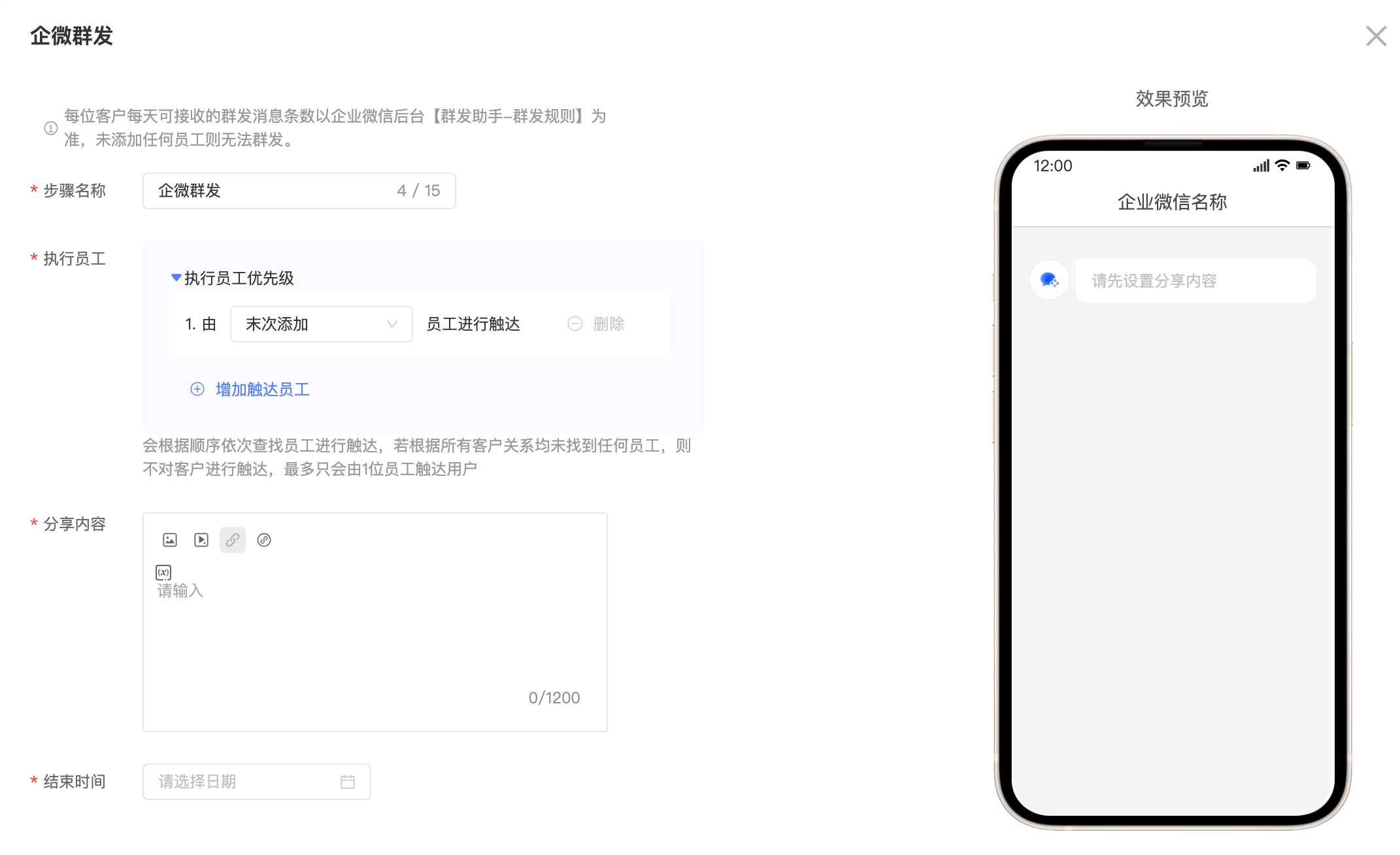
2. Step Name: Enter a name for the step.
3. Sender: Select the employee to contact the customer. Default: the employee who last added the customer. You can also select the employee who first added the customer or a friend employee. Multiple senders can be selected and sorted by priority.
Three default relationships are provided. Create custom relationships in User Marketing > WeCom > WeCom Settings. Customer Relationships.
4. Content: Select a content type (text, images, videos, web links, or miniapps) and enter the content. You can insert variables. Thumbnails for text, images, videos, web links, and miniapp links can be retrieved from variables. To send personalized assets, pass an image or video link as a tag or event property.
5. Execution Time: Set the delivery frequency. For example, a 1-hour interval means the task runs hourly. Each run sends only one message per customer.
Example: If Customer A triggers an event three times at 11:30 AM, three messages are queued. The first sends at 12:00 PM, the second at 1:00 PM, and the third at 2:00 PM.
6. End Time: Set a cutoff for message delivery. For example, if the task starts at 8:00 AM with an end time of 11:00 AM, no messages are sent after 11:00 AM.
After a broadcast task is created, the shopping guide sees the following:
Open the batch sending feature and click Send.
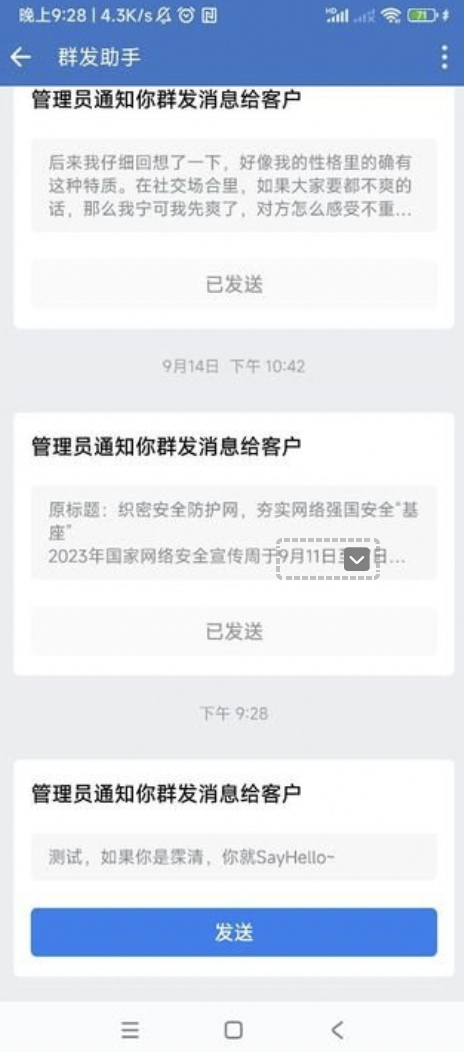 Shopping Assistant → Consumer Chat Page