Marketing Touch-Enterprise Micro Friends Circle Component
The Enterprise WeChat Moments component lets you compose and publish text, images, videos, and web links to Moments by creating send tasks. It is commonly used to distribute promotional content.
-
Whether the workflow starts from the Behavioral Event component or the Target Audience component, users who enter the Enterprise WeChat Moments component are matched to Enterprise WeChat user IDs from all data sources by their QAID.
-
Your Enterprise WeChat friend data is automatically synced to the computing source of this workspace and then imported to the analysis source. The data table alias of the generated user tag table corresponds to the Enterprise WeChat account. You can use tag filtering and other methods to select audience groups for the Enterprise WeChat Moments component.
-
To bind an Enterprise WeChat account, seeAccount Management.
Configuration steps:
-
Click the Enterprise WeChat Moments component and configure it in the panel that appears on the right side, as shown in the following figure.
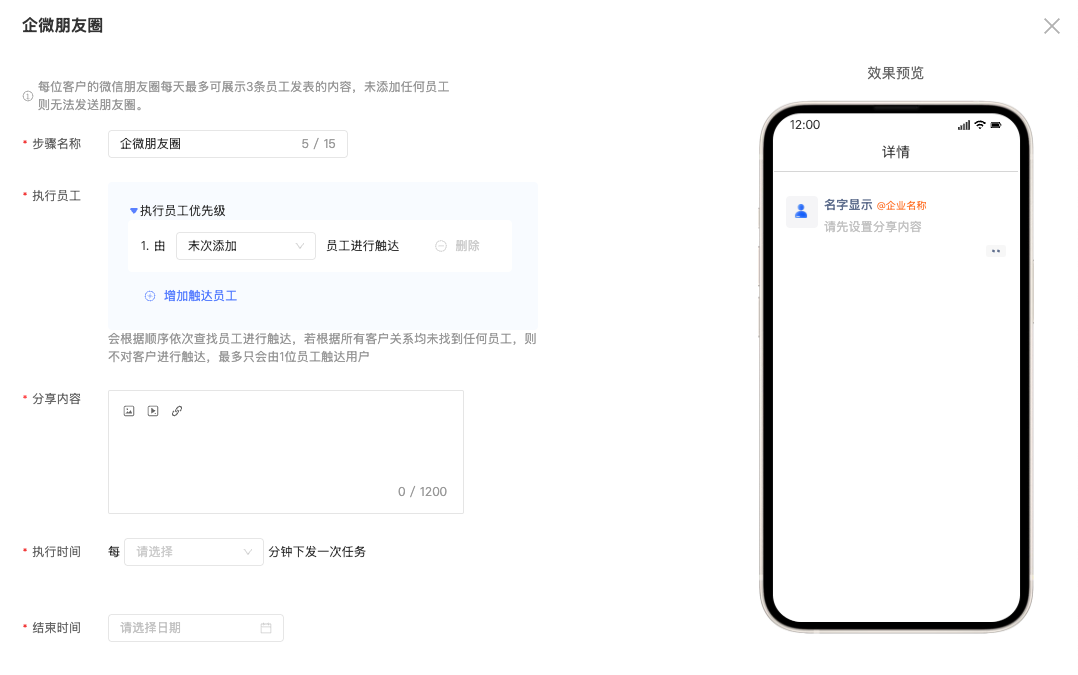
2. Step Name: You can customize the step name.
3. Executive Employee: Select the employee added by the customer for outreach. By default, the most recently added employee is used. You can also select the first-added employee. Multiple employees can be configured for outreach and sorted by priority.
Three default customer relationships are provided. You can create custom customer relationships by navigating to User Marketing > Enterprise WeChat > Enterprise WeChat Settings. For more information, see Customer Relationship.
4. Shared Content: Supports text, images, videos, and web links.
5. Execution Time: Controls the frequency of task execution. For example, if the execution time is set to 1 hour, the Enterprise WeChat Moments component sends tasks once every hour, and only one message is sent to each customer at a time.
For example, if Customer A triggers three events at 11:30, three messages are queued. The first message is sent at 12:00, the second at 13:00, and the third at 14:00.
6. End Time: Tasks that have not been sent by the specified end time are no longer sent.
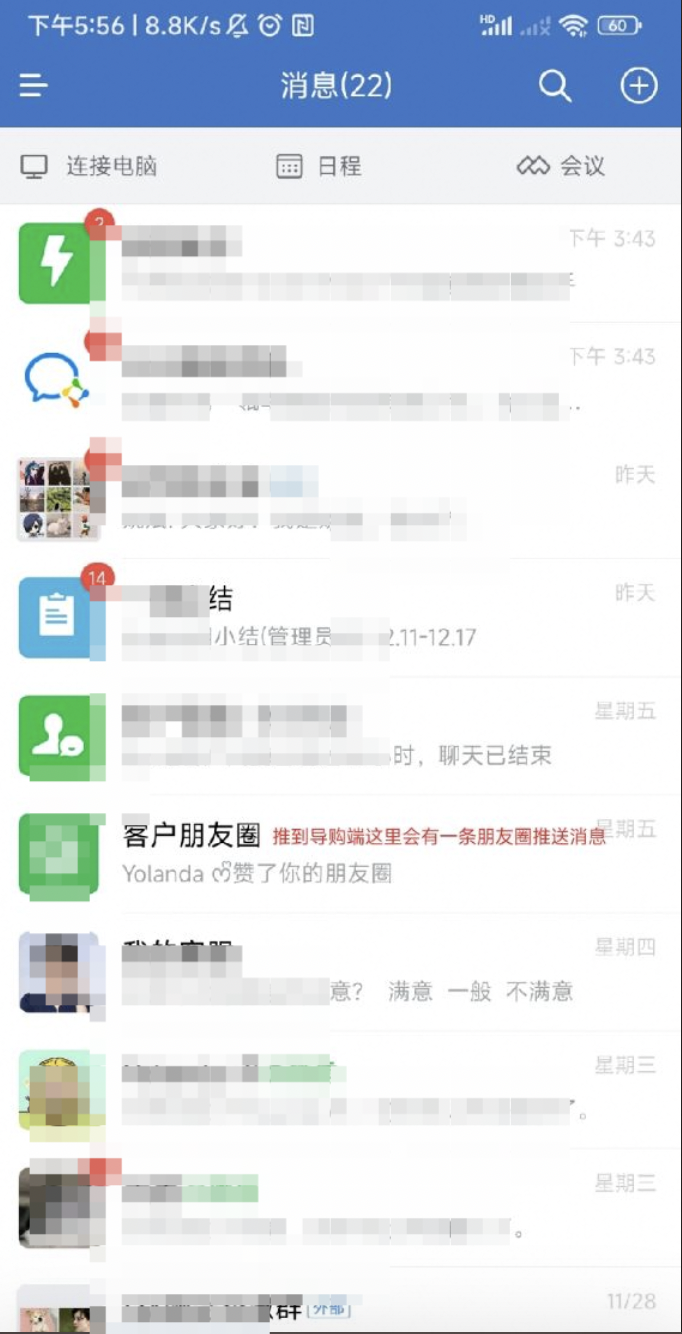
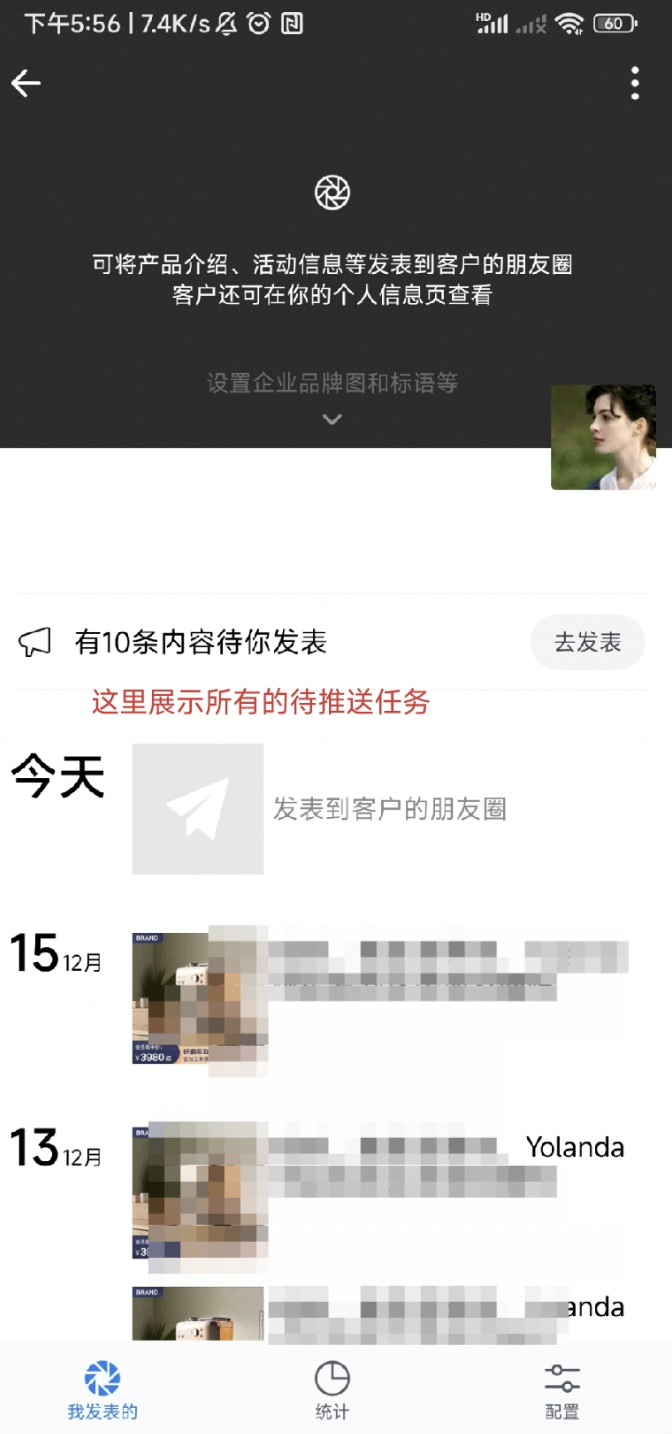
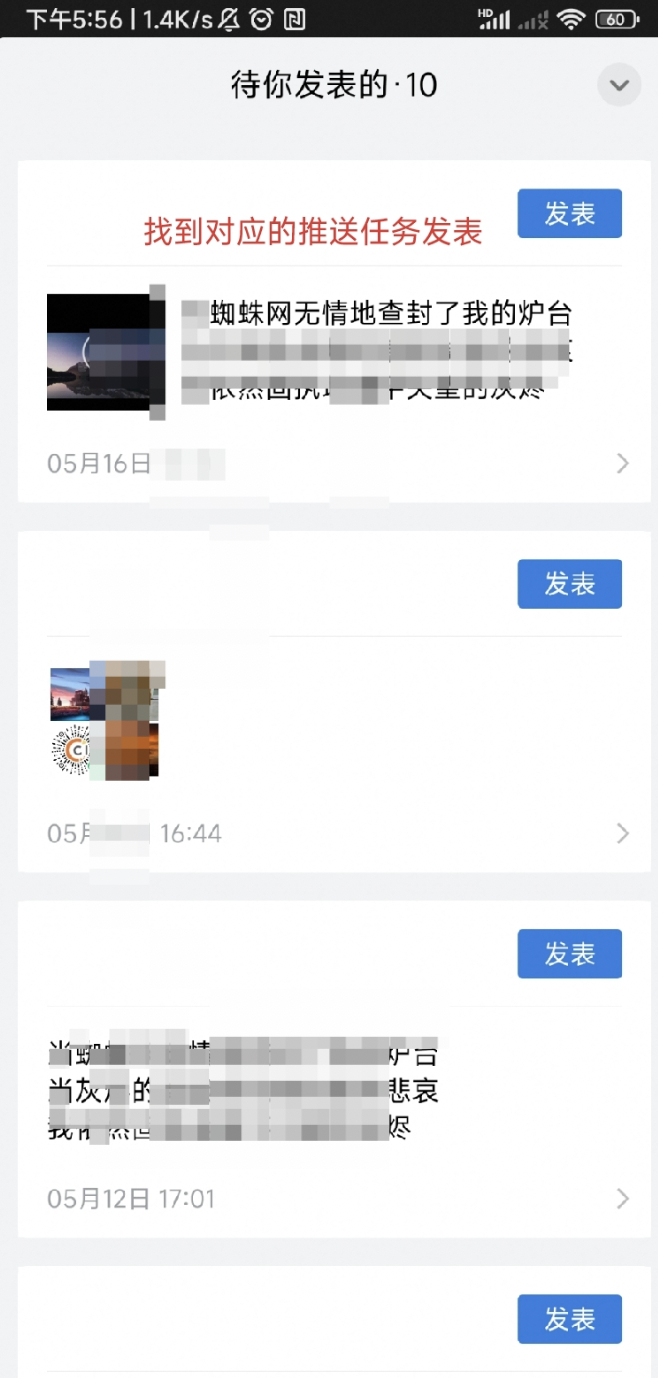
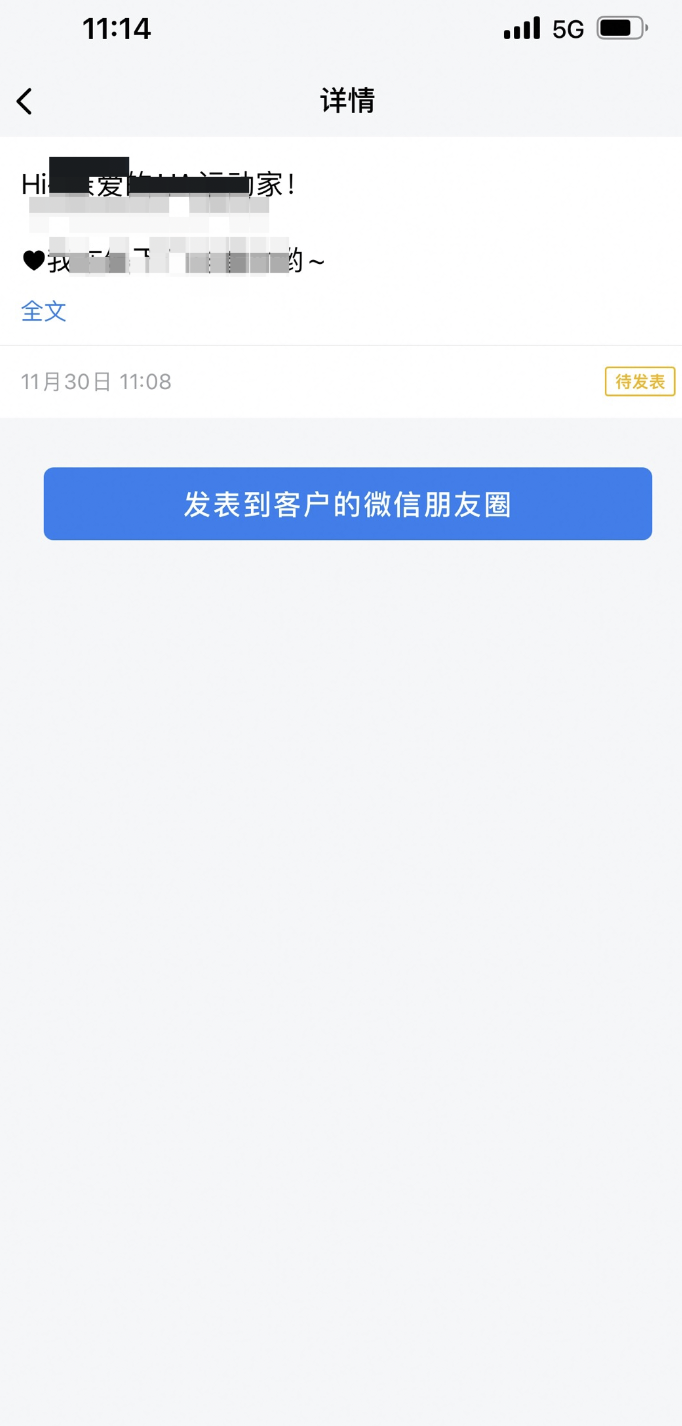
Sales guide display: Select Customer Moments → Click Publish → The content is published to the customer's WeChat Moments.