Manage tables
This document describes the table list, table properties, and table data.
Table list
After you log on to a database and open the SQL development window, you can click the Tables tab in the navigation pane on the left to view the table list. The table list shows the tables in the current database connection. From the list, you can view a table's structure tree or right-click a table to perform management operations.
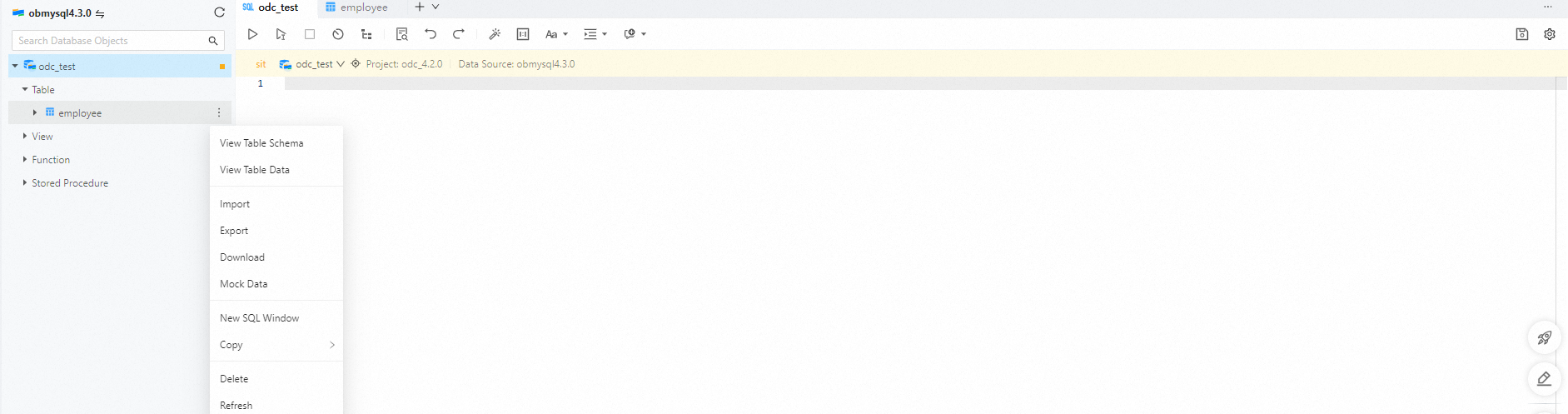
Structure tree
As shown in the preceding figure, you can click the arrow next to a table name in the table list to display its structure tree. The structure tree of a table has up to three levels. You can right-click an item at any level of the structure tree to view the available management operations for that item.
Management operations
By default, tables in the table list are sorted in ascending order by the first character of their names. When you right-click an item in the structure tree, ODC provides several operations in the context menu to manage the object. The following table describes these management operations.
Operation | Description |
View Table Structure | Opens the table properties tab to view all basic information, columns, indexes, constraints, and Data Definition Language (DDL) statements for the table. |
View Table Data | Opens the table data tab to view the data in the table. |
Import | Imports data into the current table. |
Export | Exports data from the current table. |
Download | Downloads the SQL file for the table object. |
Analog data | Opens the Simulate Data panel. |
Copy | Copies the table name, or a Select, Insert, Update, or Delete statement. |
Delete | Deletes the current table object. |
Refresh | After you perform management operations on the current table object, refresh the structure tree to display the latest information. |
Manage table properties
In the navigation pane on the left of the SQL development window, you can double-click a table name in the table list to open the table management page. Alternatively, you can click the More icon next to the table name and select View Table Structure.
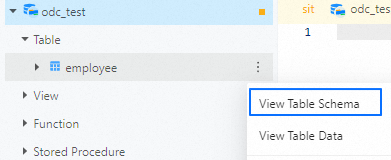
Basic information
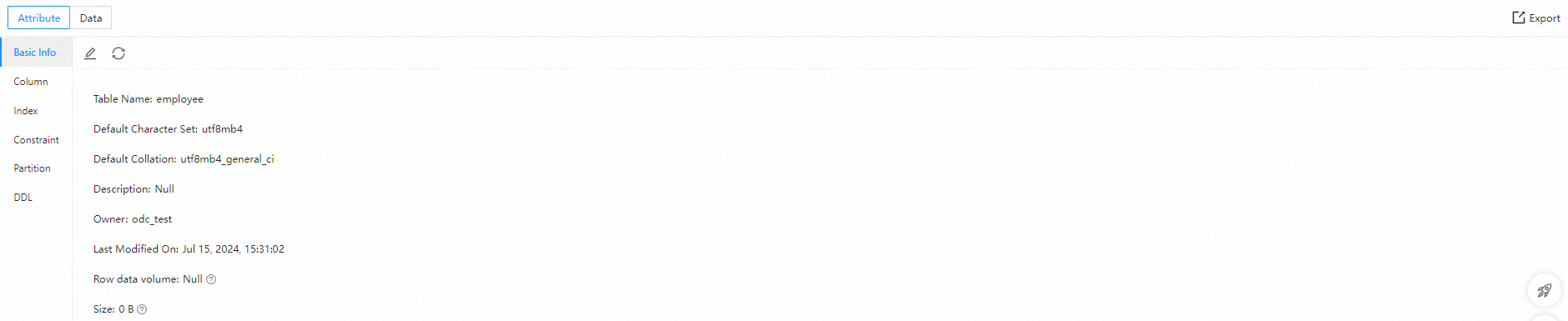
On the Properties tab, you can click Basic Information in the navigation pane on the left to view the basic information of the current table:
Item | Description |
Table Name | The name of the current table. You can also modify the table name here. |
Default Character Set | The character set used by the current table. |
Default Collation | The collation used by the current table. |
Description | The description added when the table was created. You can also modify the description here. |
Owner | The database where the table object resides. |
Last Modified | The date when the table properties were last modified. |
Row Count | The number of rows. |
Size | The size of the data. |
Column information
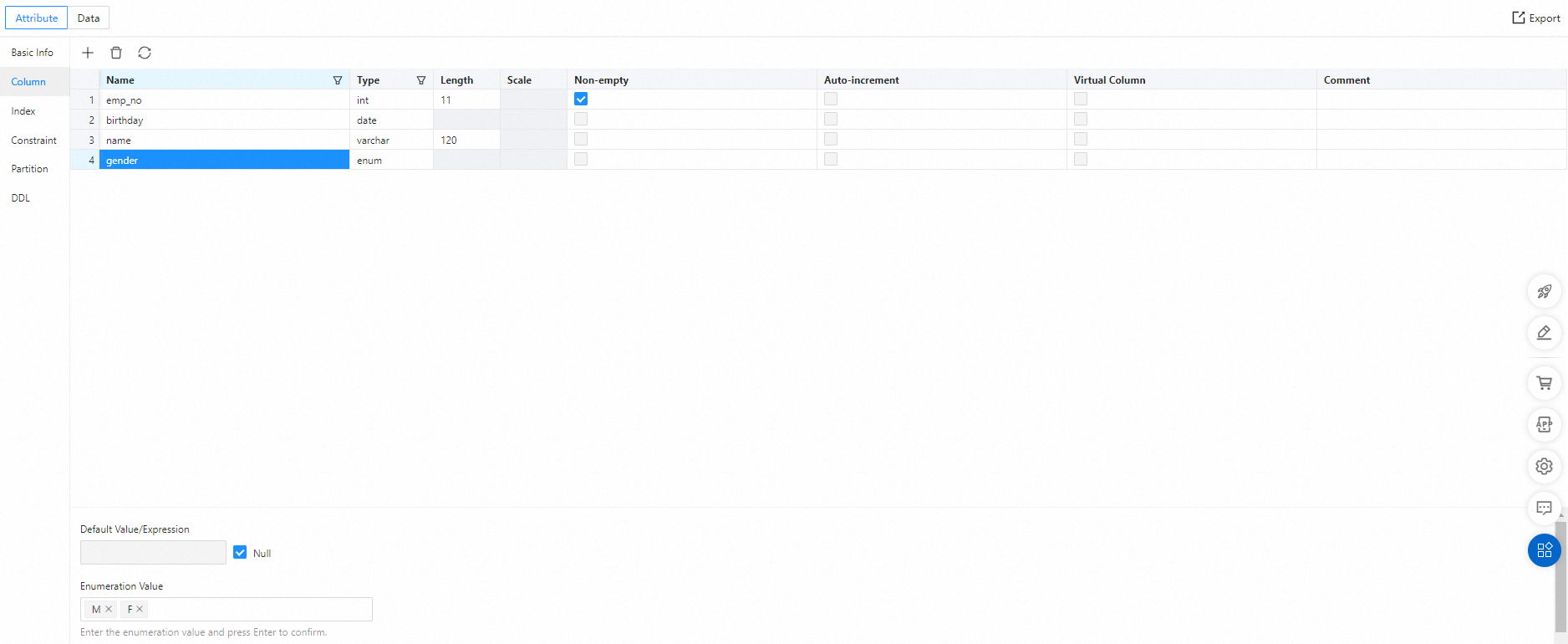
On the Properties tab, you can click the Columns tab in the navigation pane on the left to view the columns in the current table. On the Columns tab, you can modify the Name, Length, Not Null, and Comment properties.
Item | Description |
Name | The name of the field (column). |
Type | The data type of the field (column). For more information about data types, see OceanBase Database Reference Guide. |
Length | The length of the data type. |
Decimal Places | You can set the type precision. |
Not Null | Specifies whether the field (column) can contain null values. |
Auto-increment (MySQL mode) | Specifies whether the column is an auto-increment column. Important
|
Virtual Column | Specifies whether to create a virtual column. Important
|
Default Value/Expression | The default value or expression for the field (column). |
Comment | A description of the field (column). |
Auto-increment fields are not supported in Oracle mode.
You can change a column from NOT NULL to allow null values, but you cannot change a column that allows null values to NOT NULL.
If a table does not have an auto-increment field, you can only designate a new column as the auto-increment column.
The Default Value and Auto-increment properties are mutually exclusive. You can only modify the default value for a column that is not a virtual column. After a default value is set, it cannot be removed.
You cannot modify existing virtual columns. You can set a new column as a virtual column.
Index information

On the Properties tab, you can click the Indexes tab in the navigation pane on the left to view the indexes in the current table.
On the Indexes tab, you can modify the Index Name and Invisible properties.
ODC V4.2.2 and later lets you check whether an index is active. If an alert icon appears next to the index name, the index is not active.
Item | Description |
Index Name | The name of the index. |
Scope | The default value is GLOBAL. Supported values are GLOBAL (global index) and LOCAL (local index). |
Method | The default value is BTREE (for global indexes). Supported values are None, BTREE, and HASH.
|
Index Type | The default value is NORMAL. Supported values are NORMAL, UNIQUE, and FULLTEXT.
|
Columns | The columns included in the index. Note the order of the index columns. |
Invisible | Specifies whether the index is visible. |
Constraint information

On the Properties tab, you can click the Constraints tab in the navigation pane on the left to view the constraints in the current table.
On the Constraints tab, you can add or delete UNIQUE constraints and CHECK constraints. You cannot modify existing constraints.
Item | Description |
Constraint Name | The name of the constraint. |
Column Information | Select a field or a group of fields for the constraint. |
Associated Schema (Oracle mode) | When you use a foreign key constraint, specify the schema where the referenced table (parent table) resides. |
Associated Database (MySQL mode) | When you use a foreign key constraint, specify the database where the referenced table (parent table) resides. |
Associated Table | When you use a foreign key constraint, specify the referenced table (parent table). |
Associated Field | When you use a foreign key constraint, specify the referenced field (in the parent table). |
Delete | The action to perform on the current table (child table) when data is deleted from the referenced table (parent table). You can specify one of four actions: CASCADE, NO ACTION, RESTRICT, and SET NULL. The supported foreign key actions differ between MySQL and Oracle modes:
|
Update | The action to perform on the current table (child table) when data is updated in the referenced table (parent table). You can specify one of four actions: CASCADE, NO ACTION, RESTRICT, and SET NULL. The supported foreign key actions differ between MySQL and Oracle modes:
Important OceanBase does not currently support the SET NULL action. For more information about the syntax, see the official OceanBase, MySQL, or Oracle documentation. |
Check Condition | The rule for validating data when the CHECK constraint is enforced. |
The available operations vary by constraint type. If an operation is unavailable or grayed out in the navigation bar, it is not supported for that constraint type.
Foreign key constraints: In OceanBase Database in Oracle mode, you can query foreign keys from
all_constraints. In OceanBase Database in MySQL mode, you can query foreign keys from information_schema.key_column_usage in OBServer V2.2.6 and later.The CHECK constraint feature is supported only in OceanBase Database in Oracle mode.
Partition information

Because partitions are defined differently in MySQL and Oracle modes, the meaning of the following information varies slightly between modes. You must specify the following information based on the definitions for your selected partitioning method:
Item | Description |
Partitioning Method | The partitioning method. The supported methods differ between MySQL and Oracle modes.
For more information about partitioning methods, see Partitioned tables in OceanBase Database. |
Field | The field to use as the partitioning key. |
Expression | Partitions data based on the return value of an expression. Partition filter expressions are not supported in Oracle mode. |
Partitions | Depending on the selected Partitioning Method, you may need to specify information such as Partition Name, Number of Partitions, Upper Bound, or Value List. You can add multiple partitions and drag the selected fields to sort them. |
DDL information

On the Properties tab, you can click the DDL tab in the navigation pane on the left to view the Data Definition Language (DDL) statement for the current table. This is the SQL statement that defines the table. You cannot edit it.
Manage table data
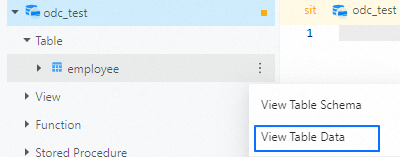
In the navigation pane on the left of the SQL development window, you can double-click a table name in the table list to open the table management page. Alternatively, you can click the More icon next to the table name and select View Table Data.

On the View Table Data tab, you can view, add, modify, and delete data in the current table.
For more information about how to edit data, see Edit and export results.
ImportantODC shares sessions, and each connection has only one session. In Oracle mode, autocommit is disabled by default in ODC V2.3.2 and later. Therefore, you must manually commit transactions. You can change the value of the autocommit variable on the Global Variables page. For more information, see Session management.

For more information about the toolbar functions on the table properties and data pages, see Introduction to common features.