Edit and export results
Background information
After you edit and execute SQL statements in the ODC SQL window, you can view, edit, and export the execution results on the result tab.
This topic uses an OceanBase MySQL table as an example to show how to insert data into the employee table on the result set tab.
The data used in this topic is for demonstration purposes only. You must replace it with your actual data.
Edit a result set
In the SQL window, edit and execute an SQL statement to query data from the
employeetable.SELECT `emp_no`, `birthday`, `name` FROM `odc_test`.`employee`;As shown in the preceding figure, click the edit icon on the result tab to edit the result set.
The navigation bar on the result tab provides the following tools:
Tool
Description
Edit
Click the Edit button to enable editing for the current result set. In edit mode, you can perform operations such as Add Row, Delete, Copy Current Row, Cancel, Confirm Changes (if autocommit is enabled, clicking this button automatically commits the transaction), and Modify and Submit (this button appears if autocommit is disabled). You can also double-click the target data to modify it directly or use the operation buttons for quick actions. In edit mode, right-click a cell to open a menu with the Copy and Set to Null options.
NoteThe pre-check feature determines whether a result set is editable. It retrieves ResultMetaData information during SQL execution to synchronously check editability when the results are returned:
If the result set is not editable, the Edit button is hidden, and a message indicates that the result set cannot be edited.
If the result set is editable, the Edit button is clickable, allowing you to enter the result set editing page. Editable scenarios include single-table or single-view queries.
Editing result sets that contain SET or ENUM types is not currently supported.
Plan
View the actual resource consumption and execution plan for the current SQL statement to quickly assess its performance.
Full-link Trace
View the full-link trace details for the current SQL statement. Full-link diagnostics help you quickly identify the execution duration of SQL statements or transactions at each node to locate abnormalities.
NoteOnly OceanBase V4.1.0 and later versions support viewing full-link traces.
Go to First Page
Go to page 1.
Previous Page
You can scroll up.
Next Page
Go to the next page.
Jump to bottom
Go to the last page.
Search
Enter a keyword in the search box to find the desired results.
Download Data
Export the query results.
Column Management
Filter the columns displayed on the page.
Column Mode
Display a selected row of data in a table format. On the Column Mode page, you can switch between the previous and next rows. Column Mode is useful for viewing row data, especially when there are many columns. Follow these steps:
Select the data to view and click the Column Mode
 button.
On the Column Mode page that appears, click the left and right buttons to view the values of the previous and next rows.
Move the mouse pointer over a value field and click the zoom icon
 to view the details of that column field.
In the Column Mode list, you can view the corresponding column comments from the table in the Remarks section. To modify the remarks, follow these steps:
In the table list in the navigation pane on the left, right-click the target table and select View Table Schema to go to the table property management tab.
In the navigation pane on the left of the Properties tab, click the Columns tab.
Select a field name and click the edit icon to open the Edit Field window.
In the Field Comment box, enter a comment and click OK.
In the SQL Confirmation window, click Execute to complete the modification.
The modified remark is then displayed in Column Mode.
ImportantWhen you edit a result set, you cannot edit query results that contain SET or ENUM field types.
Click + to add a row and edit the data.

Click Modify and Submit.
NoteThe current connection uses a shared session. The commit operation affects all windows.
In the SQL Confirmation window, click Execute to confirm the SQL statement.
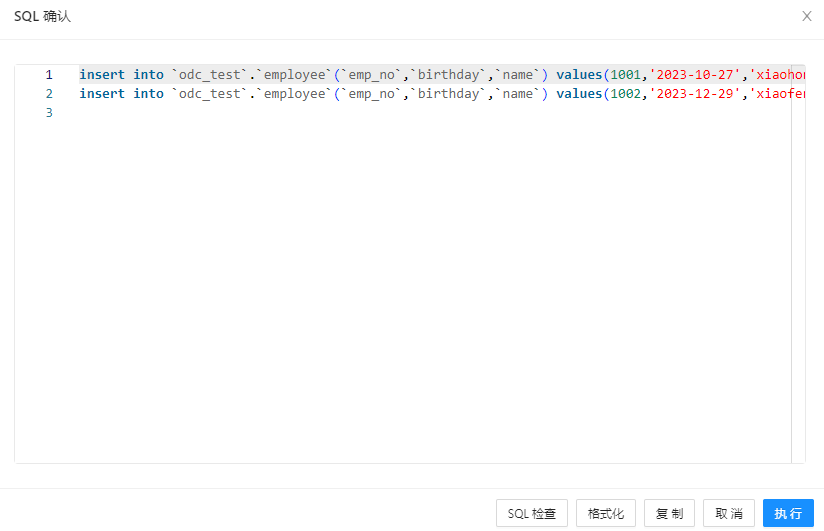
The edited data is added to the result tab.

The result set displayed on the result tab supports the following interactive operations to facilitate daily development tasks:
Operation
Description
Select a target range with the mouse
In the returned result set, you can select a target range with the mouse and use a keyboard shortcut to copy it to an external file. You can click a field name or row number to select an entire row or column. You can also use the Export tool in the toolbar to export the data in the result set to a local file.
Select multiple rows or columns
Press the Shift key to select multiple consecutive rows or columns.
Press the Ctrl/Command key to select multiple non-consecutive rows or columns.
Right-click a cell
This provides the Copy and Output to Clipboard functions to copy data directly to an external file.
Right-click a row number
This provides the Copy Row, Freeze This Row, Unfreeze All Rows, and Output to Clipboard functions.
Copy Row: Copies the selected row.
Freeze This Row: Pins the selected row to the top and freezes it. The content below the frozen row and the table header can be scrolled vertically. You can freeze multiple rows.
Unfreeze All Rows: Unfreezes all frozen rows.
Output to Clipboard: Outputs the entire row of data to the clipboard in SQL or CSV format.
Zoom icon
If the data in a cell is too long to be fully displayed, you can use the zoom icon to view all the data in the cell:
1. Place the mouse pointer over the target cell.
2. Click the zoom icon
 that appears on the right side of the cell. In the large object display window that appears, you can view all the data in the cell.Note
For large objects, the content is displayed as text by default. You can switch to the hexadecimal view and download the large object content to your local computer.
BLOB large objects
On the result tab:
In Oracle mode, you can directly edit the text content, edit hexadecimal data, and upload files for CLOB, BLOB, and RAW types. The size limits are 2 MB for text, 200 KB for hexadecimal data, and 20 MB for images.
In MySQL mode, you can directly edit the text content, edit hexadecimal data, and upload files for XLOB types such as BLOB, MEDIUMBLOB, and TINYBLOB.
Right-click the tab name of a result tab (such as Result 1)
In the list that appears, click Pin to keep the current result tab displayed. When you execute a new query, the current results are not overwritten. Instead, a new result tab is generated, which makes it easy to compare different query results. Click Unpin to unpin the target result tab.
Filter, sort, and search buttons
Filter, sort, and search buttons are provided after each field name in the result set. You can use these buttons to directly filter, sort, and search the data in a single column.
Drag a column name
You can drag column names directly in the result set to reorder the fields.
Adjust column width
You can drag the column border to adjust the column width.
Display field type and remarks in the status bar
Click a field in the result set. The status bar at the bottom displays specific information about the field, such as its type and remarks.
 that appears on the right side of the cell. In the large object display window that appears, you can view all the data in the cell.
Export a result set
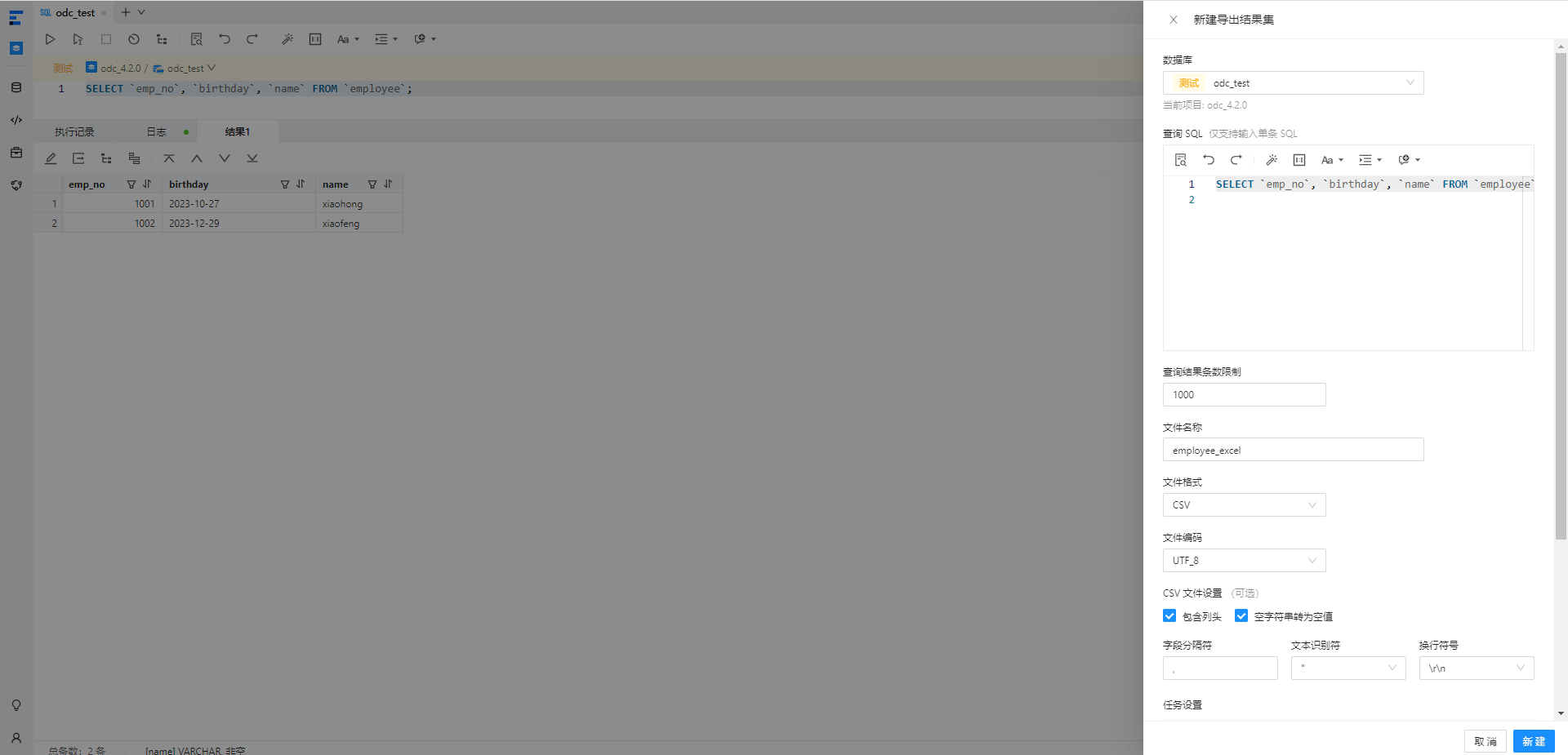
Example: Export the employee table to a local disk in the Excel file format.
On the result set, click
.On the Download Data page, specify the export information and click New.
Item
Description
Query SQL
Edit the SQL query statement to select the data to export.
Query Result Limit
The number of exported data rows is not limited by the query window. You can customize the number of rows to export.
File Name
The name of the exported file.
File Format
Export the query results as a CSV, SQL, or Excel file:
Export as SQL file: Edit the Query SQL statement. Select the Query Result Limit, File Name, File Format (SQL), File Encoding, Data Masking, and SQL File Settings (Table Name).
Export as CSV file: Edit the Query SQL statement. Select the Query Result Limit, File Name, File Format, File Encoding, Data Masking, and CSV Settings (Include Column Header, Convert Empty Strings to Null, Field Separator, Text Identifier, and Line Feed). When you export in CSV format, the file can be opened directly with Excel.
Export as Excel file: Edit the Query SQL statement. Select the Query Result Limit, File Name, File Format, File Encoding, Data Masking, and Excel File Settings (Include Column Header and Export SQL to another Sheet). When you export in Excel format, you can choose whether to include the column header and whether to export the SQL query statement.
File Encoding
Select the file encoding.
Excel File Settings
Confirm whether to include the column header in the exported data and whether to export the SQL to another sheet.
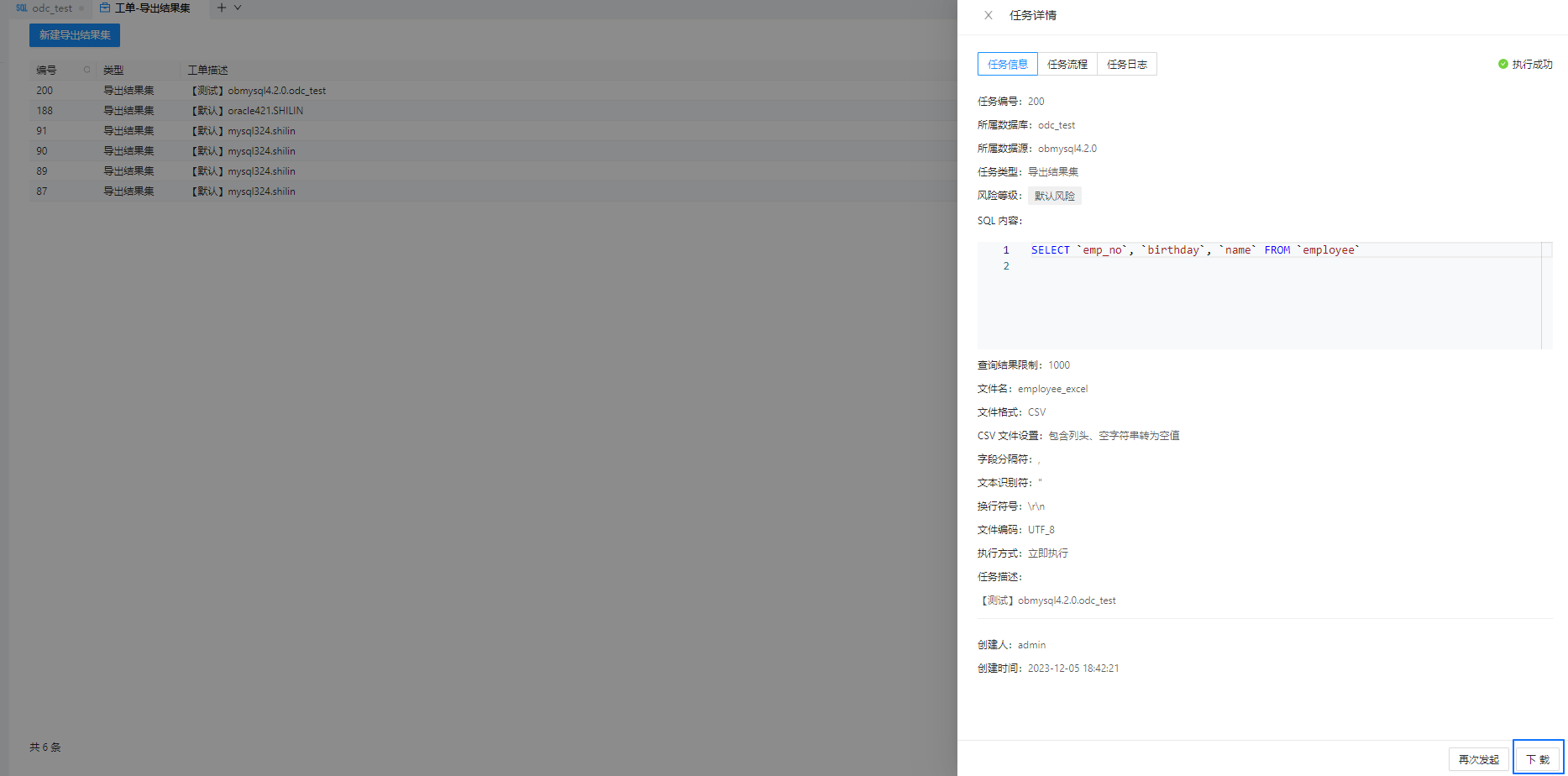
On the Ticket - Export Result Set tab that appears, click View in the Operations column.
On the task details page, click Download.
On your local disk, view the exported employee_excel file.
 .
.